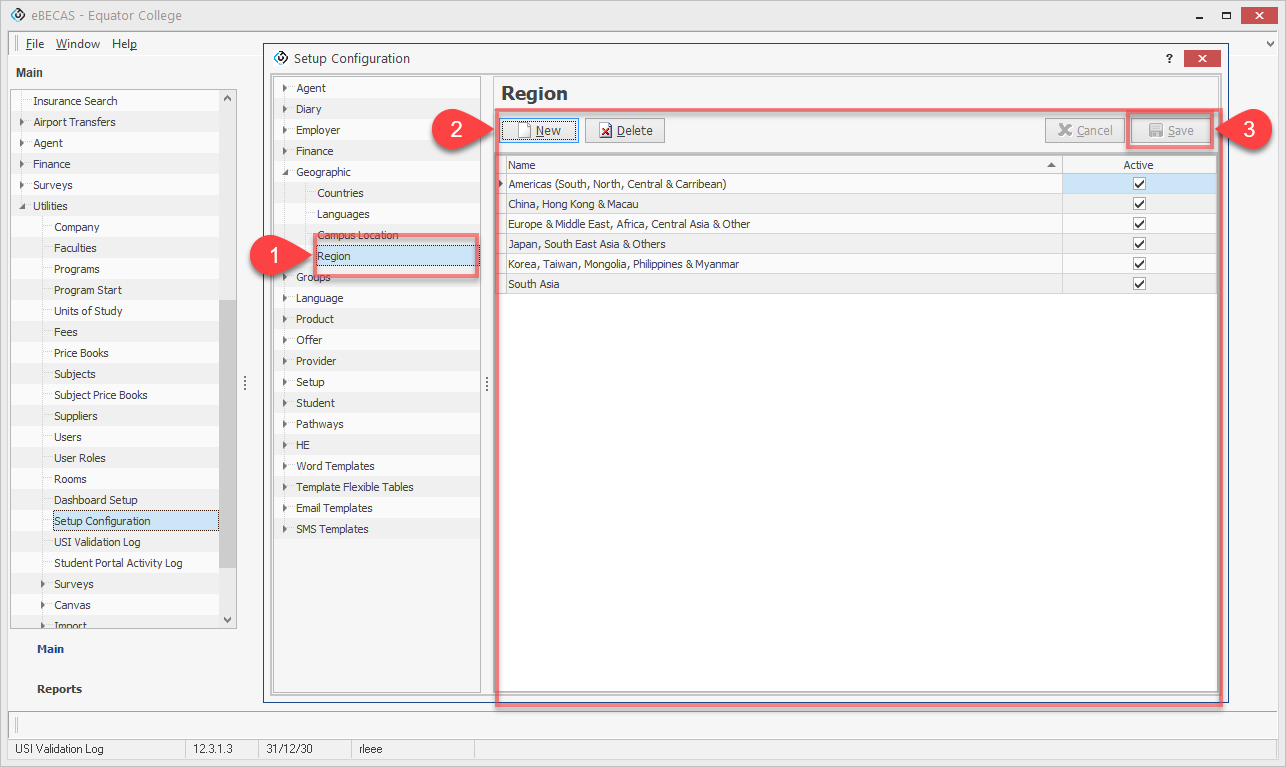
Countries
-
Go to Main – Utilities – Setup Configuration – Geographic – Countries.
-
You can perform the following tasks:
-
Create: Click the New button to add a new country.
-
Update: Click on an existing country in the data grid to modify or select updated details.
-
Delete: Select an existing country and click the Delete button to remove it.
-
Replace: Select an existing country, click the Replace button, and choose the replacement country from the list.
-
-
After completing the necessary changes, click Save to apply your updates.
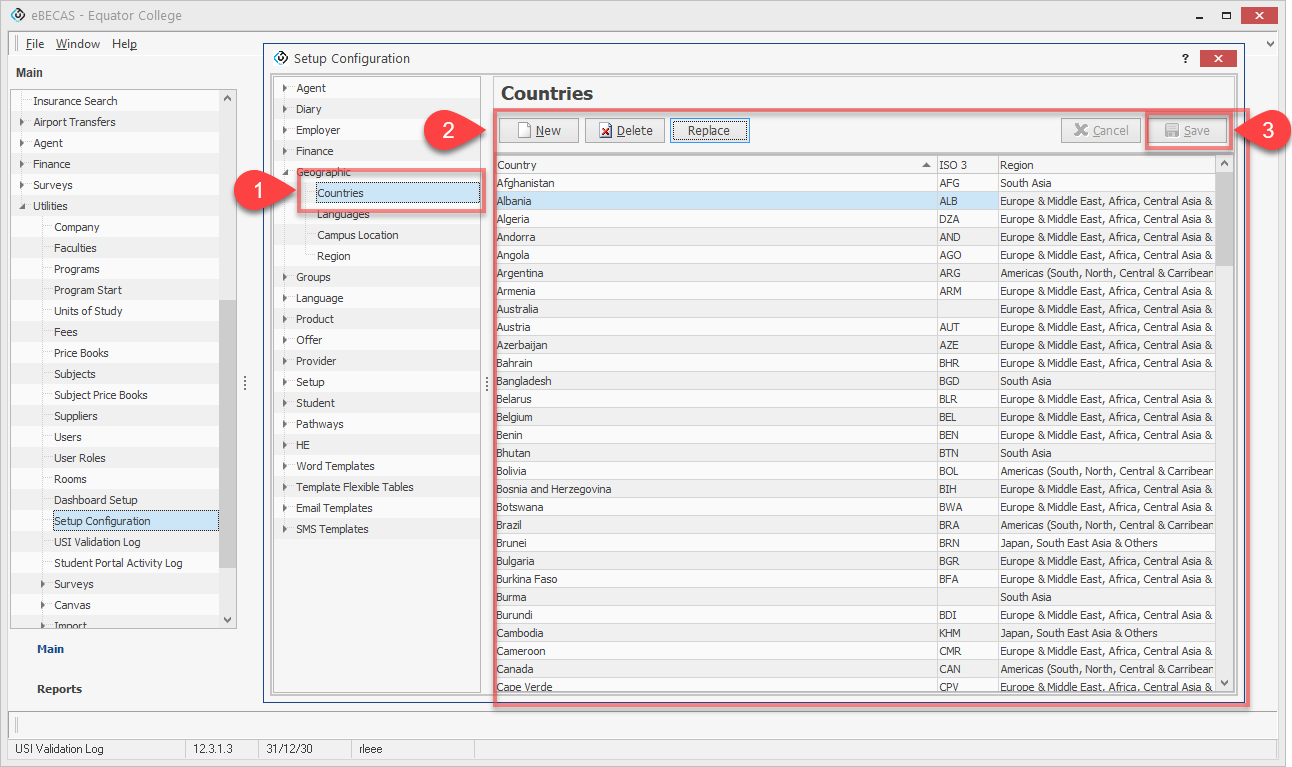
Languages
-
Go to Main – Utilities – Setup Configuration – Geographic – Languages.
-
You can perform the following tasks:
-
Create: Click the New button to add a new language.
-
Update: Click on an existing language in the data grid to modify or select updated details.
-
Delete: Select an existing language and click the Delete button to remove it.
-
-
After completing the necessary changes, click Save to apply your updates.
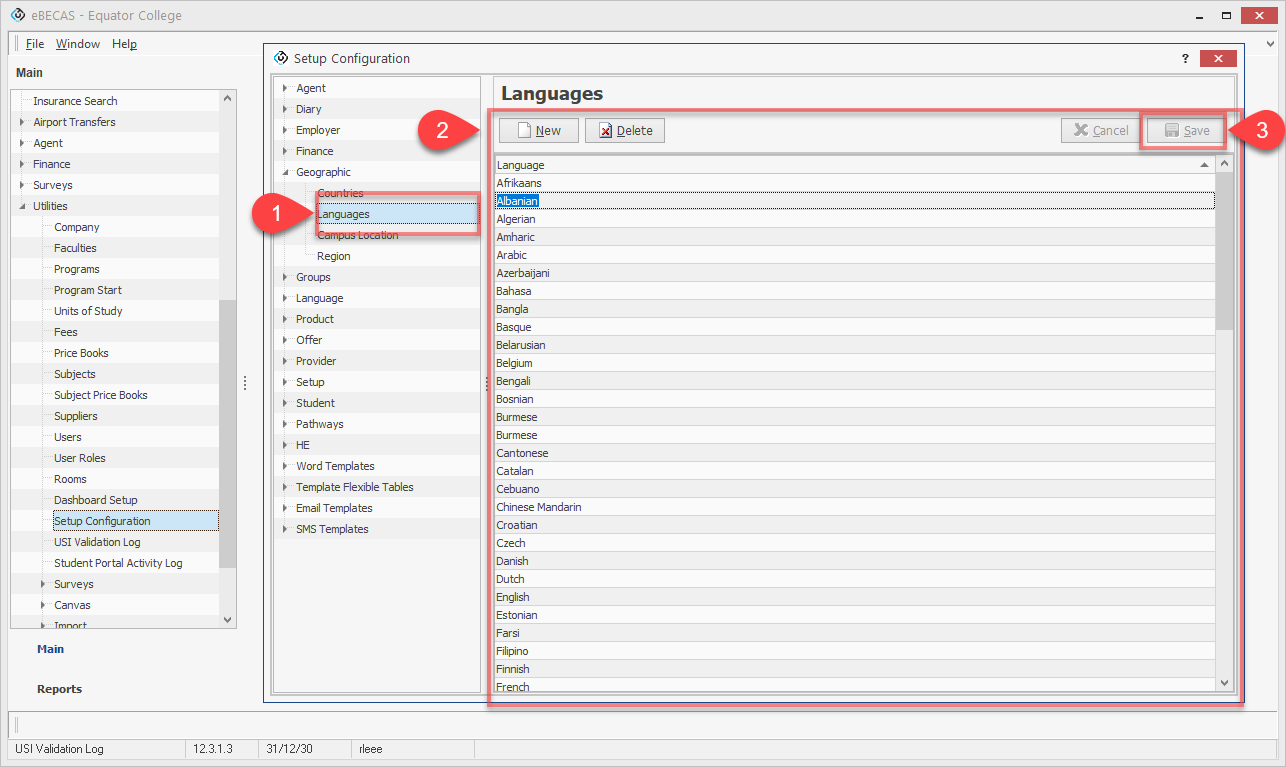
Campus Locations
The location is used to tie a faculty (group of course/programs) to a campus. The location is also used to separate the homestay/accommodation providers. If you have 2 separate campuses in the same city, DO NOT enter separate locations as you will want to use the same accommodation providers for both campuses. In this instance create 2 faculties with the same geographic location with the faculty named separately to specify campus.
-
Go to Main – Utilities – Setup Configuration – Geographic – Location
-
You can perform the following tasks:
-
Create: Click the New button to add a new campus location.
-
Update: Click on an existing campus location in the data grid to modify a detail.
-
Delete: Select an existing campus location and click the Delete button to remove it.
-
-
After completing the necessary changes, click Save to apply your updates.
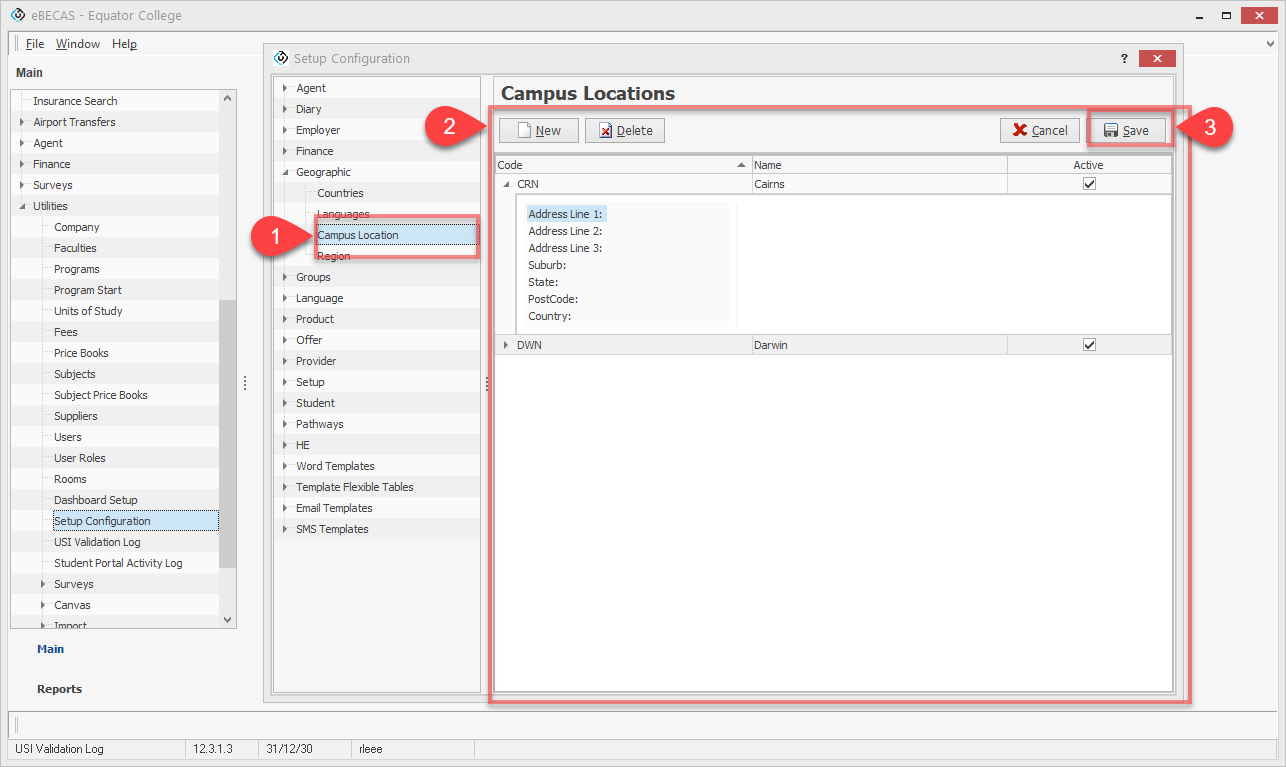
Region
-
Go to Main – Utilities – Setup Configuration – Geographic – Region.
-
You can perform the following tasks:
-
Create: Click the New button to add a new region.
-
Update: Click on an existing region in the data grid to modify a detail.
-
Delete: Select an existing region and click the Delete button to remove it.
-
-
After completing the necessary changes, click Save to apply your updates.