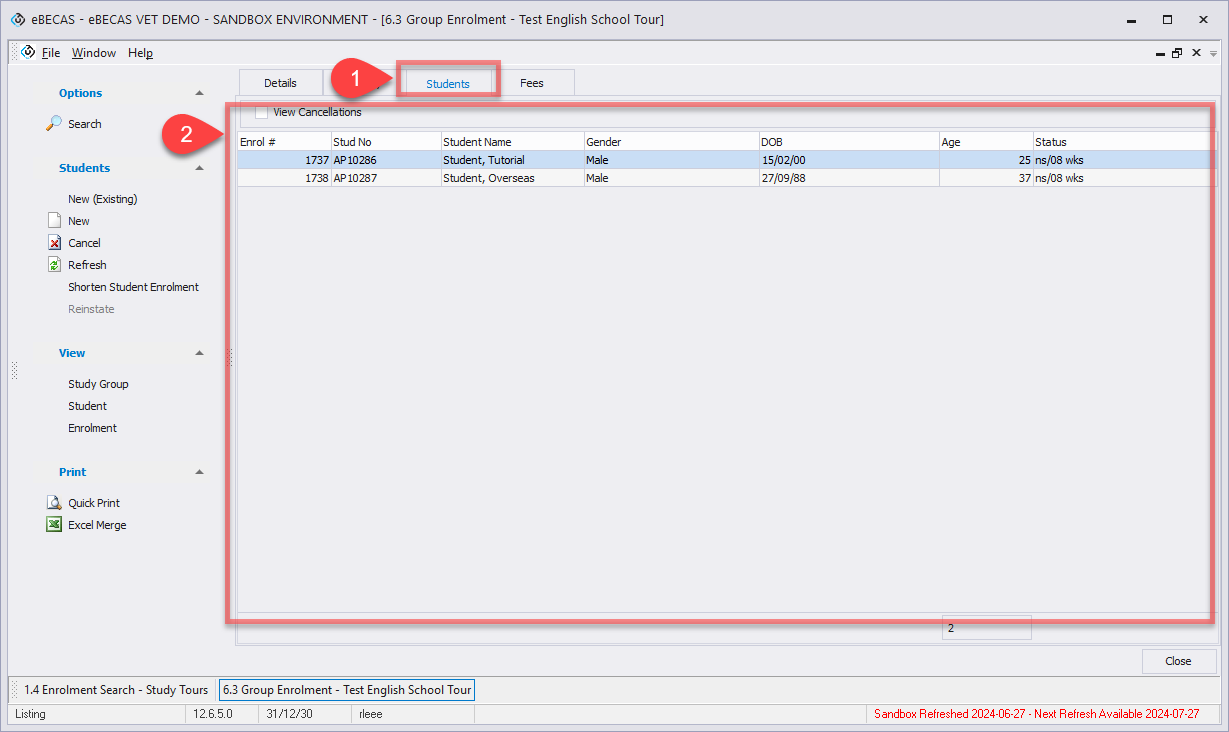
The Students tab within a Study Tour enrolment allows you to view and manage all students linked to the Study Tour enrolment, along with their individual enrolments.
From this tab, you can review student list, access individual student enrolments, manage inclusion or exclusion of students, and apply enrolment variations at the student level where required.
View Students in a Study Tour Enrolment
-
Go to the Study Tour enrolment details of interest and click Students tab.
-
The students under the selected Study Tour enrolment will be listed in the grid. By default, students who’s cancelled enrolments are not included. To include them, check the View Cancellations option.
Add Students
Students can be added to a Study Tour enrolment as needed. When a student is added, an individual student-level enrolment is automatically created and linked to the Study Tour enrolment.
To add students to a Study Tour enrolment,
-
From Students tab of the Study Tour enrolment of interest, click on New (Existing) button to add students in the study tour enrolment, or click on New button to create a new student and add it to the study tour enrolment.
-
optional When adding students, you can choose to generate a new invoice for the added students. If required, click Yes in the Create Invoice window and specify the invoice details.
Student Enrolment Variations
Shorten Student Enrolments
Shortening a student enrolment reduces the number of study weeks for a specific student without cancelling their enrolment entirely.
Any fee changes, including refunds or adjustments, must be handled separately. Once the enrolment is shortened, the student will no longer be able to attend classes for the removed weeks.
If any existing Absence entries fall outside of the new enrolment period, they will be automatically removed, and the Attendance Rate will be recalculated based on the updated enrolment period.
To shorten a student enrolment,
-
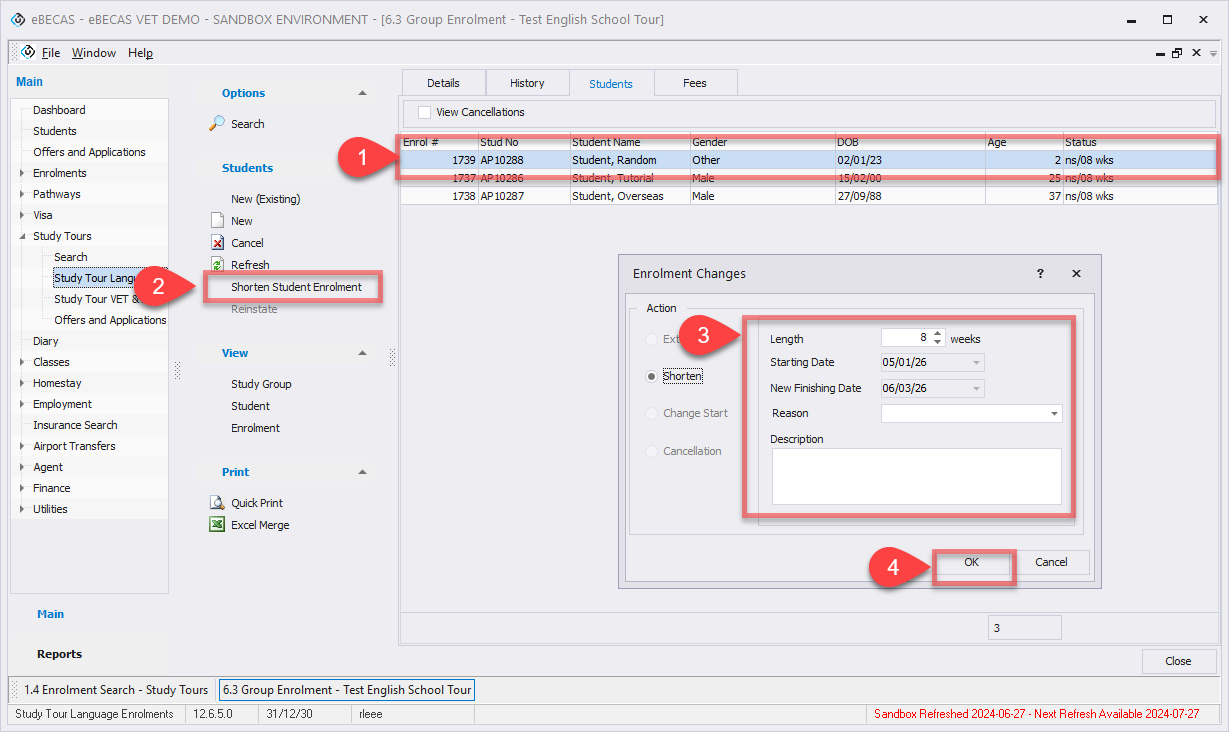
From Students tab of the Study Tour enrolment of interest, click on the student that you’d like to shorten the enrolment.
-
In the side menu, click on Shorten Student Enrolment.
-
Specify the details for the new, shorter enrolment length.
-
Length (Weeks): Enter the new, shorter length of the enrolment in weeks.
-
Starting Date: Displays the original start date of the enrolment.
-
New Finishing Date: Shows the recalculated end date of the enrolment based on the new shortened Length.
-
Reason: Select the reason for shortening the enrolment.
-
Description: Optionally enter a description to provide additional context regarding the enrolment shortening. This can help clarify the reason selected and support future reference or reporting.
-
-
Click on Ok to apply the changes.
Cancel Student Enrolments
Cancelling a student enrolment updates the enrolment status and prevents the student from appearing in classes or being allocated to any class.
Cancelling a student enrolment does not affect other students in the same Study Tour Enrolment.
When cancelling an enrolment, any required fee adjustments must be handled manually. Receipted fees can be refunded, and outstanding fees can be written off if required.
To cancel a student enrolment,
-
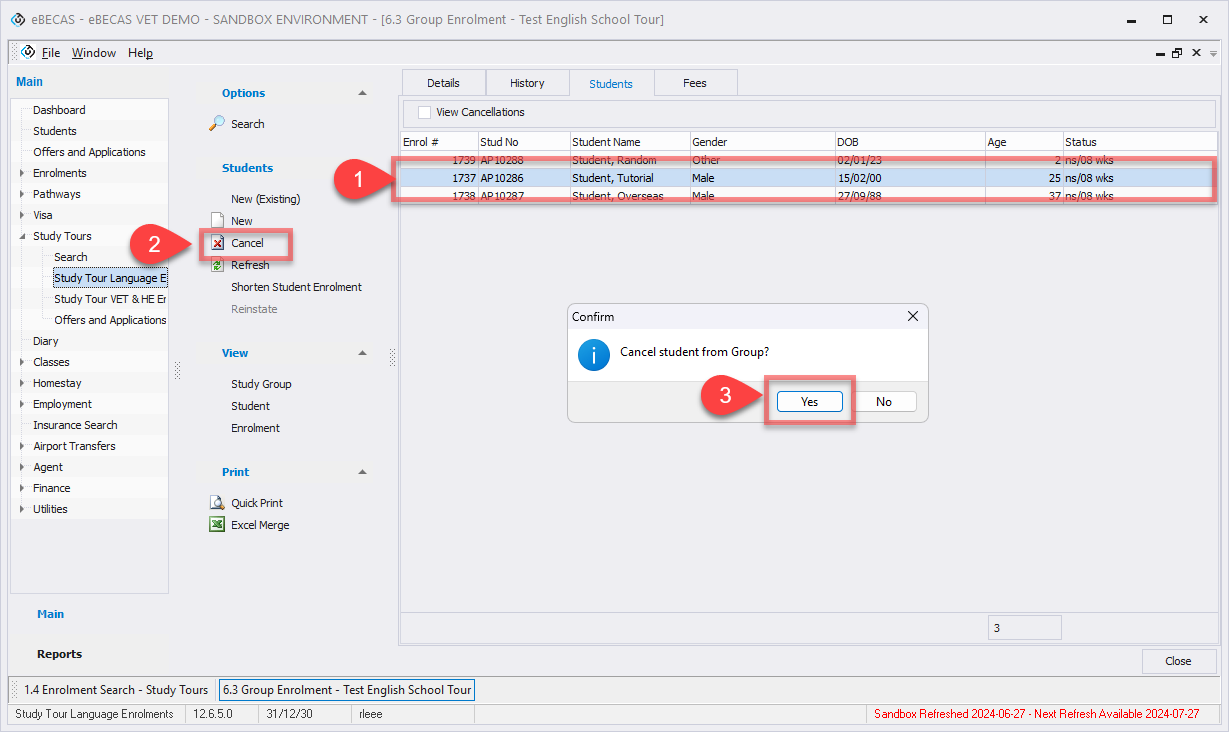
From Students tab of the Study Tour enrolment of interest, click on the student that you’d like to cancel the enrolment.
-
In the side menu, click on Cancel.
-
Confirm to proceed.
Reinstate Student Enrolments
The Reinstate Enrolment variation allows you to re-activate a previously cancelled student enrolment.
Only enrolments with a status of Cancelled can be reinstated.
To reinstate a student enrolment,
-
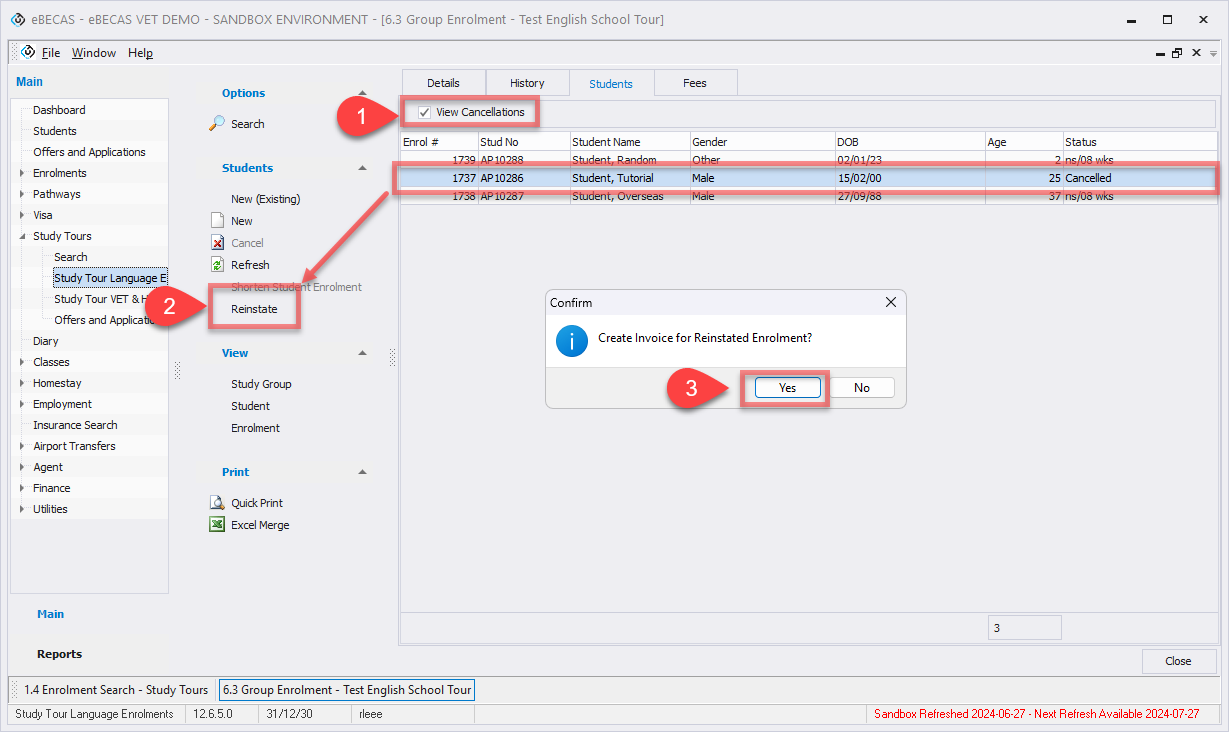
From Students tab of the Study Tour enrolment of interest, select the View Cancellations option to view cancelled student enrolment of the Study Tour enrolment.
-
Select the cancelled student enrolment, and click on Reinstate button in the side menu.
-
optional When reinstating student enrolment, you can choose to generate a new invoice for the reinstated student enrolment. If required, click Yes in the Create Invoice window and specify the invoice details.