Once the invoice has been paid and receipted by the agent or student gross (including agent fees), eBECAS/EDMISS can let you know when your College is due to pay commission back to the agent. These fees that are due back to the agent are only listed once the course fees have been receipted and the enrolment has started.
Payments can be scheduled either for an individual Enrolment, or in bulk.
Schedule Agent Commission Payments for an Enrolment
-
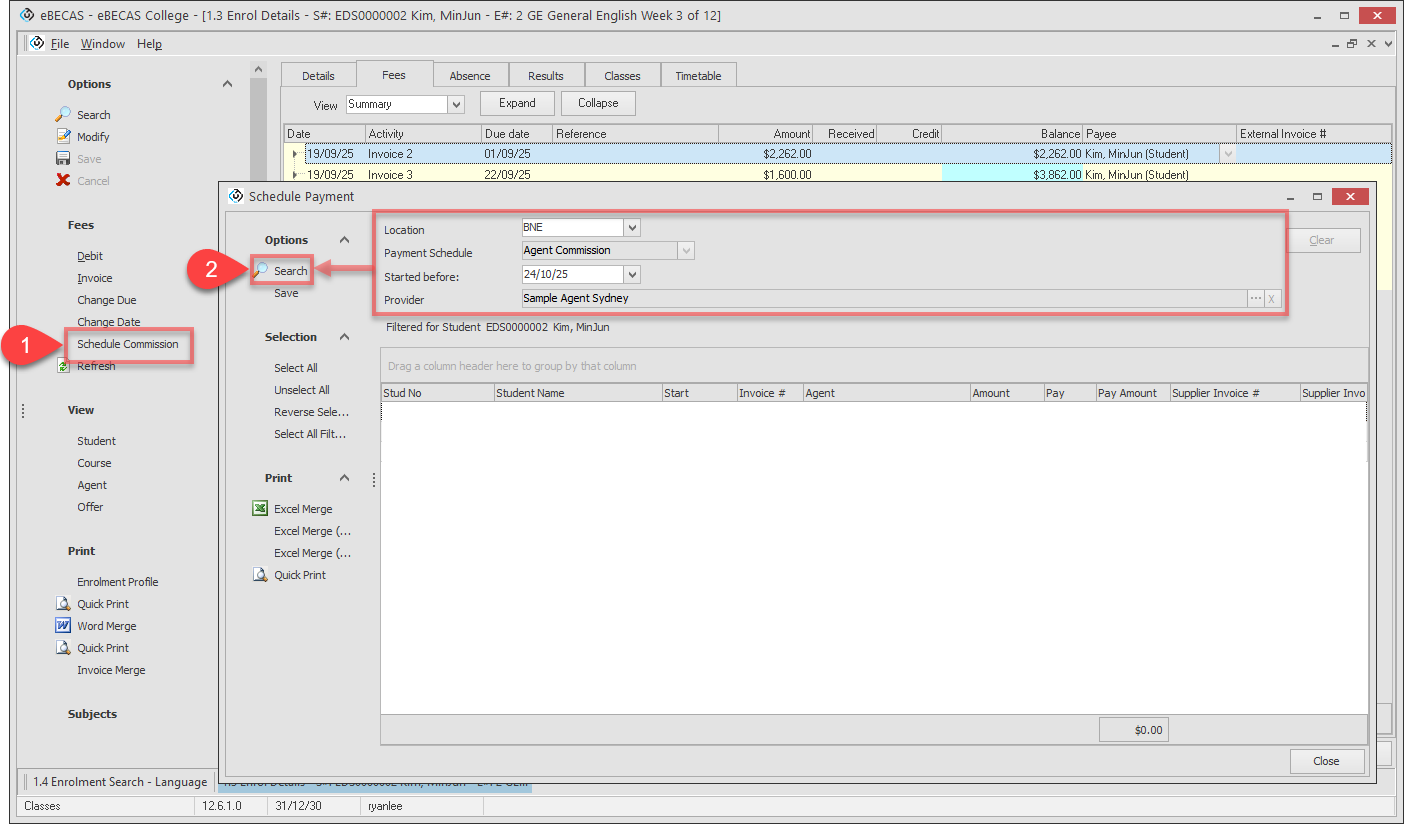
Go to the Fees tab of 1.3 Enrolment Details for the enrolment ready to schedule agent commission payments. Then, click on Schedule Commission in the side menu.
-
Search payments through the side menu with the filters.
Available filters are:-
Location: Include only the payments of the selected location.
-
Started Before: Only payments for enrolments that start on or before the selected date will be included in the results. This filter helps prevent payment for enrolments that have not yet started.
-
-
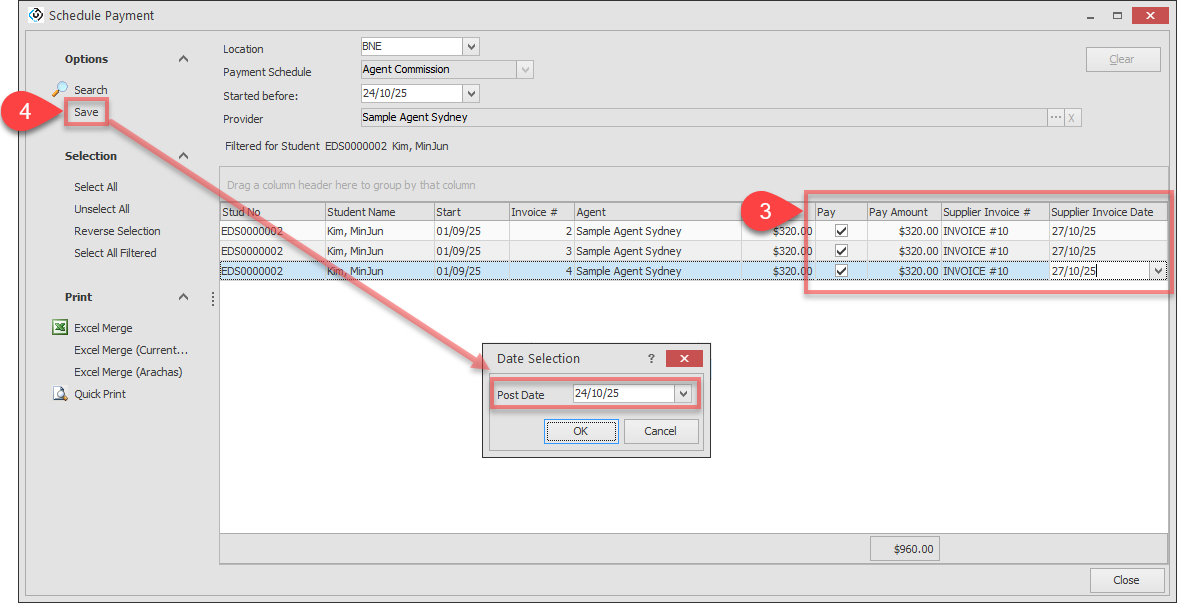
The grid will show each payment ready to be made. Select what you’d like to include in the schedule payment. The Payment Amount can be adjusted to less than the full amount owing if required. If a payment has already been made for this receipt to the agent, the maximum payment amount will be adjusted accordingly.
Optionally, enter a Supplier Invoice Number and Invoice Date (given by the agent) to help identify any agent created invoice the scheduled payment is for. -
Review the selected payment(s) and click Save to create the Schedule Payment. You will be asked to specify a Post Date for the payment. This will default to todays date.
-
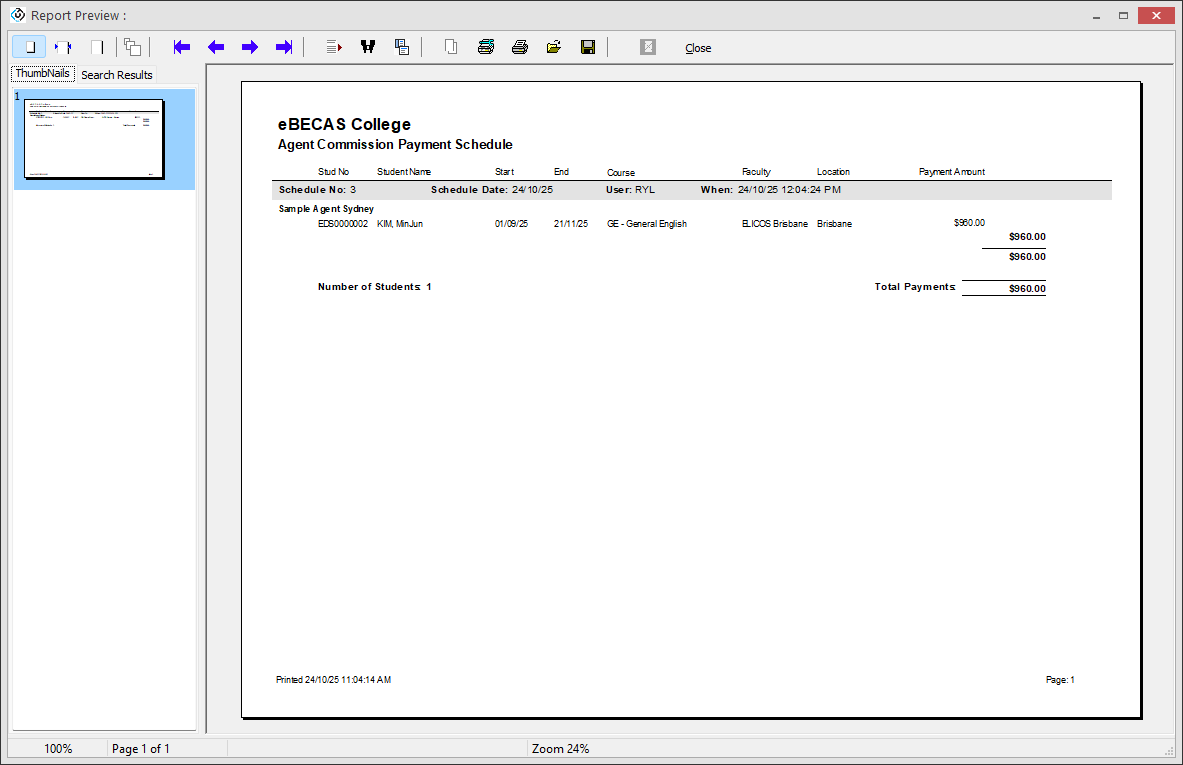
On completion of the process, a report is generated showing the payments made. The receipted agent commission the payment was created for will now not be available for future scheduling.
View Scheduled Agent Commission Payments for an Enrolment
-
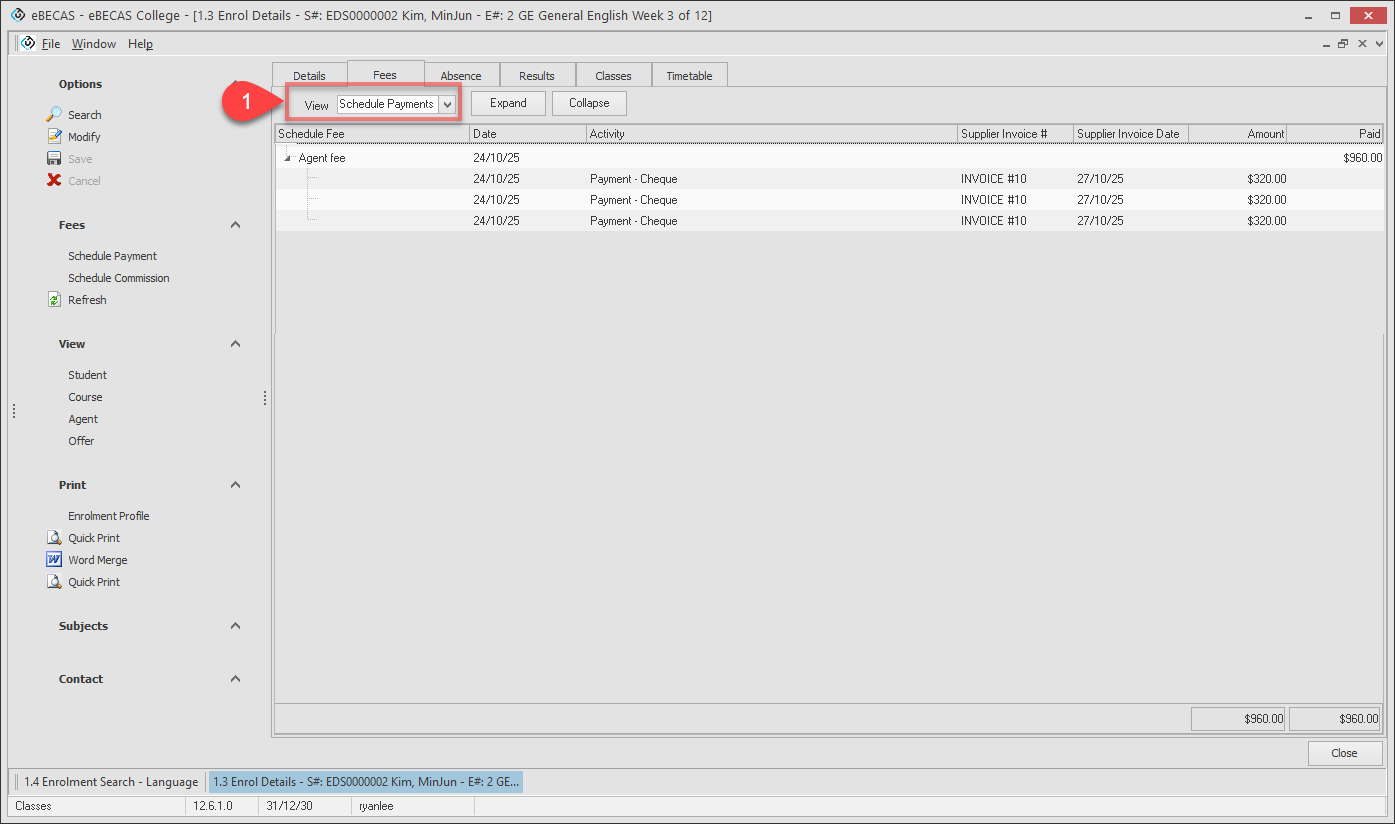
Go to the Fees tab of 1.3 Enrolment Details that you’d like to view scheduled agent commission payments. Then, change the View to Schedule Payments.
-
Scheduled Payments for this enrolment are shown in the grid.
Schedule Agent Commission Payments in Bulk
-
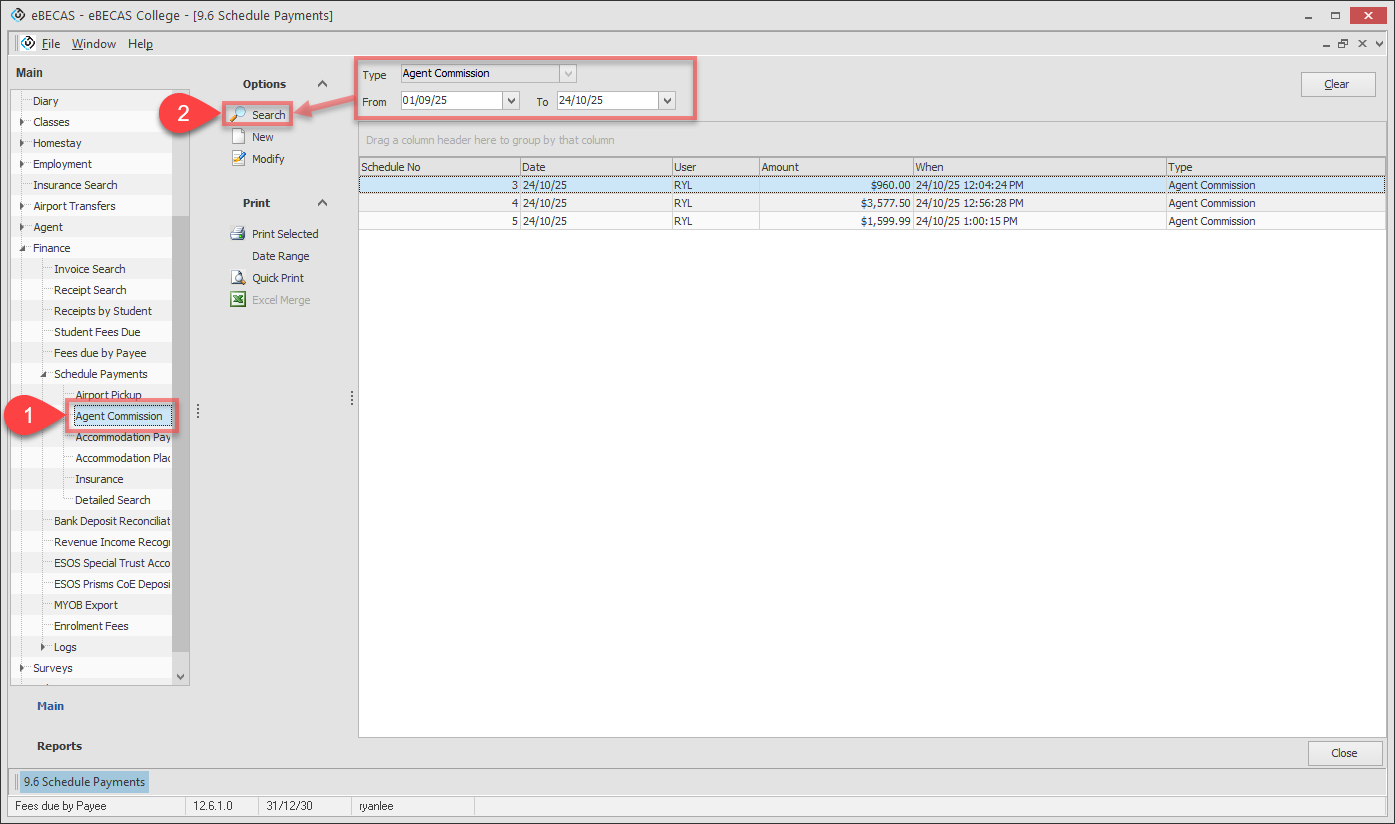
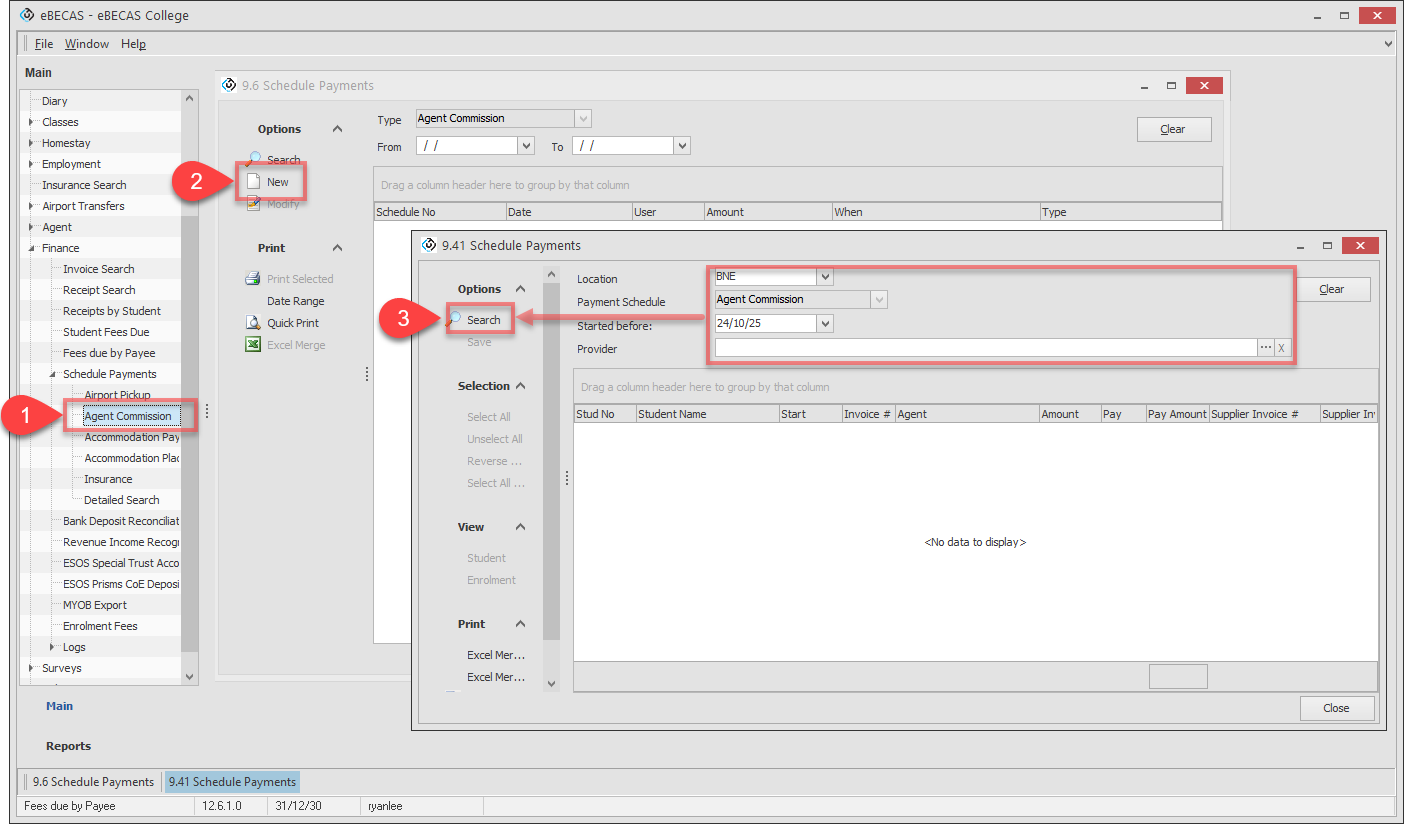
In the Main Menu, go to Finance > Scheduled Payments > Agent Commission.
-
Click New to schedule a new payment. It’ll open 9.41 Schedule Payments. This matches the form used above to schedule agent commission payments for an enrolment, except there are no filters set for the agent or student.
-
Use the filters to find all agent commission payments that are due to be paid to agents, then click Search button. Available filters are:
-
Location: Optional. Include only payments for the selected location. To clear the location filter, press delete.
-
Started Before: Required. The default is todays date. Only payments for enrolments that start on or before the selected date will be included in the results. This filter helps prevent payment for enrolments that have not yet started.
-
Provider: Optional. Include only payments for the selected agent.
-
-
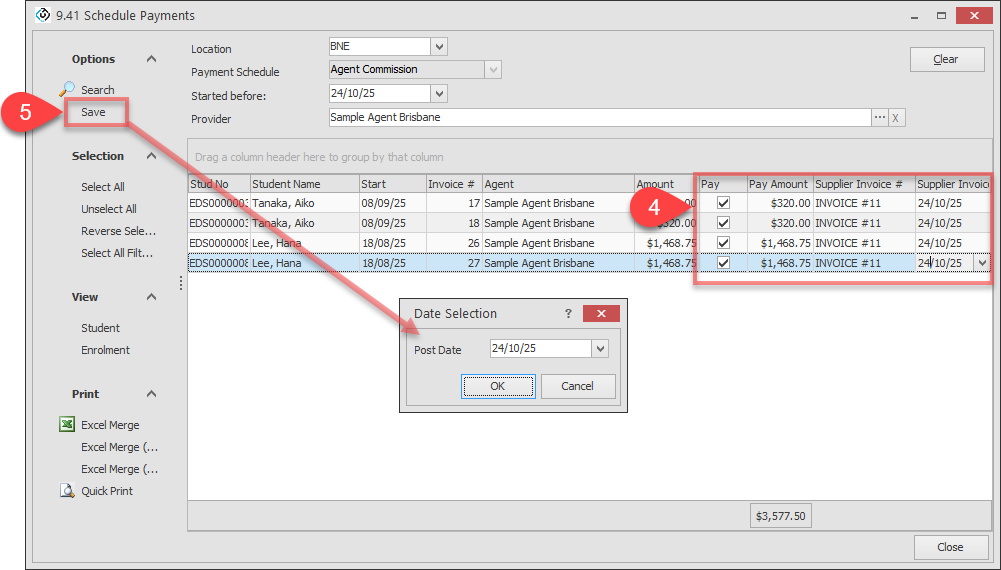
The grid will show each payment ready to be made. Select what you’d like to include in the schedule payment. The Payment Amount can be adjusted to less than the full amount owing if required. If a partial payment has already been made for this receipt to the agent, the maximum payment amount will be adjusted accordingly.
Optionally, enter a Supplier Invoice Number and Invoice Date (given by the agent) to help identify any agent created invoice the scheduled payment is for. -
Review the selected payment(s) and click Save to create the Schedule Payment. You will be asked to specify a Post Date for the payment. This will default to todays date.
-
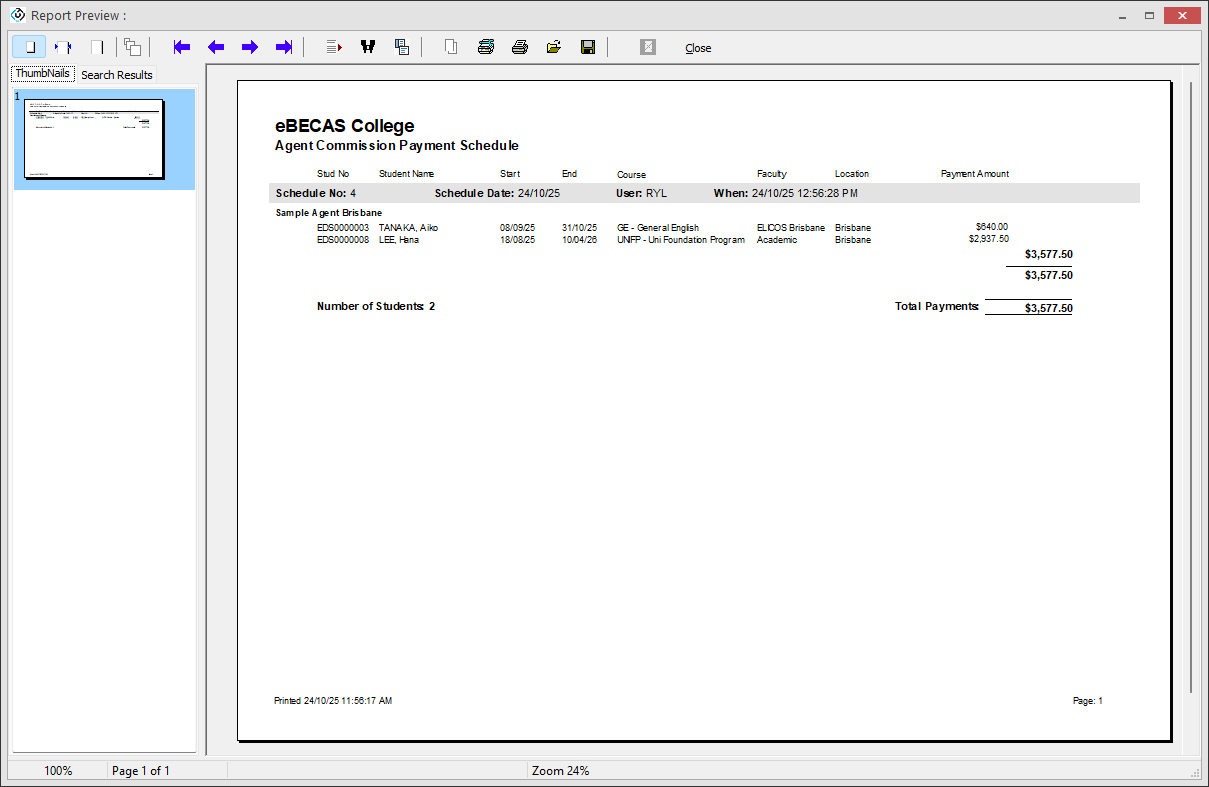
On completion of the process, a report is generated showing the payments made. The receipted agent commission the payment was created for will now not be available for future scheduling.
View Scheduled Agent Commission Payments
When a group of Scheduled payments is created, either for a single student or in bulk, a Scheduled Payment Records is created that groups those payments.
-
In the Main Menu, go to Finance > Scheduled Payments > Agent Commission.
-
Search the records using the filter. Each Schedule has a Schedule Id, the date and user who created the payment, and the total of payments scheduled.
-
Double click or Click Modify to view the specific Payments made for that Schedule.