
To access to Student Portal Settings page, navigate to Main Menu - Settings after login to Portal Administration.
The Main Menu is displayed as a drop down, or if your screen is wide enough, on the top line
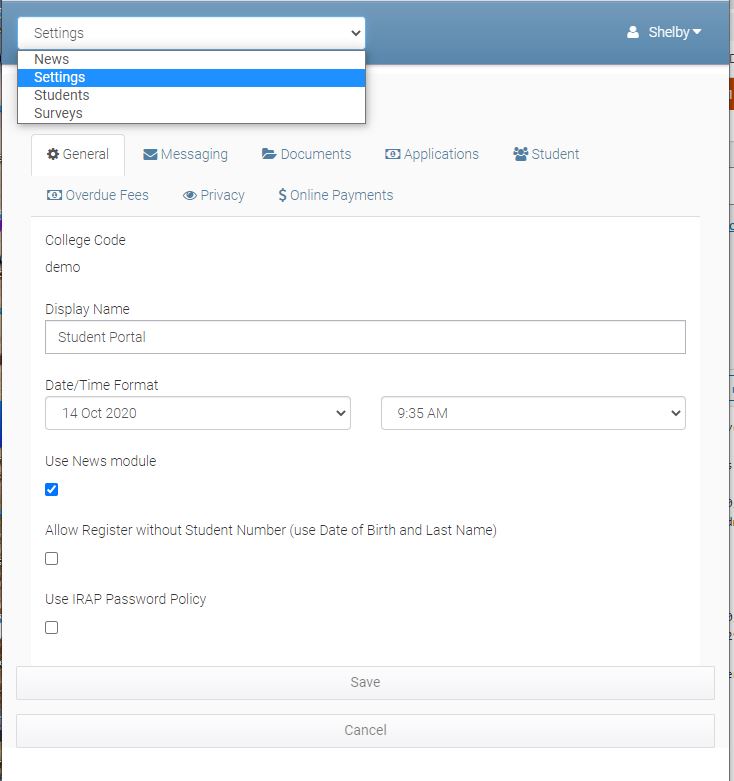
General
Please specify options as appropriate for your College.
-
College Code: This is your college’s code in the system. You can’t modify this code.
-
Display Name: Specify the display name of your College Student Portal.
-
Date/Time Format: Select the date and time display format used in Student Portal.
-
Use News Module: Select this option to enable and show News tab in Student Portal.
-
Allow Register without Student Number (use Date of Birth and Last Name): You can choose to use the student number as specified in eBECAS/EDMISS or allow the student's date of birth and last name name to be used to register the student. When the student registers and the number or name and dob is found, the students email address is sent a generated password that the student must use initially to login to see their information. After logging in the student can change the password they use for the student portal.
-
Use IRAP Password Policy: Enable this option to apply password rules aligned with the Australian Government’s IRAP security guidelines.
Messaging
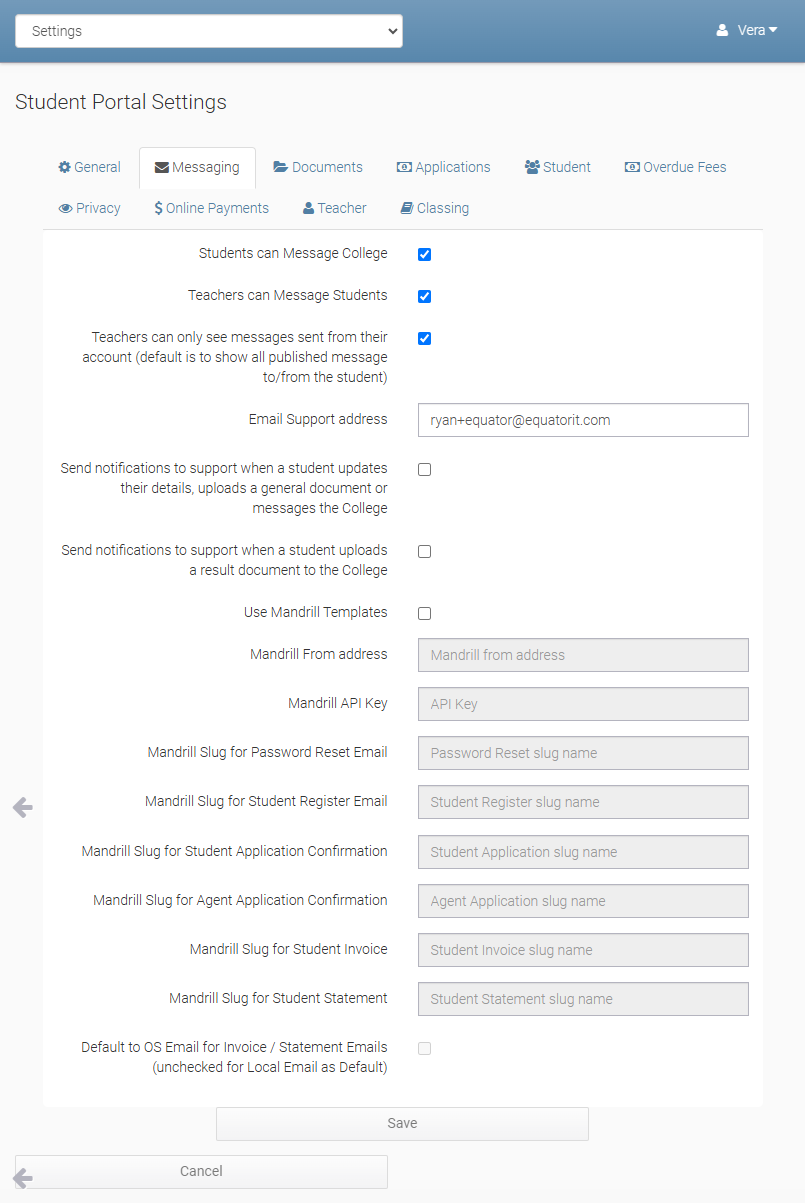
Please enable options as appropriate for your College.
-
Students can Message College: Enables Students to message Administration email for the College from within the Student Portal.
-
Teachers can Message students: Teacher can post messages to the Student Portal and eBECAS/EDMISS from the Teacher Portal.
-
Teachers can only see messages sent from their account (default is to show all published message to/from the student): When this option is enabled, teachers will only be able to view messages exchanged with their account and the respective student.
-
Email Support Address: Please update the email support address to be someone within your College. The messages about problems logging in sent from the Student Portal need to be seen by a College administrator to check the student's email address in eBECAS/EDMISS and if neccessary resend the or reset the student's password from the Administration Portal - Student tab.
-
Send notifications to support when a student updates their details, uploads a general document or messages the College: When this option is enabled, a notification email will be sent to the support email address when a student updates their details, uploads a document through Documents tab, or sends a message to the college through the student portal.
-
Send notifications to support when a student uploads a result document to the College: When this option is enabled, a notification email will be sent to the support email address when a student uploads a document via Results > Assessments.
-
Use Mandrill Templates: The Mandrill Templates option is designed for the soon to be released email response for online applications from Students and Agents. Further details will be supplied when released.
-
Default to OS Email for Invoice / Statement Emails (unchecked for Local Email as Default): Enable this option to send Invoice/Statement emails to the student’s Overseas (OS) email address.
Documents
-
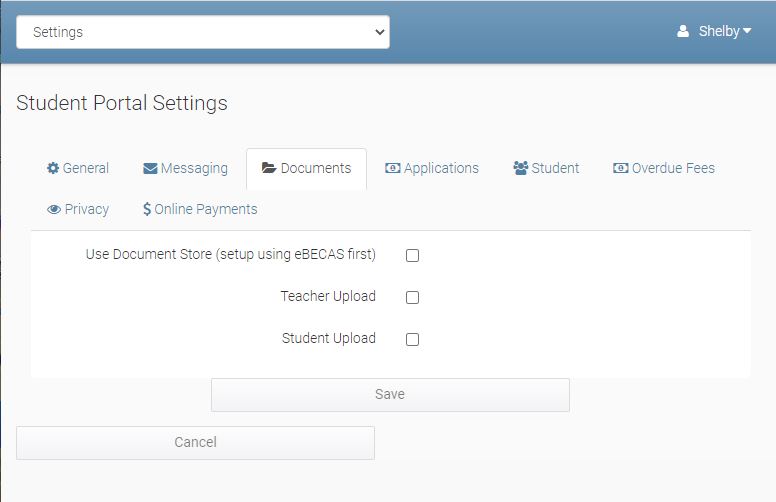
Use Document Store: Please ensure the Document Store is enabled in eBECAS/EDMISS - please contact Equator IT to check on this - the storage of Documents in eBECAS/EDMISS is included with your annual license at no extra charge.
-
Teacher Upload: Select to enable from the Teacher Portal the upload of documents for each class for students to be able to download from the student portal.
-
Student Upload: Please select to enable students to send documents from the student portal to the College. This is particularly useful with the new option where Students can access the Student Portal at the Offer stage, and can send a photo or scanned image of a passport, Visa or other documents. This option can also be used so that students can send in their homework from the student portal.
Students
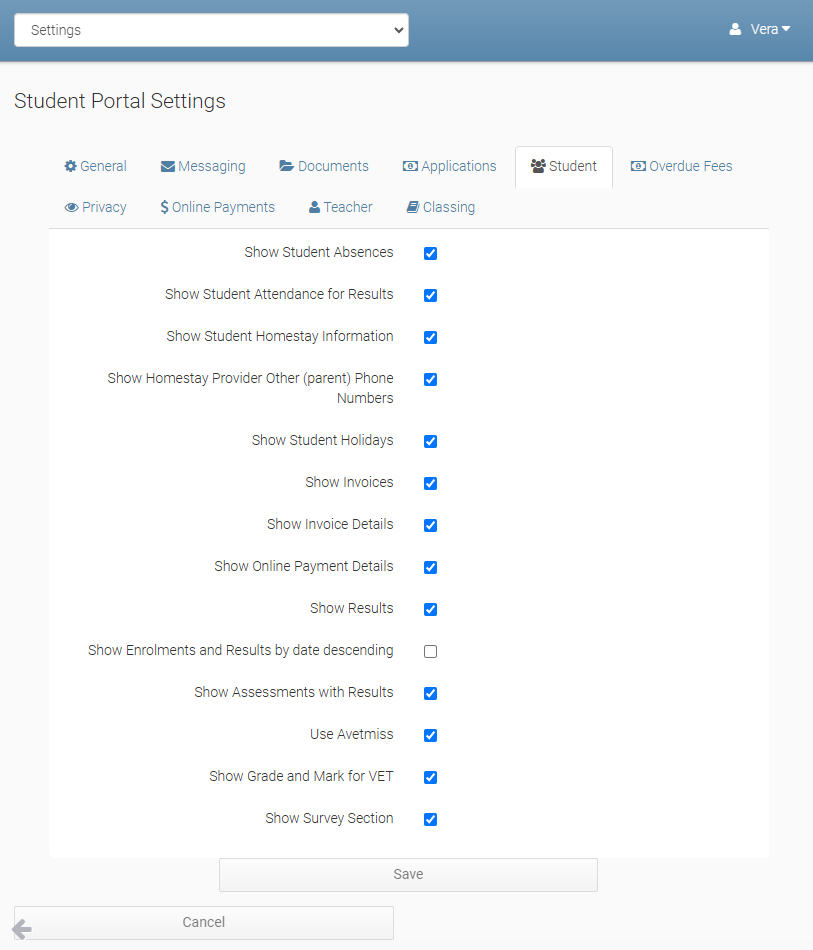
This page enables you to display different student information in the Student Portal.
-
Show Students Absences: Select to show the day, times, subject if VET and hours entered with text to display in the Student portal. If this is not enabled only the attendance percentage is displayed.
-
Show Student Attendance for Results:
-
Show Student Homestay Information: Enables the student to see the details including the address and contact numbers for the homestay placement.
-
Show Homestay Provider Other (parent) Phone Numbers: Enable this option to display the Provider's Other Contact in the Homestay Details tab.
-
Show Student Holidays: Displays in the student portal any holidays entered and approved for the student either personally or College holidays.
-
Show Invoice: Show the gross invoices both paid and unpaid.
-
Show Invoice Details: Show the gross invoice line items i.e. each individual item for the invoice.
-
Show Online Payment Details: Show the invoice with the link to make a payment online if online payments have been enabled.
-
-
Show Results: Show both Language results and VET Results in the Student Portal
-
Show Enrolments and Results by date descending: List results if shown in descending order
-
Show Assessments with Results: If Results are enabled the VET Assessment Results for the Result are shown
-
Use Avetmiss: Display and enable the entry of Avetmiss details for any VET enrolment for the student. This will immediately update the Avetmiss details in eBECAS/EDMISS for returns from the Student Portal for the Student.
-
Show Grade and Mark for VET: While VET returns only export Avetmiss results the student portal can display each student subject / unit grade and mark if entered
-
Show Survey Section: Students can be asked to respond to eBECAS/EDMISS entered Surveys and enter their responses from the Student Portal. The responses are updated in eBECAS/EDMISS and analysis can be performed for multiple groups of students by teacher, course, country or origin, attendance etc answering the surveys
-
Hide Local Contact Details from Student Details: Hides Local Contact Details section in Student's My Details page.
-
Hide Postal Address from Student Details: Hides Postal Address section in Student's My Details page.
-
Hide Other (Overseas) Contact Details from Student Details: Hides Other (Overseas) Contact Details section in Student's My Details page.
-
Hide Emergency Contact Details from Student Details: Hides Emergency Contact Details section in Student's My Details page.
Faculty Setup
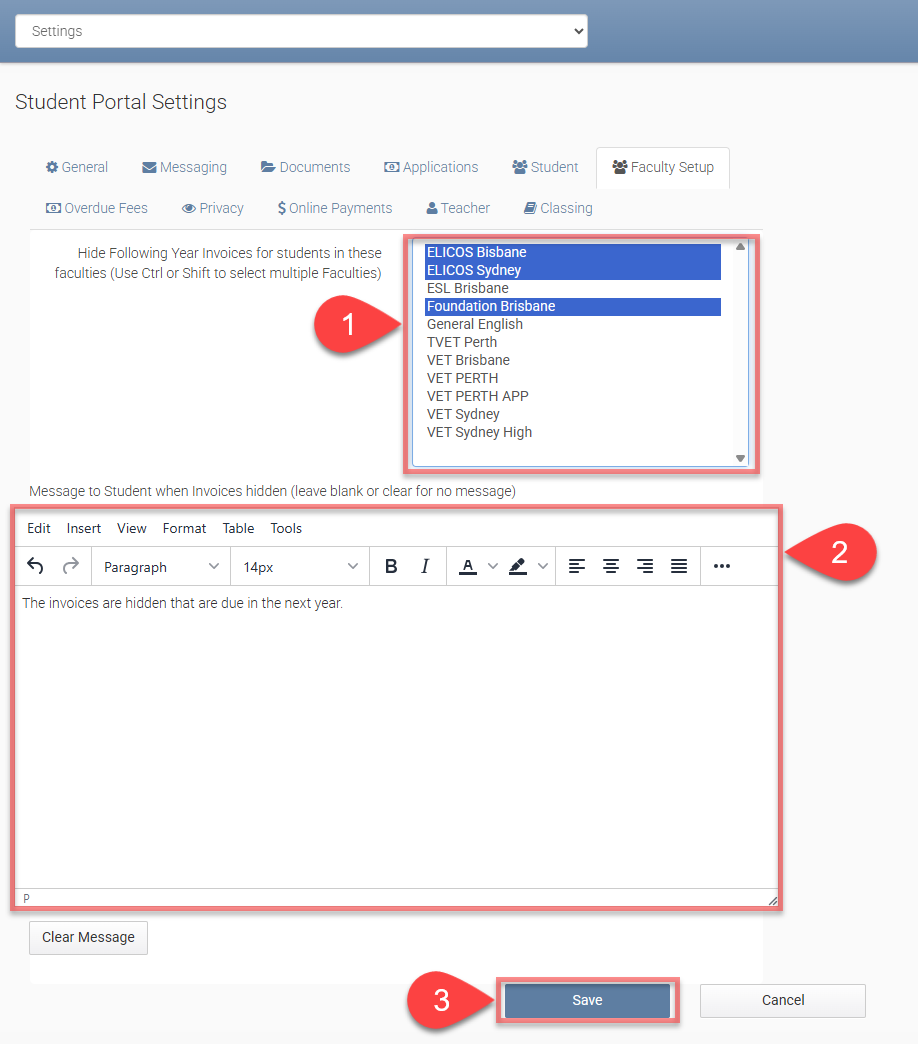
This page allows you to configure invoice display rules based on faculties. When a faculty is selected in this setup, any enrolment with a course under that faculty will have its invoices that are due in the next year — including those for the following years — hidden from the Student Portal under the Invoices menu.
To configure the settings:
-
Use the scrollable list to select the faculties you want the invoice display rule to apply to.
You can select multiple faculties by holding Ctrl or Shift while clicking. -
Optional Enter a message in the HTML Editor. This message will be shown to students on their Invoices tab when the rule is applied.
-
Review the selected faculties and the message, then click Save to complete the setup.
Overdue Fees
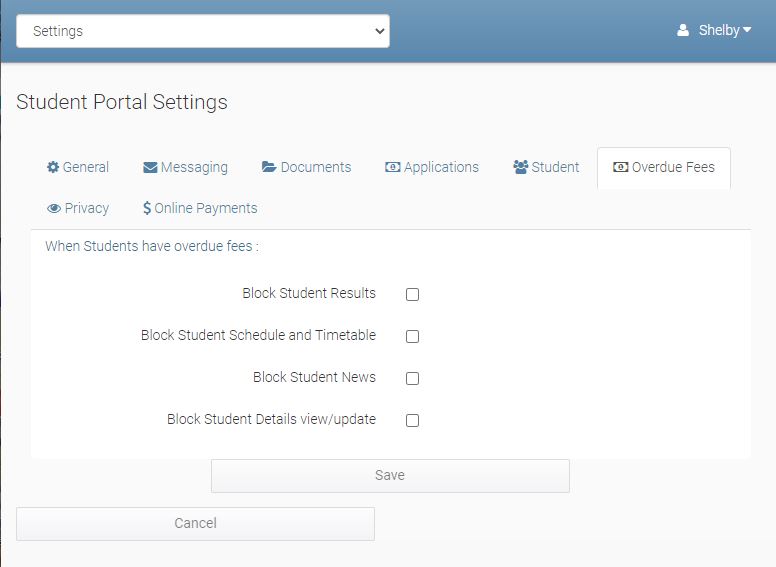
If Students have overdue fees there are several options that can be enabled.
-
Block Student results: If enabled and there are outstanding fees due, the student cannot use the Student Portal at all.
-
Block Student Schedule and Timetable: If enabled and there are outstanding fees due, the student cannot view their Schedule and Class Timetables
-
Block Student News: If enabled and there are outstanding fees due, the student cannot view the News in the Student Portal
-
Block Student Details view/update: If enabled and there are outstanding fees due, the student cannot view their details or update information in the Student Portal
Privacy
After a Student registers to use the Student Portal and logs in for the first time, you can specify a College Privacy Statement.
Logo
You can replace the college logo displayed on the login pages of the Student Portal and Teacher Portal.
To update the logo:
-
Navigate to Settings > Student Portal Settings > Logo menu.
-
The logo currently in use is displayed on the left.
-
Click Update Logo button on the right, then select the image you want to use and upload it.
For best results, upload an image with dimensions of 350px × 150px.
Online Payments
Currently we support Online Payments with Flywire for payments from overseas. Other providers including support for local payments are being developed and supported.
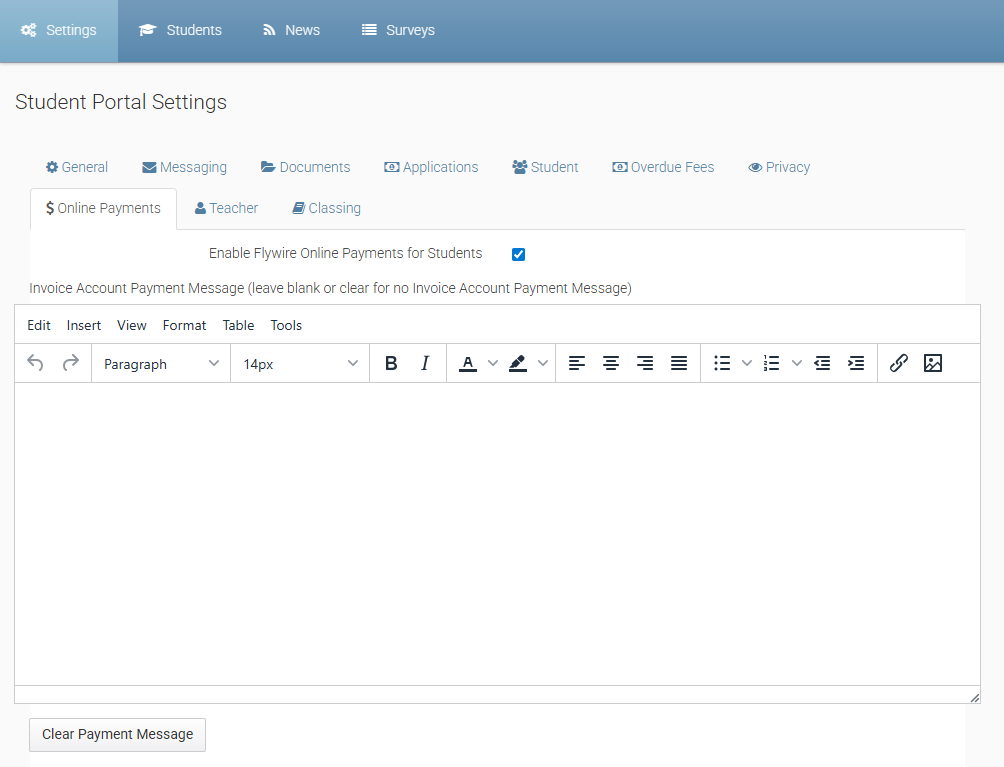
Flywire Online Payments requires eBECAS/EDMISS Next Generation Flywire. Then, admins can enable/disable Flywire Payments option in Student Portal to let students use the easy and safe payment link through Flywire for their invoices.
Teacher
-
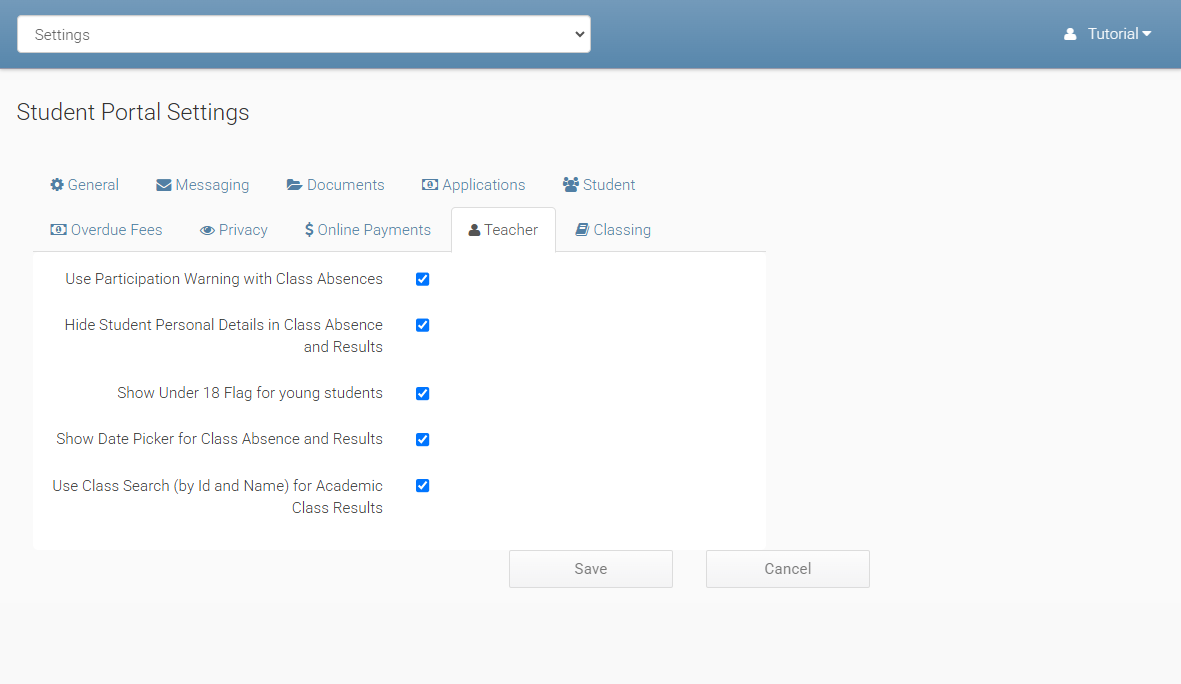
Use Participation Warning with Class Absences: Enable this option to allow entry of Participation Warnings under Class Absences in the Teacher Portal.
-
Hide Student Personal Details in Class Absence and Results: Hide student details, including Date of Birth, Age, Phone Number, and Email Address, from the Class Absence, Class Results, and Students tabs in the Teacher Portal.
-
Show Under 18 Flag for young students: Enable this option to display the under 18 label in Class Absence and Class Results within the Teacher Portal. This option is not affected by the Hide Student Personal Details in Class Absence and Results setting.
-
Show Date Picker for Class Absence and Results: Enable a Date Picker for Classes for Date in the Class Absences and Class Results of the Teacher Portal, allowing navigation to specific delivery weeks to access the relevant class.
-
Use Class Search (by ID and Name) for Academic Class Results: Enable a Search Box in the Class Results section of the Teacher Portal to search by Class ID and Class Name, facilitating navigation to the exact weeks of delivery to access the class.
Classing
-
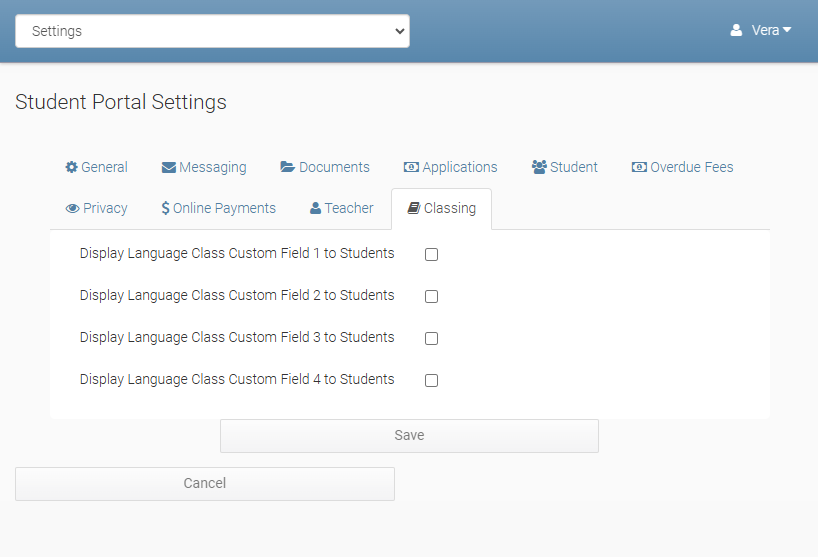
Display Language Class Custom Field 1 to 4 to Students: Enable this settings to display the Language Class Custom Field 1 to 4 in the Timetable tab under Students in the Teacher Portal, as well as in the Classing tab in the Student Portal.