
In most cases, a Study Tour proceeds as planned once the offer has been accepted. However, changes may be required after acceptance due to adjustments in schedules, participation, or operational needs.
Once a Study Tour offer is accepted, its details are locked and cannot be modified directly. Any post-acceptance changes must be applied through Enrolment Variations on the Study Tour enrolment to ensure changes are properly recorded and auditable.
Variations applied at the Study Tour enrolment level affect all individual student enrolments linked to the tour. All changes made through enrolment variations are recorded and can be reviewed in the Study Tour Enrolment History.
If you need to apply a variation to a specific student only, please refer to the following article: Study Tour Enrolment Students
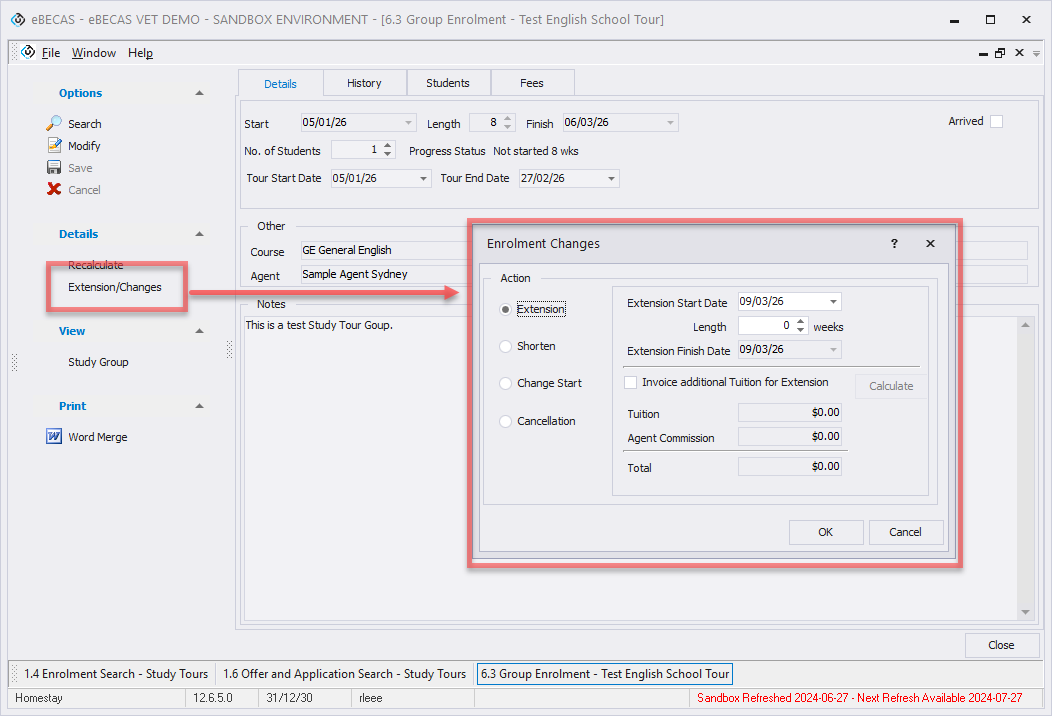
Extend Study Tour Enrolments
To extend a Study Tour enrolment,
-
Go to the Study Tour enrolment details of interest and click Extension/Changes in the side menu. A pop-up window will be displayed. Then, select Extension in the side menu.
-
Specify the details for the extended enrolment period.
-
Extension Start Date: Select a Monday that falls after the current enrolment end date as the extension start date. If there is a gap between the end of the current enrolment and the start of the extension, the system will automatically insert an Extend Holiday entry to cover the gap.
For academic enrolments that end on a day other than Friday (i.e. Monday to Thursday), the extension start date will be automatically locked to the following day. -
Length (Weeks): Enter the number of additional weeks to extend the existing enrolment.
-
Extension End Date: Displays the calculated end date of the extended enrolment based on the Length.
-
-
optional Select Invoice additional tuition for Extension to issue an additional invoice for the extension. You can enter the amounts for the invoices in two ways:
-
Invoice Calculation
Click the Calculate button to generate the invoice amounts from the relevant course and agent commission rates. -
Manual Amount Input
Enter the required amount details manually.-
Tuition: The amount for the tuition (excluding any agent commission).
-
Agent Commission: The agent commission amount (if applicable) for the tuition entered.
-
-
-
Click on Ok to apply the changes.
Change Study Tour Enrolment Start Date
The Change of Start Date variation lets users update the start date of an existing enrolment. The end date is automatically adjusted to account for any scheduled holidays.
Any existing Holidays or Absence entries that fall outside the new enrolment period will be automatically removed. The Attendance Rate will then be recalculated based on the updated dates.
-
Go to the Study Tour enrolment details of interest and click Extension/Changes in the side menu. A pop-up window will be displayed. Then, select Shorten in the side menu.
-
Select the new start date:
-
For Language Enrolments, it must be a Monday.
-
For Academic Enrolments, any date is allowed.
-
-
The New Finishing Date will be automatically recalculated.
-
Click on Ok to apply the changes.
Shorten Study Tours Enrolments
Shortening an enrolment reduces the number of study weeks without cancelling the enrolment.
If a study tour group is finishing their studies earlier than expected, you should shorten the enrolment instead of cancelling it. This keeps their attendance records accurate for the time they were enrolled.
Any fee changes, including refunds, must be handled separately. Once the enrolment is shortened, the students will no longer be able to attend classes for the weeks that were removed.
If any existing Holidays or Absence entries fall outside of the new enrolment period, they will be automatically deleted, and the Attendance Rate will be recalculated based on the updated enrolment period.
-
Go to the Study Tour enrolment details of interest and click Extension/Changes in the side menu. A pop-up window will be displayed. Then, select Change Start in the side menu.
-
Specify the details for the new, shorter enrolment length.
-
Length (Weeks): Enter the new, shorter length of the enrolment in weeks.
-
Starting Date: Displays the original start date of the enrolment.
-
New Finishing Date: Shows the recalculated end date of the enrolment based on the new shortened Length.
-
Reason: Select the reason for shortening the enrolment.
-
Description: Optionally enter a description to provide additional context regarding the enrolment shortening. This can help clarify the reason selected and support future reference or reporting.
-
-
Click on Ok to apply the changes.
Cancel Study Tour Enrolments
Cancelling an enrolment updates the enrolment status and prevents the students from appearing in classes or being allocated to any class.
When cancelling an enrolment, fees must be manually adjusted if needed. Receipted fees can be refunded , and any outstanding fees can be written-off.
-
Go to the Study Tour enrolment details of interest and click Extension/Changes in the side menu. A pop-up window will be displayed. Then, select Cancellation in the side menu.
-
Specify the details for the cancellation.
-
Cancel Reason: You need to select a reason when cancelling an enrolment.
-
Description: You can optionally enter a description to provide more context about the cancellation. This can help clarify the reason selected and support future reference or reporting.
-
-
Click on Ok to apply the changes.
Reinstate Study Tour Enrolments
The Reinstate Enrolment variation allows you to re-activate a previously cancelled enrolment, add extra study weeks, and generate a new invoice if needed.
Only enrolments with a status of Cancelled can be reinstated.
-
Go to the Study Tour enrolment details of interest and click Extension/Changes in the side menu. A pop-up window will be displayed. Then, select Reinstate in the side menu.
-
Specify the details for the new enrolment period.
-
Start Date: Displays the original start date of the enrolment.
-
Length (Weeks): Enter the number of weeks for the reinstated enrolment period.
-
End Date: Displays the calculated end date based on the entered Start Date and Length.
-
-
optional Select Invoice additional tuition to issue an additional invoice. You can enter the amounts for the invoices in two ways.
-
Invoice Calculation
Click the Calculate button to generate the invoice amounts from the relevant course and agent commission rates. -
Manual Amount Input
Enter the required amount details manually.-
Tuition: The amount for the tuition (excluding any agent commission).
-
Agent Commission: The agent commission amount (if applicable) for the tuition entered.
-
-
-
Click on Ok to apply the changes.