
Campus Locations define the top-level structure used to organise academic and administrative resources within the system. They act as shared reference points for grouping Faculties and related institutional resources.
Campus Locations represent the physical campuses where classes are delivered and academic activities take place.
Considerations for Managing Locations
Locations represent the physical places where your organisation delivers courses or operates campuses.
If teaching occurs at a different physical site, a separate Campus Location should be created. Where multiple campuses share the same physical facilities and academic operations, they can be managed under a single Campus Location, with Faculties used to differentiate between campuses.
View Campus Locations
To access campus locations:
-
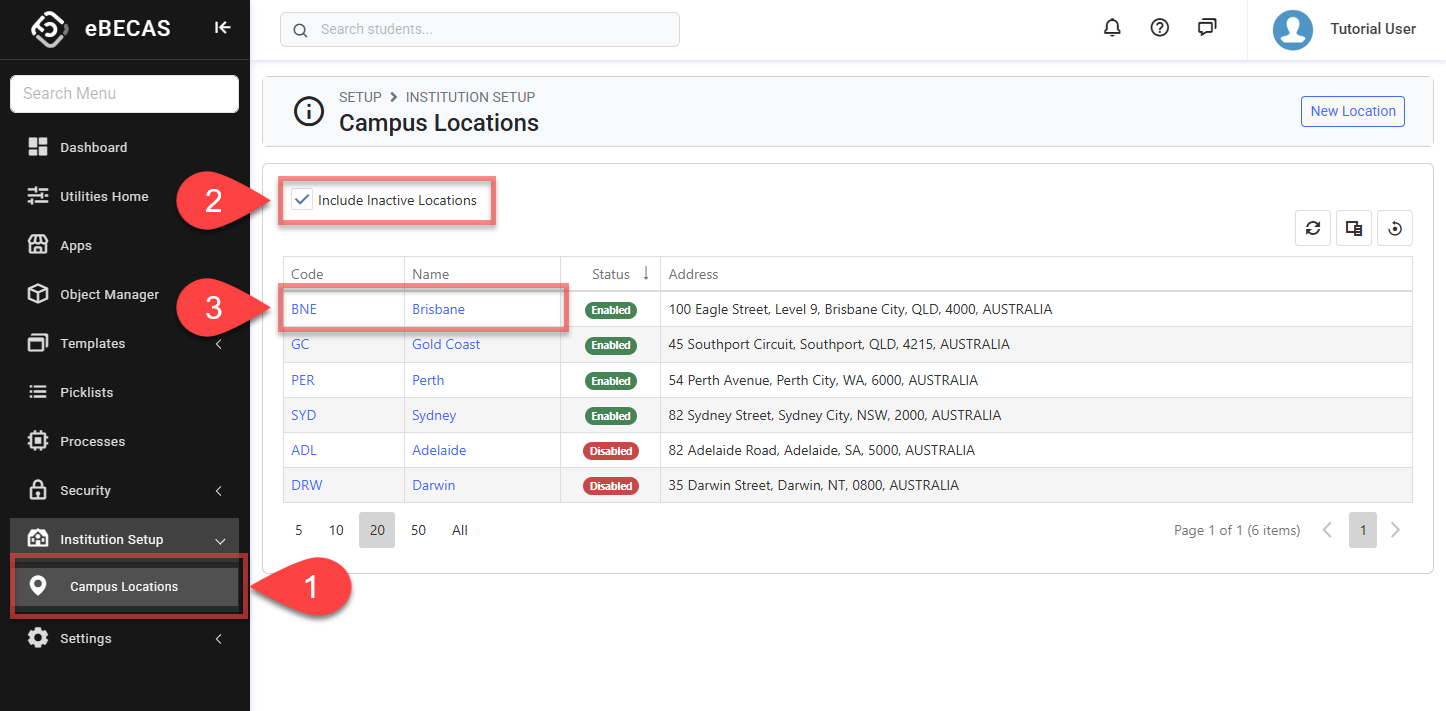
From the Utilities menu, go to Institution Setup > Campus Locations.
-
By default, it displays active Campus Locations in the data grid. Select Include Inactive Locations filter to view all Campus Locations in the system.
-
Click the code or name of the location that you’d like to view.
Create Campus Locations
To create campus locations:
-
From the Utilities menu, go to Institution Setup > Campus Locations, then click New Location button on the top right.
-
Fill the details.
-
Click Create to save and finish.
Edit Campus Locations
Changing a Location’s details, such as its code or name, updates that information everywhere the Location appears in the system. This ensures the same values are shown consistently in searches, filters, and all related views.
Setting a Campus Location to inactive does not remove it from the system. All associated Faculties, enrolments, and historical records remain intact and unchanged. However, an inactive Location is no longer available for selection or filtering, meaning it will not appear as an option when searching for or assigning Locations going forward. This approach allows Locations that are no longer in active use to be retained for historical accuracy while preventing them from being used in new or ongoing setup.
To edit campus locations:
-
From the Utilities menu, click on campus location that you’d like to edit.
-
Edit the details as required.
-
Click Update to save and finish.
Delete Campus Locations
If a Campus Location is no longer required, it should be set to an inactive state. This preserves historical data and existing relationships while preventing the Location from being used in future setup.