
The Agents List Widget allows you to display a real-time list of agents directly from eBECAS/EDMISS on your website. The widget updates automatically based on agent records in the system and only shows active agents marked as published.
How it works
-
The widget is added to your website by inserting a single line of code (snippet) into the required page (no developer needed).
-
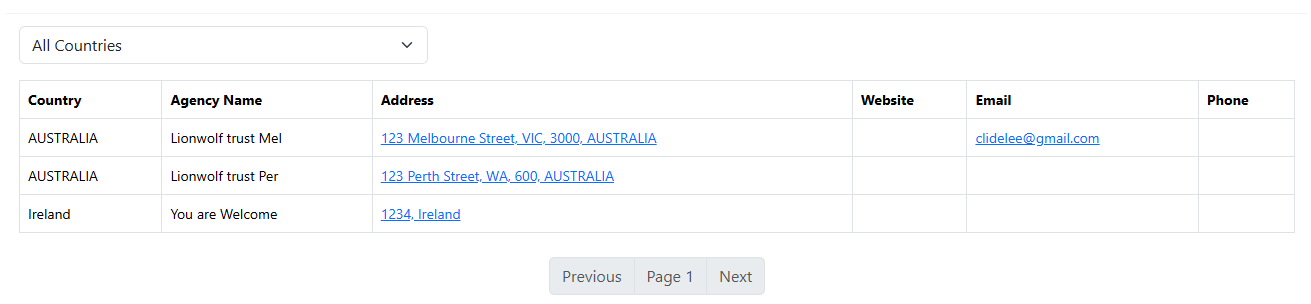
The widget pulls agent data directly from eBECAS or EDMISS and displays the agents in a table format.
-
A filter is available to display agents by country.
-
Only agents that are active and set as published are displayed.
-
Changes made in eBECAS are reflected automatically on the website.
Enable the Widget
-
From the Utilities menu, go to Settings > Agents
-
From the Agents List Widget, turn on Enable the Agents List Widget.
-
Click Update at the bottom of the page.
-
Once enabled, the widget becomes available for use on external websites.
Embed the Widget on a Website
-
Copy the provided single-line script snippet.
-
Paste the snippet into the HTML of your website where you want the agents list to appear.

-
Save and publish the page where the code is embedded.
-
The following details for each agent (active and published) are displayed in a table format:
-
Country
-
Agency Name → This is the legal name of the agent
-
Address
-
Website
-
Email
-
Phone
-
-
Refer to the Customise this Widget section below for details on the available customisation options.
Security requirements
-
The website domain where the widget is embedded must be added to Trusted Domains for Embedding.
-
If the domain is not listed as trusted, the widget will not load.
When to use this widget
-
To publish an official list of agents on your website.
-
To keep agent information consistent without manual updates.
-
To ensure agent data is displayed securely and only on approved websites.
Customise the Widget
The widget offers several customisation options. These options can be added to the code snippet as shown below.
<script
  src="<replace with your widget url>"
  data-theme="light"
  data-phone-link="true"
  data-address-link="true"
></script>
-
data-theme: Control the theme of the widget to match your website style. Options:
-
light → Default
-
dark
-
-
data-phone-link: Enable or disable the phone link. When enabled, the phone number becomes clickable and opens a phone client, if available, to place a call. Options:
-
true → default
-
false
-
-
data-address-link: Enable or disable the address link. When enabled, the address becomes clickable and opens the address in Google Maps. Options:
-
true → Default
-
false
-
If none of these options are included in the snippet, the default values are used to display the widget.