
Overview
The Offer Prepayment allows users to select instalments from one or more offer items as the initial payment required from the student.
It provides flexibility to combine tuition and non-tuition instalments into a single upfront payment.
Prepayments are part of the total offer amount and define the amount students must pay before accepting an offer.
The selected instalments and calculated totals can also be included in offer documents and message templates to ensure clear and consistent communication with students and agents.
Purpose and Benefits
Prepayments make the initial payment process clear and manageable for everyone involved. They let institutions specify the portion of an offer that must be paid upfront, helping students understand exactly what is due before acceptance.
Operationally, prepayments can support finance and admissions teams in different ways, depending on each institution’s processes.
For example, they may be used to:
-
Ensure payment expectations align with institutional policies and enrolment requirements.
-
Present a single, consolidated upfront payment that may include tuition and non-tuition fees
-
Support clearer reconciliation or reporting by distinguishing the initial deposit from the remaining balance
-
Improve communication with agents and students through merged offer templates that clearly display prepayment details
PRISMS
The Offer Prepayment feature also helps institutions easily record the prepayment details required by PRISMS for international students.
Key details
-
Users can select instalments across multiple offer items to form the prepayment.
-
The system calculates a single prepayment total, showing separate amounts for tuition and non-tuition items.
-
A single prepayment date is calculated as the earliest due date of all instalments selected.
-
The prepayment forms part of the overall offer balance, not an additional charge.
-
The calculated prepayment amounts and date can also be merged into Offer templates, allowing them to be clearly displayed to students and agents.
Set instalments as Prepayment
Users can choose which instalments to include in the prepayment either from the Offer instalments screen or when editing the instalments for an offer item.
Option 1: From the Offer instalments screen
-
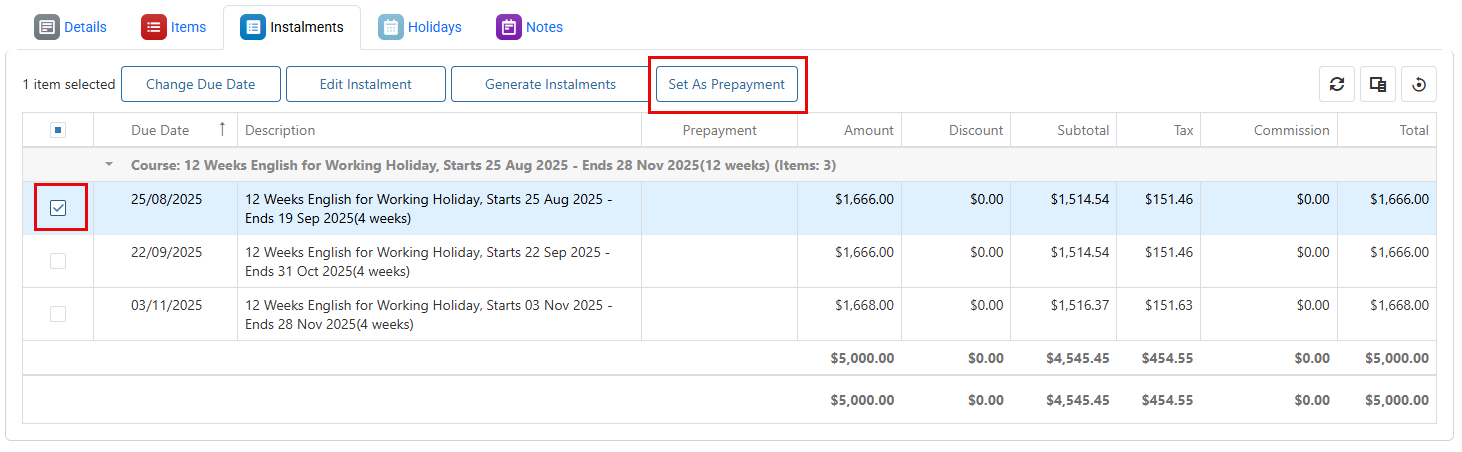
Open the Instalments tab of the relevant offer.
-
Tick the instalments you want to include in the prepayment. You can select instalments from both tuition and non-tuition items.
-
In the Actions panel of the grid, select Set as Prepayment.
Option 2: From the instalment edit screen
While editing instalments, you can also set them as prepayment:
-
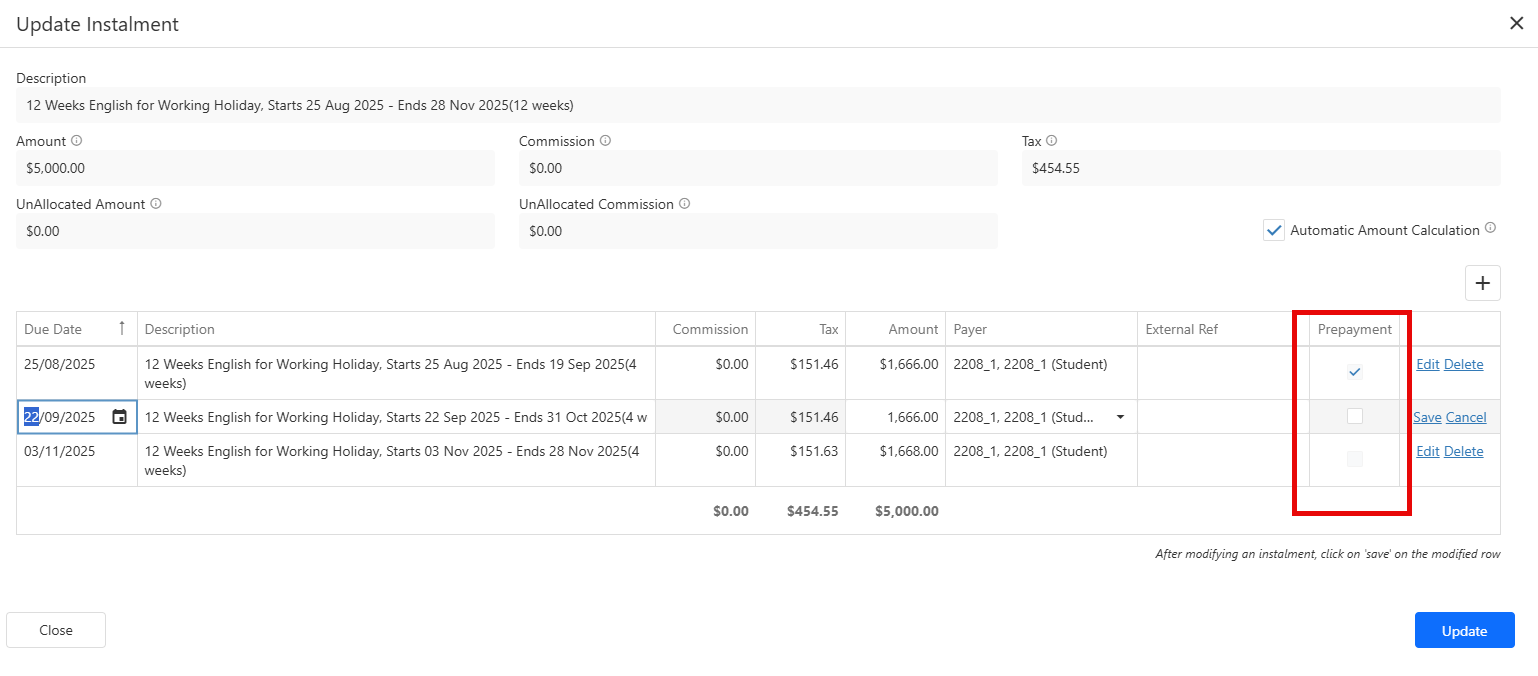
In the instalment edit screen, click Edit to enable editing for the selected row.
-
Tick the Prepayment checkbox in the row.
-
Click Save on the row to confirm the change.
-
When you have finished making all edits, click Save below the grid to confirm and apply the changes to the instalments.
Unset instalments from Prepayment
The process to remove instalments from the prepayment is the same as setting them, but in reverse. Simply untick the selected instalments and save your changes. The prepayment totals and date will update automatically.
View Prepayment Instalments
Once instalments are marked as prepayment, you can review them in the Offer.
-
Open the Instalments tab for the relevant offer.
-
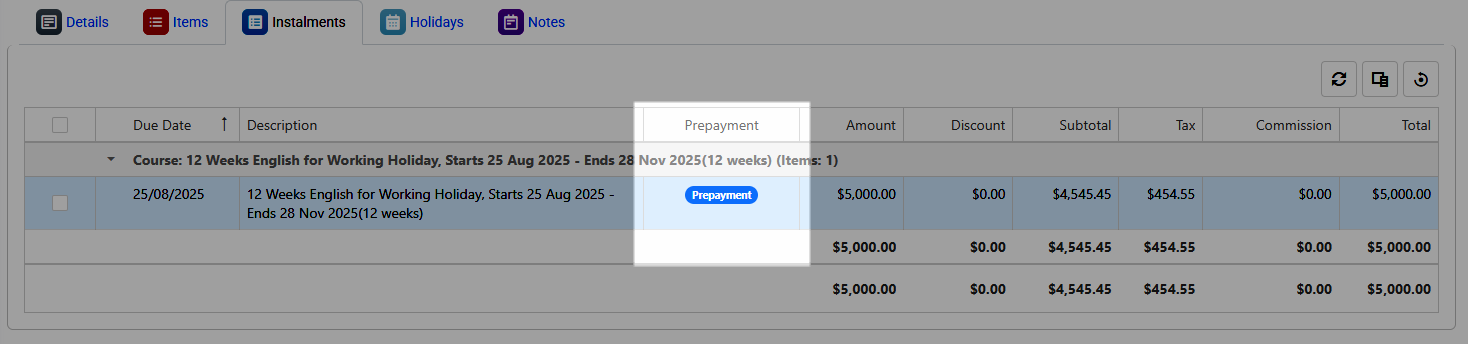
Ensure the ‘Prepayment’ column is visible in the grid. If it is not, add it using the column chooser.
-
Instalments set as prepayment will display a value in the ‘Prepayment’ column.
View Prepayment Summary
Users can view the prepayment summary, including the totals and due date, from the Offer Details page.
In the default layouts, the prepayment fields (read-only) are shown under the Prepayment section.
The Prepayment Summary shows:
-
Prepayment Tuition Amount – total of all tuition instalments marked as prepayment
-
Prepayment Non-Tuition Amount – total of all non-tuition instalments marked as prepayment
-
Total Prepayment Amount – combined total of tuition and non-tuition prepayment instalments
-
Prepayment Due Date – the earliest due date among all prepayment instalments