
Overview
The Document Store serves as a cloud-based, central repository for documents and files ensuring seamless, reliable and secure access.
Some of the benefits of our cloud-based Document Store are:
-
Accessibility and Collaboration: Your users can access the files from anywhere, at any time, using any internet-enabled device. This flexibility is essential for remote teams or individuals who need to collaborate across different locations and time zones.
-
Data Security: Your files are protected and can only be accessed using eBECAS/EDMISS and by users with the appropriate permissions.
-
Scalability: As your institution grows, so do your storage needs. Our Document store easily scale to accommodate increasing amounts of data.
All the files added to the document store are linked to a record (e.g. a student, agent, lead etc) and can be accessed on the Documents tab of that record.
A powerful feature of the Document Store is the additional details that can be added to each file. A name, a description and a category can be added to provide more context to the files. You can also add Notes to a document to record additional information, using rich content such as images and tables or mentioning other users when collaboration is required. Each document also retains information about when it was created, who created it and how it was created (e.g. through a merge process, manual upload or student submission).
Access to Documents Store
-
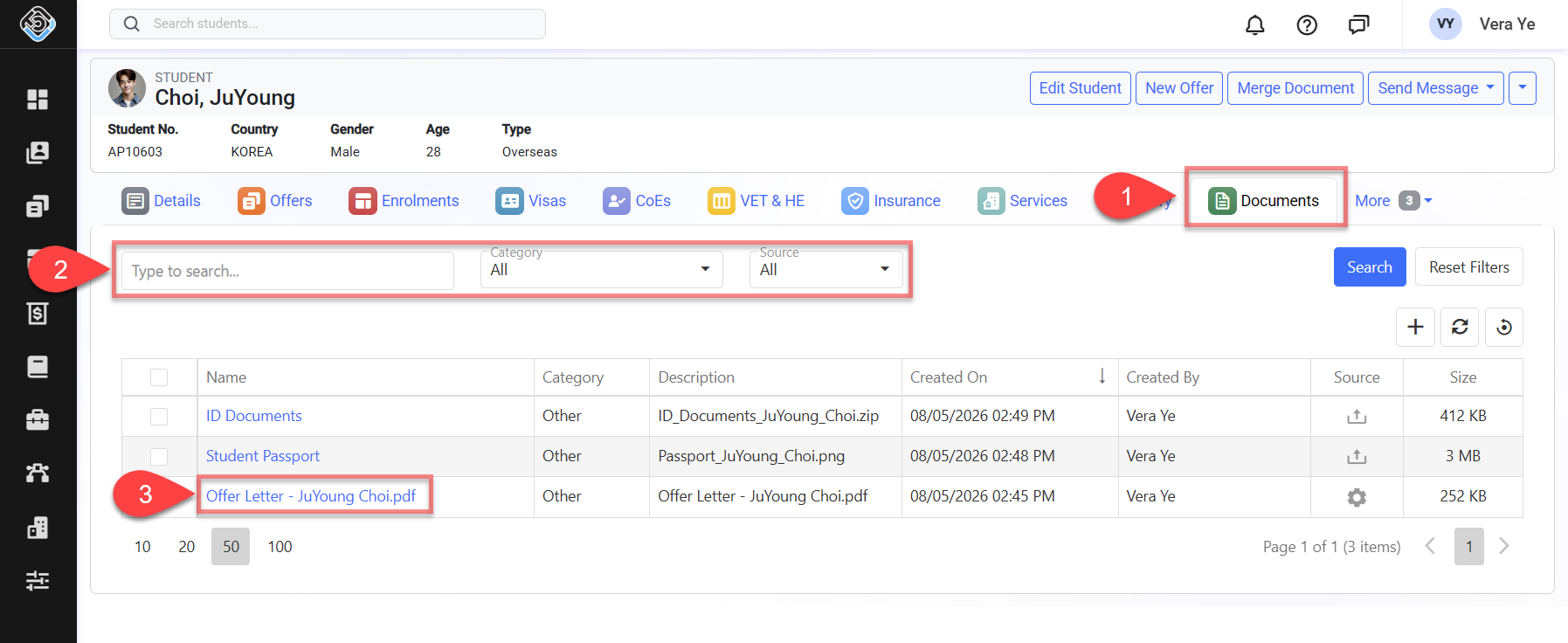
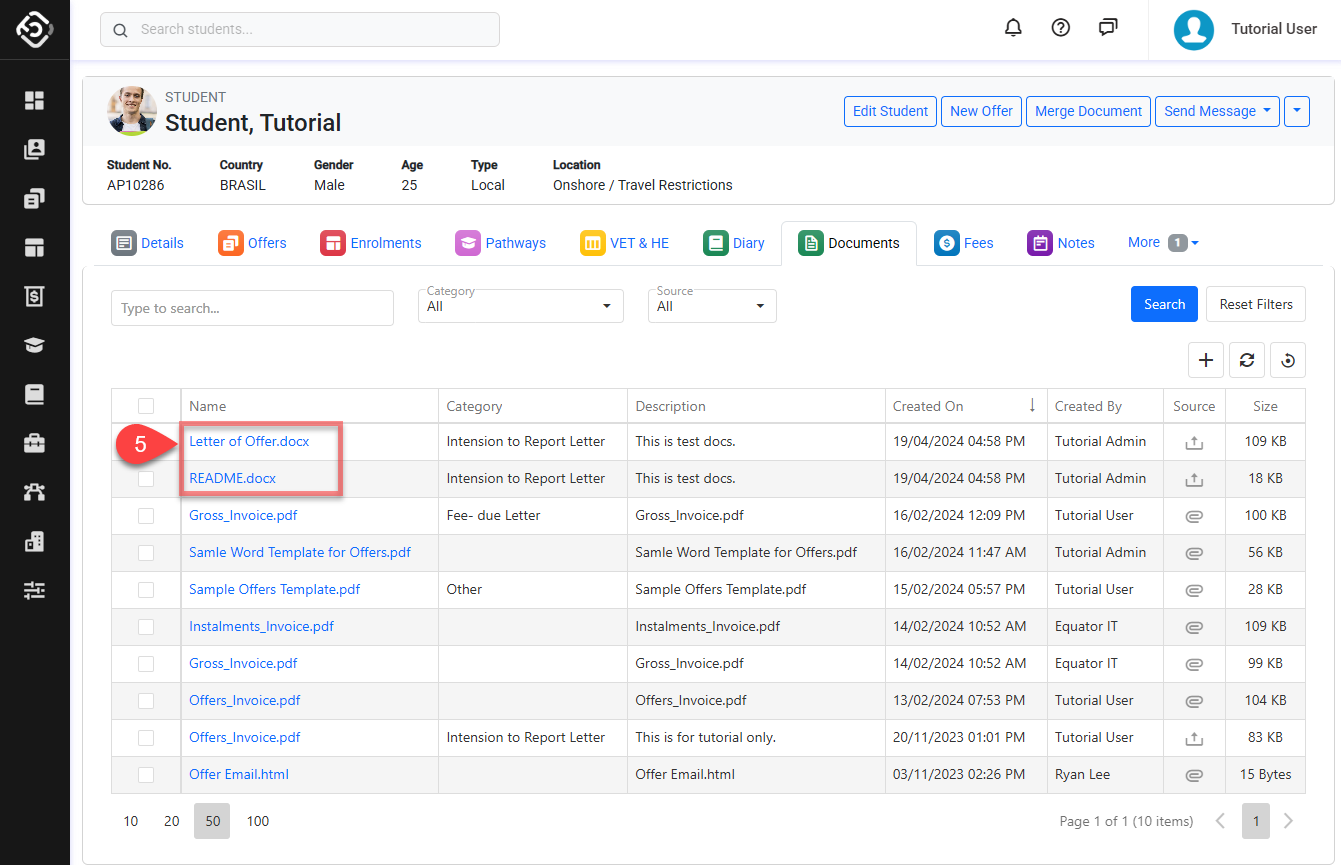
Navigate to the details page of the object's that you want to see the Documents for and click on the Documents tab.
-
You will see the documents for that record on the grid. By default, all of documents of the target object will be displayed in the data grid. Use the Documents Filters to specify the results.
Available options are:-
Quick Search: Searches for documents that include the entered search text in the name.
-
Category: Filters documents with the selected category.
-
Source: Filters documents by their source, indicating how each document was created.
-
Email Attachment: Documents generated from Document Templates and attached when Sending Emails.
-
Upload by User: Documents manually uploaded to the system by a user.
-
Merge Process: Documents generated through the Merge Document process.
-
-
-
To view the document, click on the Name of the entry.
Upload Documents
Considerations for Uploading Documents
When uploading a new document, the following restrictions apply:
-
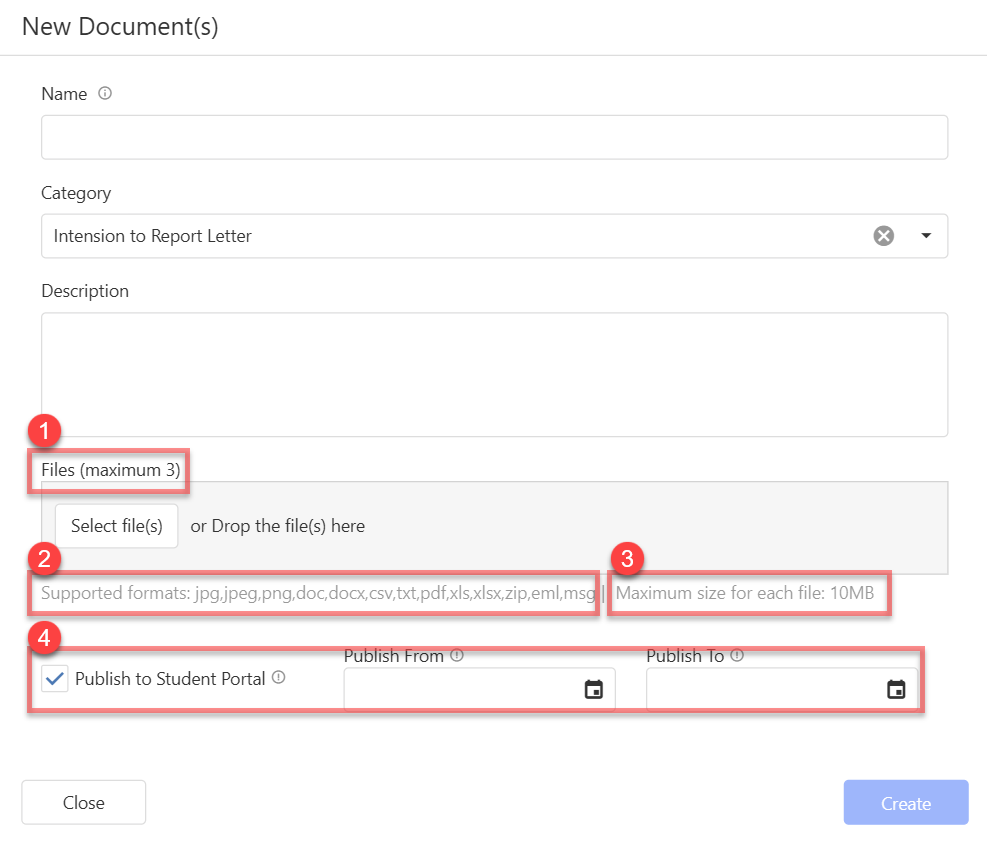
Files Maximum Upload Limit: This is the maximum number of files that can be uploaded at once.
-
Supported Formats: jpg, jpeg, png, doc, docs, csv, txt, pdf, xls, xlsx, zip
-
Maximum File Size: This is the maximum size for each file that can be uploaded.
Files Maximum Upload Limit and Maximum File Size depend on your subscription plan. Contact your system administrator for details.
-
Publish to Student Portal Student object only : Check this option to publish this document(s) to the student portal. Students can access to these document(s) during the specified date period.
Through Document Uploader
-
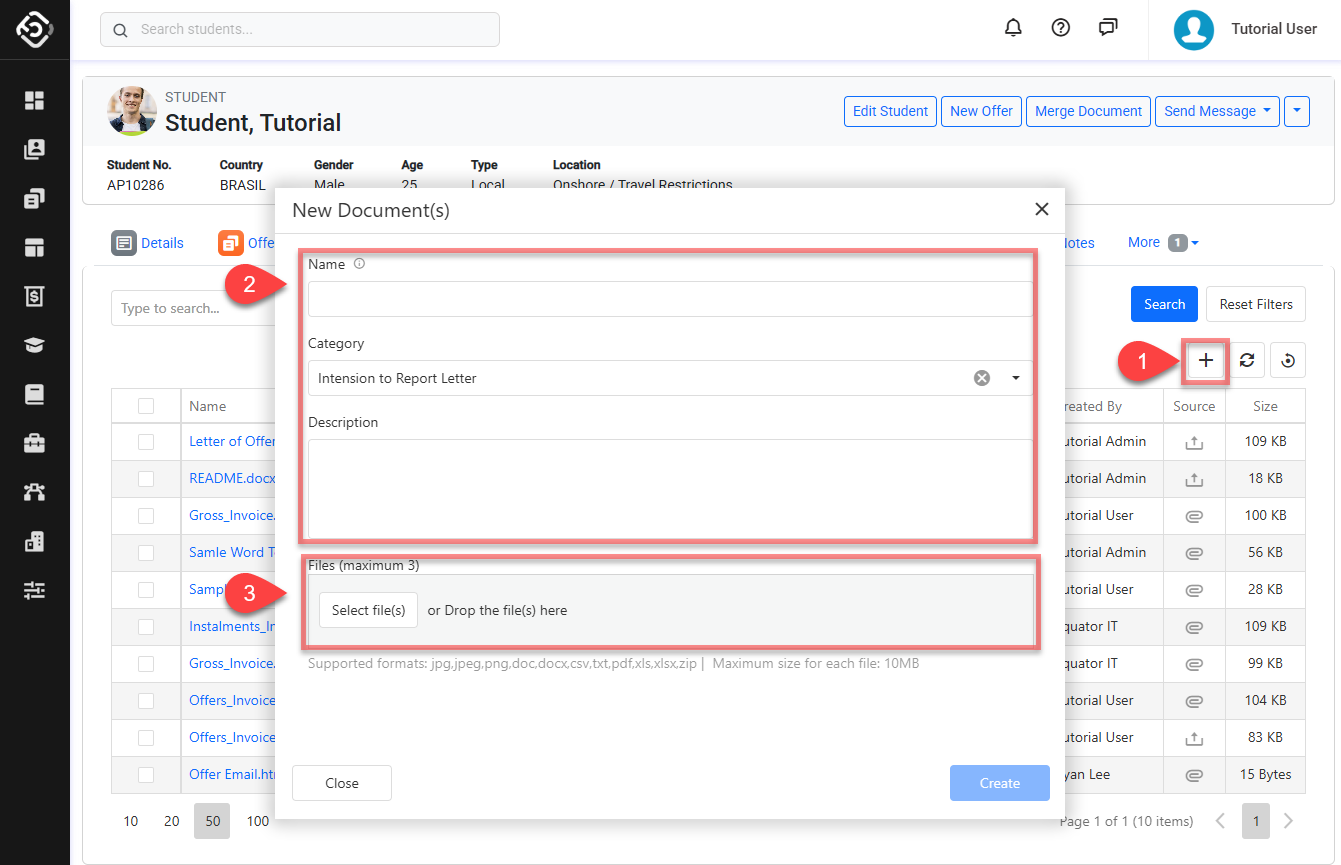
In the Documents tab, click on ➕ icon on the data grid and open the file upload window.
-
Enter the document details.
-
Name: Set the name for the entry/entries.
-
Category: You can choose the category for classifying this entry/entries. In case the category is inactive, it will appear in grayscale and not selectable. To customise the list of available categories, update the values on the relative Document Categories picklist of Documents object.
-
Description: Enter the description for the entry/entries.
-
When uploading multiple files at once, the name, category, and description entered will be the same for all the files.
Leave the Name and Description field blank to have the name of the file as the name and description of the document.
-
Click on the Select files(s) button and select files that you’d like to upload. You can also Drag & Drop the files into the Files highlighted area.
-
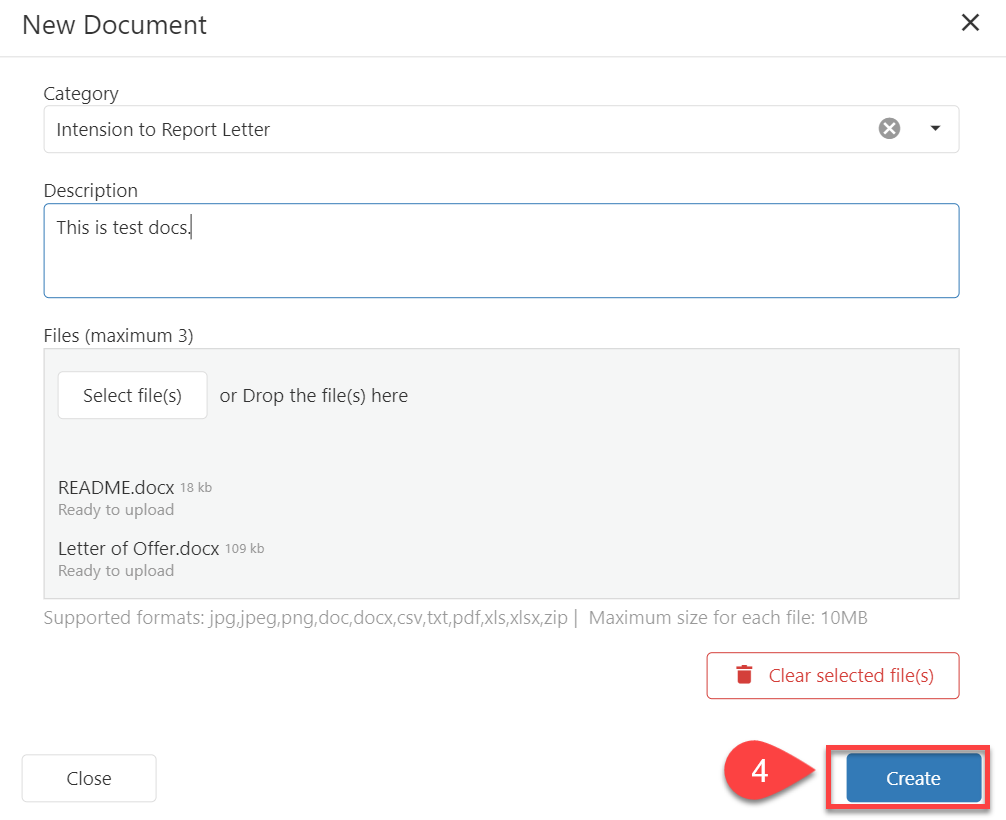
Once you’re ready to upload, click on the Create button.
-
You can see the uploaded files in the data grid.
Through Document Merge / Send Email
The documents created through the Document Merge or Send Email feature can be saved directly to the Document Store of the respective record.
You can learn more in the following articles: Merge Documents, Send Email.
View Document Details
The Document Details page provides the information stored for the selected document, along with the available actions for accessing the file.
You can access the Document Details page in either of the following ways:
-
Go to the Documents tab of the relevant record and locate the document that you want to view.
-
Open the Document Details page using one of the following methods:
-
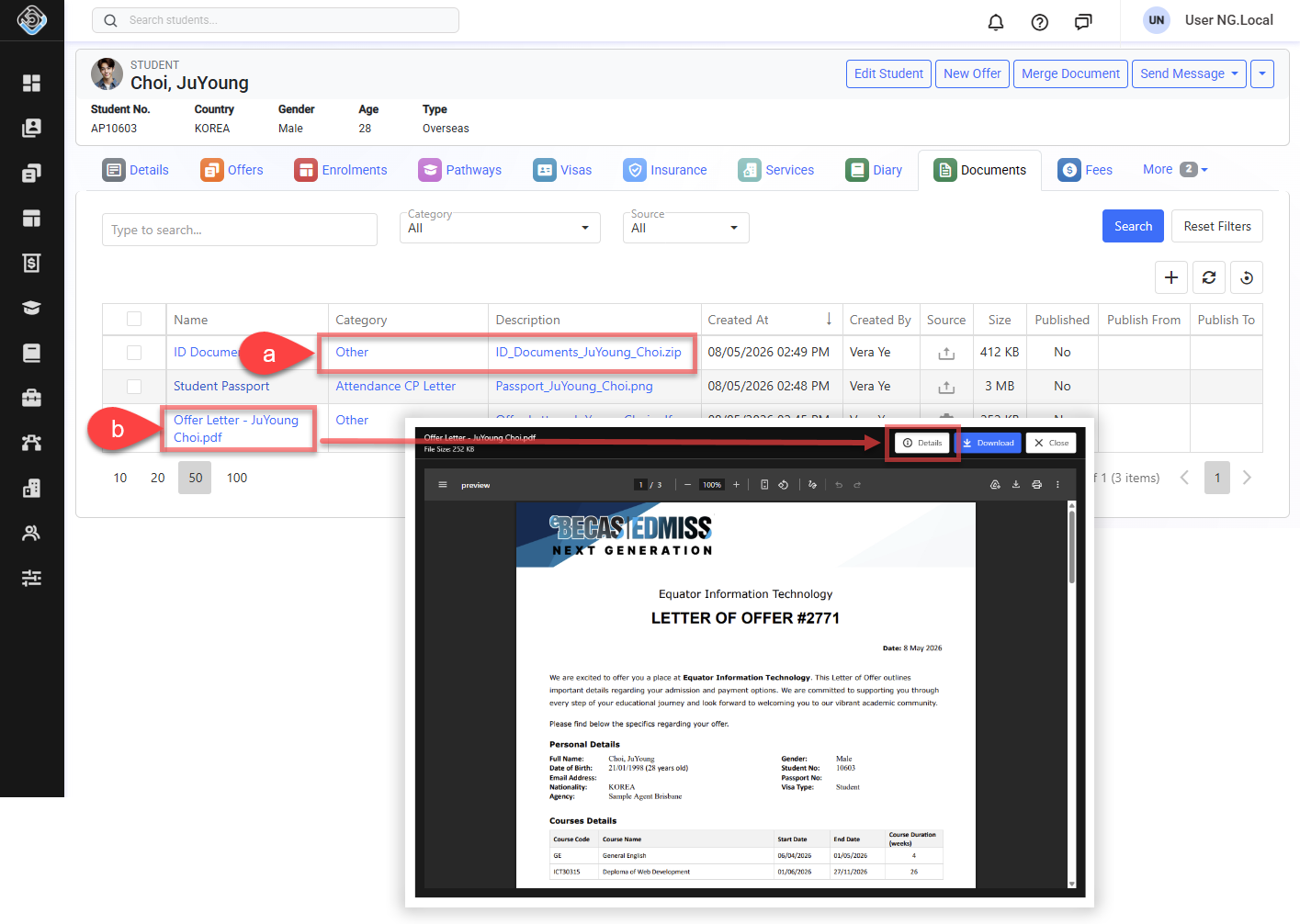
Click the document's Description or Category in the data grid.
-
Click the document Name to open the preview, then click the View Details button from the preview window.
-
-
The Document Details page will display the information associated with the document.
-
From this page, you can also preview the document, where supported, or download the file.
Add/Edit/Remove Notes to a Document
Notes can be added to a document to record additional information beyond the document's name, category and description.
Notes use a Rich Text Editor, allowing you to include formatted text, images and tables, as well as mention other users to draw their attention to specific information.
-
Open the Document Details page for the document.
-
Go to the Notes section and add or manage notes as required.
For more information about creating and managing Notes, see the following article: Notes
Preview a Document
Documents in supported file formats can be previewed directly in eBECAS/EDMISS without downloading the file. Preview is available for the following file types:
-
PDF
-
Image file such as JPG, JPEG, PNG
Other file types cannot be previewed and must be downloaded to view their contents. You can preview a supported document in either of the following ways:
-
Go to the Documents tab of the relevant record and locate the document that you want to preview.
-
Open the document preview using one of the following methods:
-
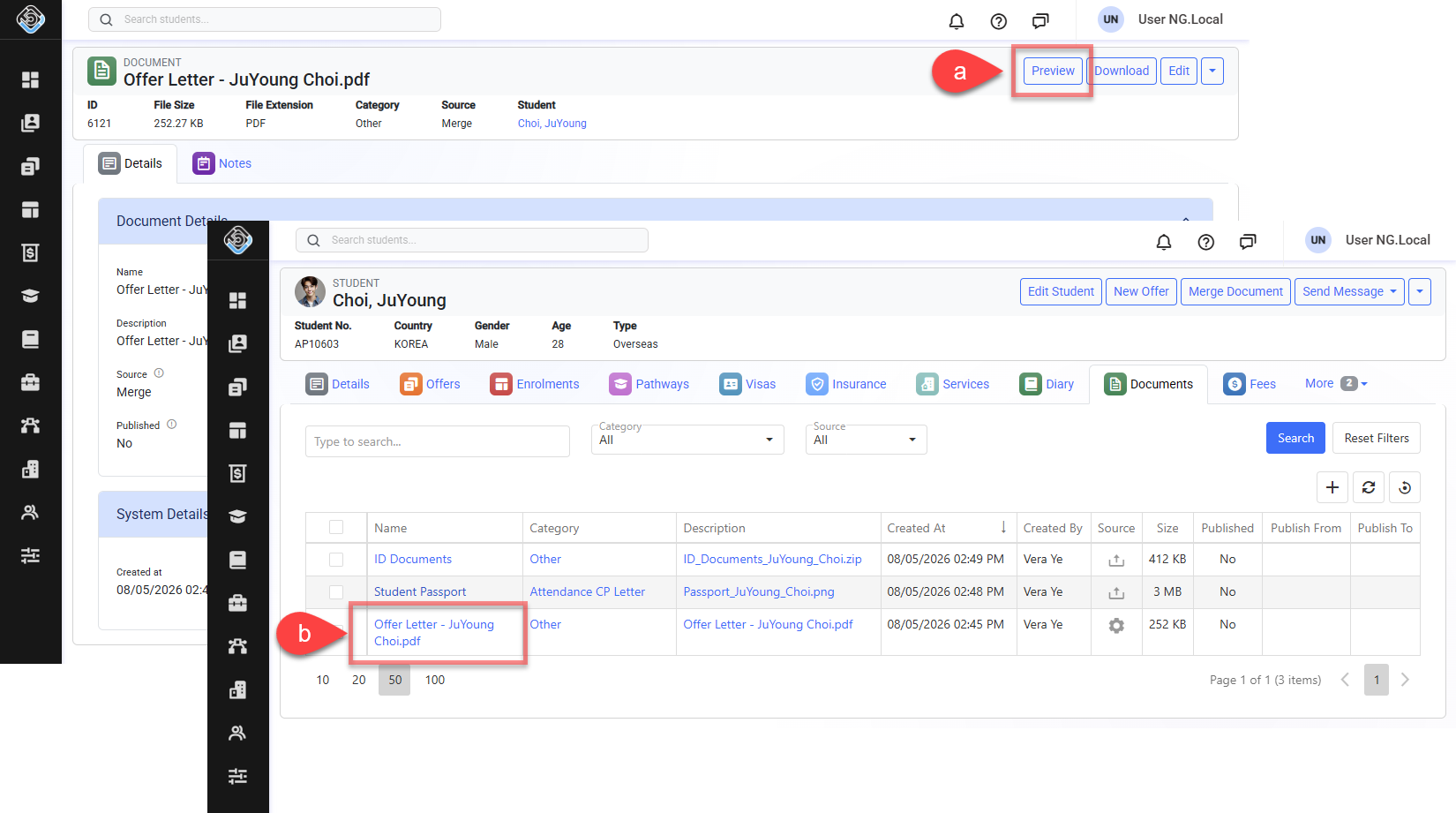
Open the Document Details page and click the Preview button in the page header.
-
Click the document Name in the data grid.
-
-
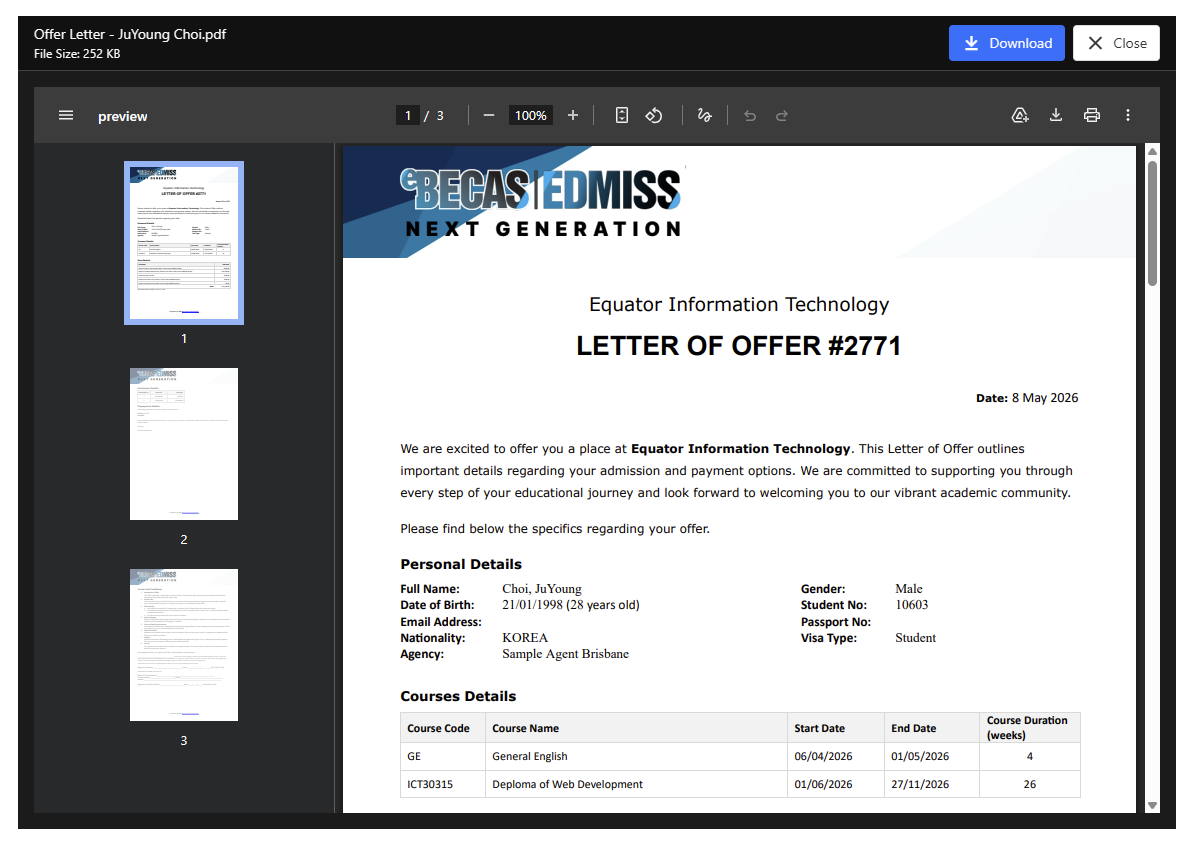
The document will be displayed in the preview window. From the preview, you can also download the file or open the Document Details page if it’s opened from the data grid.
Download a Document
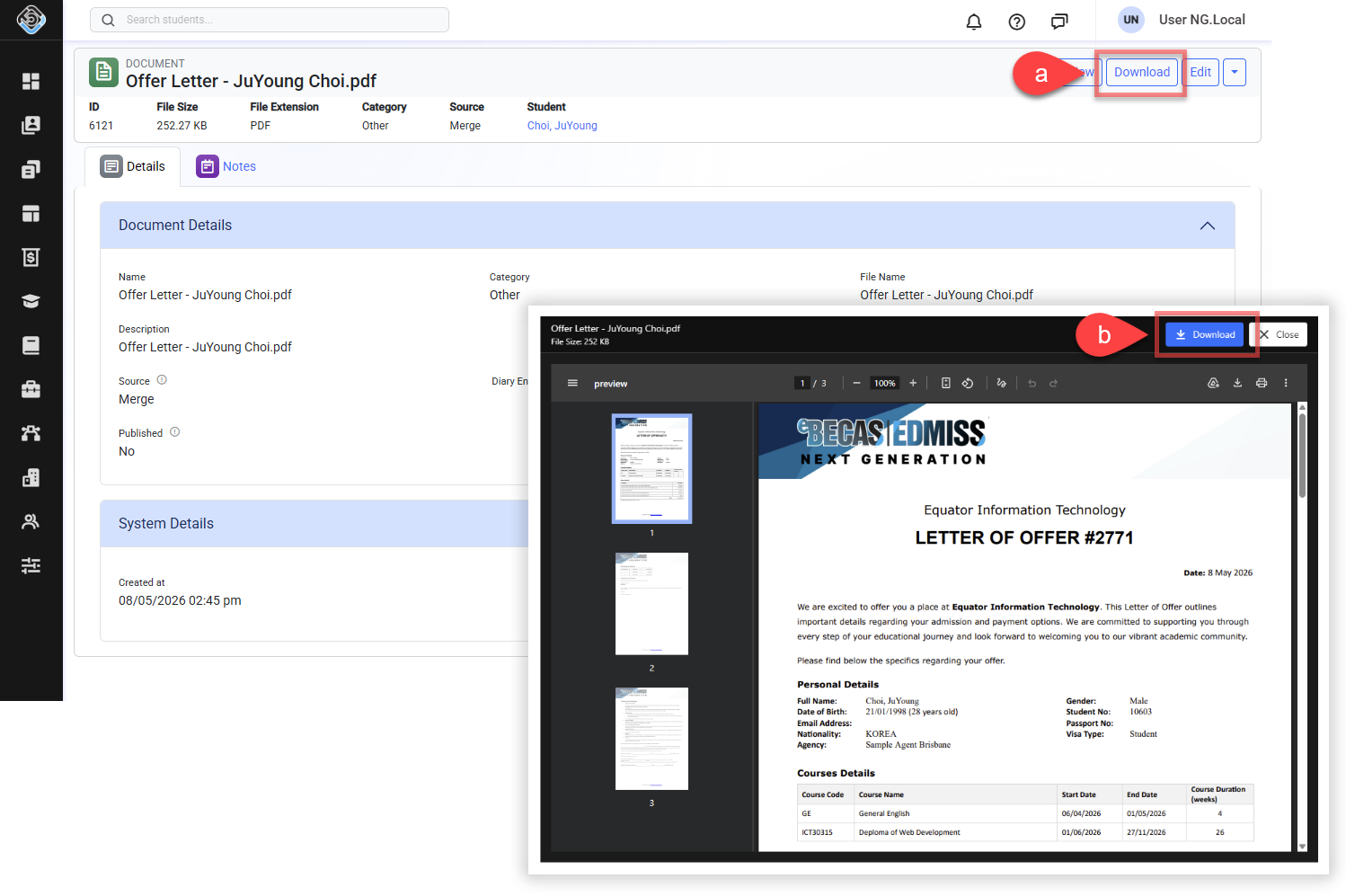
Documents stored in the Document Store can be downloaded at any time, regardless of whether the file type supports preview. You can download a document in either of the following ways:
-
Go to the Documents tab of the relevant record and locate the document that you want to download.
-
Download the document using one of the following methods:
-
Open the Document Details page and click the Download button.
-
For a file type that supports preview, click the document Name to open the preview and click the Download button.
-
Edit Document Details
The uploaded file cannot be modified; only the details can be updated.
If you need to modify the file, delete the record and upload the document again.
-
Locate the document that you want to edit.
-
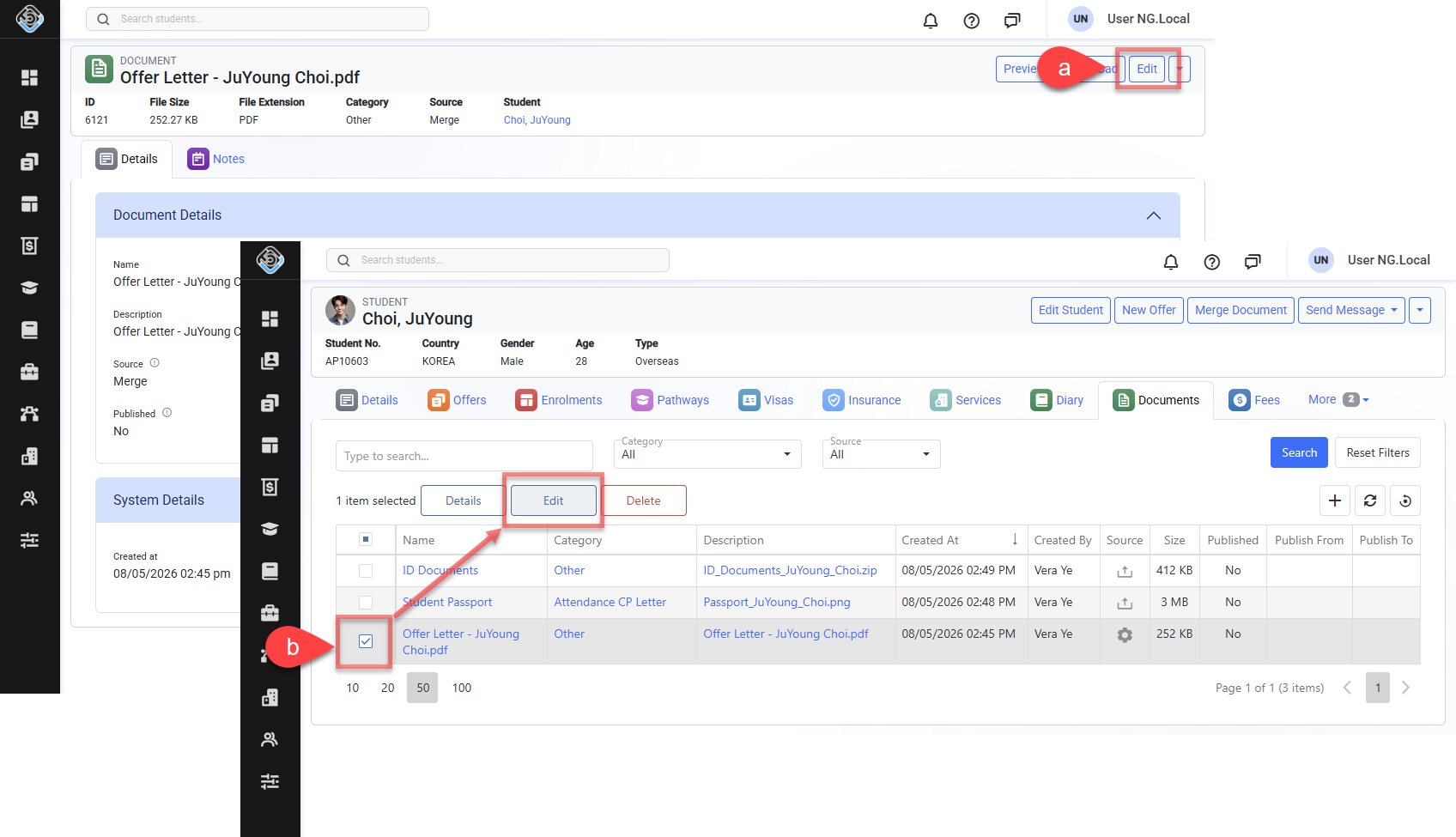
Open the edit window using one of the following methods:
-
Open the Document Details page and click the Edit button in the page header.
-
Select the document using the checkbox in the data grid, then click the Edit button in the Actions Panel, or double-click the entry row.
-
-
Update the details as needed.
-
Click on Save to finish.
Delete a Document(s)
-
Locate the document that you want to delete.
-
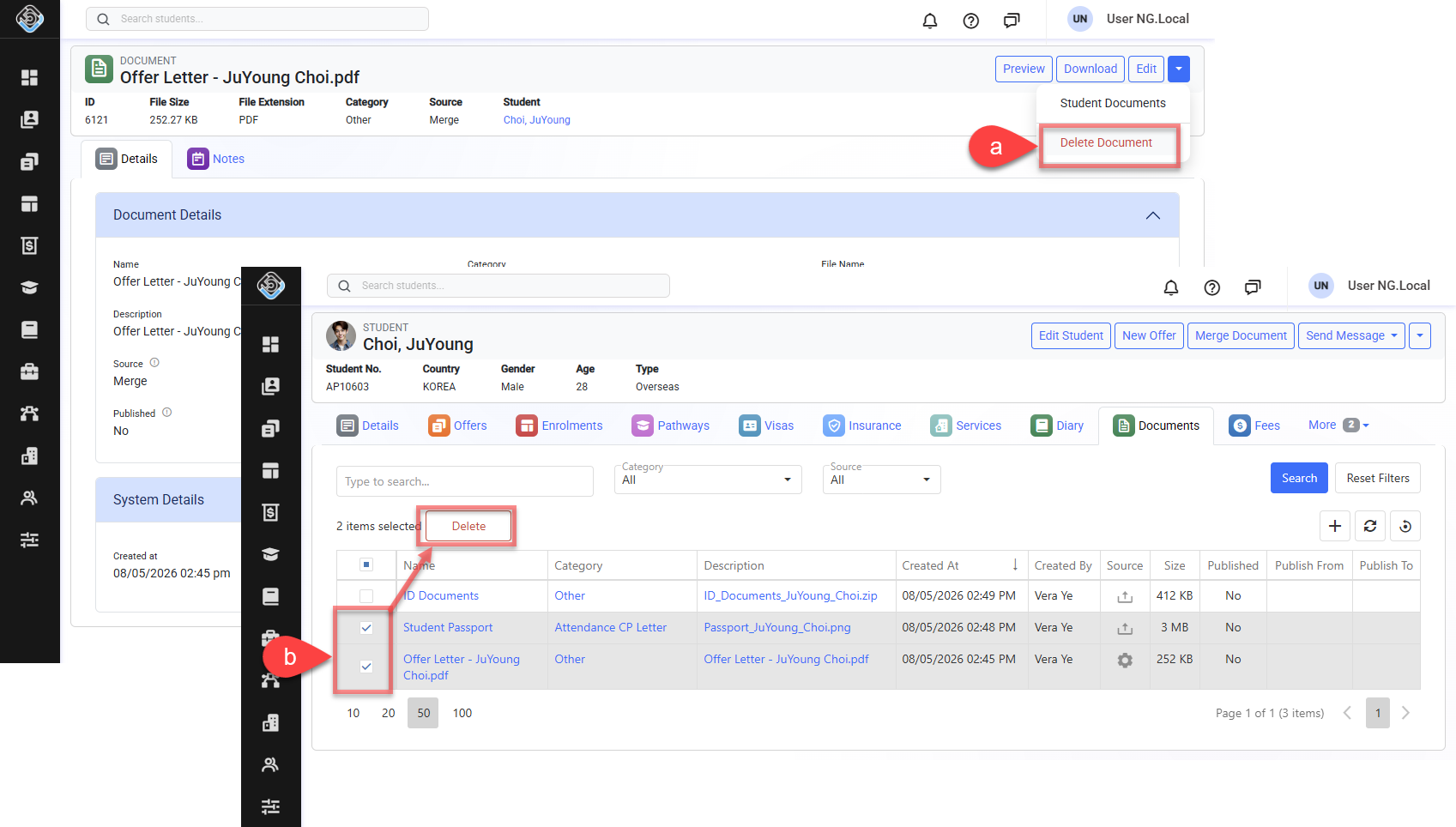
Delete the document using one of the following methods:
-
Open the Document Details page and click the Delete button in the page header.
-
Select the documents using the checkbox in the data grid, then click the Delete button in the Actions Panel.
-
-
Confirm to delete the selected document.
Troubleshooting