Find out how to sign up for and log in to the Student Portal quickly and securely. This guide will help you access your account and get started.
Student Portal URL
Contact your system administrator for the Student Portal URL.
Sign Up
Signing up for the Student Portal is the first step to accessing important features like course details, announcements, and more. Follow these steps to create an account:
-
Open a web browser and navigate to the Student Portal URL provided by your institution.
-
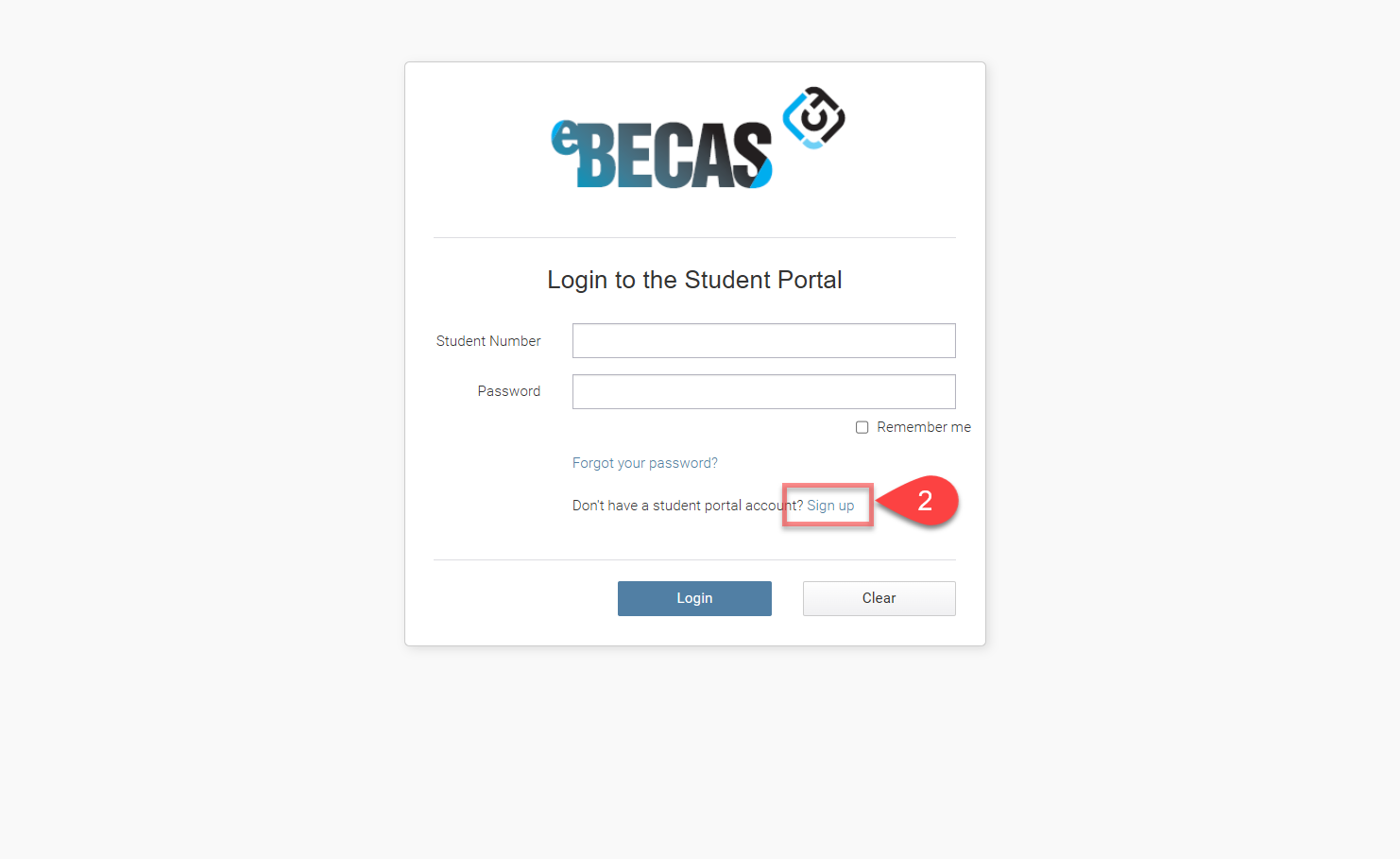
On the login page, click the Sign Up button to begin creating an account.
-
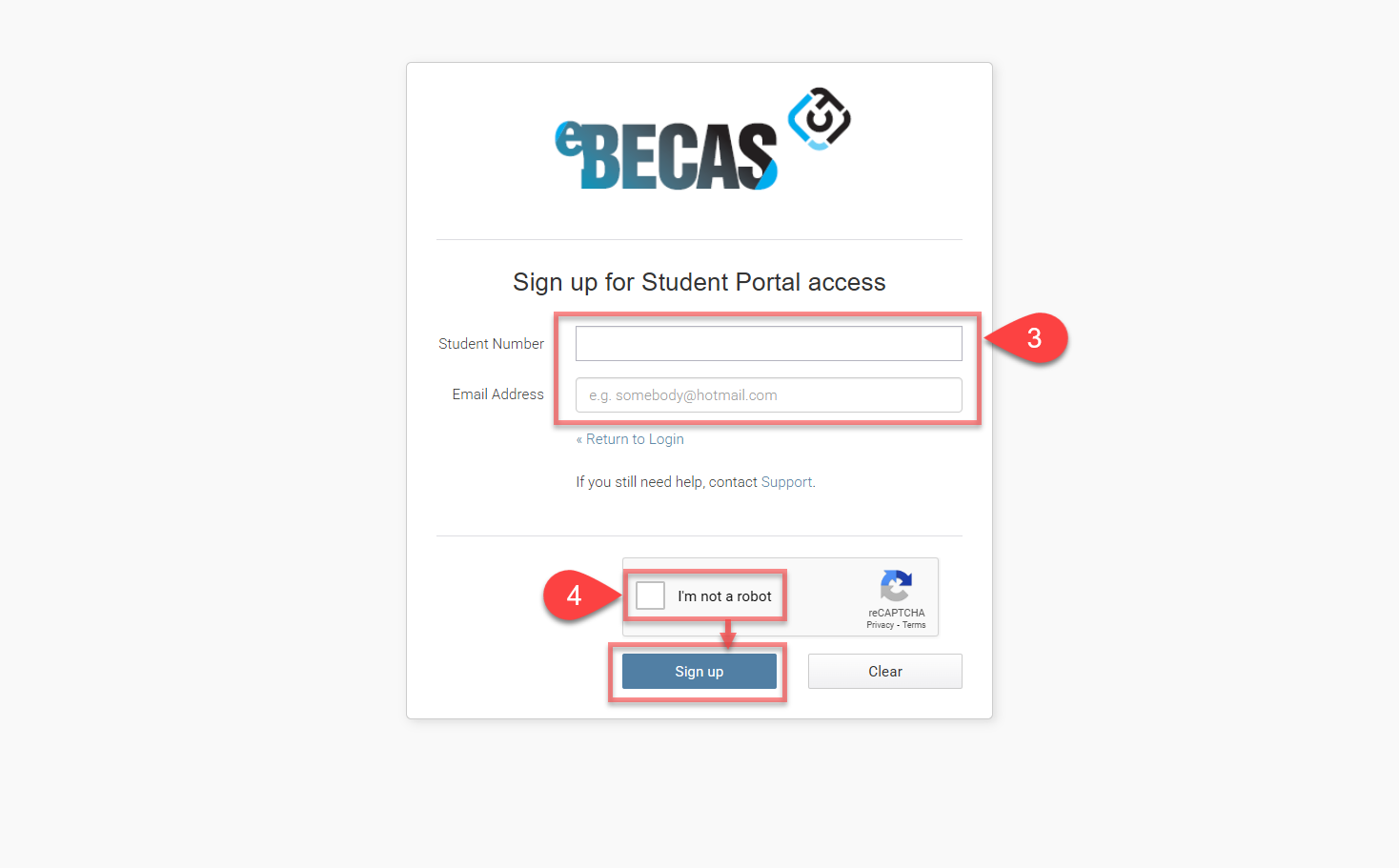
Enter the details.
-
Student Number: Enter your student number.
-
Email Address: Use the email address associated with your student information in eBECAS/EDMISS.
-
-
Check the I’m not a robot box and complete any verification steps if prompted. Then click the Sign Up button.
-
A temporary password will be sent to the registered email address. Use this password to log in to the Student Portal for the first time.
Log In
After signing up, logging in is simple and secure. Here’s how:
-
Open a web browser and navigate to the Student Portal URL provided by your institution.
-
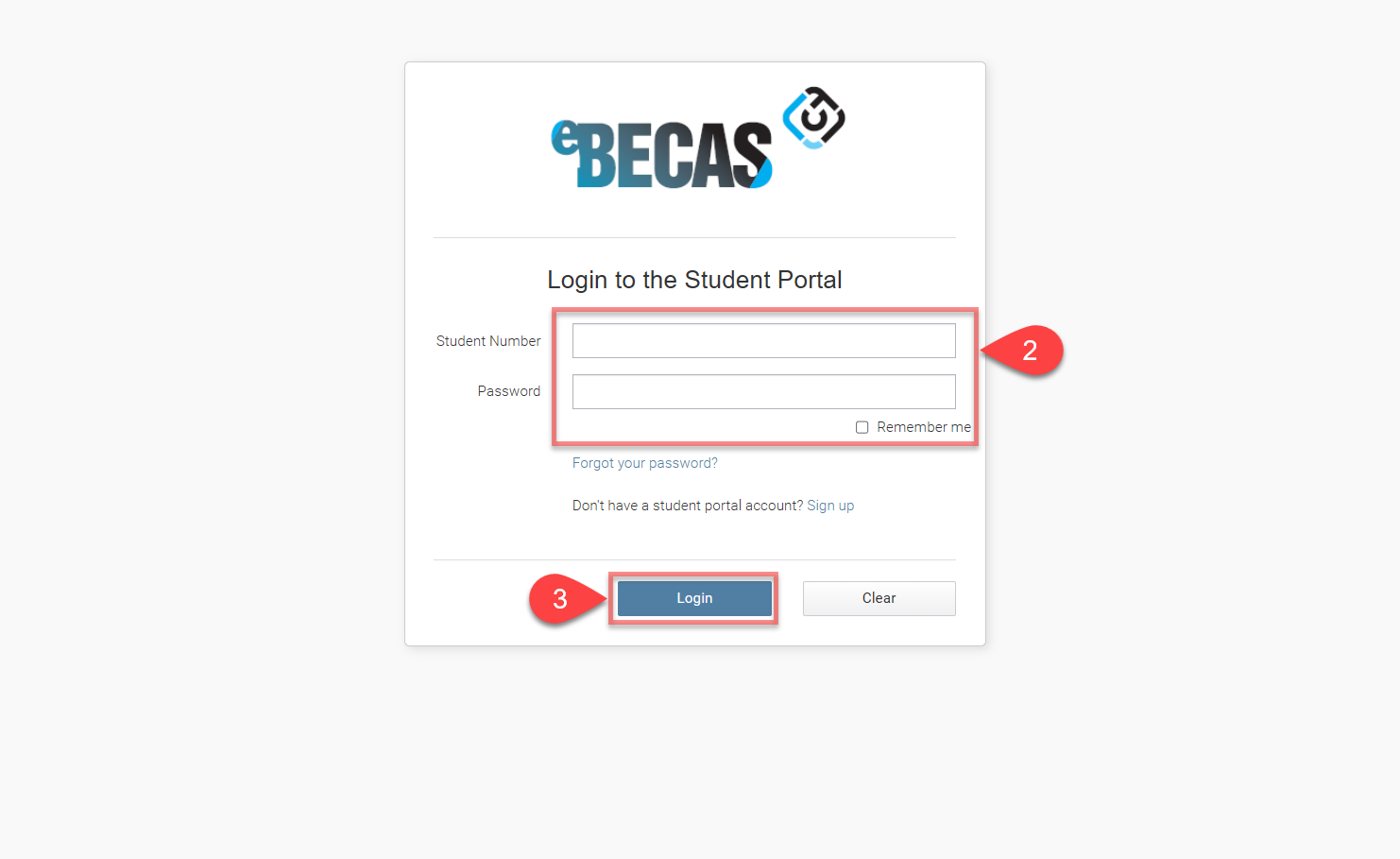
Enter the credential details.
-
Email Address: Enter the email address you used during the sign-up process.
-
Password: Use the temporary password sent to your email or your updated password if you've changed it.
-
-
Click the Log In Button.
-
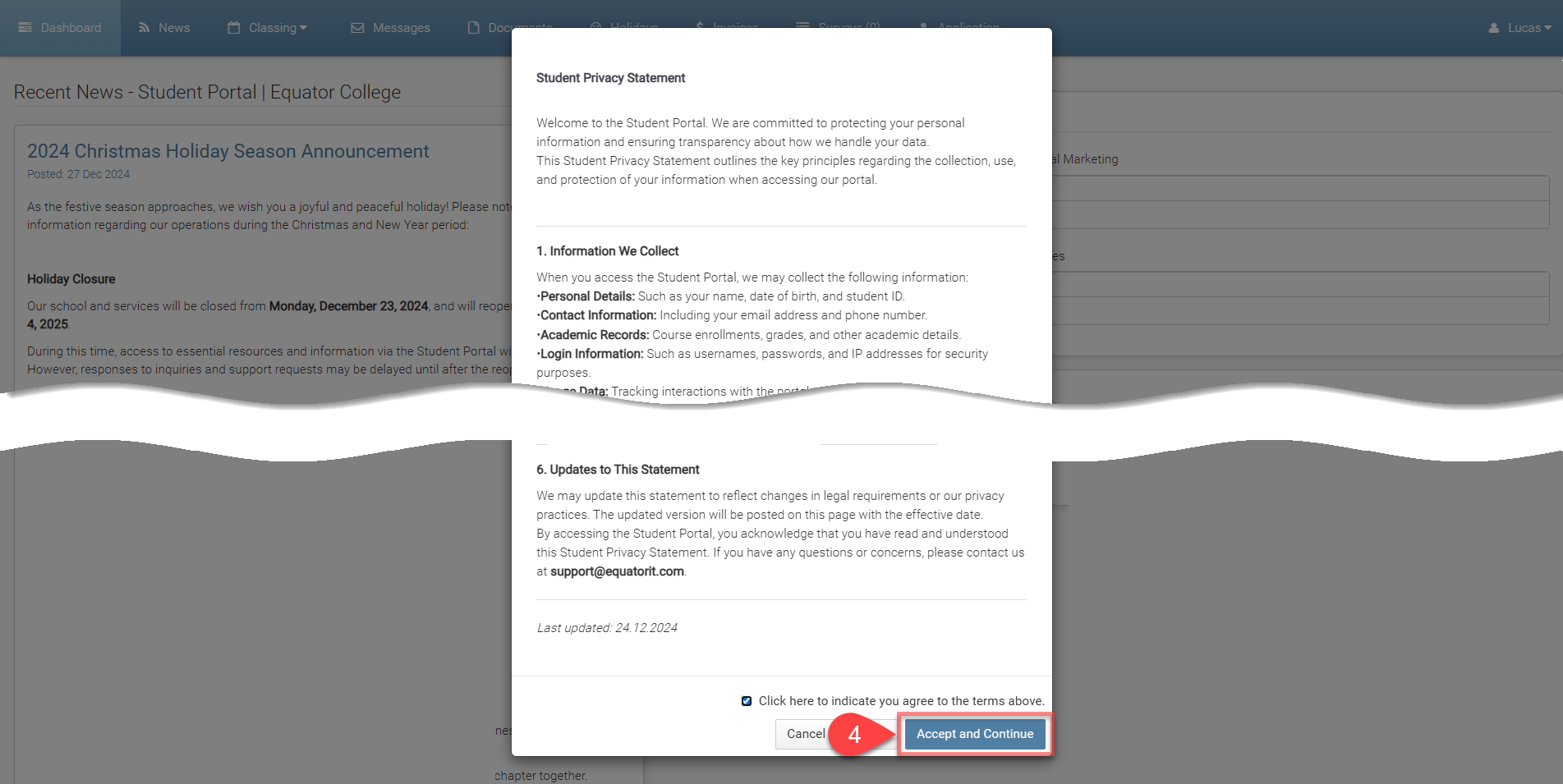
If this is your first time logging in, the Student Privacy Statement window will appear. Review the information carefully, and if you agree, click the Accept and Continue button to proceed to the Student Portal.
Student Portal Access Expiry
Student Portal access can be automatically removed after a student's enrolment has ended. Access can also be removed manually from the student's details when required.
Automatic Access Expiry
To automatically remove Student Portal access after an enrolment finishes:
-
Go to Setup Configuration > Options > Student.
-
Enable Remove Student Portal Access after Enrolment finishes.
-
In Weeks, enter the number of weeks that students can continue to access the Student Portal after their enrolment ends.
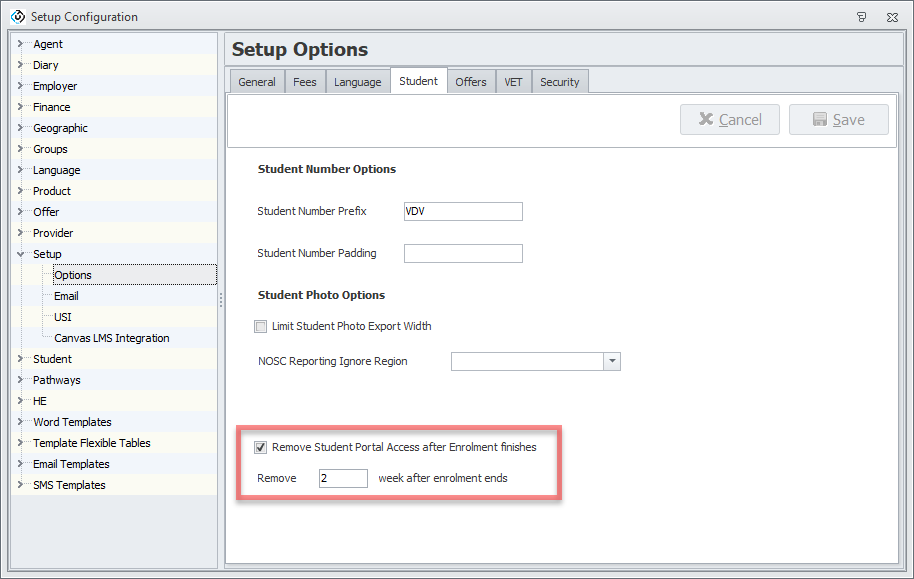
Student Portal access can be configured to expire a specified period after the student's enrolment ends.
The expiry period is calculated from the Enrolment End Date. This also applies to cancelled enrolments. When an enrolment is cancelled, its End Date is automatically updated to the Start Date, and the access expiry period is calculated from this date.
Student Portal access will not be removed if the student has:
-
A current, concurrent, or future enrolment that allows the student to continue accessing the Student Portal.
-
An Offer that is not cancelled and contains at least one Course Offer Item with a Start Date on or after the current date.
Student Portal access is removed by a scheduled weekly task. Therefore, access may remain available for a short period after the configured expiry date or after an enrolment is cancelled.
Remove Student Portal Access Manually
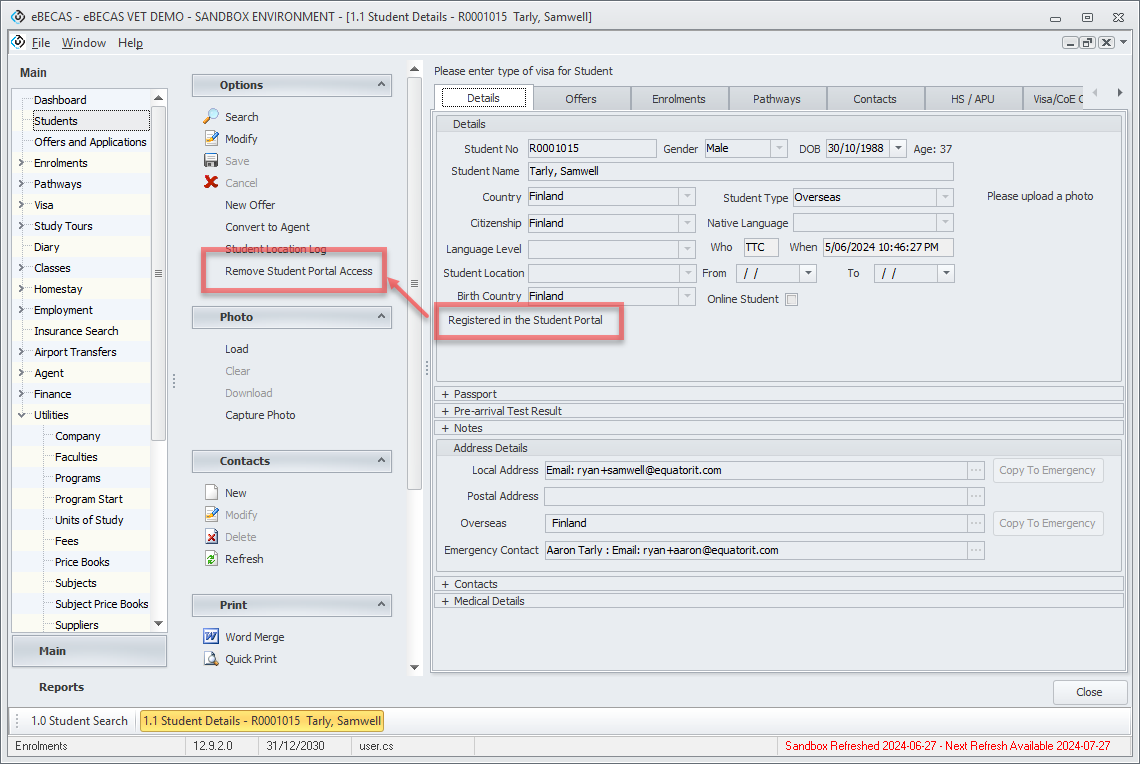
Student Portal access can also be removed manually when access needs to be revoked immediately.
Go to Student > Details and click on Remove Student Portal Access from the side menu.
If the student later has a new eligible Offer or Enrolment, they can complete the Student Portal sign-up process again to regain access.