
After a student submits a class selection from the Student Portal, the selection must be reviewed and confirmed by an administrator in eBECAS/EDMISS.
The submitted selection is not final until it is confirmed. This allows administrators to review student selections before the student is officially assigned to the selected class.
Review Submitted Selections
Submitted student selections can be reviewed from Classes > Confirm Student Selections menu. This menu displays student class selections that are waiting for administrator review. A submitted selection means the student has selected a class through the Student Portal, but the class allocation has not yet been finalised.
Understand Pending Approval
When a student submits a class selection, the related Result Status changes to Pending Approval. Pending Approval means the student has selected a class, but the selection has not yet been confirmed by an administrator.
While the selection is pending, the student is not yet fully assigned to the class.
Confirm a Student Selection
To approve the submitted selection, confirm the student’s selection from Classes > Confirm Student Selections menu.
When the selection is confirmed:
-
The student is assigned to the selected class.
-
The Result Status changes from Pending Approval to Class Assigned.
-
The class allocation becomes final in eBECAS/EDMISS.
-
If Canvas integration is used, the Canvas enrolment is processed after the student becomes Class Assigned.
Delete a Submitted Selection
If the submitted selection should not be accepted, administrators can delete the submitted class selection. Deleting the submitted selection cancels the student’s pending class selection.
If the relevant allocation window is still open, the student can submit another class selection through the Student Portal where required.
If the allocation window has closed, any further changes must be managed by an administrator in eBECAS/EDMISS.
Class Availability after Submission
When a student submits a class allocation request, the available place for the selected class is updated. This helps prevent the same available place from being selected by multiple students before administrator confirmation.
The class assignment is still not final until the selection is confirmed by an administrator.
After Confirmation
Once the selection is confirmed, the student is officially assigned to the class. Students cannot change a confirmed selection through the Student Portal.
If further changes are required after confirmation, administrators must manage the class allocation directly in eBECAS/EDMISS.
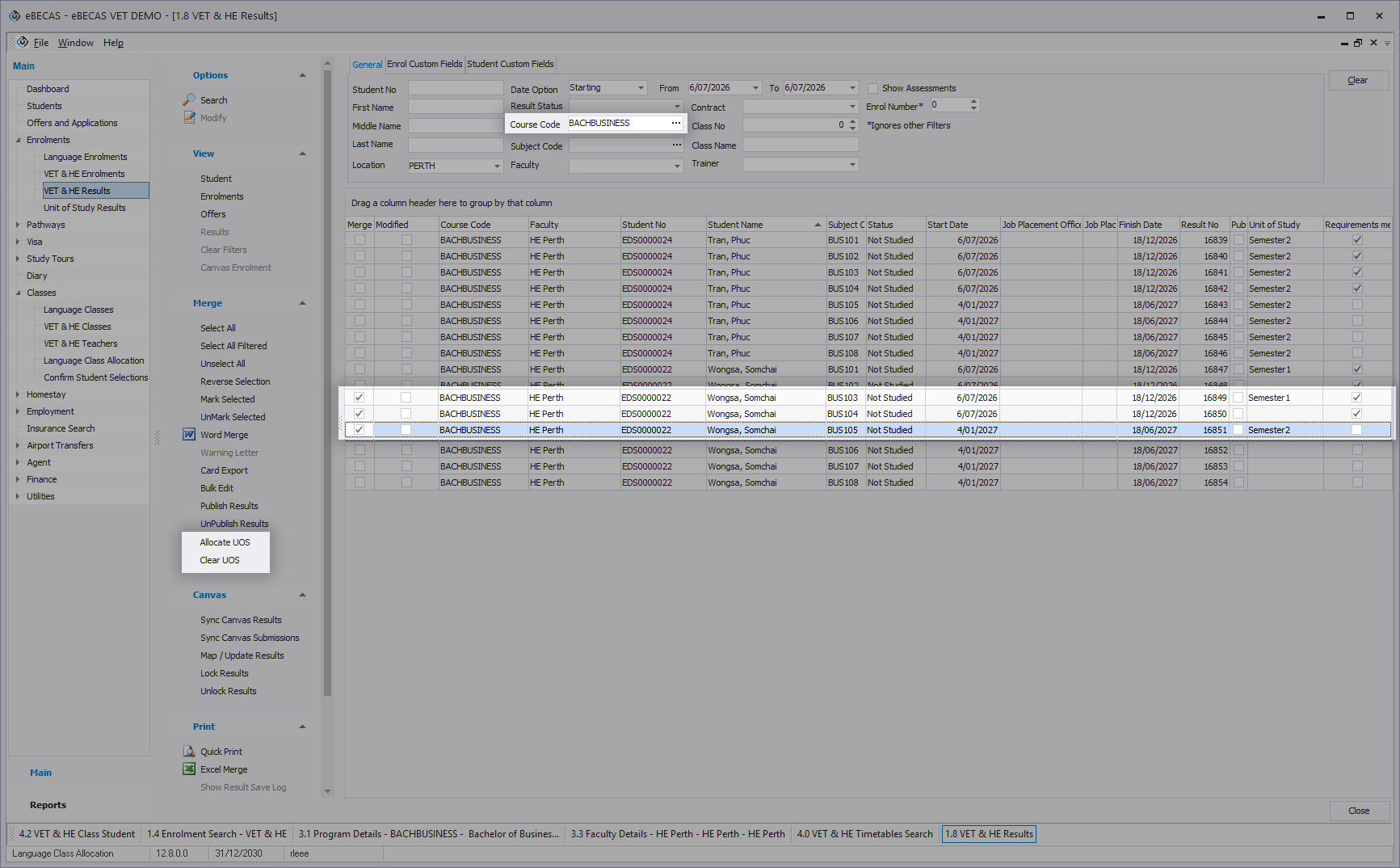
For bulk management, administrators can use the tools available in VET & HE Results menu, such as Lock UOS in bulk or assigning and clearing Units of Study in bulk.
To assign or clear Units of Study in bulk, administrators must first search the records in VET & HE Results using the Course Code filter.
Next Step
After student selections have been reviewed and confirmed, administrators can continue tracking allocation progress and Student Portal activity.