The Power BI App allows you to securely connect your system data to Microsoft Power BI, where you can build custom dashboards, monitor key performance indicators, and analyse trends across your organisation.
The App includes a custom Power BI connector developed and maintained by Equator IT. The connector manages the connection to your system reports, making it easier to access and work with your data in Power BI.
The Power BI App is available with selected subscription plans. Contact your system administrator for more information.
How It Works
Once the Power BI App is installed, configure the date range for each report you want to use in Power BI.
Using the custom Power BI connector, you can then add those reports to Power BI.
When the data is refreshed, either manually or on a schedule, the connector retrieves the report data using the date ranges configured in the Power BI App.
Configuration
-
From the Utilities menu, go to Apps.
-
Locate the Power BI App, and click on Details.
-
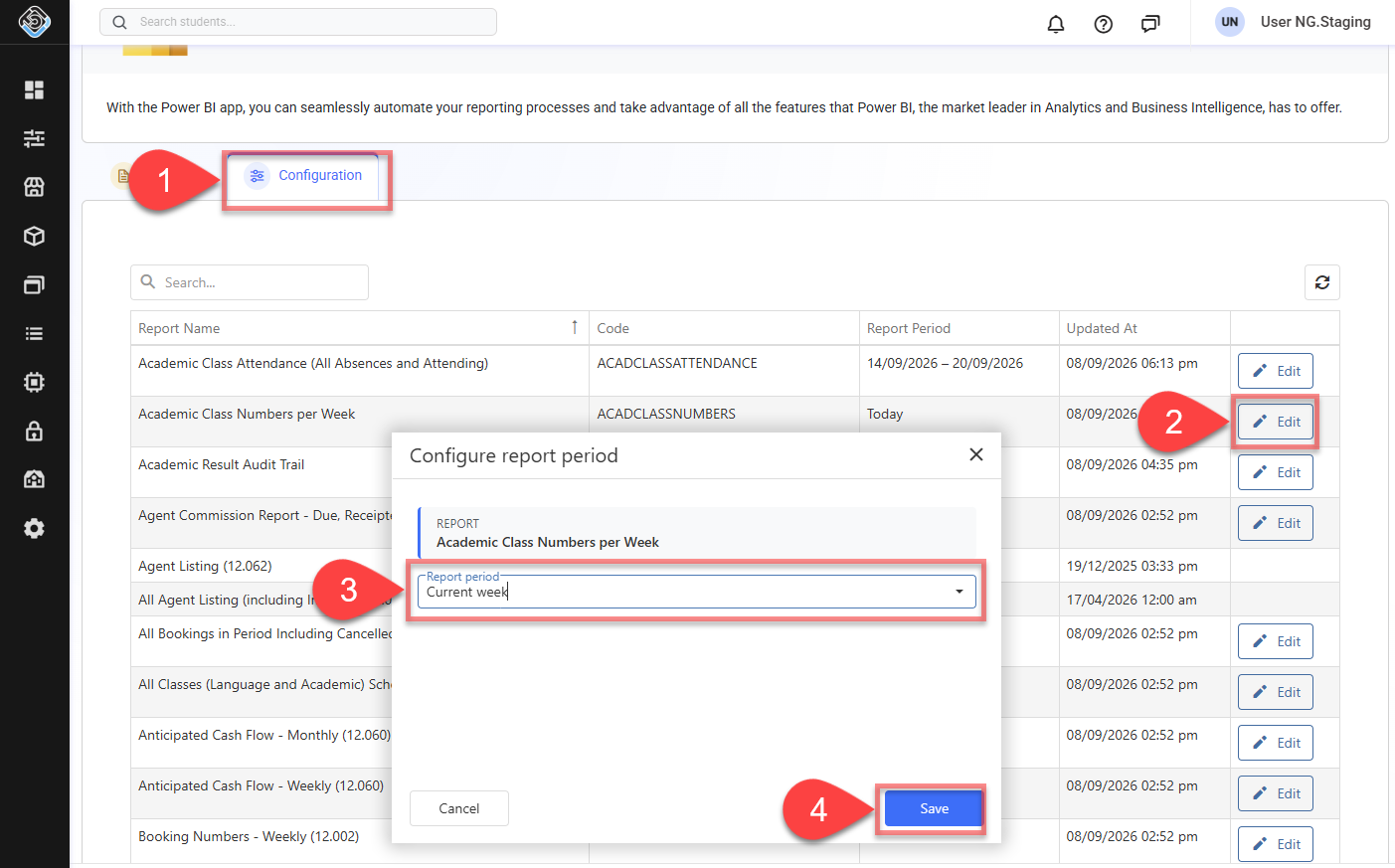
From the tabs, click on Configuration. The list of reports available will display.
-
Locate the report you want to edit the date for and click on Edit.
-
Select the Report Period to define the From and To dates used when the report data is refreshed in Power BI. For predefined periods, these dates are calculated automatically at the time of refresh.
-
Custom: Uses the manually selected From and To dates.
-
Day: Uses yesterday, today, or tomorrow.
-
Week: Uses the previous, current, or next week.
-
Month: Uses the previous, current, or next month.
-
Quarter: Uses the previous, current, or next quarter.
-
Calendar Year: Uses the previous, current, or next calendar year.
-
To-Date: Uses the beginning of the current month, quarter, or calendar year as the From date and today as the To date.
-
Rolling Periods: Uses a rolling period up to today, based on a specified number of days, weeks, or months, such as the last 7 days, 4 weeks, or 3 months.
-
The maximum date range differs for each report to ensure performance and reliability. Reports that require heavy processing may be limited to shorter periods to avoid long load times and reduce system impact.
-
Click on Save
-
The next time the report you edited is refreshed in Power BI, it will use the configured report period.