
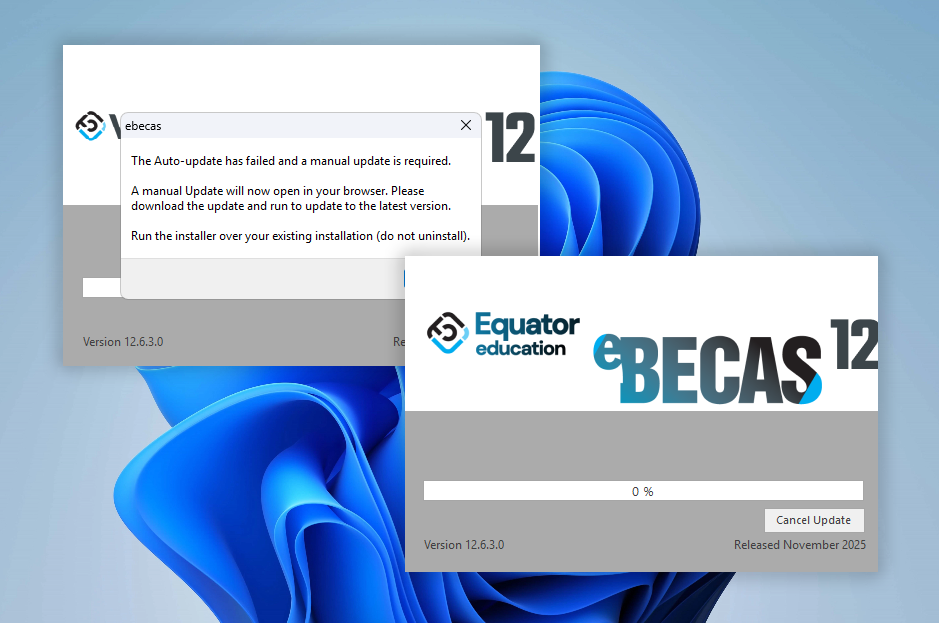
If you're experiencing issues with the eBECAS/EDMISS Auto Update—such as seeing an update failure message, or the update progress stops and does not complete—this article will guide you through how to complete the update manually and get back up and running.
Steps to Resolve the Issue
To resolve this issue, please follow the steps below depending on your situation.
-
Click on Cancel Update Button to Download Manual Updater
Click Cancel Update button in the eBECAS/EDMISS to stop updating. The system will start downloading the latest Manual Updater automatically, then you can find it in your browser’s Downloads folder.
If no file was downloaded, or you’re unsure, you can:-
Ask your System Administrator for the latest Manual Updater, or
-
Manually download it from eBECAS/EDMISS Next Generation by following the instructions in this article: Company Information | Download eBECAS/EDMISS Classic(Desktop) App Installer/Updater
-
-
Fully Close eBECAS/EDMISS
Before running the manual updater, make sure eBECAS/EDMISS is not running in the background.-
Close any open eBECAS/EDMISS windows.
-
Open Task Manager (Ctrl + Shift + Esc), and end any remaining eBECAS.exe or EDMISS.exe processes.
-
If you're unsure or cannot close the app completely, restart your PC before proceeding.
-
Once the application is fully closed, continue to the next step.
-
Run the Latest Manual Updater
Run the updater file to manually update eBECAS/EDMISS.
Do not uninstall the app—just run the updater over your existing installation. Then, try to run the eBECAS/EDMISS again. -
If the Problem Persists
If the issue continues even after applying the update:-
Please try to uninstall eBECAS/EDMISS fully and reinstall it clean. For detailed instruction, please visit this article: Installing and Updating eBECAS/EDMISS
-
Please contact your System Administrator to escalate the issue and reach out to the Equator IT Support Team for further assistance.
-