A Tentative Accommodation Request records accommodation requirements from an Offer that has not yet been accepted.
You can assign an Accommodation Provider and Bed to a Tentative Accommodation Request while the related Offer is awaiting acceptance. You can also change the assigned Bed or remove the assignment as required.
Managing assignments at the Tentative stage allows staff to plan which Provider and Bed each student will use before the Offer is accepted. Staff can review and adjust these selections as accommodation requirements change, without waiting until placement.
These actions do not complete the placement or change the Accommodation Request status from Tentative. A tentative assignment does not exclusively reserve the Bed.
If you are new to Accommodation Requests and Placements, we recommend first reading Accommodation Requests and Placements for an introduction to the overall process.
Considerations for Working with Tentative Bed Assignments
Before assigning or changing a Bed, keep the following in mind:
-
These instructions apply to only Accommodation Requests with a Tentative status.
-
Accommodation Request details, such as the accommodation period and Location, must be updated through the related Offer Accommodation Item. Use Assign Bed, Change Bed and Unassign Bed to manage the Provider and Bed assignment.
-
A tentatively assigned Bed may also be selected for another request covering the same period. A warning icon indicates in the bed selection dropdown that the Bed has been selected for another request.
-
A tentative bed assignment does not exclusively reserve the Bed. Once the Offer is accepted and an Accommodation Request is created to replace the Tentative Accommodation Request, staff can proceed with placement.
-
For instructions on completing a placement or changing a Bed after placement, see Place, Change Bed and Unplace Accommodation Requests.
Tentative Accommodation Requests from Study Tour Offers
When an Accommodation Item in a Study Tour Offer uses Per Student and is configured to create requests, a separate Tentative Accommodation Request is displayed in each included student's Services > Accommodation section. These requests can also be found through Accommodation Requests/Placements Search.
This allows staff to select a different Provider and Bed for each student while keeping the accommodation product on the Study Tour Offer as a single Offer Item.
For instructions on configuring the Request Option, see Study Tour Offer Items.
Assign a Bed to a Tentative Accommodation Request
Use Assign Bed to select an Accommodation Provider and Bed for a Tentative Accommodation Request. The same action can also be used to change an existing Provider and Bed assignment.
-
Locate and select the Tentative Accommodation Request using either of the following:
-
Student Profile: Go to the student's Services tab and select the request with Tentative status from the Accommodation grid.
-
Accommodation Requests/Placements Search: Go to Accommodation > Requests/Placements Search, search for requests with Tentative Placement Stage filter and select it.
-
-
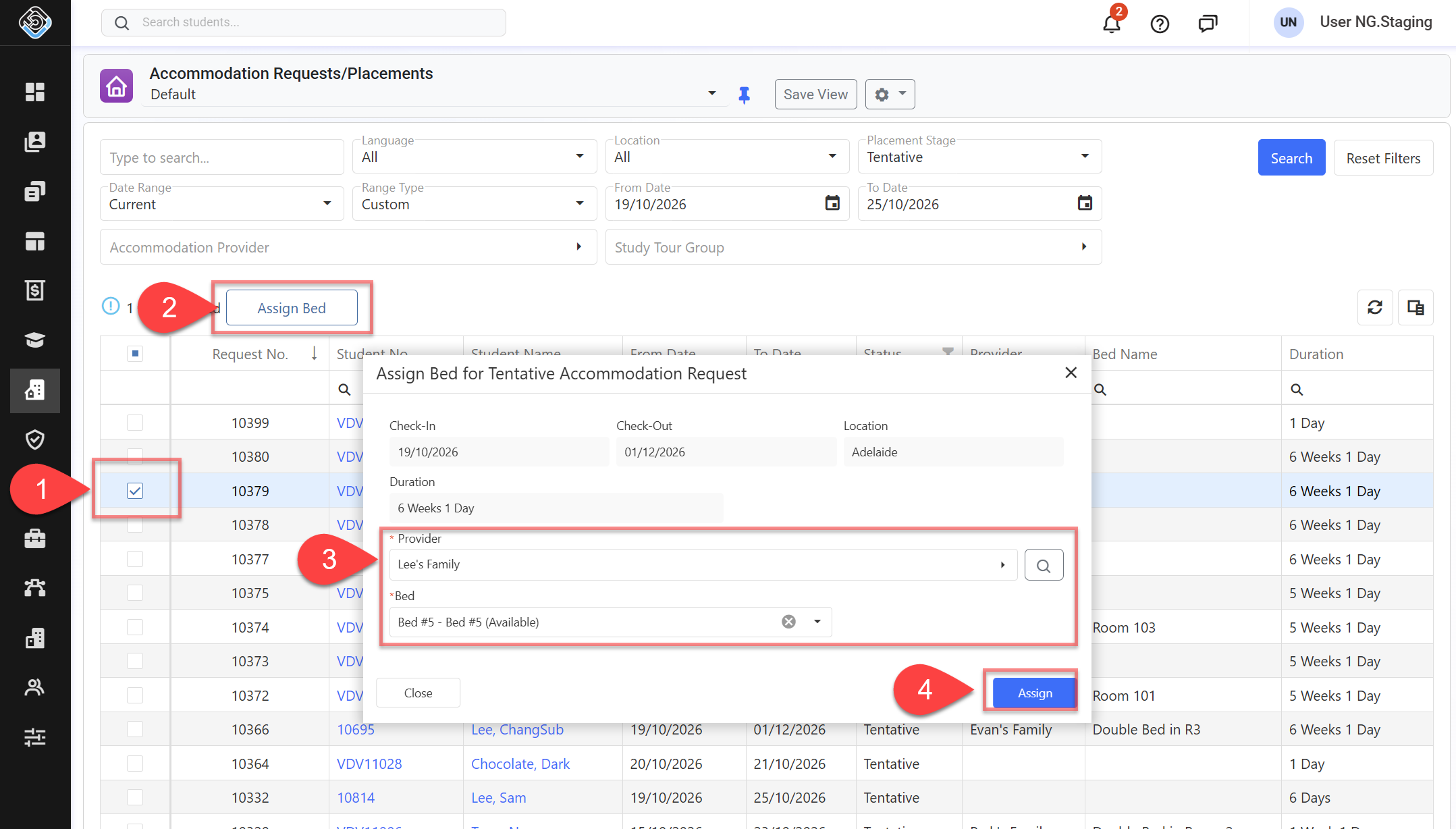
Click Assign Bed.
-
In the Assign Bed for Tentative Accommodation Request window, select the required Accommodation Provider and Bed.
For a request originating from a Study Tour Offer with Per Student option, the Provider selected on the Offer Item is preselected. You can select a Bed from that Provider or choose a different Provider and Bed. -
Save your selection.
The Provider and Bed are assigned to the request. The Accommodation Request status remains Tentative.
Change the Provider or Bed for a Tentative Accommodation Request
Use Change Bed to change the Provider or Bed assigned to a Tentative Accommodation Request.
-
Locate and select the Tentative Accommodation Request using either of the following:
-
Student Profile: Go to the student's Services tab and select the request with Tentative status from the Accommodation grid.
-
Accommodation Requests/Placements Search: Go to Accommodation > Requests/Placements Search, search for requests with Tentative Placement Stage filter and select it.
-
-
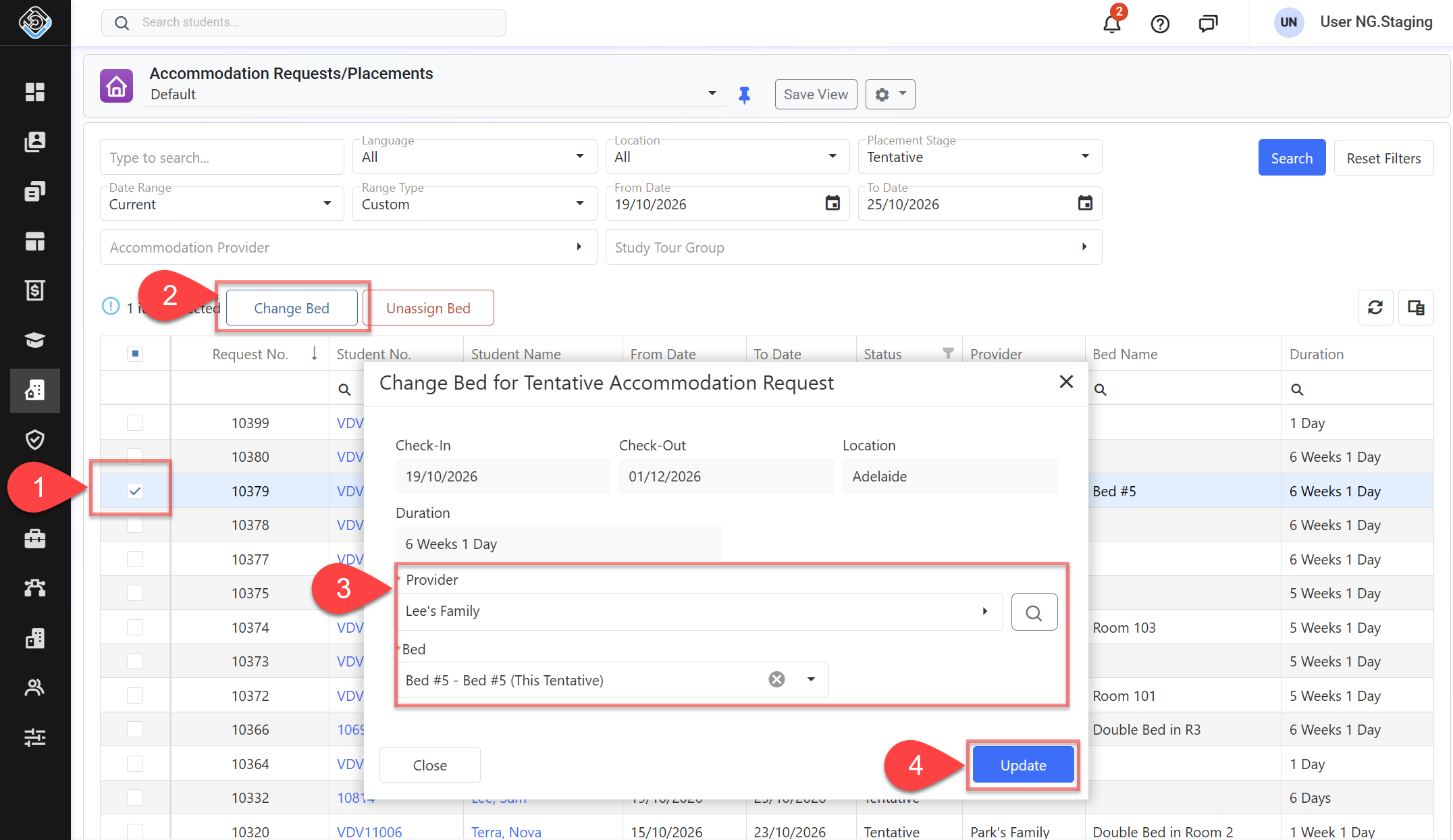
Click Change Bed.
-
Select the required Accommodation Provider and Bed, and save your selection.
The Provider and Bed assignment is updated, and the Accommodation Request status remains Tentative.
Unassign a Bed from a Tentative Accommodation Request
-
Locate and select the Tentative Accommodation Request using either of the following:
-
Student Profile: Go to the student's Services tab and select the request with Tentative status from the Accommodation grid.
-
Accommodation Requests/Placements Search: Go to Accommodation > Requests/Placements Search, search for requests with Tentative Placement Stage filter and select it.
-
-
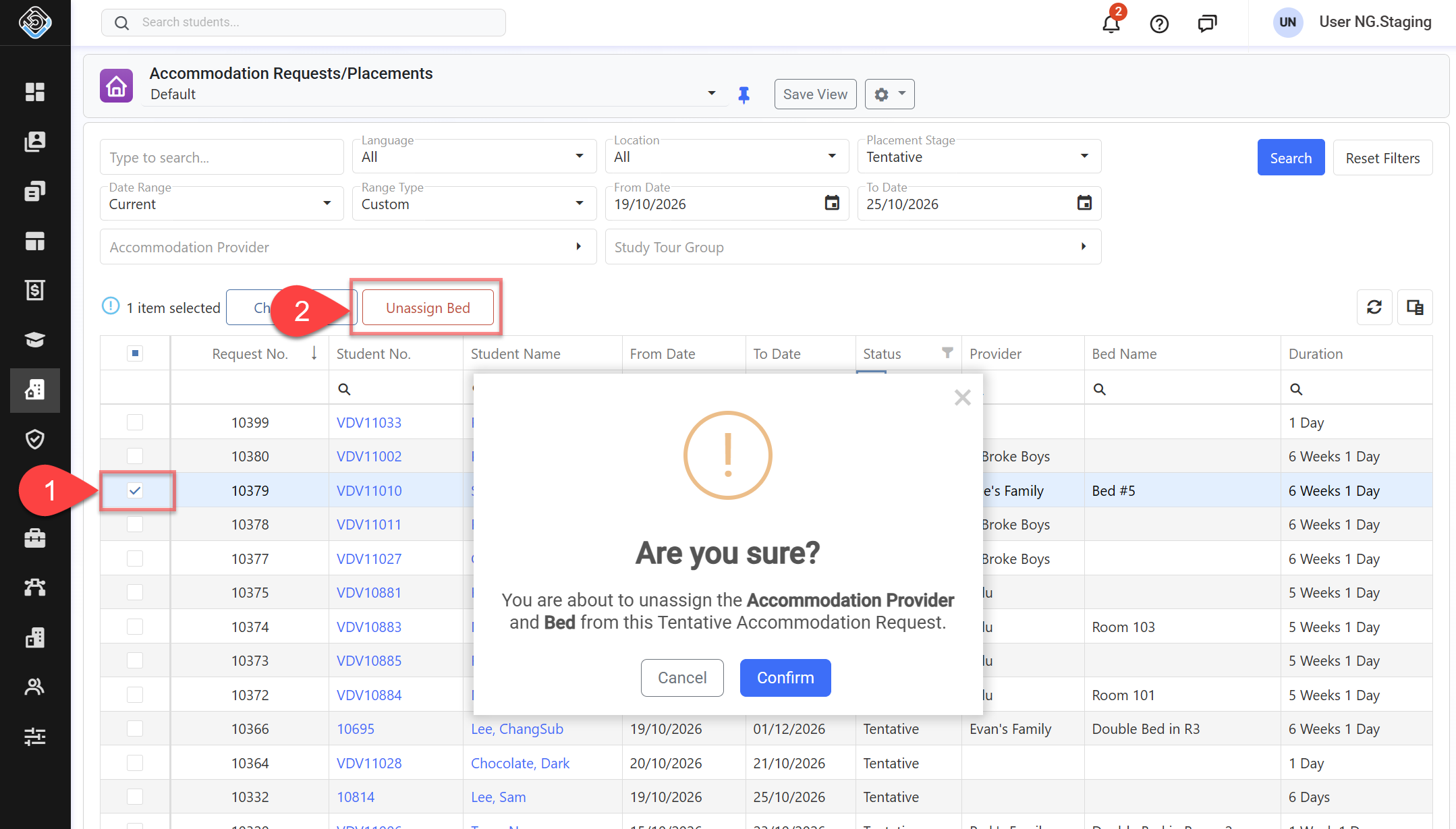
Click Unassign Bed and confirm the action. The result depends on how the Tentative Accommodation Request was created:
-
Individual Student Offer: Both the Accommodation Provider and Bed are cleared.
-
Study Tour Offer with a Provider: The Provider returns to the Provider selected on the Study Tour Offer Item, and the Bed is cleared.
-
Study Tour Offer without a Provider: Both the Provider and Bed are cleared.
-
In all cases, the Accommodation Request status remains Tentative.