Accommodation Requests/Placements Search allows you to search and review Accommodation Requests and Placements across all students from one central page.
This makes it easier to monitor accommodation activity, locate specific requests/placements, and access the actions required to manage them.
For Accommodation Requests/Placements related to a specific student, go to the student's Services tab and open the Accommodation section. See this article: Student Accommodation.
The student accommodation functionality is provided by the Equator Accommodation and Transfer Services App. If you do not see the details explained in this article, contact your system administrator to make sure the App is installed.
Accommodation Requests/Placements Search View
The Accommodation Requests/Placements Search View is the main place to search, review and manage Accommodation Requests and Placements across multiple students.
Tip
Customise the views to efficiently access the data you need. You can customise the columns, sorting and filters on the grid. Learn how to use Views.
-
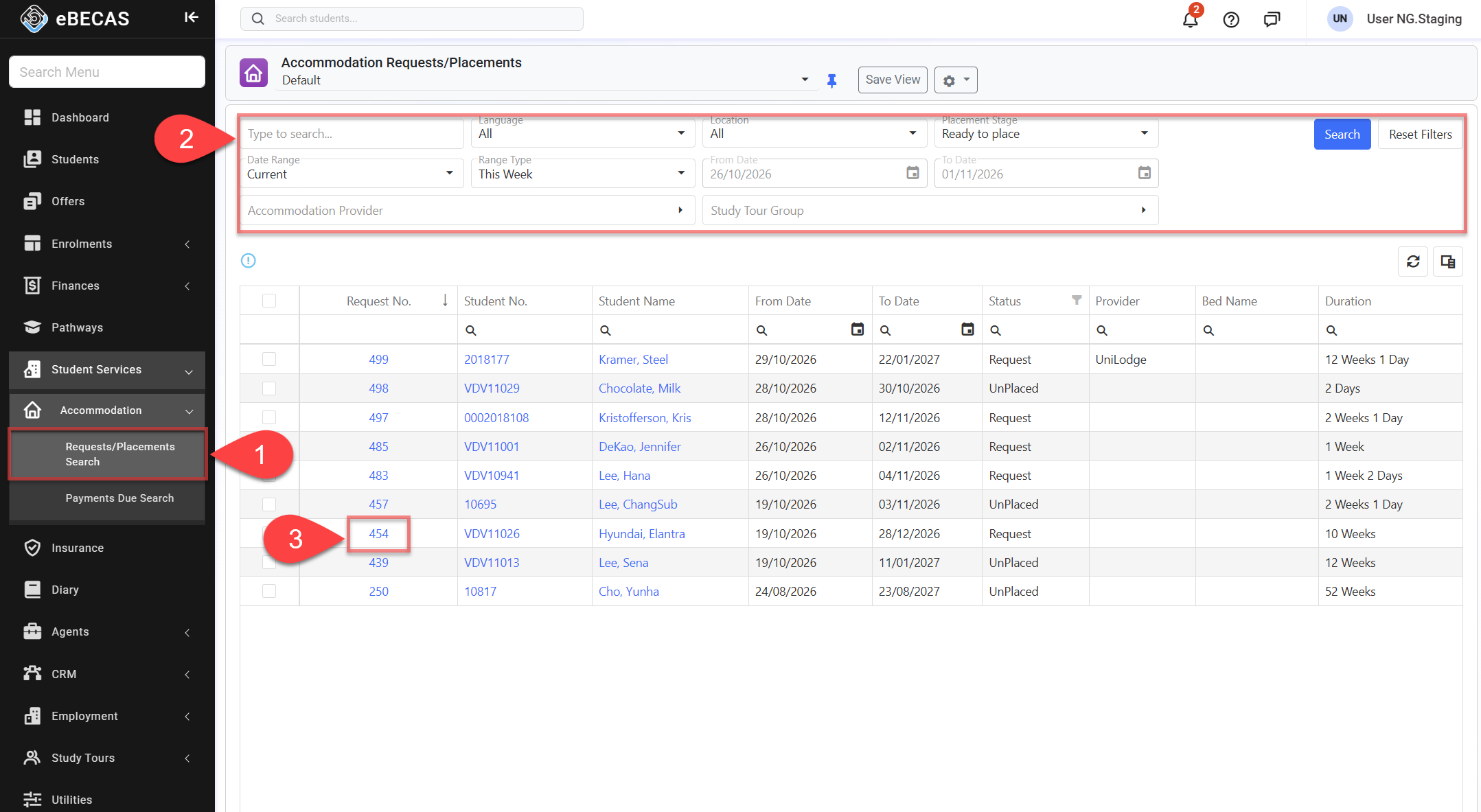
From the Main menu, go to Accommodation > Requests/Placements Search.
-
Use the Grid filters to find the accommodation request entry(s) you are looking for. By default, the filters are set to display all Accommodation Requests Ready to Place, with a status of Request, Confirmed and UnPlaced, that are current during the current week. The filters available are:
-
Quick Search: You can use any of the following in the search box:
-
Student First Name, Middle Name, Last Name, Preferred Name
-
Student Number
-
Student Email
-
Student Mobile Number (excluding symbols like '+', '-')
-
-
Language: Select the language of students to search for.
-
Location: Filters the entries based on the location of the accommodation request.
-
Placement Stage: Select the stage of the entries to search for.
-
Ready to Place: Requests with a status of Request, Confirmed or UnPlaced. These requests have not been placed and are eligible for placement with an Accommodation Provider.
-
Tentative: Requests with a status of Tentative, associated with Offers awaiting acceptance.
-
Placed: Requests with a status of Placed. Placement with an Accommodation Provider has been completed.
-
Cancelled: Requests with a status of Cancelled.
-
-
Date Range: Filter entries based on the selected date range. The options available are:
-
Current: Filter the entries that are ongoing within the date range specified.
-
Starting: Filters the entries that start within the date range specified.
-
Finishing: Filter the entries that end within the date range specified.
-
Changes: Filter the entries that have been updated/changed within the date range specified.
-
-
Range Type: Allows users to set predefined date ranges, automatically populating the From/To Date filter based on the selected range.
-
Custom: Uses the manually entered From/To Date.
-
Day: Sets the From/To date to yesterday, today, or tomorrow.
-
Week: Sets the From/To date to the last, current, or next week.
-
Month: Sets the From/To date to the previous, current, or next month.
-
Quarter: Sets the From/To date to the last, current, or next quarter.
-
Calendar Year (CY): Sets the From/To date to the last, current, or next calendar year.
-
To-Date: Sets the From date as the beginning of the current month, quarter, or year and the To date as Today.
-
-
Accommodation Provider: Search for entries with the selected accommodation provider.
-
Study Tour Group Study Tour App Required : Filter Accommodation Requests and Placements for students associated with the selected Study Tour Group.
-
If you need more filters to specify, you can use the Column Filters and the Advanced Filters.
See this article for more details: Data Grids. -
You can customise the grid by adding/removing columns as required. See this article for more details: Data Grids: Customise Data Grids.
-
-
To navigate to the student accommodation request list, click on the Request No. on the row of interest.
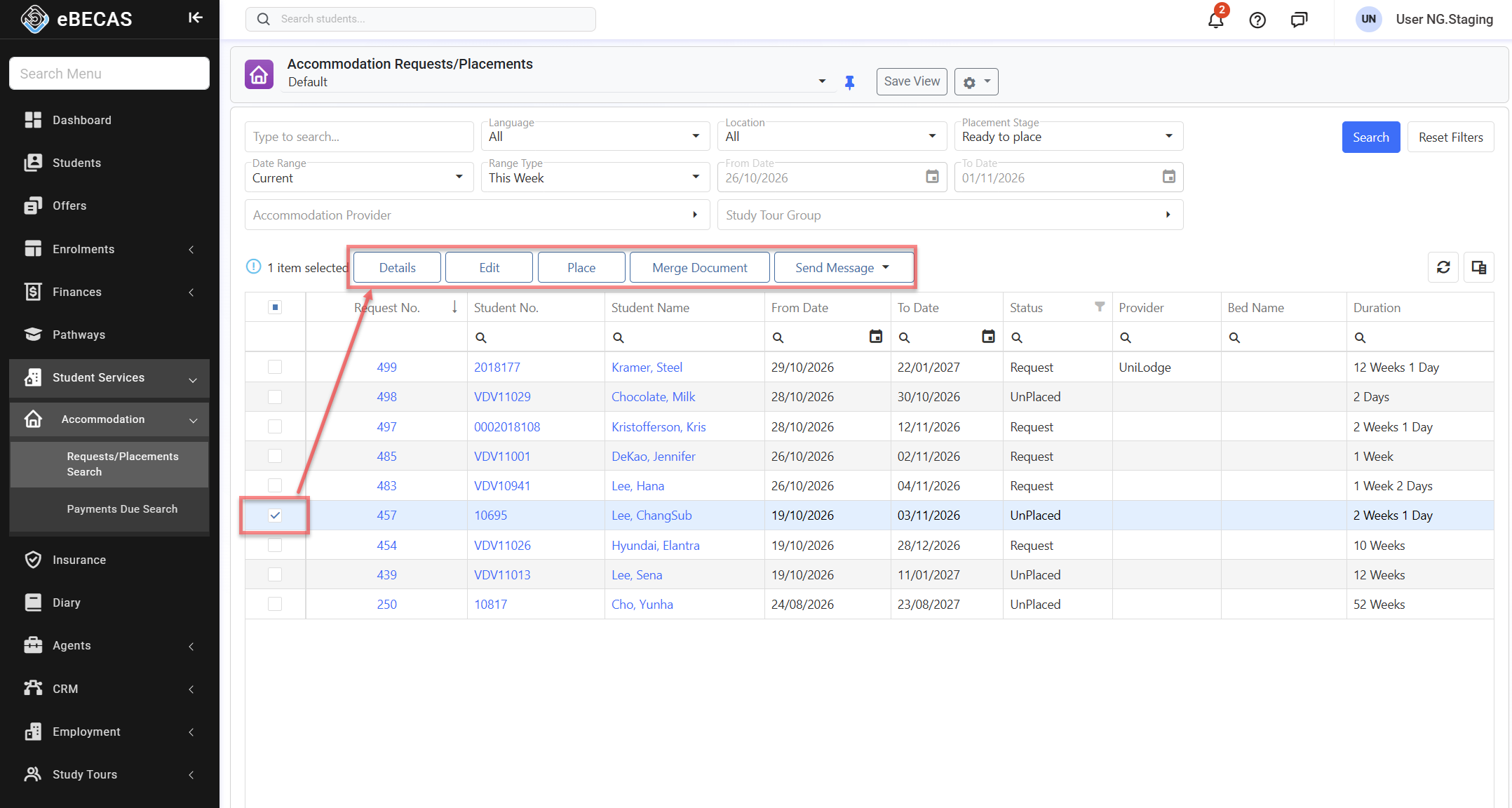
Actions on the Accommodation Requests/Placements Search View
From the Accommodation Requests/Placements Search View, you can perform actions on an Accommodation Request directly from the search results using the grid actions. The actions available depend on the current status of the selected request and your permissions. Some of these actions include, but are not limited to:
-
Details: Open the details page for the selected Accommodation Request.
-
Edit Except Tentative : Update the Accommodation Details for the selected request.
-
Place Except Placed & Tentative : Place the selected Accommodation Request with an Accommodation Provider and, where required, a Bed.
-
Assign Bed Tentative Only : Assign an Accommodation Provider and Bed to a Tentative Accommodation Request.
-
Change Bed Placed & Tentative Only : Change the Bed assigned to an Accommodation Placement or Tentative Accommodation Request.
-
Unassign Bed Tentative Only : Remove a Tentative Accommodation Request’s Bed assignment. How the Provider is handled depends on the related Offer.
-
Unplace Placed Only : Remove the current placement from a Accommodation Placement.
-
Send an Email Except Tentative
-
Send an SMS Except Tentative
-
Merge a document Except Tentative