
The Australian Government Department of Education may require registered providers to submit information about education agent commissions paid in connection with the recruitment of accepted students under the Agent Commissions Data Collection.
This guide provides practical steps for using the Agent Commission Payment Report for this reporting requirement. If you’re unfamiliar with the report, we recommend reading the report documentation first for details on how values are calculated and what the report includes and excludes.
The Indirect Monetary Value and Non-Monetary Description are not recorded in eBECAS. As a result, the report generated using this guide is not ready for submission until these additional values have been added where applicable.
First Things First…
The accuracy of the report depends on the information recorded in the system.
To ensure agent commission payments are reported correctly, make sure the following processes have been followed:
-
Schedule agent commission payments in the system.
-
Record any pre-deducted commission, where the agent retains the commission amount, as a Credit in the relevant enrolment.
-
Visas are linked to the relevant enrolment.
If these processes are not followed, some commission payments that should be included in the report may be missing from the results.
Step 1: Review Visa Categories
Before preparing the report, confirm that your visa types are assigned to the correct visa categories.
Go to Utilities > Setup Configuration > Student > Visa Types and review the category assigned to each visa type.
Make sure all visa types used for Student visas are assigned to the Student category. You can assign multiple visa types to this category.
Step 2: Generate Detailed Report
Generate the report in detailed format so you can review the underlying data before preparing the final figures. In this format, each agent commission payment or credit is shown on a separate row.
-
Go to Reports > Agents > Commission Paid / Due Report.
-
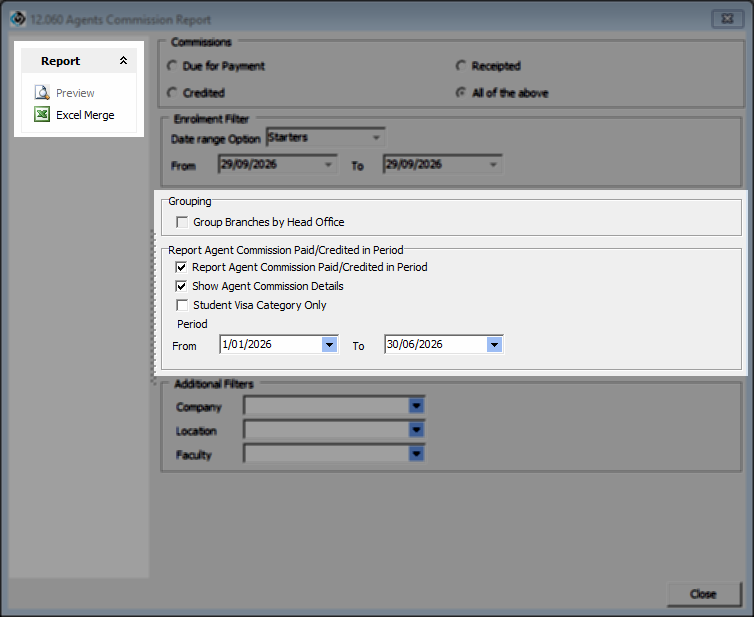
Set the following options:
-
-
Select Report Agent Commission Paid/Credited in Period.
-
Select Show Agent Commission Details.
-
Leave Student Visa Category Only unselected. At this stage, we want to include all visa categories so you can identify any records with missing or incorrect visa information.
-
Select the required reporting period.
-
-
-
From the Report side panel, click Excel Merge to generate the report.
Step 3: Review Detailed Data
Use the detailed report to review the data before preparing the final figures.
-
If you use agent branches and plan to report commissions at the Head Office level, confirm that each agent branch is linked to the correct Head Office.
-
Make sure each entry has a Visa Type and that it is assigned to the correct Visa Category.
If a visa is missing, link it from the relevant enrolment or open the visa record and link it to the enrolment.
If the Visa Category is missing or incorrect, return to Step 1 and update the category assigned to the relevant Visa Type. As the final report will include Student Visa Category records only, it is important that this information is correct.
Step 4: Generate Report
You are now ready to generate the final report. Before doing so, decide whether you can use the summary results or need to work from the detailed data.
If any records need to be excluded or adjusted, generate the detailed report and calculate the required figures manually after making those changes.
If no adjustments are required, you can generate the summary report directly.
The sections below briefly explain both options.
Generate Detailed Report
-
Follow the process in Step 2, but select Student Visa Category Only. You can leave this option unselected if preferred, but you will need to manually exclude any records that are not under the Student visa category.
-
Review the detailed data and make any required adjustments or exclusions.
-
Use the Total Agent Commission excl. GST column for the monetary value. This represents the total agent commission paid during the reporting period, including scheduled payments and pre-deducted commission, excluding GST.
-
Calculate the Number of Accepted Students for each agent. The easiest way to do this is with a PivotTable using a Distinct Count of Student No. for each agent.
Generate Summary Report
-
Follow the process in Step 2 with the following settings:
-
Select Group Branches by Head Office if you want the results aggregated by agent Head Office.
-
Leave Show Agent Commission Details unselected.
-
Select Student Visa Category Only.
-
-
The report will display the aggregated results for each agent, including the Number of Accepted Students.
-
Use the Total Agent Commission excl. GST column for the monetary value. This represents the total agent commission paid during the reporting period, including scheduled payments and pre-deducted commission, excluding GST.
-
If you want to validate the results, use the Detailed Report to review the individual records included in the totals.