
Unlike the Agent Commission report, which includes commission activity (invoiced and paid) based on the relevant enrolment dates, this report includes only commission that has actually been paid or credited (pre-deducted), based on the date the payment was scheduled or the credit was applied.
Understanding the report
Use this report to track agent commissions paid during a selected period. It includes:
-
Commission payments made by the college through Agent Commission Schedules
-
Commission pre-deducted at source and recorded as Credit - Agent Fees
Please note:
-
All agents with commission paid during the selected reporting period are included, even if the Agent current status is Inactive.
-
Commission paid for Study Tours is excluded from the report.
The report includes commissions based on their payment or credit date, regardless of enrolment dates or status.
Report Formats
There are two formats available for this report:
Summary
The data is aggregated by Agent. If you use agent branches, you can also choose to aggregate the results by Head Office.
The Summary format also includes the number of unique students associated with the commission payments reported for the selected period.
Details
Each commission payment or credit is displayed as a separate row.
This format is ideal for reviewing the individual records that make up the summary and for performing your own detailed analysis of the data.
Generate the Report
-
Go to Reports
-
Click Agents > Commission Paid/Due Report
-
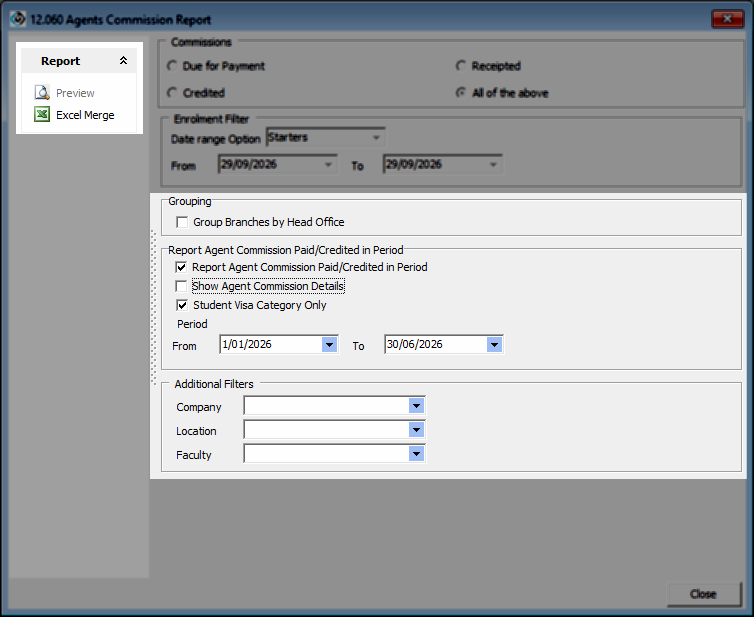
In the Grouping section:
-
Select Group Branches by Head Office if you want the Summary report to aggregate data by Agent Head Office.
-
-
In the Report Agent Commission Paid/Credited in Period section:
-
Select Report Agent Commission Paid/Credited in Period.
-
To generate the Details format, select Show Agent Commission Details.
-
To generate the Summary format, leave Show Agent Commission Details unselected.
-
To include only commission paid for enrolments under the Student Visa category, select Student Visa Category Only.
-
This option requires visas to be linked to the relevant enrolments and each visa type to be mapped to the correct visa category.
-
You can review the visa category configuration under Utilities > Setup Configuration > Student > Visa Types and confirm that all visa types are assigned to the appropriate category.
-
To verify your data, generate the report in the Details format and review the Visa columns. Once you have confirmed the data is correct, you can generate the Summary report.
-
-
-
Additional Filters: Select any additional filters you want to apply to further refine the report results.
-
From the Report Panel Click on Excel Merge to generate the report
Report Results
The columns included in the report depend on whether you generate the Summary or Details format.
The Details format displays each commission payment or credit as a separate row and includes additional columns to help you review the key information associated with each transaction.
Most columns are self-explanatory. A list of the columns included in the Summary format, together with their descriptions, is provided below.
|
Column |
Description |
|---|---|
|
Agent Code |
The code of the agent |
|
Agent Name |
The name of the agent |
|
Agent Legal Name |
The legal name of the agent |
|
Country |
The country for the Agent Address |
|
Agent Commission Paid excl. GST |
Amount of the commission scheduled (excluding GST) |
|
Deducted by Agent excl. GST |
Amount of the commission deducted by the agent (excluding GST) |
|
Total Agent Commission excl GST |
Total Commission (scheduled + deducted) excluding GST |
|
Agent Commission GST Paid |
GST amount on the commission scheduled |
|
Deducted GST by Agent |
GST amount of the commission deducted by the agent |
|
Total Agent Commission GST |
Total GST (Scheduled + deducated) |
|
No. of Accepted Students |
Total number of unique students for whom agent commission was scheduled or deducted for each agent. |
For details on how GST is handled for agent commissions, see this article.