Overview
Agent Commissions are financial incentives provided to agents for their services in facilitating students recruitment, typically in the form of a percentage of the course or as a fixed amount.
Commissions can be created either with or without an Agent Contract. When created without a contract, the commissions will be available in offers where no contract is selected. If created under a contract, the commissions will only apply to offers linked to that contract.
Once commissions are set up, you can select the appropriate commission when offering a course. The system will then calculate, track, and manage the commissions owed and paid throughout the sales process.
Agent Commission can only be used on courses/tuition. It is not possible to add commission to other products such as accommodation, transfer or any other fees.
This article covers commissions created outside Agent Contracts. For guidance on managing commissions within contracts, see this article.
View Agent Commissions
-
Go to the profile page of the agent of interest.
-
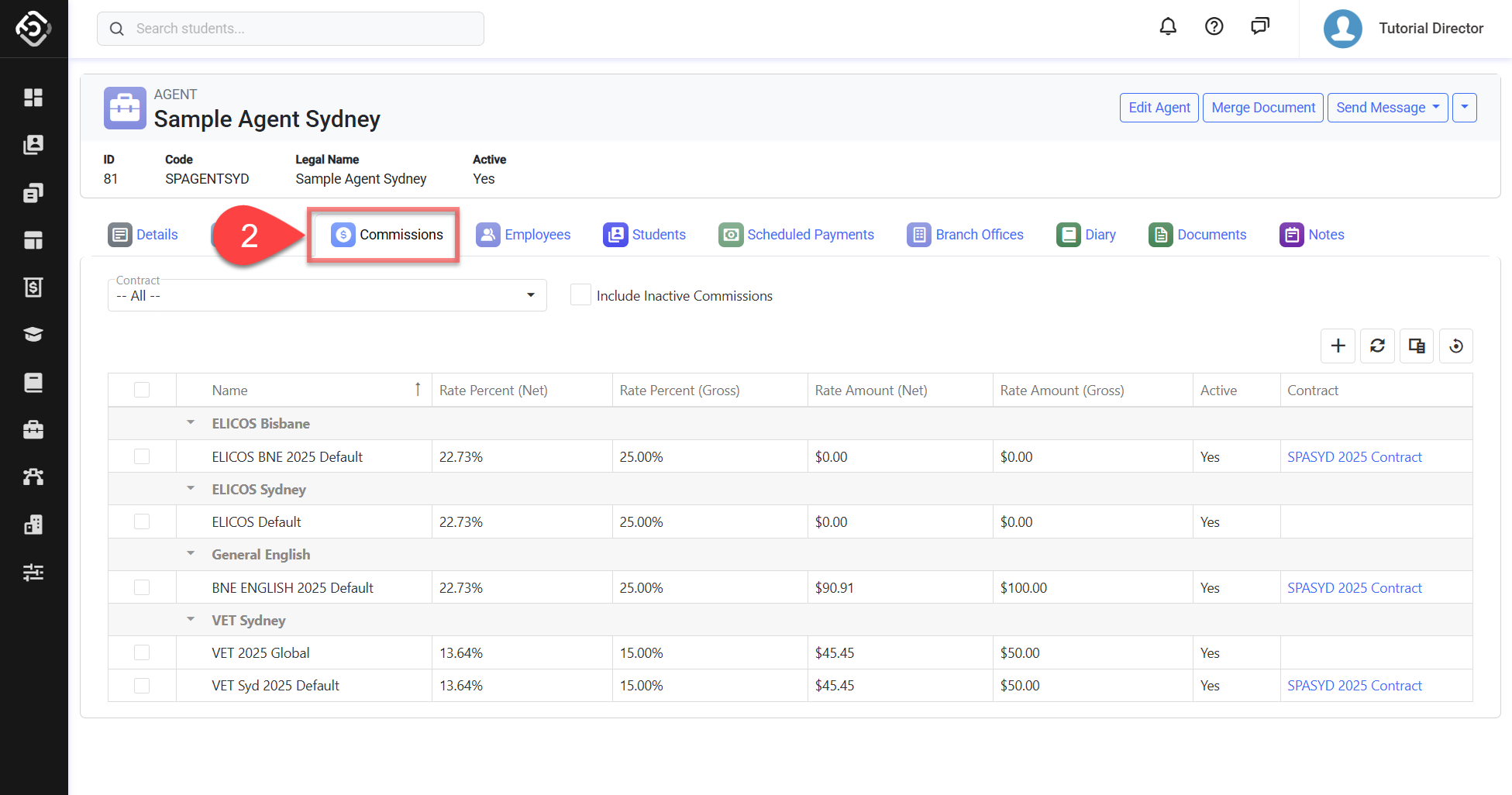
Click on the Commission tabs.
-
The list of Commissions will display on the grid. By default, all of active commission entries of the agent will be displayed in the data grid. Note the commission records are grouped by the faculty that they belong to. If the do not belong to any faculty, they will be under the -No Faculty- group.
For details about available buttons, refer to this article: Data Grids | Single Grid Composition. -
Use the filters to specify the results. Available options are:
-
Contract Filter: Filter commissions based on a selected agent contract.
-
Include Inactive Commissions: Includes commissions that are cancelled in the result.
-
Create Agent Commissions
To create a commission without an contract, follow these steps:
-
Go to the Commission tab of the agent of interest.
-
Click on the Create button located at the top right of the grid.
-
Enter the commission details:
-
Name: Enter a memorable name to identify the commission.
-
Faculty: Select a faculty to restrict the commission to only courses under that faculty. Do not select a faculty to make it available for all courses.
-
Rate Percent: Enter a percentage if you want the commission to be calculated as a percentage of the course.
-
Rate Amount: Enter an amount if you want to add a fixed amount to the commission.
-
-
Click Save to finish.
You can set up a combination of the two commission rates. For example, if you set a Rate Percent of 30% and a Rate Amount of $500 for the same commission, every time the commission is applied, $500 will be added on top of the 30% of the course amount.
Update Agent Commissions
What happens if a commission that has been used is updated?
Updating a commission that is linked to an Offer Item does not alter the commission amount that has already been calculated for that item. However, if you make any changes to that offer Item, the commission amount will be automatically recalculated using the updated values.
-
Go to the Commission tab of the agent of interest.
-
Select the commission entry to edit and click on the Edit button on the grid.
-
Update the details as needed.
-
Click on Save to finish.
Delete Agent Commissions
What happens if a commission that has been used is deleted?
Deleting a commission that is linked to an Offer Item does not alter the commission amount that has already been calculated for that item. However, you cannot modify an Offer Item associated with a removed commission unless you replace the deleted commission with a different one or input a new custom rate.
-
Go to the Commission tab of the agent of interest.
-
Select the commission entry(s) to delete and click on the Delete button on the grid.
This cannot be undone.
Deactivate Agent Commissions
What happens if a commission that has been used is deactivated?
Deactivating agent commissions does not impact records where agent commissions were already selected. However, it will make the agent commissions unavailable for new selections.
To deactivate agent commission :
-
Go to the Commission tab of the agent of interest.
-
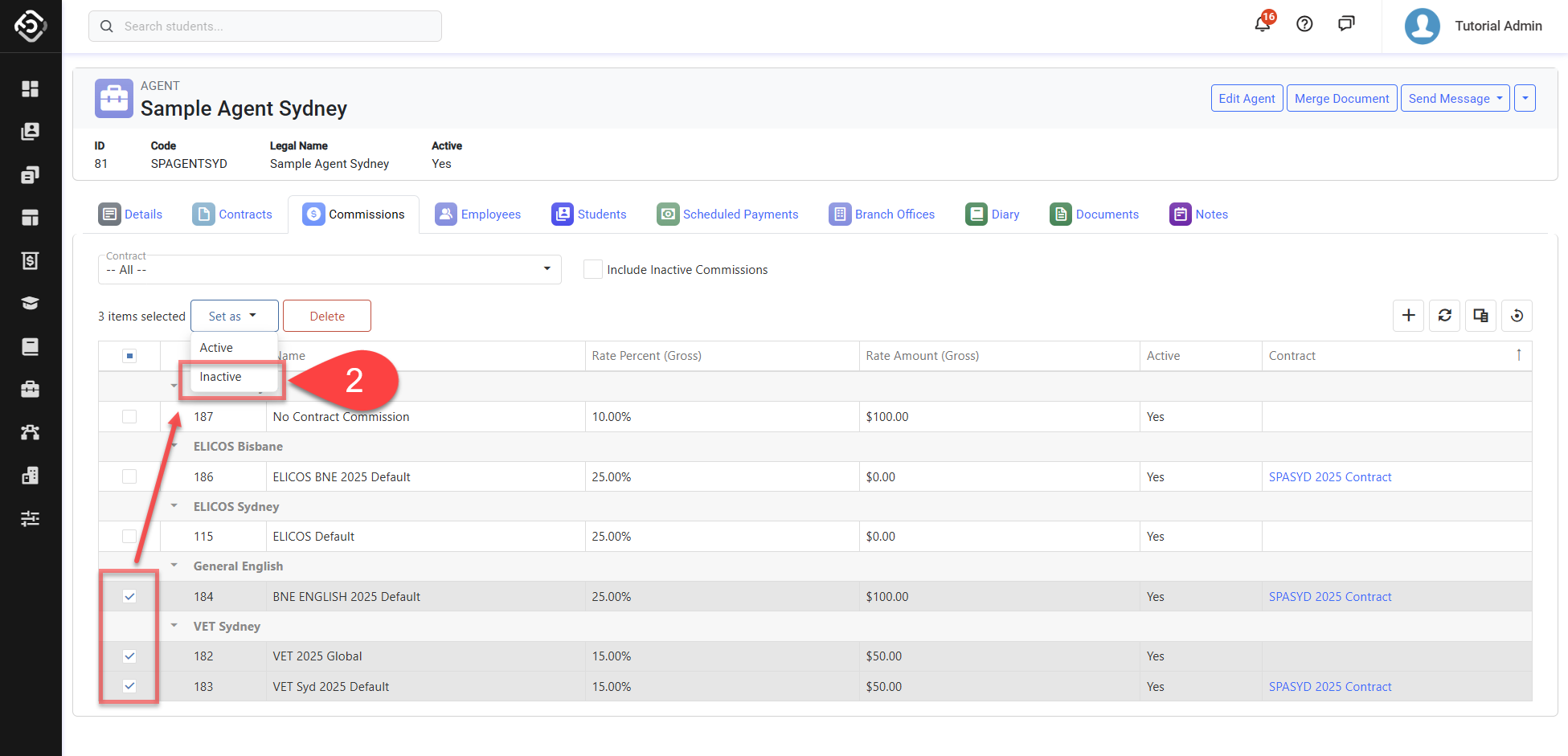
Click on the select box of the records that you’d like to deactivate and click on Update > Set as > Inactive from the actions panel.
Re-activate Agent Commissions
After agent commissions are deactivated, it will not be available for new selections. To reactivate them, please follow the instructions below.
-
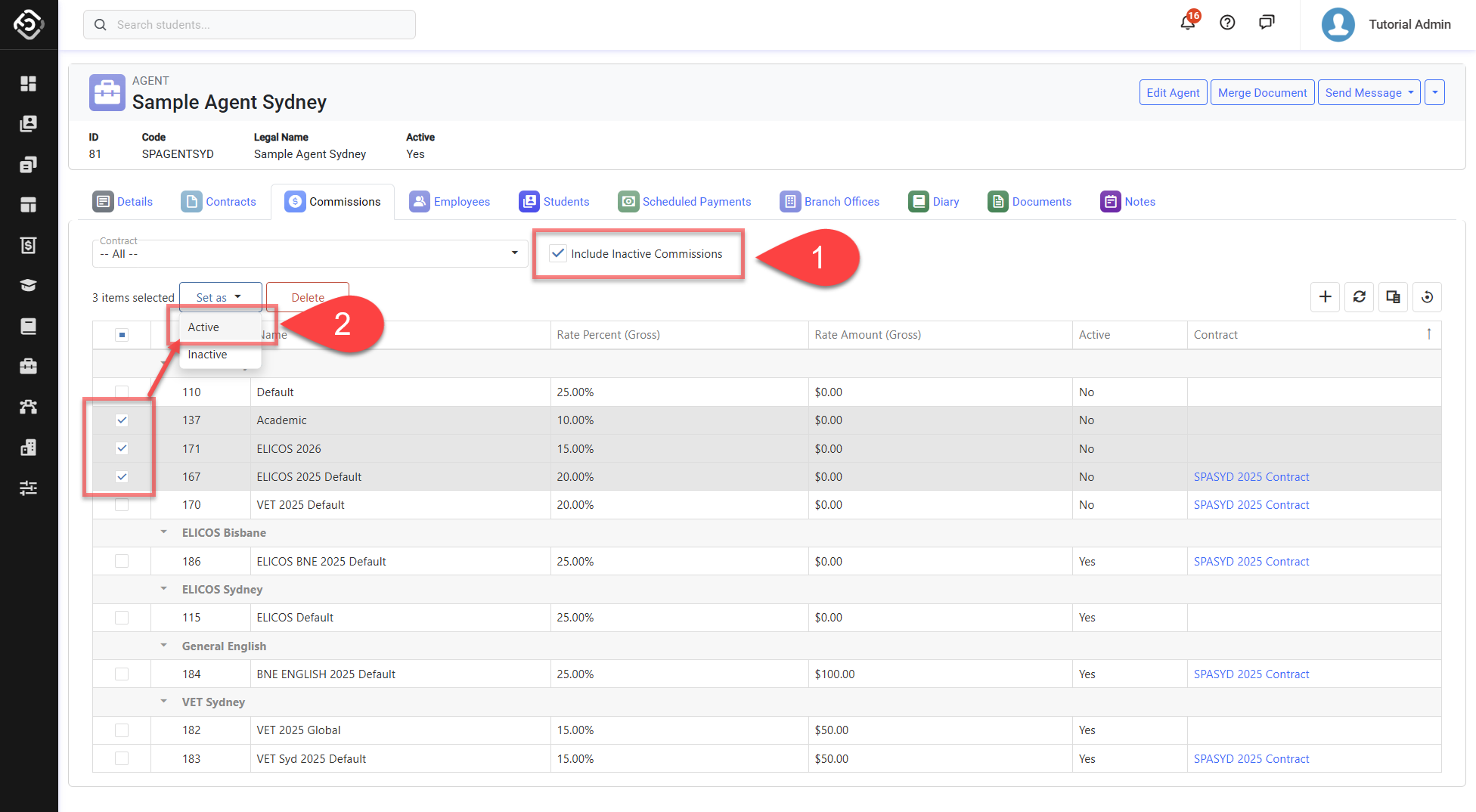
Go to the Commission tab of the agent of interest and use the Include Inactive Commissions filter to locate the agent commissions. Use Active column to specify inactive agent commissions.
-
Click on the select box of the records that you’d like to re-activate and click on Update > Set as > Active from the actions panel.