The Detailed Scheduled Payment Search allows users to view individual scheduled payment items across all schedule types in a single search page, making it easier to review and manage scheduled payments.
Purpose of the Detailed Search
The Detailed Scheduled Payment Search allows users to view individual scheduled payment items across multiple payment schedules in one place, without needing to open each schedule.
This page also allows users to:
-
Update Provider Invoice No. and Provider Invoice Date for multiple items at once
-
Export scheduled payment items across different schedule types
This makes it easier to review and manage scheduled payments in bulk.
Detailed Scheduled Payments Search
Use the Detailed Scheduled Payment Search page to locate scheduled payment items across different schedules and schedule types.
Tip
Customise the views to efficiently access the data you need. You can customise the columns, sorting and filters on the grid. Learn how to use Views
-
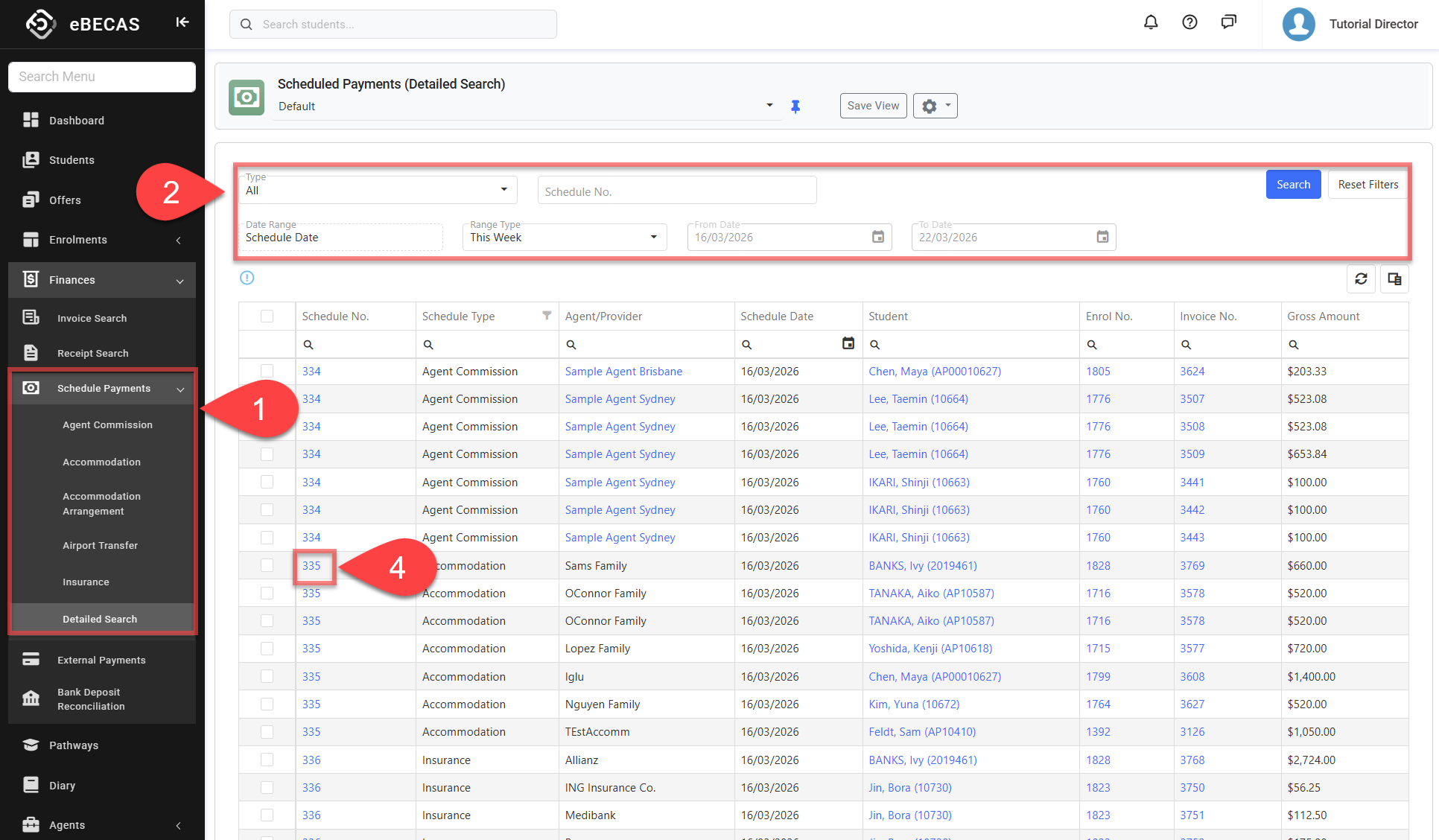
From the Main menu, go to Finances > Scheduled Payments > Detailed Search.
-
Use the available filters to find the required scheduled payment items, then click Search or press Enter.
By default, results show items with a Schedule Date within the current week.
The available Type options depend on the user’s permissions.
-
Type: Search for scheduled payment items based on a specific schedule type. If a user has View Scheduled Payments permissions for all schedule types, they can use the All option.
-
Schedule No.: Search for scheduled payment items using the schedule payment number. When using this field, all other filters, if any, will be ignored.
-
Date Range: Filter the scheduled payments based on the selected date option and range.
-
Range Type: Allows users to set predefined date ranges, automatically populating the From/To Date filter based on the selected range.
-
Custom: Uses the manually entered From/To Date.
-
Day: Sets the From/To date to yesterday, today, or tomorrow.
-
Week: Sets the From/To date to the last, current, or next week.
-
Month: Sets the From/To date to the previous, current, or next month.
-
Quarter: Sets the From/To date to the last, current, or next quarter.
-
Calendar Year (CY): Sets the From/To date to the last, current, or next calendar year.
-
To-Date: Sets the From date as the beginning of the current month, quarter, or year and the To date as Today.
-
-
If you need more filters, you can use Column Filters and the Advanced Filter.
See this article for more details: Data Grids. -
You can customise the grid by adding/removing columns as required. See this article for more details: Data Grids: Customise Data Grids.
-
-
For additional context for each record, refer to the following columns in the grid:
-
Gross Amount: The amount charged to the student on the invoice.
-
Net Amount: The amount scheduled for the agent or provider for that invoice.
-
Visa Type: Displays the Visa Type linked to the related enrolment.
-
Visa Category: Displays the system-defined category of the linked Visa Type, such as Student or Working.
-
-
To open the Scheduled Payment Details page, click on the Schedule No. field.
Quick Bulk Edit Scheduled Payment Items
Only the Provider Invoice Date and Provider Invoice No. fields can be edited on scheduled payment items.
All other fields in the Scheduled Payment are read-only. To change them, you must delete the Scheduled Payment and create a new one.
To edit multiple scheduled payment items:
-
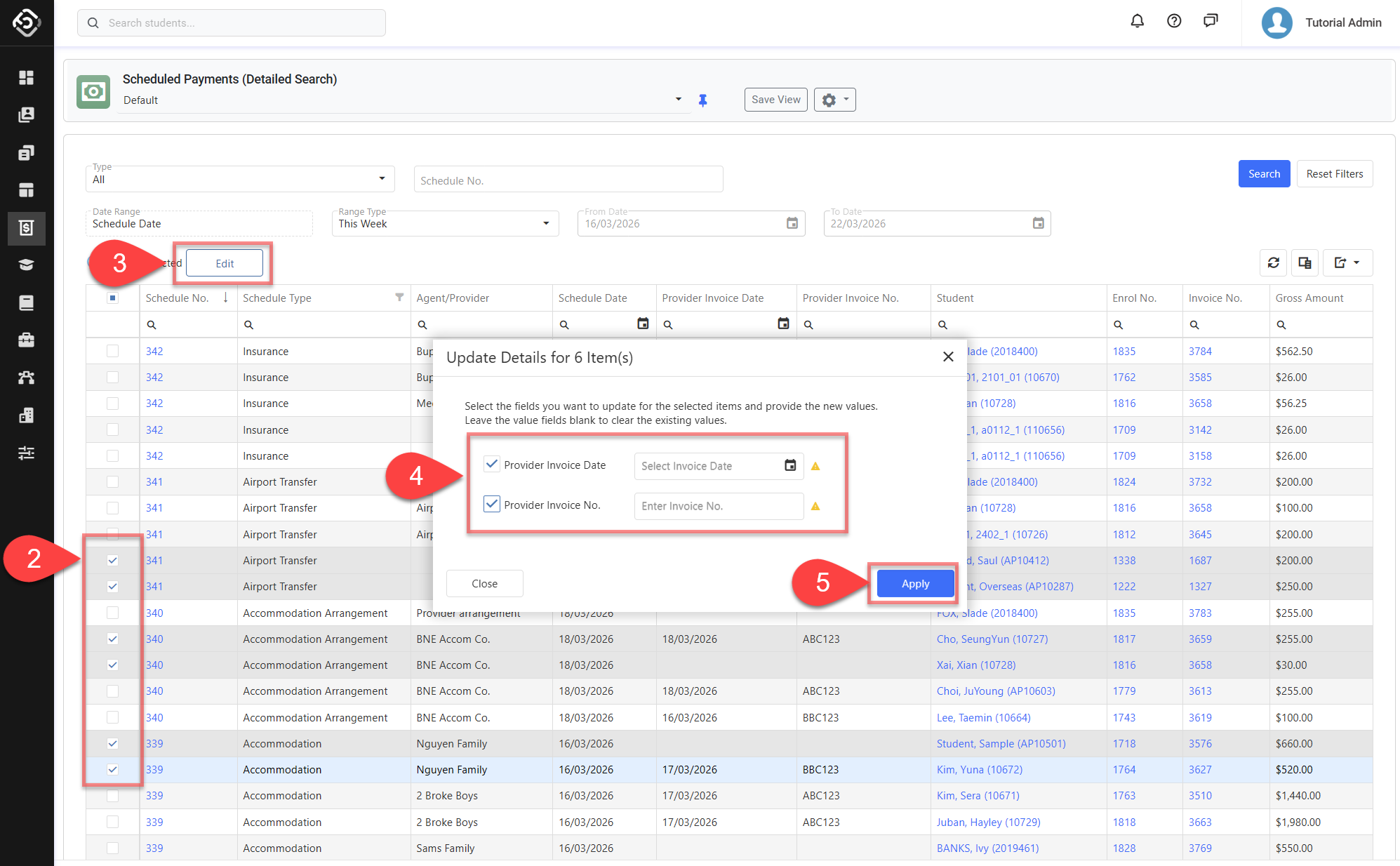
Go to the Detailed Scheduled Payment Search page and locate the scheduled payment items you want to update.
-
Select the items that you want to update in the grid.
-
Click the Edit button in the grid action panel. The Edit button will only appear if you have Edit permissions for all selected scheduled payment items. If any selected items belong to a schedule type that you do not have permission to edit, the Edit button will not be displayed.
-
Select fields that you want to update, and set values that you’d like to apply on all selected items. You can also leave the value fields blank to clear the existing values.
-
Click Apply to set the values for the selected items. The changes will be applied and saved immediately.