
Managing study tour offers efficiently is crucial to a successful study tour admission process.
Considerations for Managing Study Tour Offers
-
Study Tour Offers can include Language courses and Academic courses that are not subject-based or Units of Study-based.
-
After a Study Tour Offer is accepted/converted, nothing in the Study Tour Offer can be modified.
Specific Fields for Study Tour Offers
Most fields on a Study Tour Offer are the same as those on a standard offer for an individual student. However, Study Tour Offers include a small number of additional fields that are specific to managing group bookings.
Study Tour Start Date and End Date
The Study Tour Start Date and Study Tour End Date are indicate fields that can be used to record the overall period of the Study Tour for reporting purposes. These fields are optional and are separate from the Start Date and End Date assigned to individual Offer Items.
Student Count
The Student Count field represents the total number of students included in the Study Tour Offer. You can enter this value manually when creating or editing the offer. The value is also updated automatically when students are added to or removed from the offer through the Students tab.
However, if students are added or removed after offer items have been created, the pricing of those offer items is not updated automatically. This is intentional to preserve any manual pricing adjustments or calculations that may have been made. In these cases, review and update the offer item pricing as required.
Visa Information
If needed, visa details for the students in the Study Tour can be managed individually within each student’s records and linked to the individual student enrolment(s).
Create a Study Tour Offer
A Study Tour Offer can be created from several locations. During creation, enter the relevant offer details, including the expected Student Count and the Study Tour Start Date and Study Tour End Date.
The Student Count is also automatically updated when students are later added to or removed from the offer through the Study Tour Offer Students tab.
You can create a study tour offer:
-
From the Study Tour Groups Search Page
-
From the Study Tour Group Profile Page
-
From the Study Tour Group Offers Tab
Create an Offer from the Study Tour Groups Search Page
-
From the Main menu, go to Study Tours > Search.
-
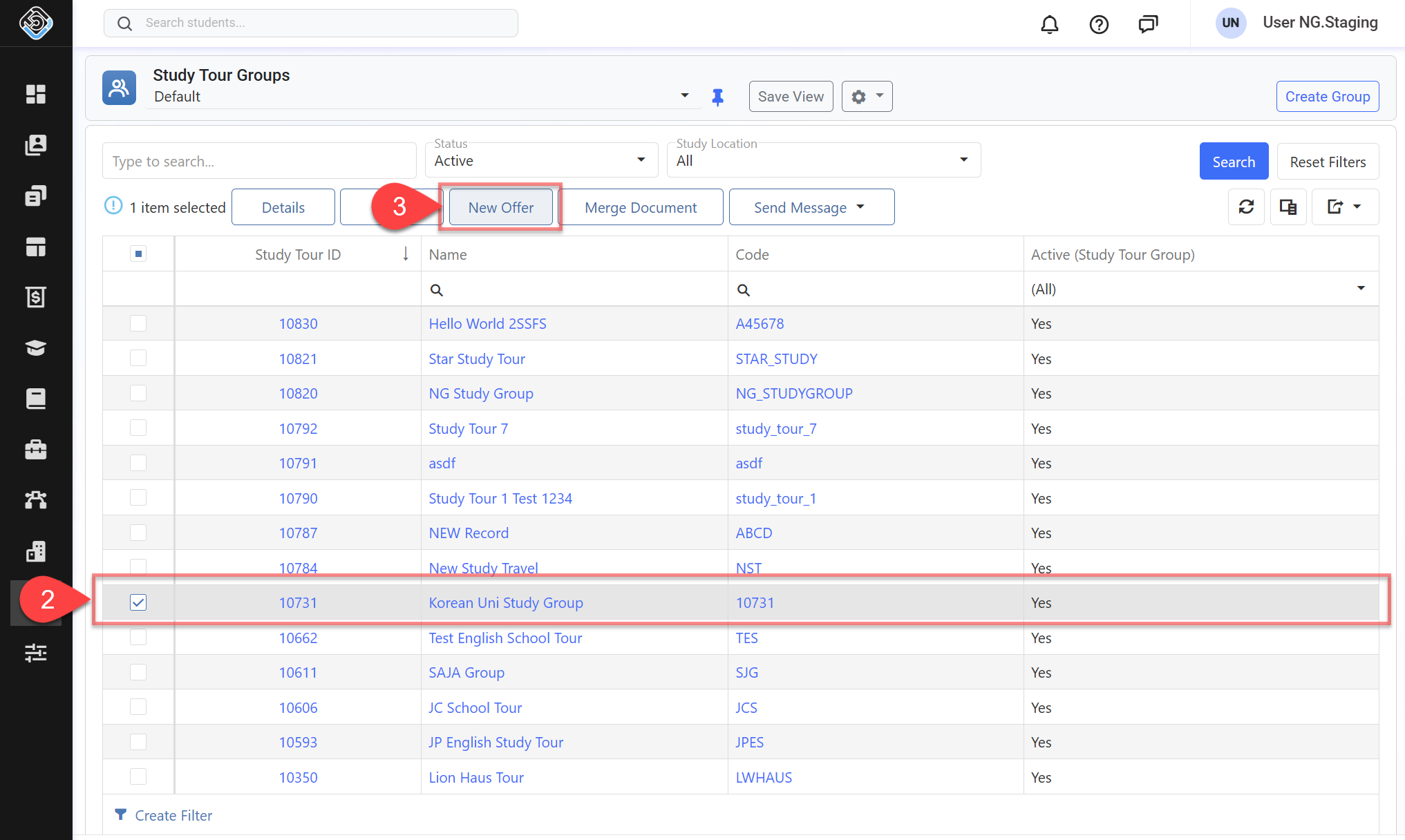
Search the study tour group that you’d like to create an Offer for.
-
Select the study tour and click on New Offer button in the grid action panel.
-
Enter the Study Tour Offer Details then click on Save to finish.
-
You’ll be redirected to the study tour offer details page.
Create an Offer from the Study Tour Group Profile Page
-
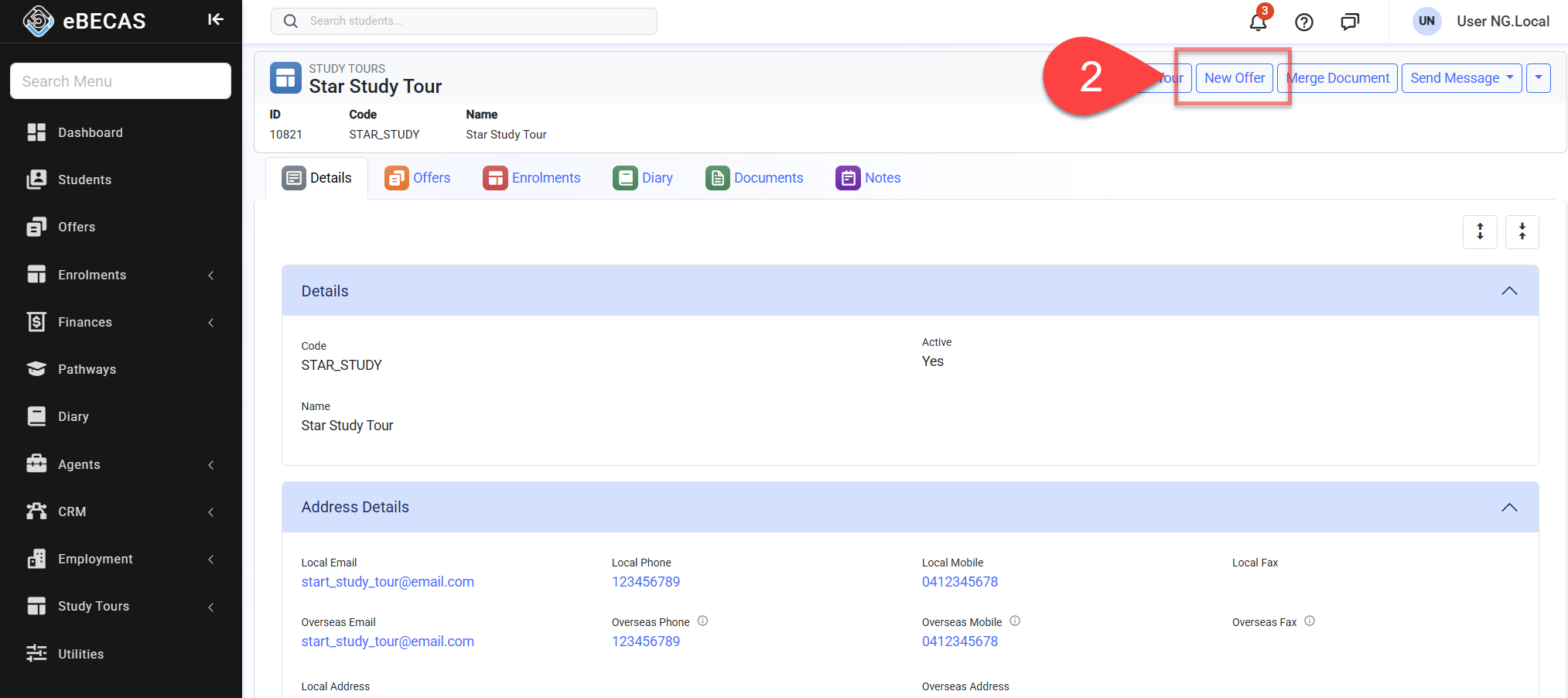
Go to the details page for the study tour group that you intend to create the offer for.
-
Click on New Offer at the top right.
-
Enter the Study Tour Offer Details, then click on Save to finish.
-
You’ll be redirected to the study tour offer details page.
Create an Offer from the Study Tour Group Offers Tab
-
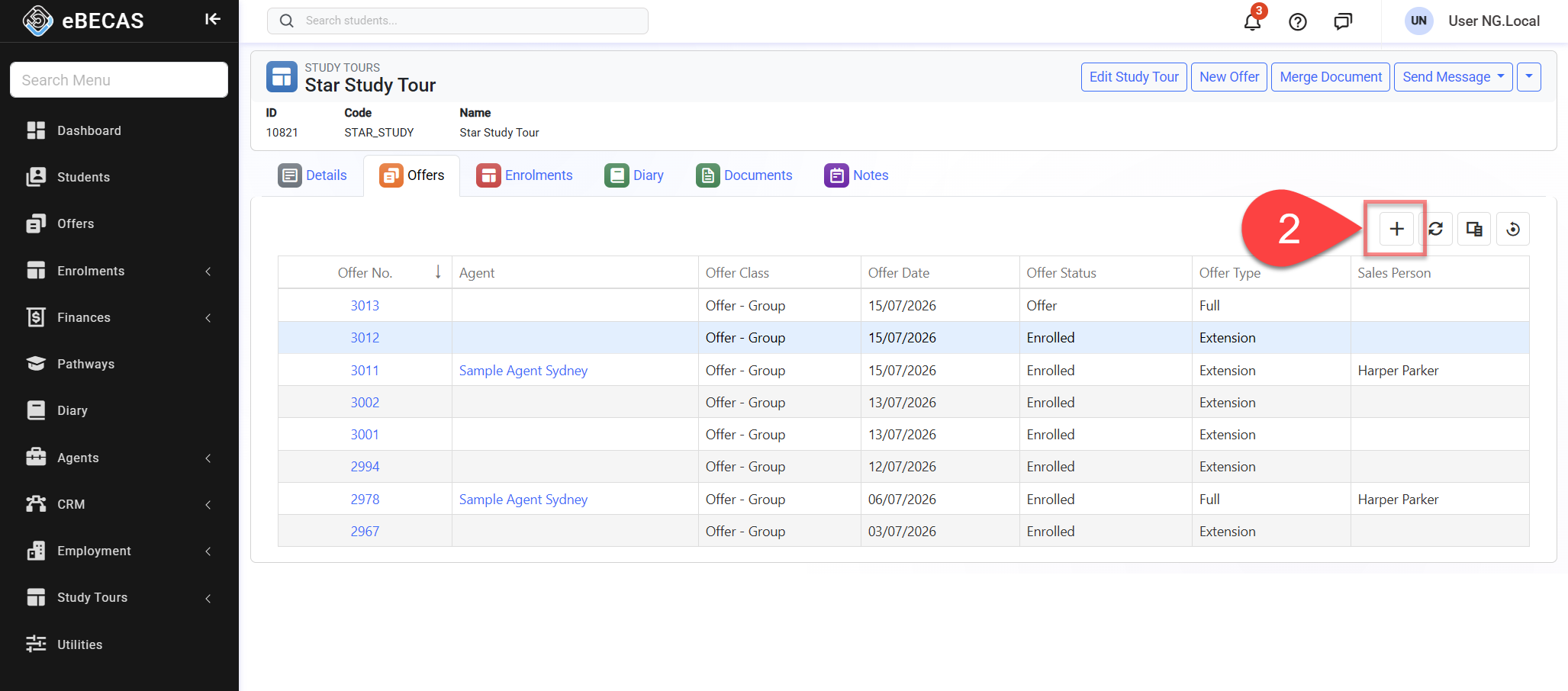
Go to Study Tour Group > Offers tab of the study tour group that you intend to create the offer for.
-
Click on the Create button located at the top right of the grid.
-
Enter the Study Tour Offer Details, then click on Save to finish.
-
You’ll be redirected to the study tour offer details page.
Edit Study Tour Offers Details
Editing a study tour offer follows the same process as a standard offer.
The Student Count can be updated manually. However, because it is automatically updated when students are added to or removed from the Study Tour Offer through the Students tab, we recommend not modifying this field once students have been added to the offer.
For information about creating, editing, and accepting offers, refer to the article: Create, Edit and Accept Offers | Edit Offers Details
Accept a Study Tour Offer
Accepting a Study Tour Offer is the final step in the offer process. When a Study Tour Offer is accepted, a Study Tour Enrolment is created, each participating student is enrolled, and the corresponding invoices are generated.
Although you can accept a Study Tour Offer at any time, we recommend waiting until all arrangements have been confirmed and any required deposit or prepayment has been received. Until then, the Study Tour Offer serves as a proposal and can be updated as required. Invoices are not generated until the offer is accepted and the Study Tour Enrolment is created.
The Study Tour Offer process is designed to remain flexible before acceptance.
For detailed instructions, refer to the following article: Create, Edit and Accept Offers | Accept an Offer
Keep the following in mind:
-
When accepting a Study Tour Offer, the booking date records the date the offer was accepted and is also used as the Invoice Date for all invoices created from the offer. Once the offer has been accepted, the booking date cannot be changed, although the invoice dates can be updated later if required.
-
Once a Study Tour Offer has been accepted, it can no longer be modified. This includes the offer details, offer items, and the students included in the offer. Any changes must be made to the corresponding Study Tour Enrolment or the individual student enrolments, as applicable.
-
Accepting the offer creates the corresponding Study Tour Enrolments, individual student enrolments, and invoices. As invoices form part of your financial records, any subsequent changes are more restricted and require an audit trail.
-
A study tour offer can be accepted without any students. After acceptance, any students who need to be added or changed must be managed from the relevant Study Tour Enrolment rather than the original offer. Adding a student to the Study Tour Enrolment automatically creates and links the corresponding individual student enrolment to the Study Tour Enrolment.
-
A Study Tour Offer that does not include a course does not create a new Study Tour Enrolment. When accepting an offer of this type (Offer-Invoice), you will be prompted to select an existing Study Tour Enrolment to which the invoices generated from the offer will be attached to.
Issue/Merge Study Tour Offer Documents
Issuing or merging Study Tour offer documents follows the same process as a standard offer.
Templates for Study Tour Offers are different from the templates used for standard individual student offers.
For detailed instructions, refer to the following article: Create, Edit and Accept Offers | Issue/Merge Offer Documents
Delete Study Tour Offers
Deleting a Study Tour offer follows the same process as a standard offer.
For detailed instructions, refer to the following article: Create, Edit and Accept Offers | Delete Offers