Students participating in a Study Tour can be added to the Study Tour Offer by creating new student records or selecting one or more existing students.
Overview
The Students tab under a Study Tour Offer displays the students included in the Study Tour Offer and provides the functions required to add or remove them.
When the study tour offer is accepted, one or more Study Tour Enrolments are created for the group, based on the Offer Item Groups included in the offer. An individual student enrolment is also created for each student included in the offer and linked to the corresponding Study Tour Enrolment.
These individual student enrolments allow student-level information, such as class allocations, attendance, warnings, and results, to be managed separately for each student.
Considerations for Managing Study Tour Offer Students
Before adding or removing students, consider the following:
-
Search for an existing student record before creating a new student to avoid duplicates.
-
The list of students in the Study Tour Offer can only be modified before the offer is accepted.
-
Removing a student from the offer does not delete the student record from the system.
-
Adding or removing students automatically updates the Student Count. Review any Student Multipliers applied to Offer Items when the Student Count changes.
How Changes to Students Affect the Study Tour Offer
The students included in the offer affect several areas of the Study Tour Offer.
Student Count
The Student Count represents the total number of students included in the Study Tour Offer. This value is updated automatically when students are added to or removed from the Students tab.
Student Multiplier
The Student Count and the Student Multiplier applied to an Offer Item are managed separately.
When the Student Count changes, review the Student Multipliers applied to Course, Insurance, and Accommodation items to confirm that the amounts are calculated for the intended number of students.
If a Student Multiplier does not match the Student Count, a warning indicator appears on the relevant Offer Item. The values may still be different when an item applies to only some students in the offer.
Per Student Requests
When Per Student is selected as the Request Option for a supported Offer Item, the students included in the offer are used to create separate service request entries for each student. This option applies to Insurance, Accommodation, and Airport Pickup items.
Offer Acceptance
When the Study Tour Offer is accepted, the system creates a Study Tour Enrolment for the group, along with individual enrolments for each student included in the offer.
After acceptance, students can no longer be added to or removed from the Study Tour Offer. To add students after acceptance, add them to the relevant Study Tour Enrolment, where the corresponding individual enrolments will be created automatically. For detailed instruction, please visit this article: Study Tour Enrolment Variations
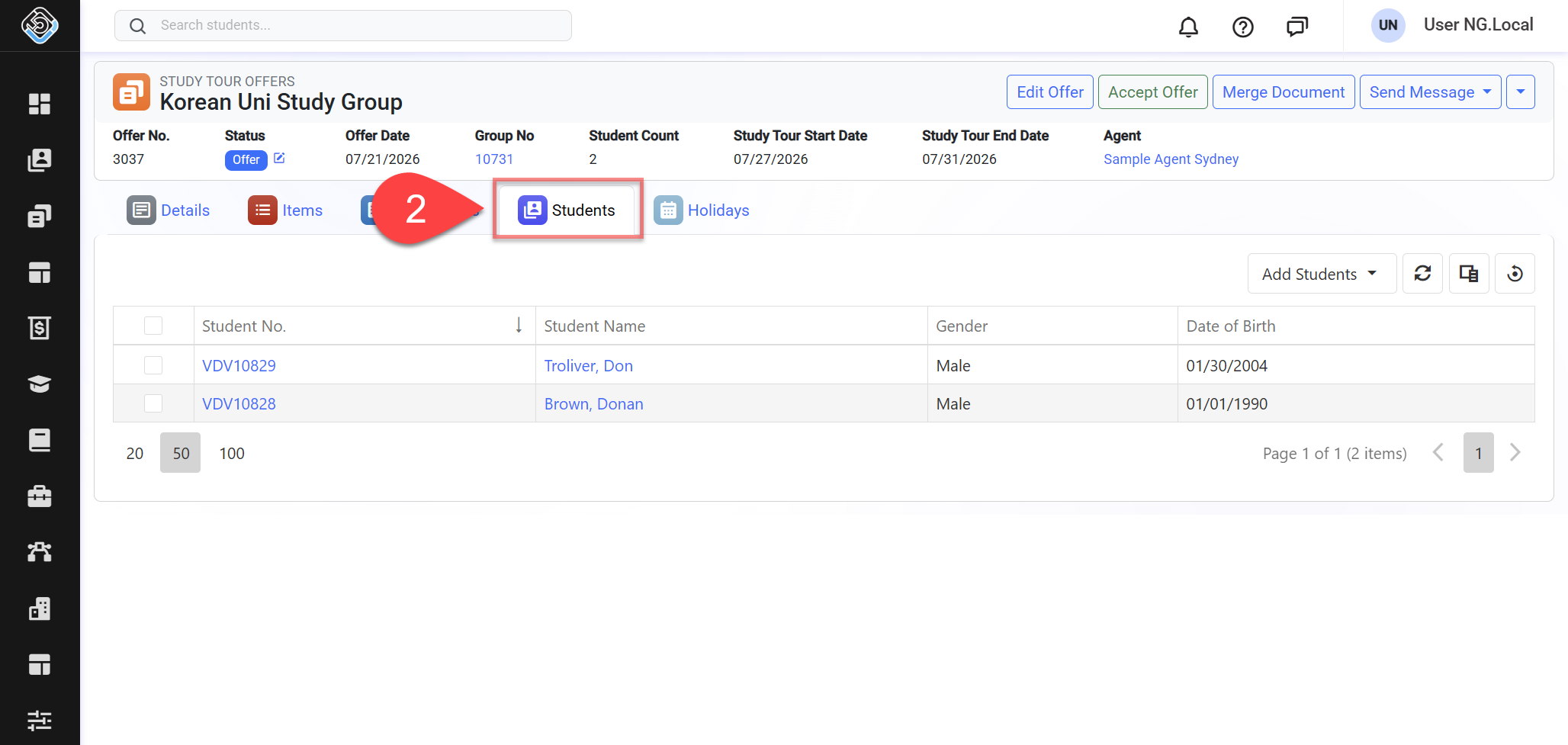
View Study Tour Offer Students
To view the students included in an offer:
-
Open the relevant Study Tour Offer.
-
Go to the Students tab. The grid displays the students currently included in the offer.
Add Students
Students can be added by creating a new student record or by selecting existing student records.
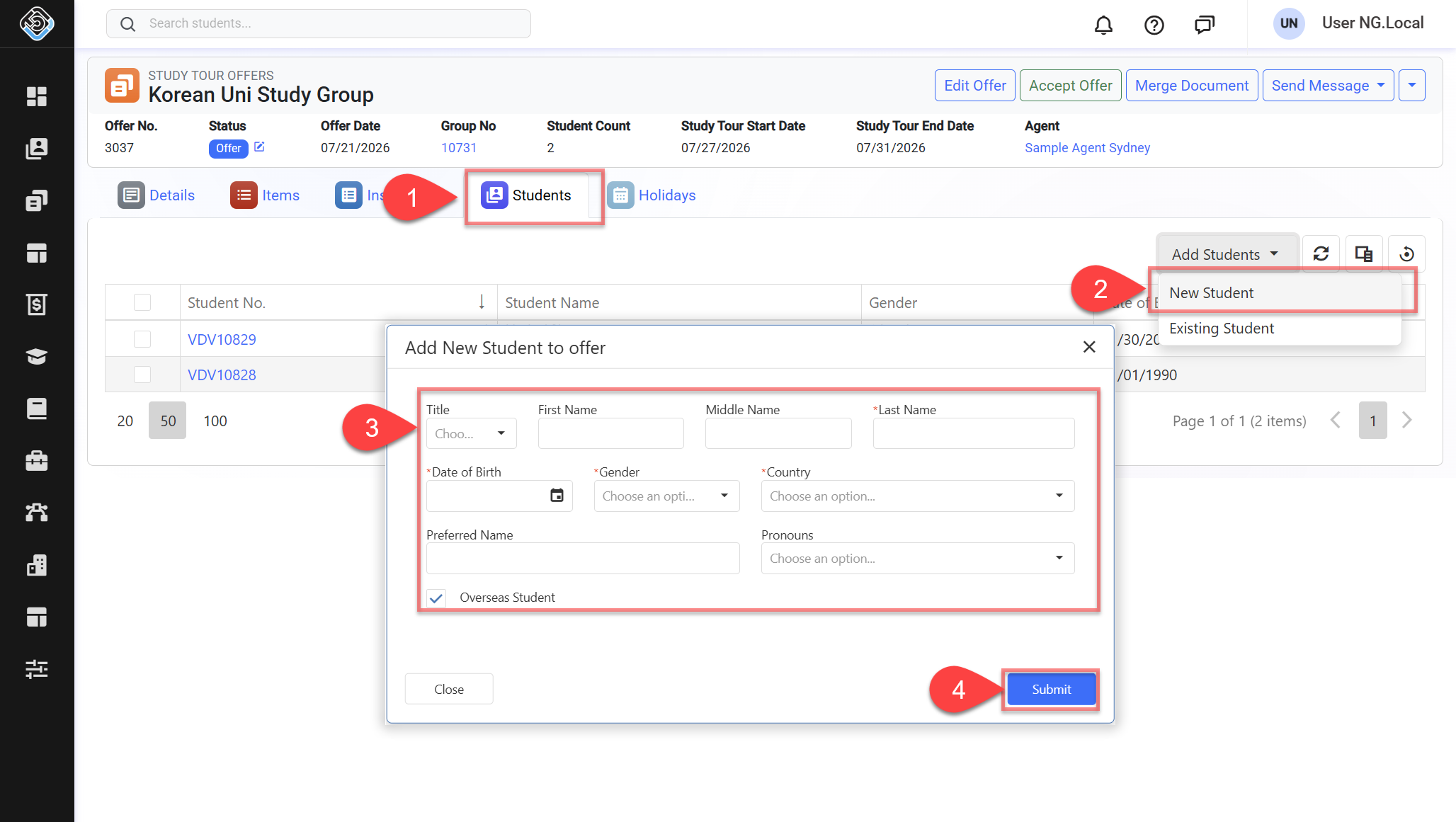
Add a New Student
To create a new student and add them to the Study Tour Offer:
-
Go to the Students tab of the relevant Study Tour Offer.
-
Click Add Students > New Student.
-
Enter New Student’s basic details.
-
Click Save to finish. A new student record is created in the system and added to the Study Tour Offer. The page will be refreshed and the Student Count is updated automatically.
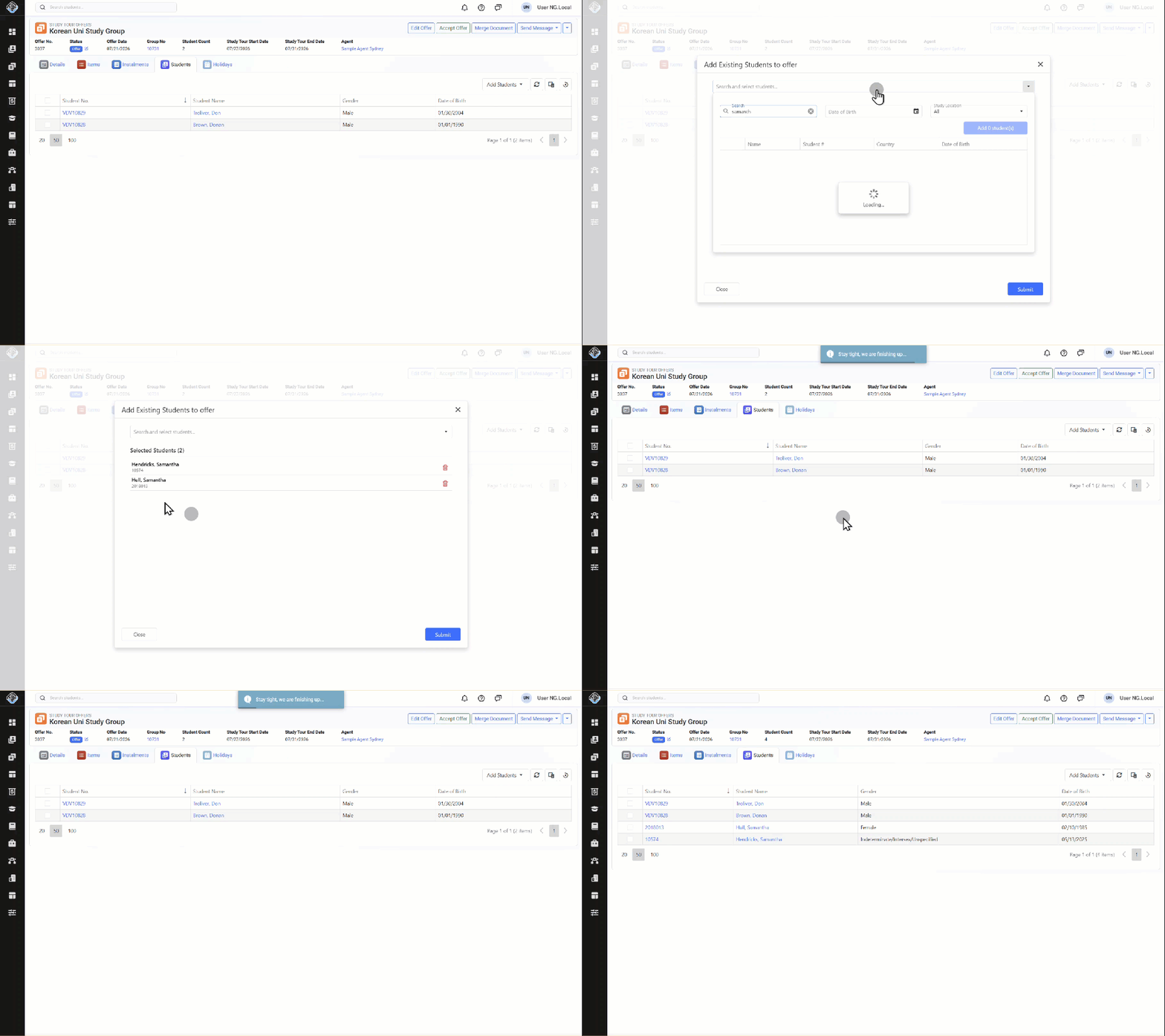
Add Existing Students
To add one or more existing students to the Study Tour Offer:
-
Go to the Students tab of the relevant Study Tour Offer.
-
Click Add Students > Existing Students.
-
Search for the students you want to add.
-
Select one or more students, then click Add button.
-
Review the list of students to add. You can search more to add, or remove.
-
Once the list is ready, click on Submit. The selected student records are added to the Study Tour Offer. The page will be refreshed and the Student Count is updated automatically.
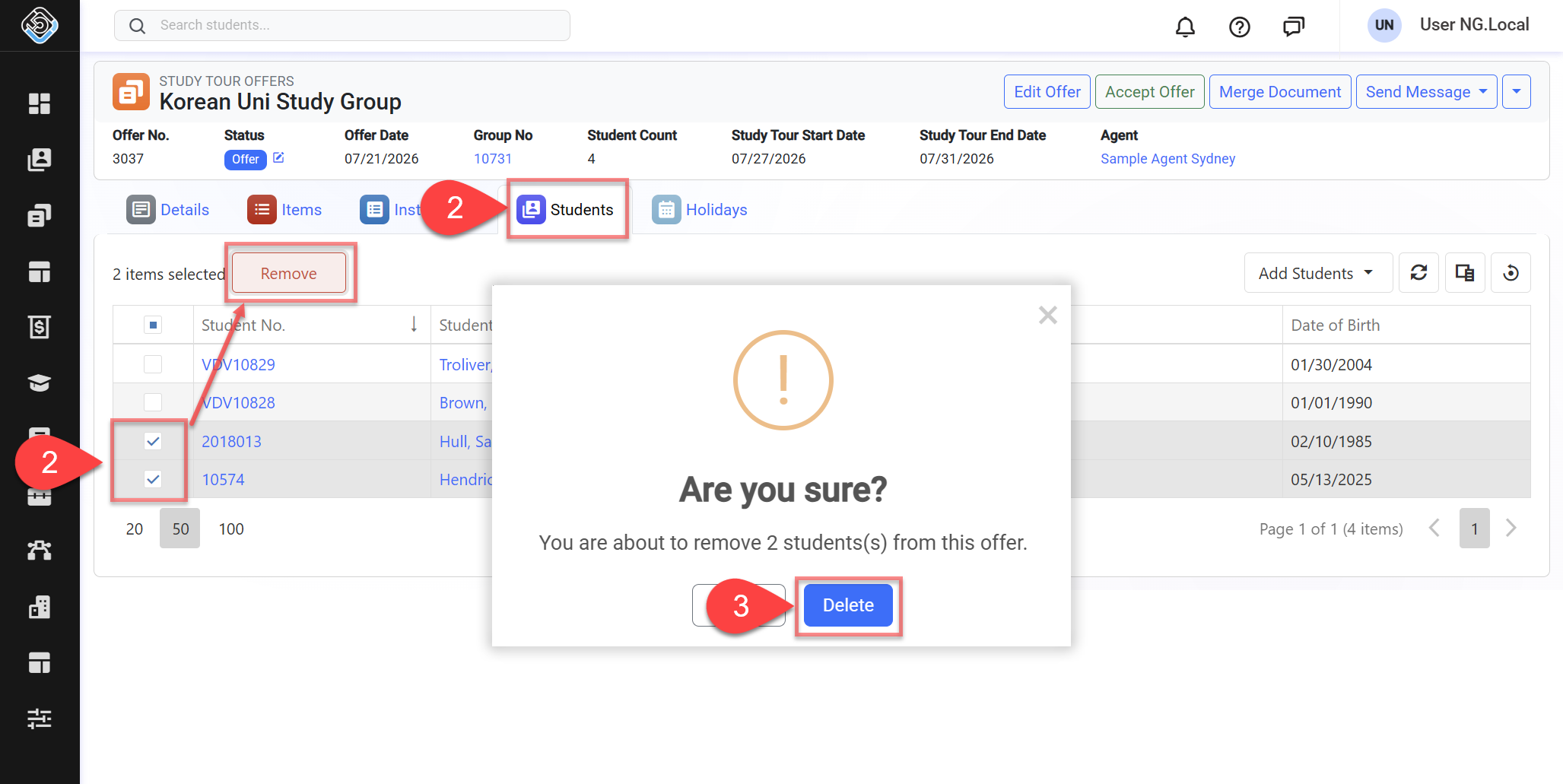
Remove Students from the Study Tour Offer
To remove one or more students from the Study Tour Offer:
-
Go to the Students tab of the relevant Study Tour Offer.
-
Select the students you want to remove, then click Remove button.
-
Confirm the action. The selected students are removed to the Study Tour Offer. The page will be refreshed and the Student Count is updated automatically.
Removing students from the offer does not delete their student records from the system.