
The ability to quickly search and find specific study tour offers is crucial for efficient administration and processes. Whether you're updating offer details, communicating with the study tour group and/or the students, or reviewing study tour offer items and instalments, knowing how to effectively use the search functions can significantly streamline these processes.
Study Offers Search View
The Study Tour Offers Search View is the main place to view, explore and search study tour offers.
Tip
Customise the views to efficiently access the data you need. You can customise the columns, sorting and filters on the grid. Learn how to use Views
-
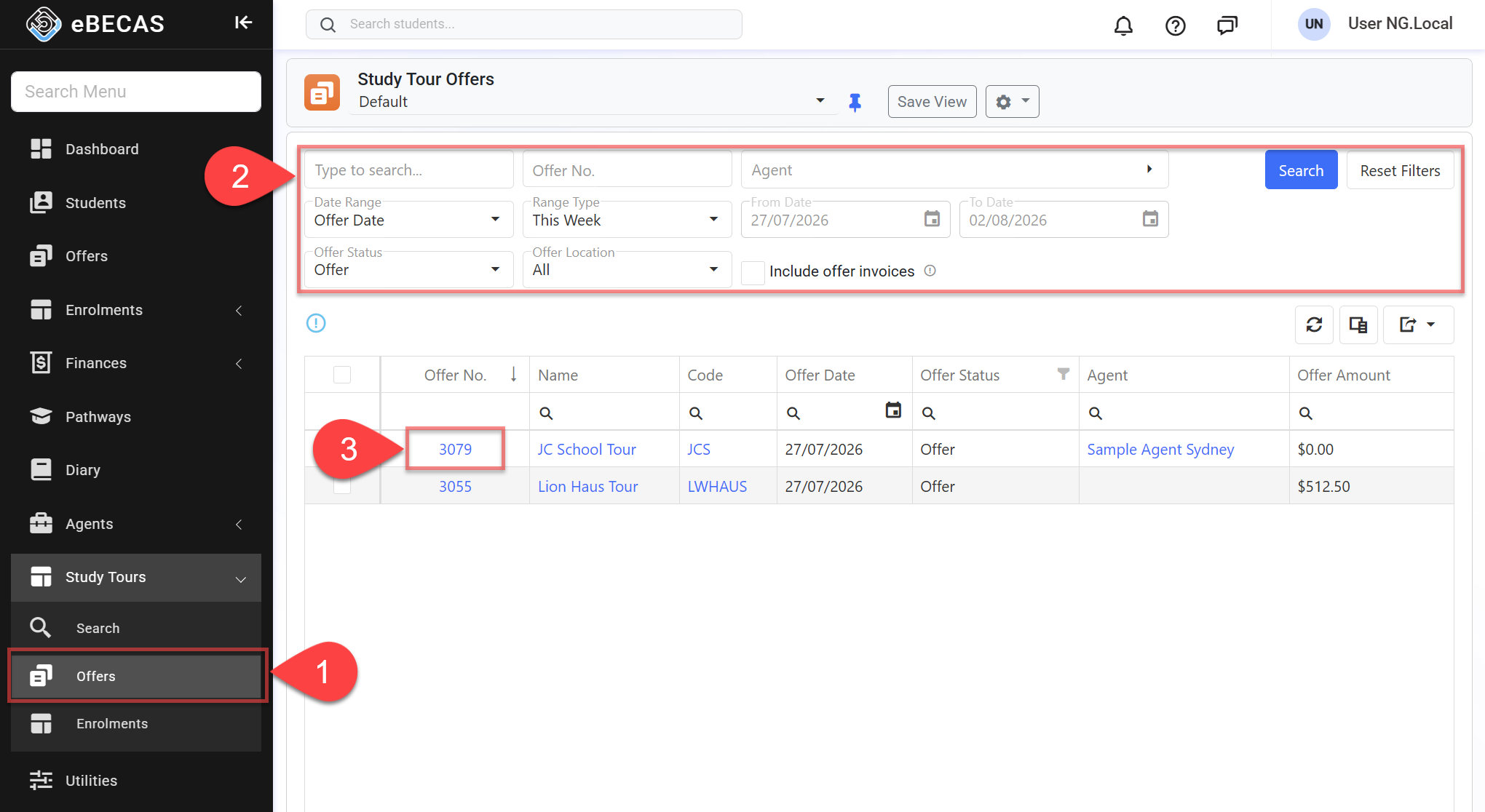
From the Main menu, go to Study Tour > Study Tour Offers.
-
Set the filters available to locate the study tour offers of interest and click on Search button or simply hit Enter key.
By default, the filters are set to the status "Offer" and to offers created during the current week.-
Quick Search: You can use any of the following in the search box:
-
Study Tour Group Name and Code
-
Study Tour Group Email
-
Study Tour Group Mobile Number (excluding symbols like '+', '-')
-
-
Offer No: Search for a study tour offer using the offer number. When using this field, all other filters, if any, will be ignored.
-
Agent: Filter the study tour offers belonging to the selected agent.
-
Offer Location: Filters the study tour offers based on the location of offered items within the offer.
-
Date Range: Filter the study tour offers based on the selected date option and range. The options available are:
-
Offer Date: The period during which the offers were created.
-
Course Start: The period when the primary course items in offers begin.
-
Accommodation Date: The period when the accommodation items in offers begin.
-
Airport Date: The pickup date period for the airport transfer items in offers.
-
Booking Date: The date range that the offers that were accepted.
-
Cancel Date: The date range that the offers were cancelled.
-
-
Range Type: Allows users to set predefined date ranges, automatically populating the From/To Date filter based on the selected range.
-
Custom: Uses the manually entered From/To Date.
-
Day: Sets the From/To date to yesterday, today, or tomorrow.
-
Week: Sets the From/To date to the last, current, or next week.
-
Month: Sets the From/To date to the previous, current, or next month.
-
Quarter: Sets the From/To date to the last, current, or next quarter.
-
Calendar Year (CY): Sets the From/To date to the last, current, or next calendar year.
-
To-Date: Sets the From date as the beginning of the current month, quarter, or year and the To date as Today.
-
-
Offer Status: Select the status of the study tour offers to search for.
-
Include offer invoices: Includes offer invoices in the search results.
-
If you need more filters to specify, you can use the Column Filters and the Advanced Filters.
See this article for more details: Data Grids. -
You can customise the grid by adding/removing columns as required. See this article for more details: Data Grids: Customise Data Grids.
-
-
Click on the Offer No. to view the offer details.
Only Study Tour Offers are displayed. Individual Offers can be searched on Offers menu.
Actions on the Study Tour Offers Search View
From the Study Tour Offers Search View, you can take quick actions on one or multiple offers using the grid actions. The available actions may vary depending on whether you select a single or multiple records and on your permissions. Some of these actions include, but are not limited to:
-
Send an Email (single and bulk)
-
Send an SMS (single and bulk)
-
Merge a document (single and bulk)
-
View a study tour offer detail (single)