
Welcome to the March 2026 Classic updates!
🔥Support for Onshore Transfer Commission Ban
The March 2026 release introduces new functionality to support upcoming onshore transfer commission restrictions in Australia.
For Australian-based providers, eBECAS now includes new fields, a compliance setting, and automated controls over agent commissions.
These controls apply across both the Offer and Enrolment stages, ensuring consistent behaviour and reducing manual handling.
New Fields in Offers
new VERSION 12.6.9.0
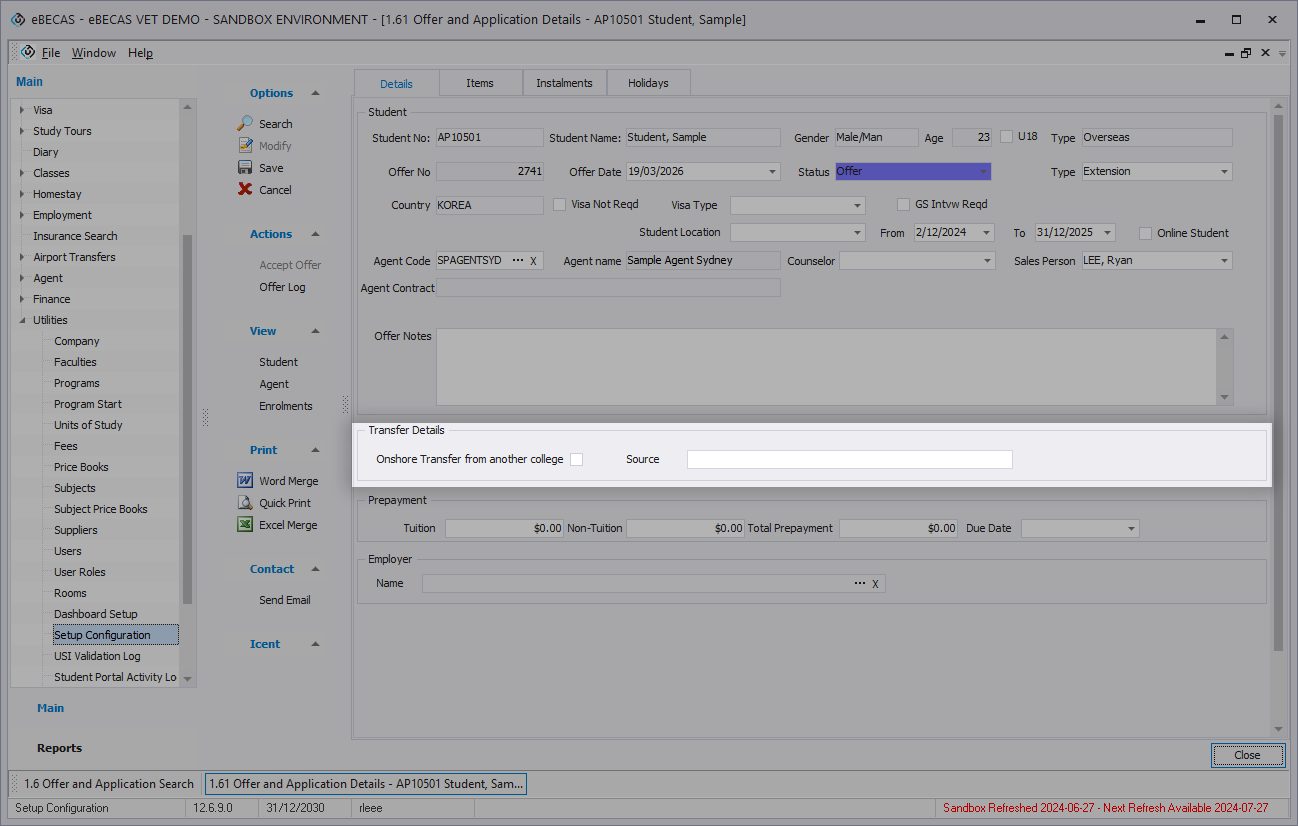
Two new fields have been added to the Offers to identify onshore transfers:
-
Onshore Transfer From Another Provider: Indicates that the offer is for a student transferring from another onshore provider.
-
Previous Provider: An optional field to record the institution the student is transferring from.
New Block Agent Commission on Onshore Transfers Setting
new Nextgen only
A new system setting has been introduced to enforce the commission restriction for onshore transfers in Utilities > Settings > Finances of eBECAS Next Generation.
This new Compliance Setting is available only in eBECAS Next Generation.
-
This setting will be enabled by default for Australian-based providers from 1 April 2026.
-
Institutions can disable this setting if they prefer to manage the restriction manually.
When the Onshore Transfer From Another Provider option is selected and the Block Agent Commission on Onshore Transfers setting is enabled, the system applies the following restrictions:
-
Agent commission is not available on those Offers
-
Agent commission is not available on enrolments generated from those Offers
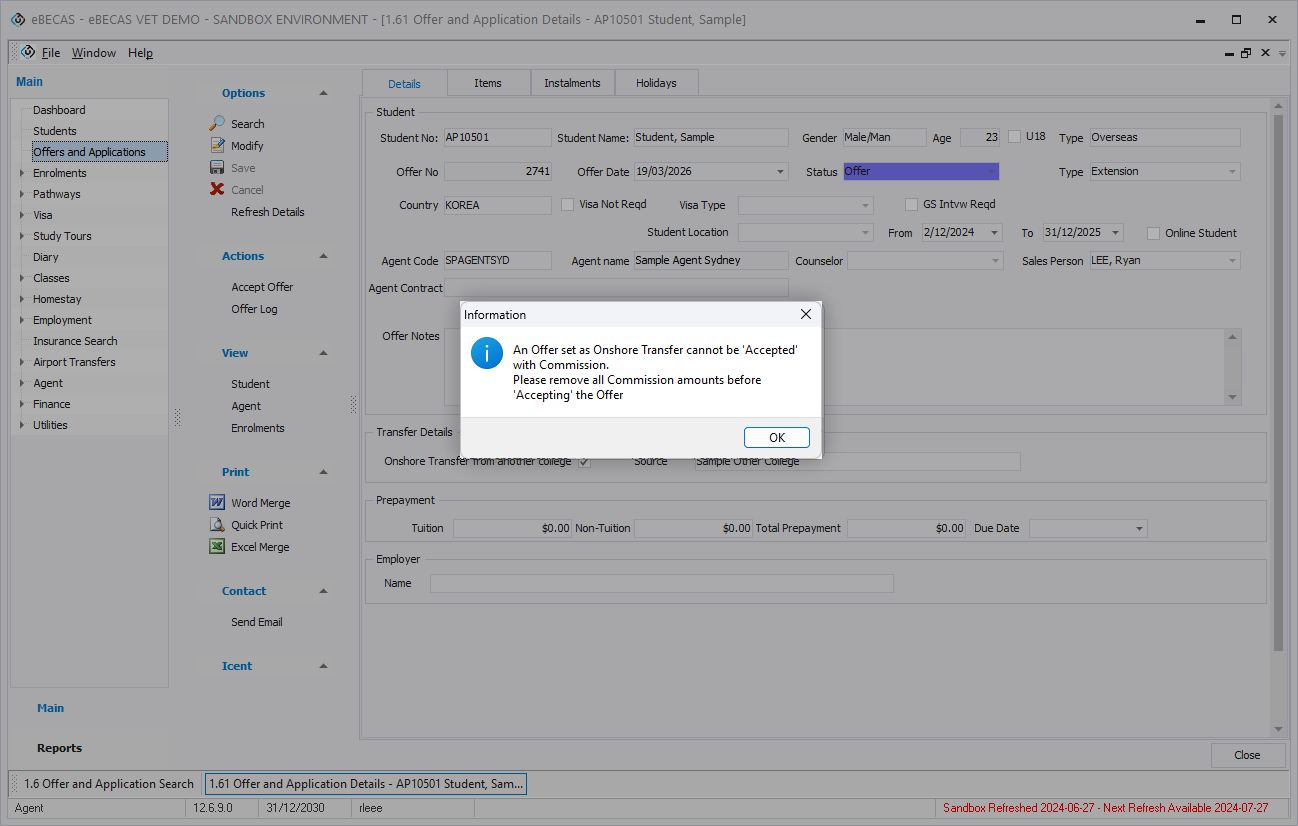
If an offer already includes agent commission and is later marked as an onshore transfer, and the compliance setting is enabled, the system will prevent the offer from being accepted until the commission is removed.
Agent Commission Tax in Agent Commission Setup
new VERSION 12.6.9.0 Australia only
For agents marked as Tax-Registered, commission can now be entered as Net (before tax), with the Gross (after tax) and tax amounts calculated automatically.
Alternatively, you can enter the Gross amount, and the Net and tax amounts will be calculated automatically.
These new Net values are also available in the commission tab.
The system always uses the Gross rates when calculating the commission amount payable.
New Scheduled Column in Debit Transfer Wizard
new VERSION 12.6.9.0
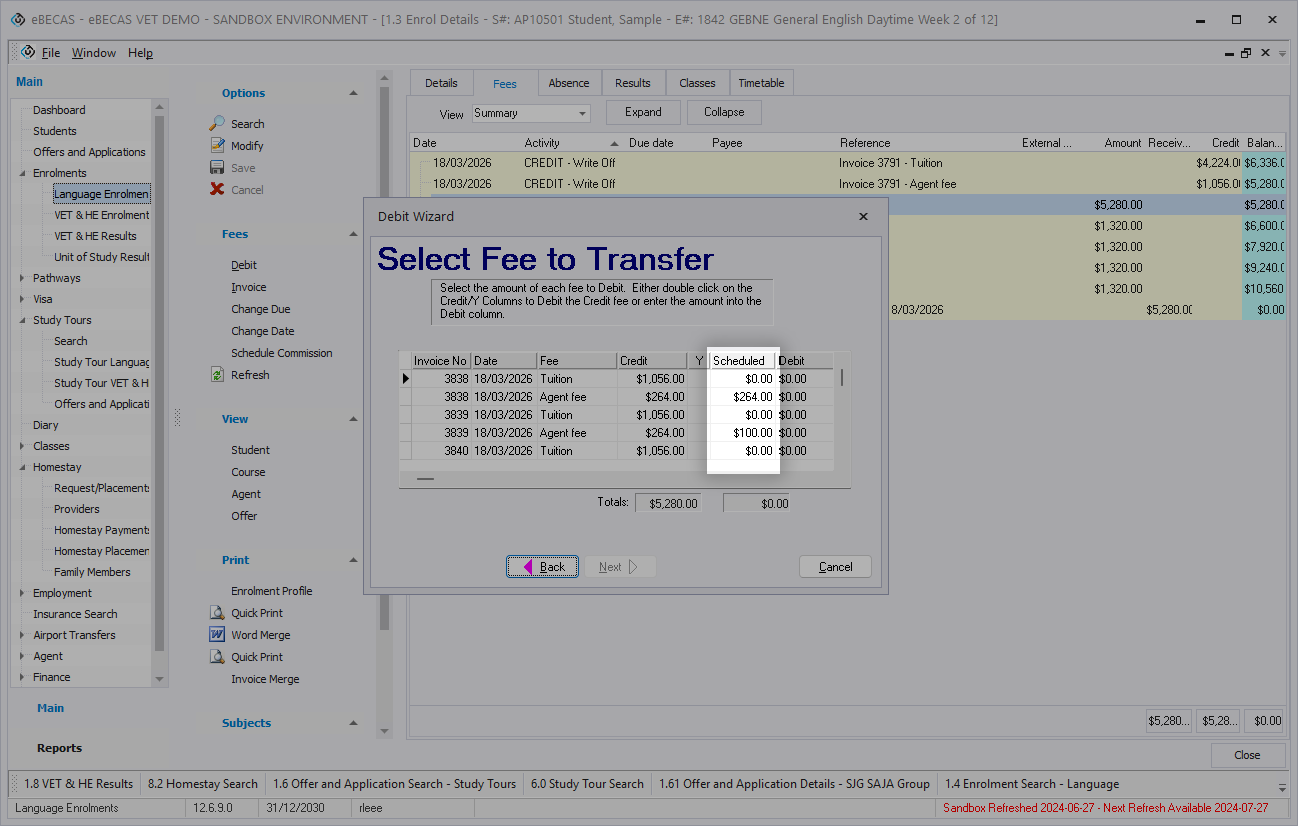
When performing a Debit Transfer from an enrolment fee, a new Scheduled column is now available in the Debit Transfer wizard. This allows users to easily review how much of the agent commission for each invoice has already been scheduled. Amounts that have already been scheduled will not be scheduled again on a new enrolment.
Study Tours Offer Item Student Multipliers
new VERSION 12.6.9.0 study tours
When students are added or removed via the Students tab in a Study Tour Offer, the No. of Students field in Offer Details is now automatically updated to match the current number of students. At the same time, a prompt is displayed to review the Student Multipliers applied to Study Tour Offer Items.
When editing Offer Items that use Student Multipliers, users will also be prompted to confirm whether to align the multiplier with the updated number of students, helping ensure consistency between student count and pricing.
Study Tour Enrolment Variation Changes in Student Enrolment
new VERSION 12.6.9.0 study tours
Any changes resulting from Study Tour Enrolment Variations are now also reflected in the individual student’s Enrolment log.
Bulk Word Merge on 8.2 Homestay Search
new VERSION 12.6.9.0
A new option has been added to perform Word Merge directly from the 8.2 Homestay Search page.
Users can now generate documents for selected Homestay Requests using templates based on the Accommodation Student object, excluding requests with a Tentative status.
Job Placement on 1.8 VET&HE Results
new VERSION 12.6.9.0
Job Placement entries displayed in the 1.8 VET & HE Results page are now shown when they overlap with the enrolment period.
When multiple entries exist, they are displayed in the following order:
Placed > Offered > Requested > No Response > Cancelled > Rejected
Within each status, the most recent From Date is shown first.