
Faculty settings are the first step in preparing Student Self Allocation because they control whether courses under the Faculty use Units of Study and when students can select or change subjects and classes through the Student Portal.
After these settings are configured, you can continue with the Units of Study and Course setup required for Student Self Allocation.
Configure the Faculty
Go to Main Menu > Utilities > Faculties and open the Faculty that will use Student Self Allocation.
In the Faculty Details > Units of Study section, review and configure the following settings.
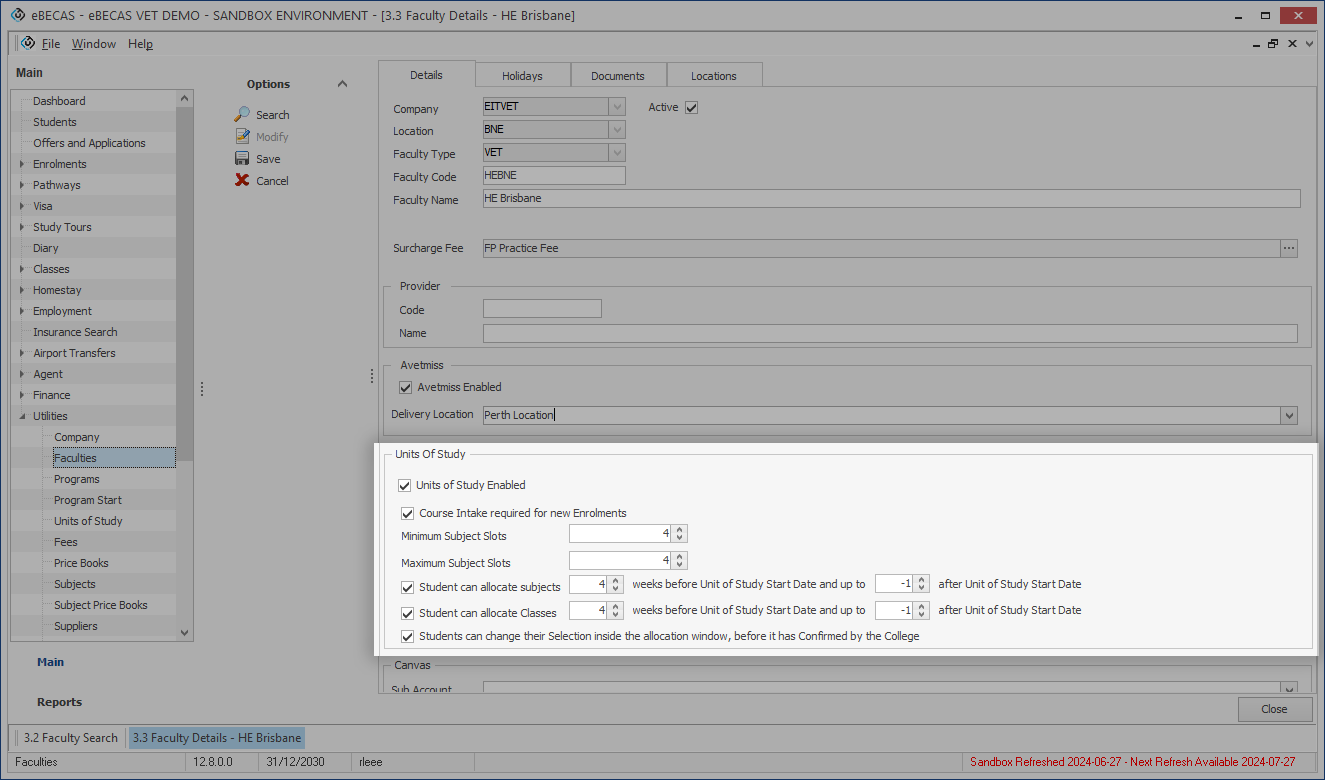
Units of Study Enabled
Select Units of Study Enabled to allow courses under the Faculty to use Units of Study.
Student Self Allocation requires Units of Study because the structure is used to determine which Units, subjects, and classes are available to students through the Student Portal. This setting does not create the full Units of Study structure by itself. It allows Units of Study to be used under the Faculty.
The detailed Units of Study and Course setup is completed in the next step.
Course Intake Required for New Enrolments
Select Course Intake Required for New Enrolments if new enrolments under the Faculty must use a Course Intake.
A Course Intake is a predefined combination of a course start date and course length.
This option is useful when students must start their course on one of the predefined intake dates.
When this option is enabled, users must select an available Course Intake when creating a new enrolment for a course under the Faculty.
Minimum Subject Slots and Maximum Subject Slots
Use Minimum Subject Slots and Maximum Subject Slots to control how many subjects students can select for each Unit, such as a semester, term, block, or study period, when subject selection is required.
For example, if the minimum is set to 2 and the maximum is set to 4, students must select at least 2 subjects and no more than 4 subjects for that Unit.
These settings apply when students select subjects through Subject Slots in the Student Portal.
If subjects are already assigned to the student’s Unit, the student does not need to select subjects before selecting classes. However, if subject allocation is available through the Student Portal, the student can still select or change subjects during the subject allocation window.
Subject/Class Allocation Period
Use the following Faculty settings to control when students can select subjects and classes through the Student Portal:
-
Student can allocate subjects [ ] weeks before Unit of Study Start Date and up to [ ] after Unit of Study Start Date
-
Student can allocate classes [ ] weeks before Unit of Study Start Date and up to [ ] after Unit of Study Start Date
Each setting has three parts:
-
Checkbox: enables subject or class allocation
-
[ ] Weeks before Unit of Study Start Date: controls when the allocation window opens
-
Up to [ ] after Unit of Study Start Date: controls when the allocation window closes
The two week values are interpreted differently:
|
Option |
Positive value |
0 |
Negative value |
|---|---|---|---|
|
[ ] weeks before Unit of Study Start Date |
Opens the window before the Unit starts |
Opens the window on the Unit Start Date |
Opens the window after the Unit starts |
|
Up to [ ] after Unit of Study Start Date |
Closes the window after the Unit starts |
Closes the window on the Unit Start Date |
Closes the window before the Unit starts |
The allocation window must provide at least one week for students to complete their selection.
The subject allocation setting applies when students need to select subjects through Subject Slots. The class allocation setting applies when students need to select classes for their selected or assigned subjects.
Students can change their Selection inside the allocation window, before it has Confirmed by the College
Use this option to control whether students can update their submitted selections through the Student Portal.
When this option is enabled, students can change their selected subjects or classes while the relevant allocation window is open and before the selection has been confirmed by the college.
Once the selection has been confirmed by the college, students cannot change that selection through the Student Portal. Any further changes must be managed by an administrator in eBECAS/EDMISS.
Next Step
After the Faculty settings are configured, continue with the Units of Study and Course setup. This is where you review or prepare the Units used by the course and how subjects are made available for Student Self Allocation.