
Overview
The Student Contacts allows you to record and manage key contact persons associated with a student. These contacts are linked directly to the student’s details and can be used across various functions in the system.
Student Contacts can be used in the following ways:
-
Email Recipients: When sending Email related to Students, a contact marked with the Emergency type can be selected as recipients.
-
Payer: Student Contacts can also be assigned as the Payer in Offer Instalments or Invoices, making it easier to direct billing and financial responsibilities to the appropriate contact.
By maintaining up-to-date student contact information, you ensure accurate communication and accountability across student-related processes.
View Student Contacts
-
Go to the student that you want to see the student contacts.
-
You will see the Student Contacts section in the details page.
For details about available buttons, refer to this article: Data Grids | Single Grid Composition.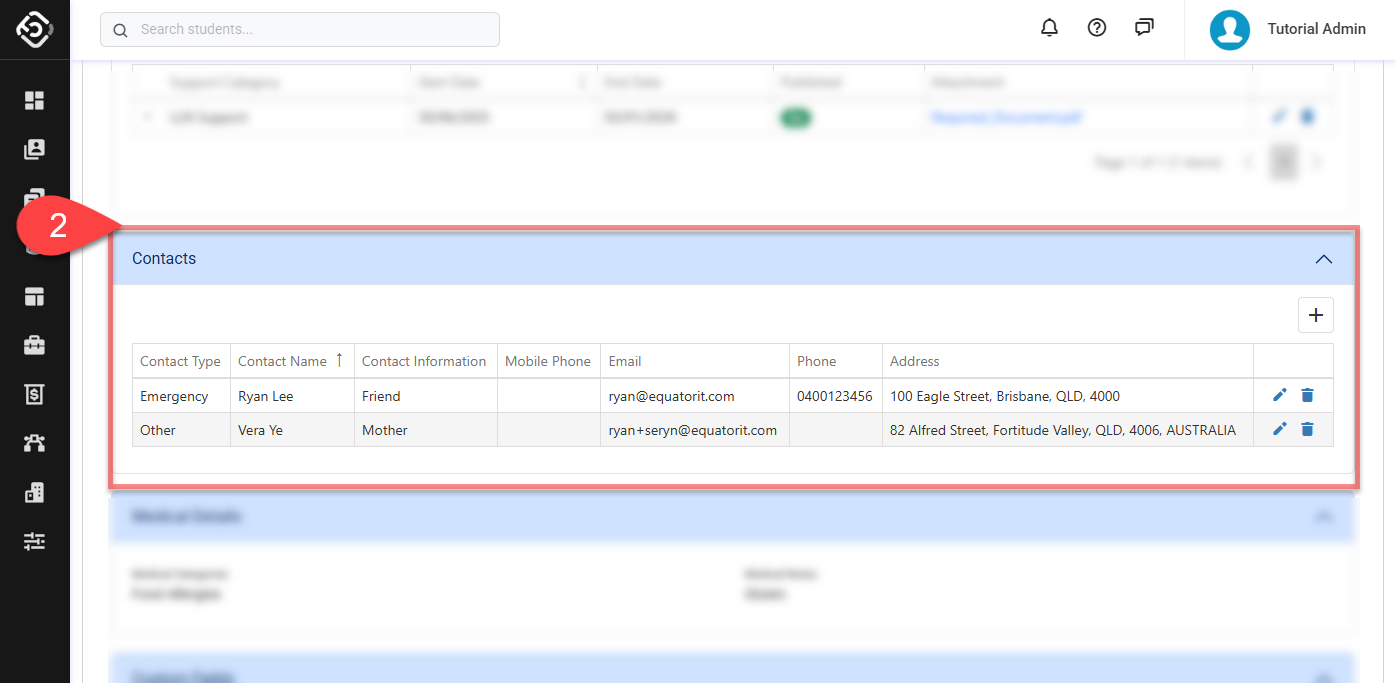
Create a Student Contact
-
From the student contacts grid, click on the Create (➕) icon at the top right of the data grid. A pop-up window will display.
-
On the pop-up window, enter the student contact entry details.
-
Contact Type: Select a type of the contact. Two types are available: Emergency and Other.
-
Each student can have only one contact marked as Emergency at a time.
-
If a new contact is saved with the Emergency type, the previously assigned Emergency contact (if any) will be automatically changed to Other.
-
-
Name: Enter the full name of the contact person.
-
Information: Provide any relevant notes or additional information about this contact. For example, their relationship to the student or preferred language of communication.
-
Mobile Phone / Email / Phone: Enter method of contact. You can include a mobile number, landline, or email address to ensure they can be reached when needed.
-
Address: Enter the contact’s physical address, including street, suburb, state, postcode and country.
-
-
Click on Create to finish.
Update a Student Contact
-
From the student contacts grid, locate the record you’d like to update, then click the Edit icon.
-
Update the details as required.
-
Click Save to store the changes.
Delete a Student Contact
-
From the student contacts grid, locate the record that you’d like to delete, then click the Delete icon.
-
Click Yes to confirm. Make sure you intend this action as it cannot be undone.