
The Accommodation Payments Generator helps you prepare payments to an Accommodation Provider for a student's Accommodation Placement. You can generate a single payment for a selected accommodation period or recurring payments according to the payment frequency agreed with the Provider.
The Generator guides you through selecting a Placement and an Invoice Accommodation Item, configuring the payment frequency and Provider Rate, and reviewing the payments before creating them.
Generating Accommodation Payments does not pay the Accommodation Provider. The prepared payments are managed separately through Schedule Payments.
If you are new to Accommodation Payments, we recommend first reading Accommodation Payments to understand how preparing Provider payments and scheduling them fit into your institution's accommodation payment process.
Before You Begin
Understand What You Are Selecting
Accommodation Placements, Invoices and Accommodation Payments support different parts of the accommodation process:
-
An Accommodation Placement records which Accommodation Provider will accommodate the student and for what period.
-
An Accommodation Item on an Invoice records the accommodation product invoiced for the student and its amount.
-
Accommodation Payments define the amounts, due dates and accommodation periods for payments to the Provider. These may differ from the amounts and payment dates on the student's Invoice.
The Generator uses both the Placement and the Invoice Item to prepare Accommodation Payments. You select the Placement to identify the Provider and accommodation period, then select the relevant Invoice Item to establish the invoiced amount and Invoice Rates used when generating payments.
Check the Required Records
Before opening the Generator, make sure:
-
The Accommodation Request has been placed with an Accommodation Provider. Only requests with a Placed status are available in the Placement selection step.
-
An Invoice containing the relevant Accommodation Item has been created.
The payer does not need to have fully paid the related accommodation amount before Accommodation Payments can be generated.
Confirm the Provider Payment Requirements
Confirm how your institution needs to pay the Provider, including the payment frequency, due dates and rate to use.
You will use these details to choose between a single payment and recurring payments, and to select the Provider Rate used to calculate the payment amounts.
Create Accommodation Payments
-
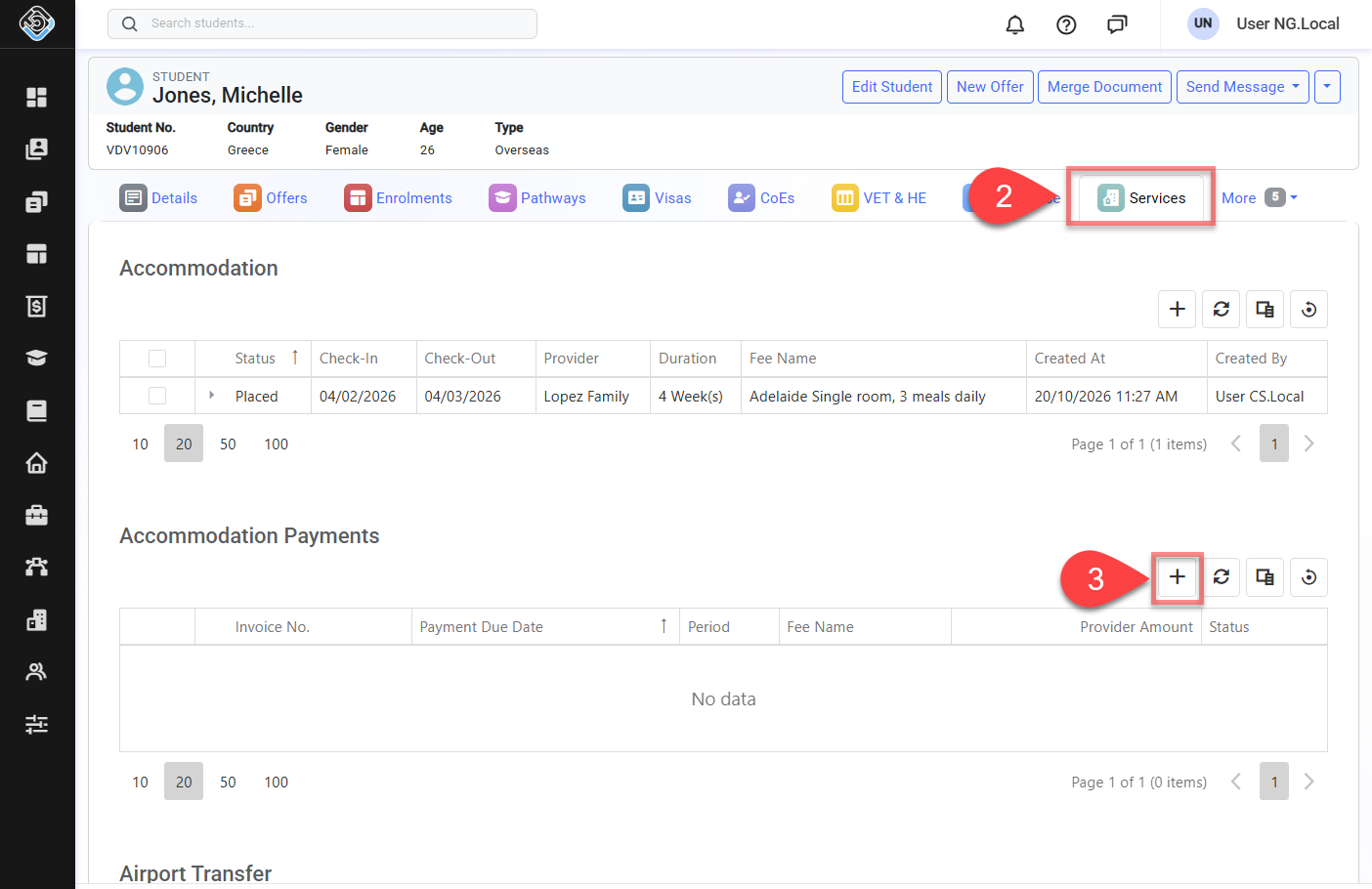
Go to the student's profile.
-
Click on the Services tab and go to the Accommodation Payments section.
-
Click Generate Payments button to open the Generator.
Step 1: Select a Placement
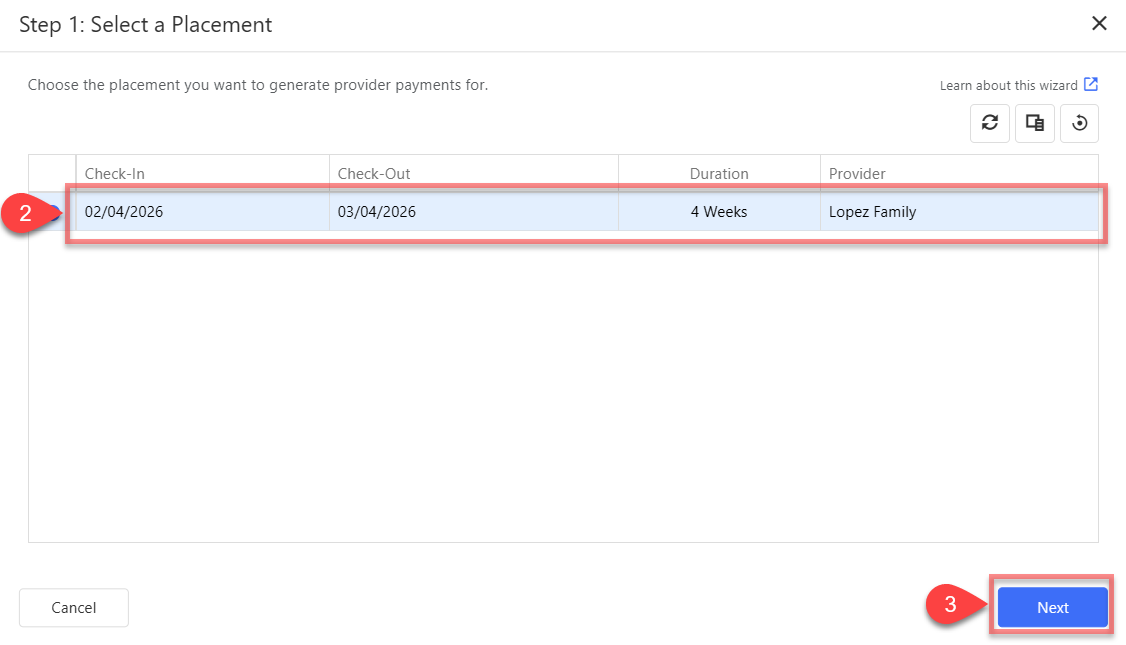
Select the Accommodation Placement for which you want to prepare payments to the Accommodation Provider. The selected Placement identifies the Accommodation Provider and accommodation period for the payments you will generate.
Only Accommodation Requests with a Placed status (Accommodation Placements) are displayed.
-
Review the Provider, Check-In, Check-Out, Duration and select the Placement that matches the accommodation service you need to pay the Provider for.
-
Click Next.
If no Placements are displayed, an Accommodation Request must first be placed with an Accommodation Provider. For instructions, see Place, Change Bed and Unplace Accommodation Requests.
Step 2: Select an Invoice
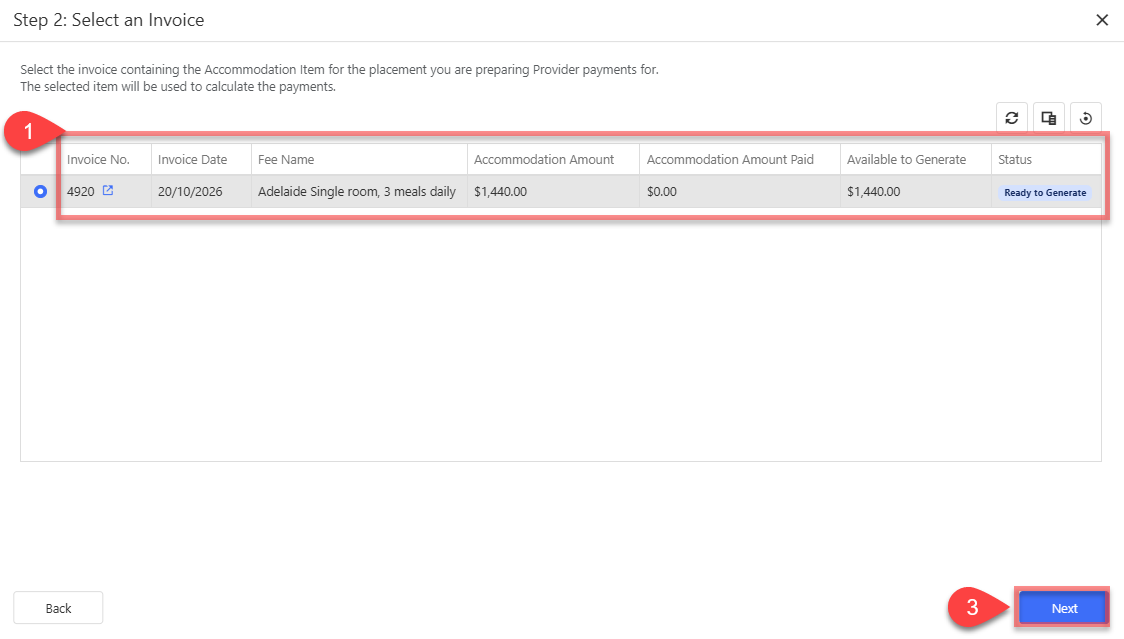
Select the Accommodation Item for the accommodation product invoiced for the student. Each row represents an Accommodation Item within an Invoice, rather than the entire Invoice.
The Placement selected in Step 1 identifies the Accommodation Provider and accommodation period. The Accommodation Item selected here provides the invoiced amount and Invoice Rates used when generating payments. You would normally select the Accommodation Item invoiced for the selected Placement. However, the Generator allows you to select a different Accommodation Item where required by your institution's payment process.
-
Select the relevant Accommodation Item using the following information:
-
Invoice No.: The Invoice containing the Accommodation Item.
-
Invoice Date: The date of the Invoice.
-
Fee Name: The accommodation product invoiced for the student.
-
Accommodation Amount: The amount of the Accommodation Item on the Invoice.
-
Accommodation Amount Paid: The amount your institution has received towards the Accommodation Item from the person or organisation responsible for paying the Invoice, such as the student, a parent or an agent.
-
Available to Generate: The accommodation amount currently available for generating Accommodation Payments. This is separate from the amount paid by the payer.
-
Status: The current payment generation status of the Accommodation Item
-
Unscheduled Payments: The accommodation amount allocated to existing Accommodation Payments that have not yet been scheduled.
-
Scheduled/Refunded: The accommodation amount already scheduled or refunded against the Accommodation Item.
-
Applied Discount: The discount applied to the Accommodation Item.
-
-
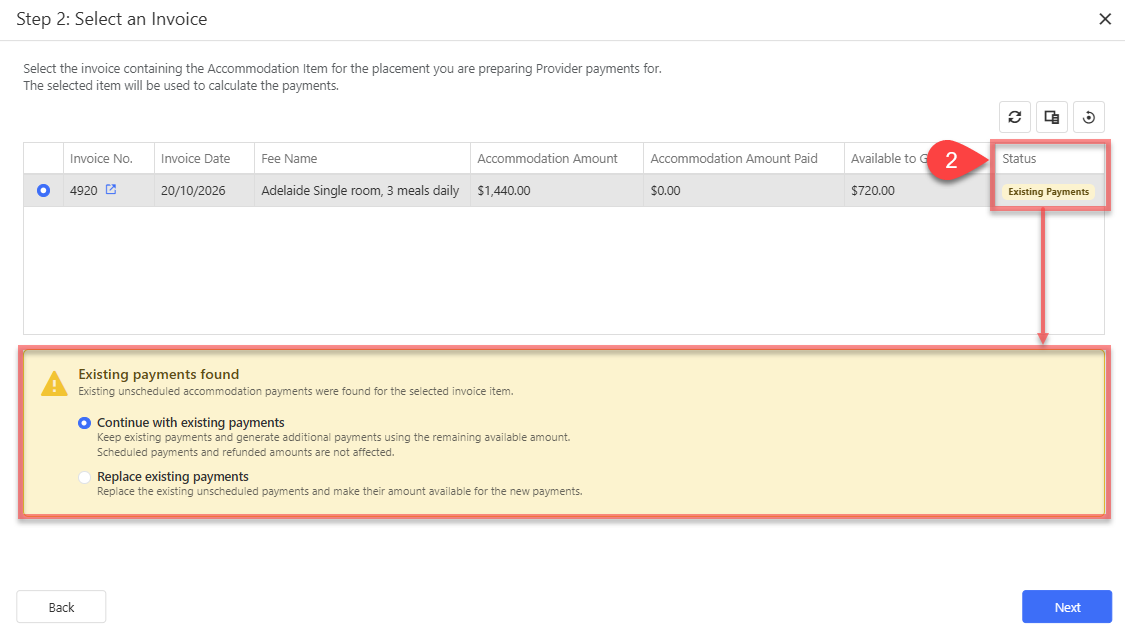
If the selected Accommodation Item has existing unscheduled Accommodation Payments, choose how to proceed:
-
Keep existing payments: Keep the existing payments and generate additional payments using the remaining amount available.
-
Replace existing payments: Delete the existing unscheduled payments and generate new payments in their place. Use this option to recreate the payment plan. Accommodation Payments that have already been scheduled are excluded from replacement and remain unchanged.
-
-
Click Next to continue.
If no Accommodation Items are listed, check that an Invoice containing the relevant Accommodation Item has been created for the student.
If the selected Item has a No Remaining status, you cannot continue because no amount is available for generating further Accommodation Payments.
Step 3: Configure Payments
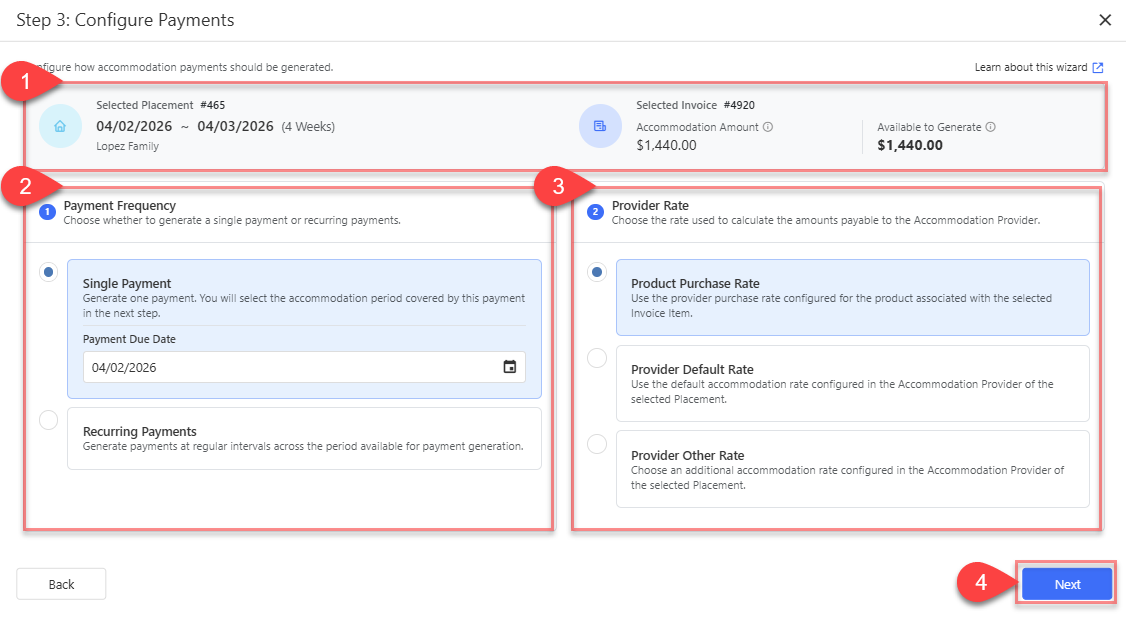
Choose whether to prepare a single Accommodation Payment or recurring payments, and select the rate used to calculate the amounts payable to the Accommodation Provider.
-
Review the selected Placement and Accommodation Item details displayed at the top of the screen.
-
Select the Payment Frequency and enter the relevant details:
-
Single Payment: Prepare one Accommodation Payment for the coverage period you will specify in the next step.
-
Payment Due Date: The date the payment is due to the Accommodation Provider.
-
-
Recurring Payments: Generate Accommodation Payments at regular intervals across the period available for payment generation. The period available for payment generation may differ depending on whether you chose to keep or replace existing unscheduled Accommodation Payments in Step 2. Configure the following options:
-
First Payment Due Date: The date the first payment is due to the Accommodation Provider.
-
Repeat Every: Set the interval between payment due dates in weeks. When no Limit Number of Payments is set, each payment also covers this period. For example, selecting 2 weeks generates payments with due dates 2 weeks apart, each covering 2 weeks of accommodation.
-
Limit Number of Payments: Enable this option and enter the maximum number of payments to generate. The period available for payment generation is distributed across the generated payments, while Repeat Every continues to determine the interval between their due dates. As a result, each payment may cover a different period from the selected interval.
For example, if the period available for payment generation is 10 weeks and the payment limit is 1, the generated payment covers the available 10-week period.
-
-
-
Select the Provider Rate used to calculate how much your institution will pay the Accommodation Provider for the accommodation covered by each payment. This is the rate payable to the Provider, which may differ from the accommodation rate invoiced for the student. Choose one of the following:
-
Product Purchase Rate: Use the Purchase Amount configured for the product associated with the Accommodation Item selected in Step 2.
-
Provider Default Rate: Use the default rate configured in the profile of the Accommodation Provider assigned to the Placement selected in Step 1.
-
Provider Other Rate: Select one of the additional rates configured in that Provider's profile.
Choose the rate option that reflects the rate your institution has agreed to pay the Accommodation Provider.
-
-
Click Next to continue.
Step 4: Set Payment Coverage
This step differs depending on the Payment Frequency selected in Step 3.
Single Payment
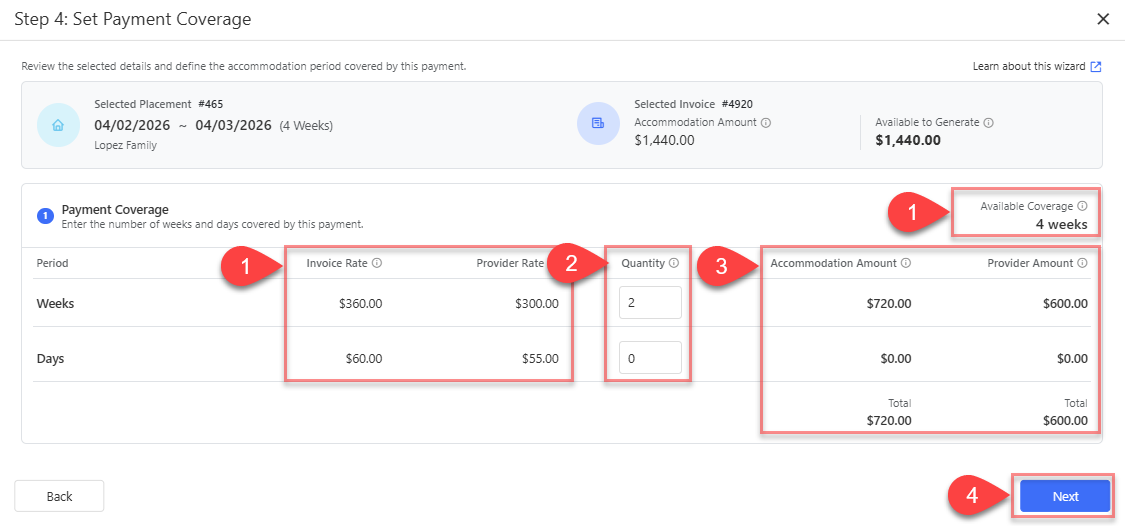
Specify the accommodation period covered by the single payment. The Generator uses the selected Invoice Rates and Provider Rates to calculate the corresponding amounts.
-
Review the Available Coverage and Invoice Rtae and Provider Rate.
-
Available Coverage: It indicates the maximum accommodation period available for this payment.
-
Invoice Rate: The weekly or daily accommodation rate from the Accommodation Item selected in Step 2.
-
Provider Rate: The weekly or daily rate payable to the Accommodation Provider, based on your selection in Step 3.
-
-
Enter the Quantity for the Weeks and Days covered by the payment. The quantities must remain within the available coverage.
-
Review the calculated amounts:
-
Accommodation Amount: The amount calculated using the Invoice Rates and the quantities entered. This is the amount allocated from the selected Accommodation Item to this payment.
-
Provider Amount: The amount calculated using the Provider Rates and the quantities entered. This is the amount payable to the Accommodation Provider.
-
-
Check the totals and click Next to review the payment before generating it.
Recurring Payments
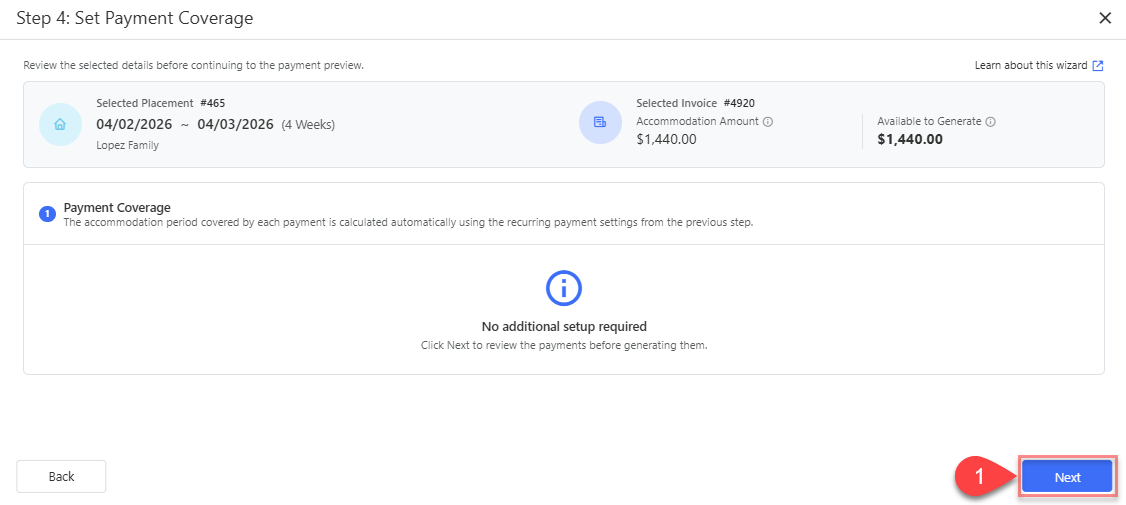
The accommodation period covered by each payment is calculated automatically using the recurring payment settings from Step 3. No additional setup is required here.
-
Click Next to review the payments before generating them.
Step 5: Review Payment Details
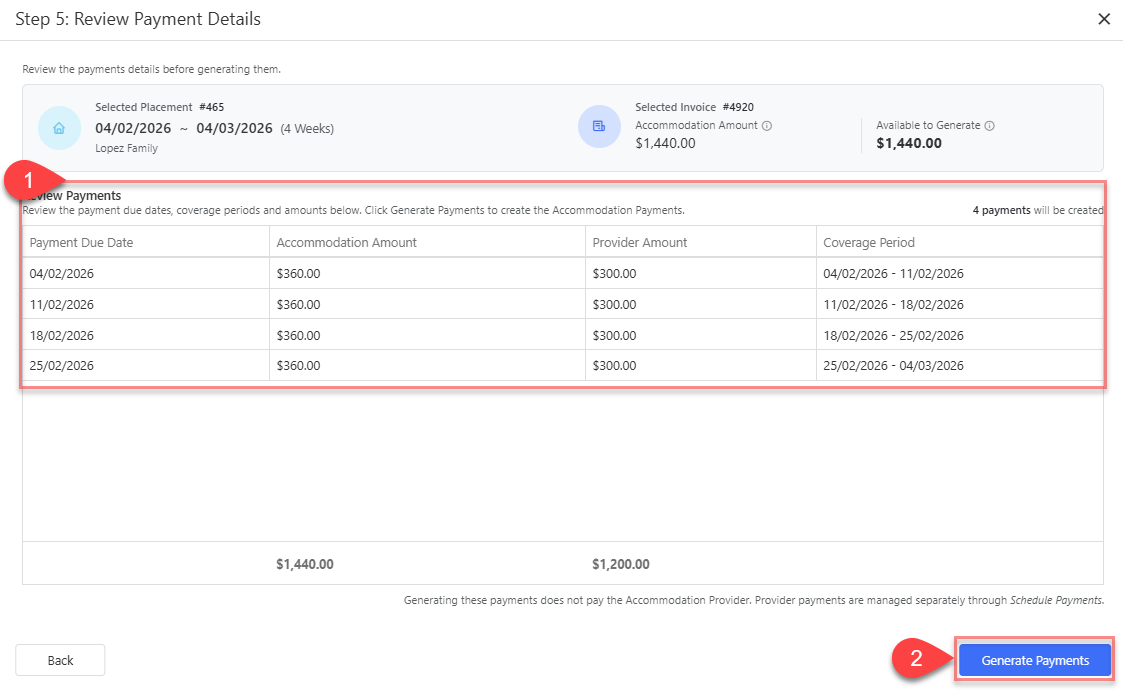
Review the proposed Accommodation Payments before generating them. A Single Payment displays one payment, while Recurring Payments displays the payments calculated from your recurring settings.
-
Review the number of payments and the following details:
-
Payment Due Date: The date each payment is due to the Accommodation Provider.
-
Accommodation Amount: The amount allocated from the selected Invoice Accommodation Item to each payment.
-
Provider Amount: The amount payable to the Accommodation Provider for each payment.
-
Coverage Period: The accommodation period covered by each payment.
-
-
Check that the due dates, coverage periods, amounts and totals match your requirements. If changes are needed, click Back to return to the relevant step.
-
Click Generate Payments to create the Accommodation Payments.
Generating these payments does not pay the Accommodation Provider.
After Generating Payments
View the created payments in the student's Services > Accommodation Payments section. For instructions on reviewing, editing or deleting payments, see Create, Edit and Delete Accommodation Payments.
To move the prepared payments into the Provider payment process, see Schedule Payments | Accommodation.