Once an Accommodation Request has been created, it can be placed with a suitable Accommodation Provider for the requested period.
When placing a request, you can use any Accommodation Provider already selected for the request or search for a suitable Provider. If the selected Provider has one or more Beds configured, a Bed must also be selected before the request can be placed. If no Beds are configured for the Provider, the request can be placed with the Provider only.
Considerations Before Placing an Accommodation Request
Before placing an Accommodation Request, keep the following points in mind:
-
Accommodation Requests with a Tentative status cannot be placed.
-
Accommodation Requests that are already Placed cannot be placed again. Use Change Bed to move the student to another Bed with the same Accommodation Provider.
-
To change the Accommodation Provider for a Placed request, the request must first be unplaced and then placed again with the new Accommodation Provider and, where required, Bed.
Access Accommodation Placement Actions
You can manage the placement of an Accommodation Request from either of the following locations:
-
Student Profile: Go to the student's Services tab and select the request from the Student Accommodation grid.
-
Accommodation Requests/Placements Search: From the Main menu, go to Accommodation Requests/Placements Search, then search for and select the request.
The available actions depend on the current status of the selected Accommodation Request and your permissions.
Place an Accommodation Request
-
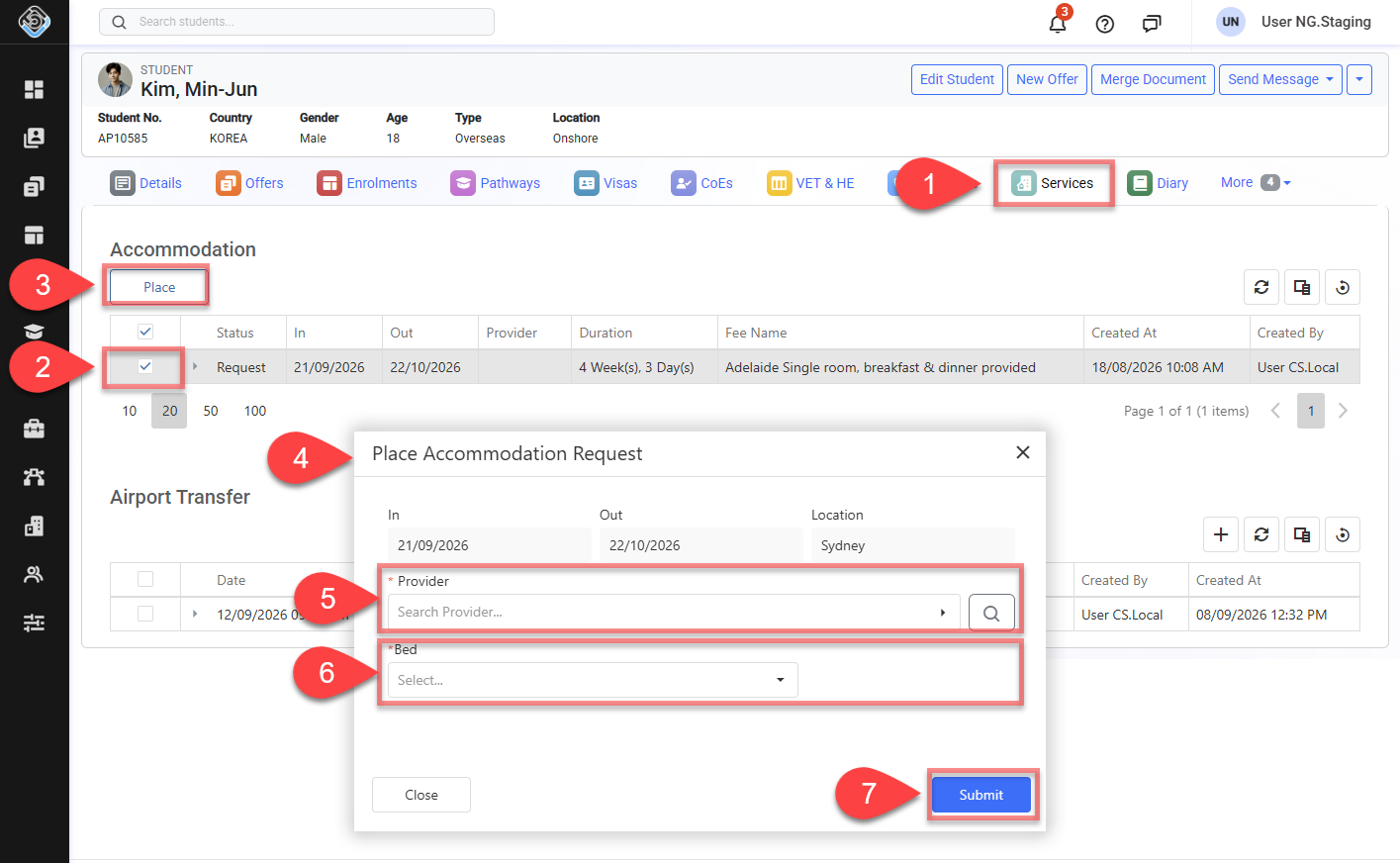
Access the Accommodation Request from either the Student Accommodation grid or Accommodation Requests/Placements Search.
-
Select the Accommodation Request you want to place.
-
Click Place from the action panel above the grid.
-
In the Place window, review the following information:
-
In Date / Out Date: The period for the Accommodation Request.
-
Location: The location for the Accommodation Request.
-
Accommodation Provider: The Provider where the student will be placed. If an Accommodation Provider was selected when the Accommodation Request was created from an Offer or Invoice Item, it is preselected.
-
Bed: The Bed assigned to the student within the selected Accommodation Provider. If a Bed was selected when the Accommodation Request was created from an Offer or Invoice Item, it is also preselected. A Bed is required if the selected Provider has one or more Beds configured. If the Provider has no Beds configured, the request can be placed without selecting a Bed.
-
-
Select an Accommodation Provider if one is not already selected.
-
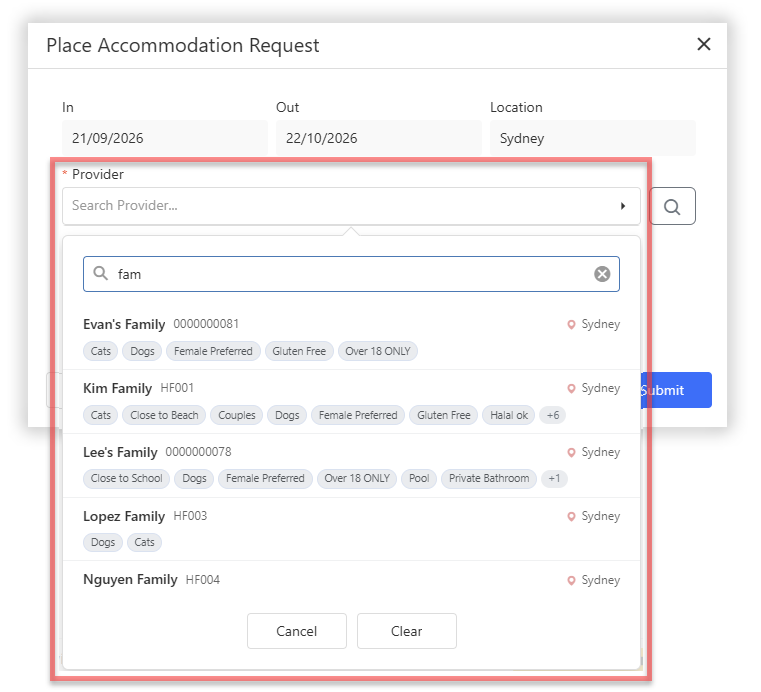
Quick Search: Click the Accommodation Provider field and search by Provider name or code. Quick Search uses the request Location to find Providers whose Home Location or Available Locations match that Location.
-
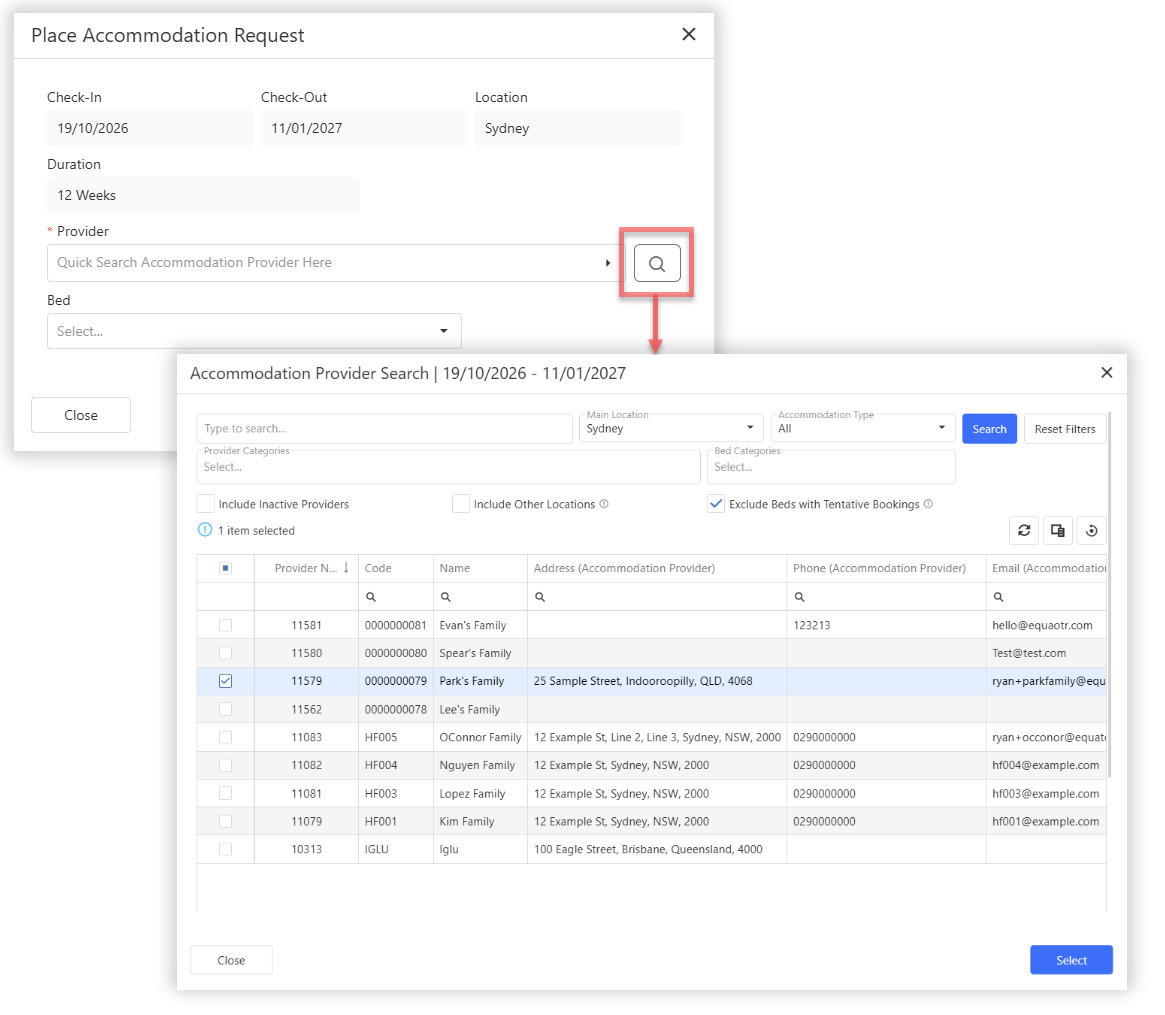
Detailed Search: Use the Detailed Search button to search using additional criteria, including Bed availability for the accommodation period.
See Search for an Accommodation Provider section for more information about Provider search options and availability.
-
-
If the selected Accommodation Provider has one or more Beds configured, select a Bed.
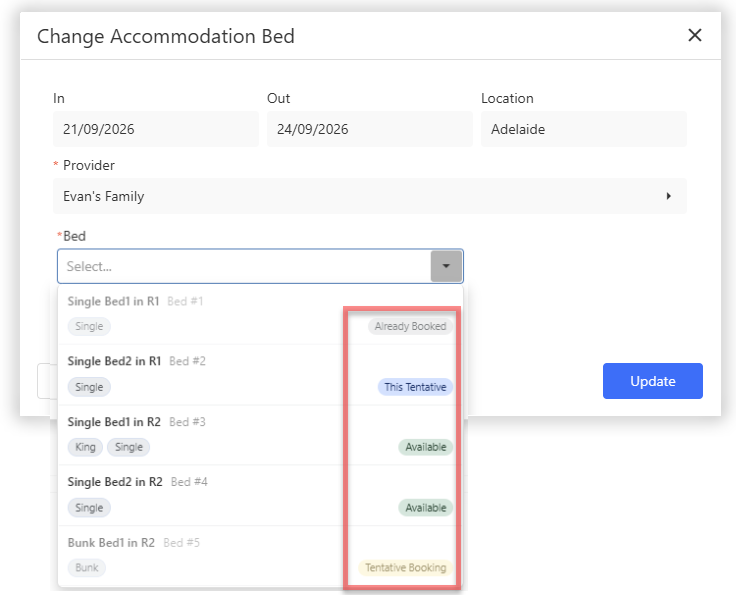
The Bed dropdown displays each active Bed with its Bed number, name, Bed Category and current status for the accommodation period. Beds that cannot be used for the period remain visible but cannot be selected.If a Bed was already assigned when the Accommodation Request was created, it is preselected in the Place window.
If the selected Accommodation Provider has no Beds configured, a Bed is not required and you can continue without selecting one.
See Bed Status section for more information about the status shown for each Bed. -
Click Place to complete the placement. The Accommodation Request is updated to Placed. The selected Accommodation Provider and, where applicable, Bed are assigned to the request for the accommodation period.
Change the Bed for a Placed Accommodation Request
Use Change Bed when a student needs to move to a different Bed within the same Accommodation Provider.
-
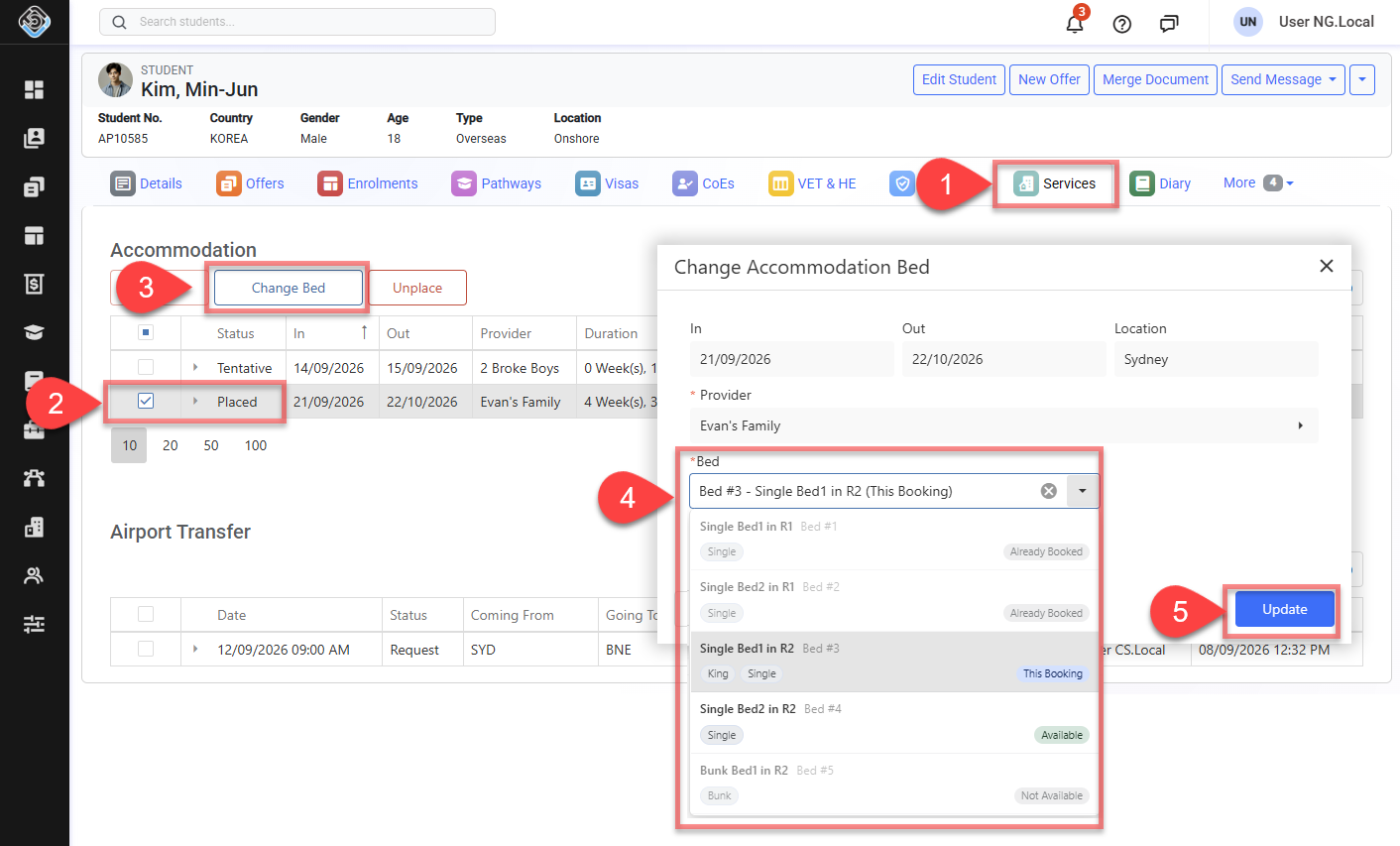
Access the Accommodation Request from either the Student Accommodation grid or Accommodation Requests Search.
-
Select the Placed Accommodation Request you want to change the bed.
-
Click Change Bed from the action panel above the grid.
-
In the Change Bed window, select a new Bed from the current Accommodation Provider.
The Bed dropdown displays the available Beds for the accommodation period. The Bed currently assigned to the Placed Accommodation Request is shown as This Booking.
See Bed Status section for more information about the status shown for each Bed.
The Accommodation Provider cannot be changed when using Change Bed. To move the student to a different Provider, first unplace the request and then place it again with the new Accommodation Provider.
-
Click Change Bed to save the new Bed. The Accommodation Request remains Placed, and the newly selected Bed is assigned for the accommodation period.
Unplace an Accommodation Request
Use Unplace to remove the current placement from a Placed Accommodation Request.
-
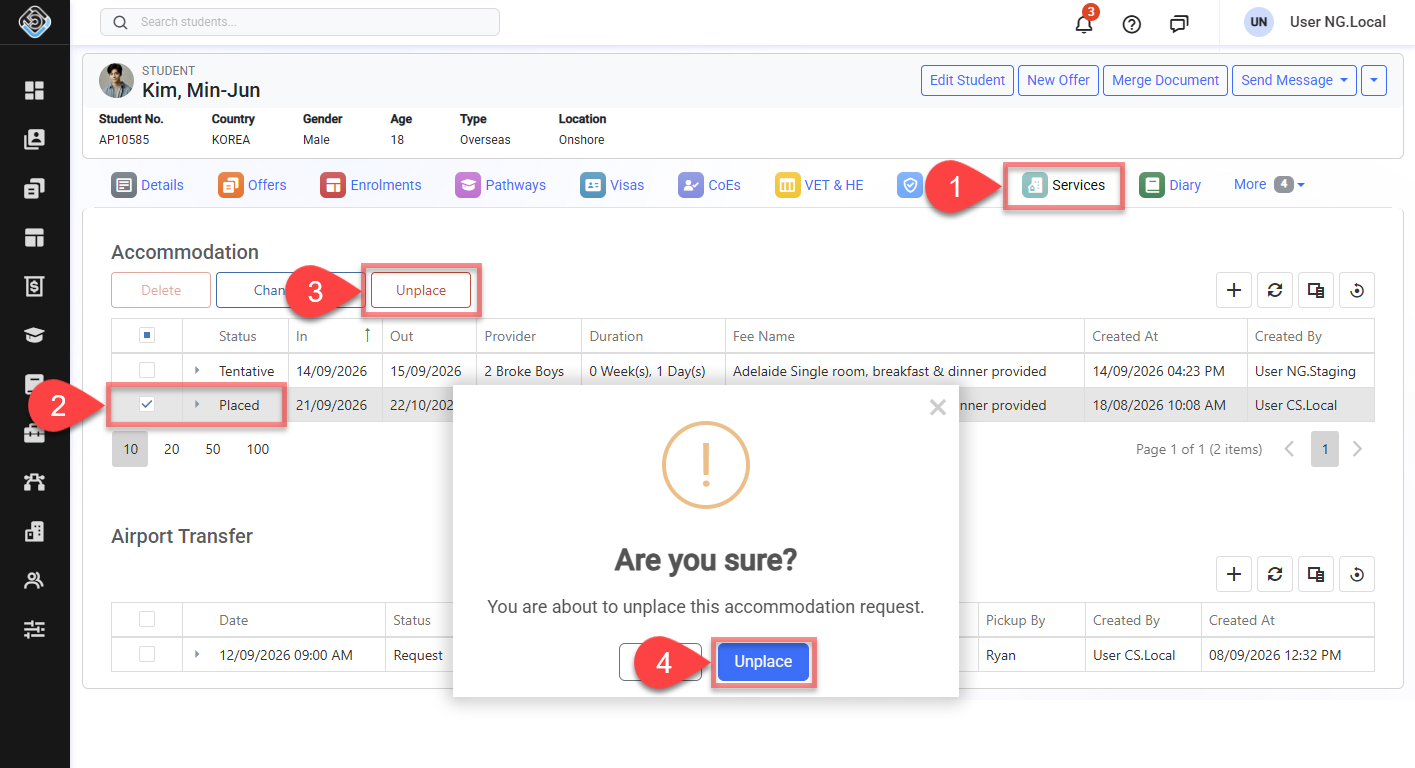
Access the Accommodation Request from either the Student Accommodation grid or Accommodation Requests Search.
-
Select the Placed Accommodation Request you want to unplace.
-
Click Unplace from the action panel above the grid.
-
Confirm the action when prompted. The Accommodation Request is updated to UnPlaced status. The assigned Accommodation Provider and any assigned Bed are removed from the request.
Accommodation Payments Will Be Removed
Unplacing an Accommodation Placement removes all Accommodation Payments associated with that placement, including payments that have already been scheduled.
For scheduled payments, the related Schedule is retained, but the Accommodation Payment will no longer be available as part of that Schedule.
Provider and Bed Selection
When selecting an Accommodation Provider and, where applicable, a Bed, use the following information to help find a suitable Provider and understand the status shown for each Bed.
Search for an Accommodation Provider
When selecting an Accommodation Provider, you can use Quick Search to find a Provider directly or Detailed Search to refine the search using additional options.
Quick Search
Click the Accommodation Provider field and search using the Provider name or code.
Quick Search uses the selected Location to find Providers whose Home Location or Available Locations match that Location. It does not use the In/Out Dates or Bed availability when searching, so Providers can appear even if they have no Beds configured.
The search results display the Provider Name, Code, Home Location and Provider Categories.
Detailed Search
Click the Detailed Search button beside the Accommodation Provider field to open the Provider Search window.
By default, the current Location is applied to the Home Location filter. The In Date and Out Date are fixed and cannot be changed. Detailed Search uses the accommodation period to find Providers with an available Bed, and you can use the following filters and options to further refine the search:
-
Text Search: Search for an Accommodation Provider using the Provider name or code.
-
Home Location: Search for Providers based on their Home Location. The current accommodation Location is selected by default and can be changed if required.
-
Accommodation Type: Filter Providers by the selected accommodation type.
-
Provider Categories: Filter Providers by one or more Provider Categories. Categories can be used to identify Provider characteristics, requirements or other attributes and help narrow the results to suitable Providers. To customise available categories, update the values on the relative Provider Categories picklist of Providers (Accommodation) object.
-
Bed Categories: Filter Providers based on the categories assigned to their Beds. One or more Bed Categories can be selected, and the search returns Providers with a matching available Bed for the accommodation period. To customise available categories, update the values on the relative Bed Categories picklist of Beds object.
-
Include Inactive Providers: Select this option to include inactive Providers in the search results.
-
Include Other Locations: Select this option to include providers with available beds in other locations they service, even if they have no availability in the requested location.
-
Exclude Tentative Beds: Select this option to treat Beds assigned to Accommodation Requests that are Tentative status as taken when determining whether a Provider has an available Bed.
After setting the required search criteria, click Search. To select a Provider, either double-click the Provider in the search results, or select its checkbox and click Select.
Bed Status
Where Beds are configured for an Accommodation Provider, the status shown for each Bed indicates whether it can be selected for the accommodation period.
-
Available: The Bed is available for the accommodation period and can be selected.
-
This Tentative: The Bed is temporarily reserved for the current accommodation request or selection. It can continue to be used for the current accommodation.
-
Tentative Booking: The Bed is temporarily reserved for another Accommodation Request for an overlapping period and cannot be selected.
-
This Booking: The Bed is currently assigned to the Placed Accommodation Request and is the Bed currently being used for that placement.
-
Already Booked: The Bed is already assigned to another Placed Accommodation Request for an overlapping period and cannot be selected.
-
Unavailable: The Bed has been marked as unavailable for the accommodation period and cannot be selected.