Accommodation Payments allow you to prepare the amounts that will be paid to an Accommodation Provider for a student's Accommodation Placement. They allow Provider payments to be prepared according to when and how the Provider should be paid, separately from how the related Invoice is paid.
Payments can be prepared for the full accommodation period in advance or created progressively as required. Each payment can have its own amount, due date and coverage period before it moves into the Provider payment process through Schedule Payments. Creating Accommodation Payments does not mean that the Accommodation Provider has already been paid.
If you are new to Accommodation Payments, we recommend first reading Accommodation Payments To Providers to understand how preparing payments and scheduling them fit into the overall Accommodation Provider payment process.
Considerations for Working with Accommodation Payments
Before creating or managing Accommodation Payments, keep the following in mind:
-
An Accommodation Placement must be completed before Accommodation Payments can be created.
-
A relevant Accommodation Item within an Invoice is required when generating Accommodation Payments.
-
The related Accommodation Item does not need to have been paid by the Invoice payer before Accommodation Payments can be created.
-
Accommodation Payments that have not been scheduled through Schedule Payments | Accommodation can be updated or removed.
-
Once an Accommodation Payment has been scheduled, it cannot be updated or removed directly. The related Schedule must first be removed before the payment can be changed.
View Accommodation Payments
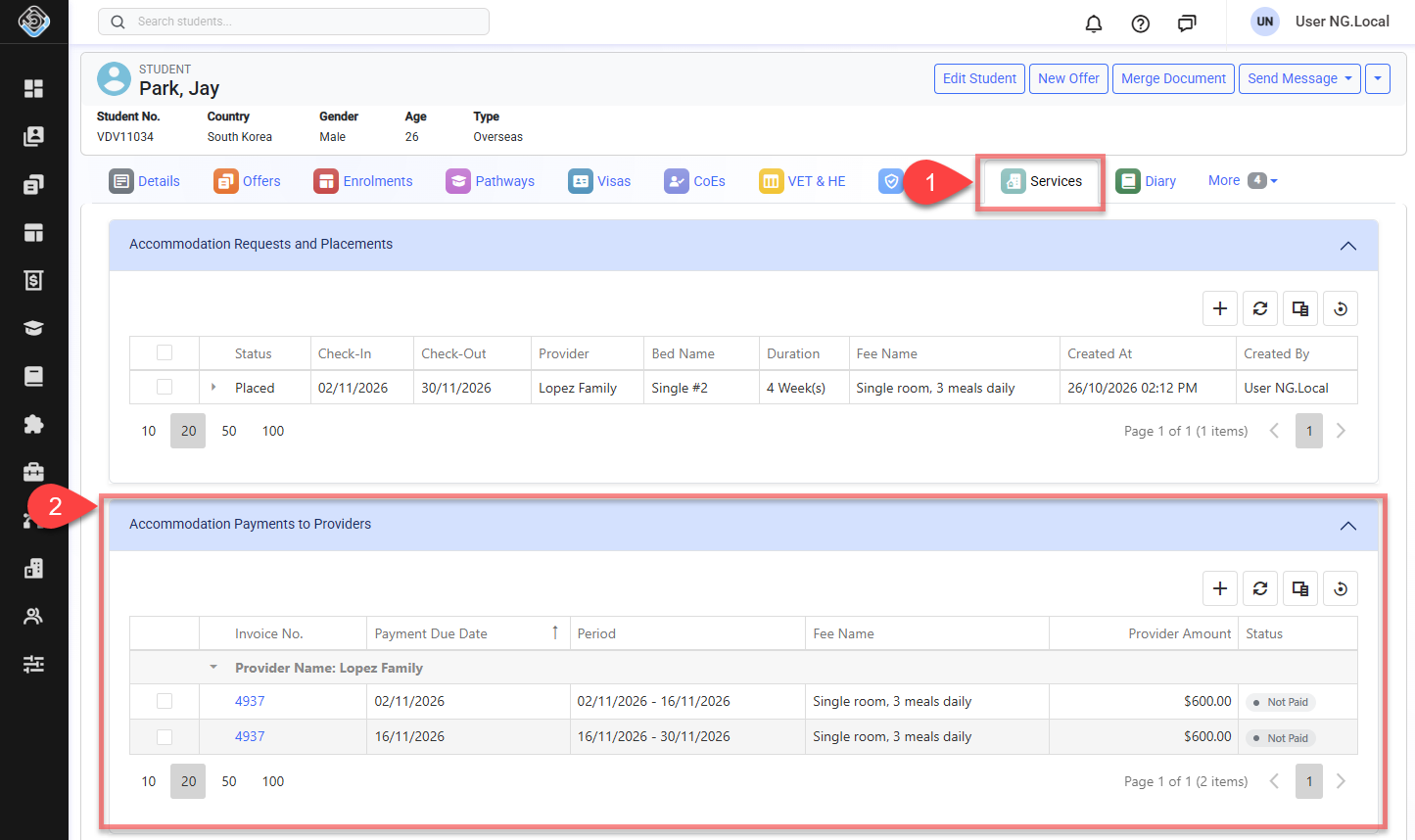
Accommodation Payments can be viewed and managed from the Accommodation Payments to Providers section of the student's Services tab.
-
Go to the student's profile, click on the Services tab, and then go to the Accommodation Payments section.
-
The Accommodation Payments grid displays the Accommodation Payments to Providers section that have been prepared for the student's Accommodation Placements.
Create Accommodation Payments
Accommodation Payments are created using the Accommodation Payments Generator, whether you are preparing a single payment or recurring payments for an Accommodation Placement.
The Generator can also replace existing unscheduled Accommodation Payments when you need to recreate a payment plan. Payments that have already been scheduled are excluded from replacement.
For detailed instructions and information about the available options, see Accommodation Payments Generator.
Edit Accommodation Payment Details
Once an Accommodation Payment has been scheduled through Schedule Payments | Accommodation, it cannot be edited directly. Remove the related Schedule first before updating the payment.
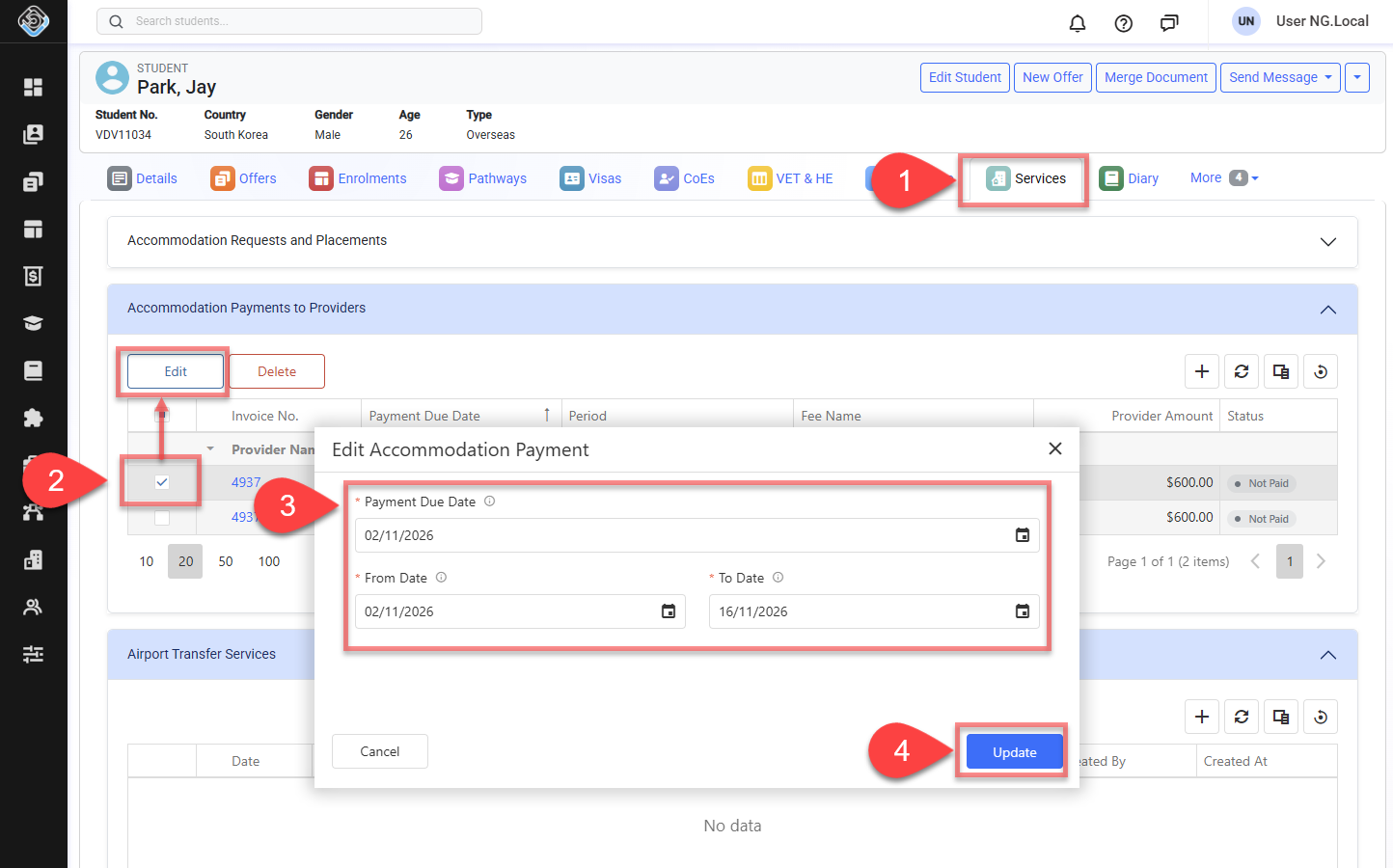
You can update the due date and coverage dates of an existing Accommodation Payment.
-
Go to the student's profile, click on the Services tab.
-
In the Accommodation Payments to Providers section, select the Accommodation Payment you want to update and click Edit button.
-
Update the following payment details as required:
-
Payment Due Date: The date this payment is due to the Accommodation Provider.
-
From Date: The start date of the accommodation period covered by this payment.
-
To Date: The end date of the accommodation period covered by this payment.
-
-
Save your changes.
Regenerate Accommodation Payments
To recreate a payment plan with different Provider Rates, payment frequency or coverage settings, use the Accommodation Payments Generator.
In the Generator, select the Placement and Invoice Accommodation Item, then review the existing unscheduled payments and choose whether to replace them. Payments that have already been scheduled are excluded from replacement.
For instructions, see Accommodation Payments Generator.
Delete Accommodation Payments
Once an Accommodation Payment has been scheduled through Schedule Payments | Accommodation, it cannot be deleted directly. Remove the related Schedule first before deleting the payment.
-
Go to the student's profile, click on the Services tab.
-
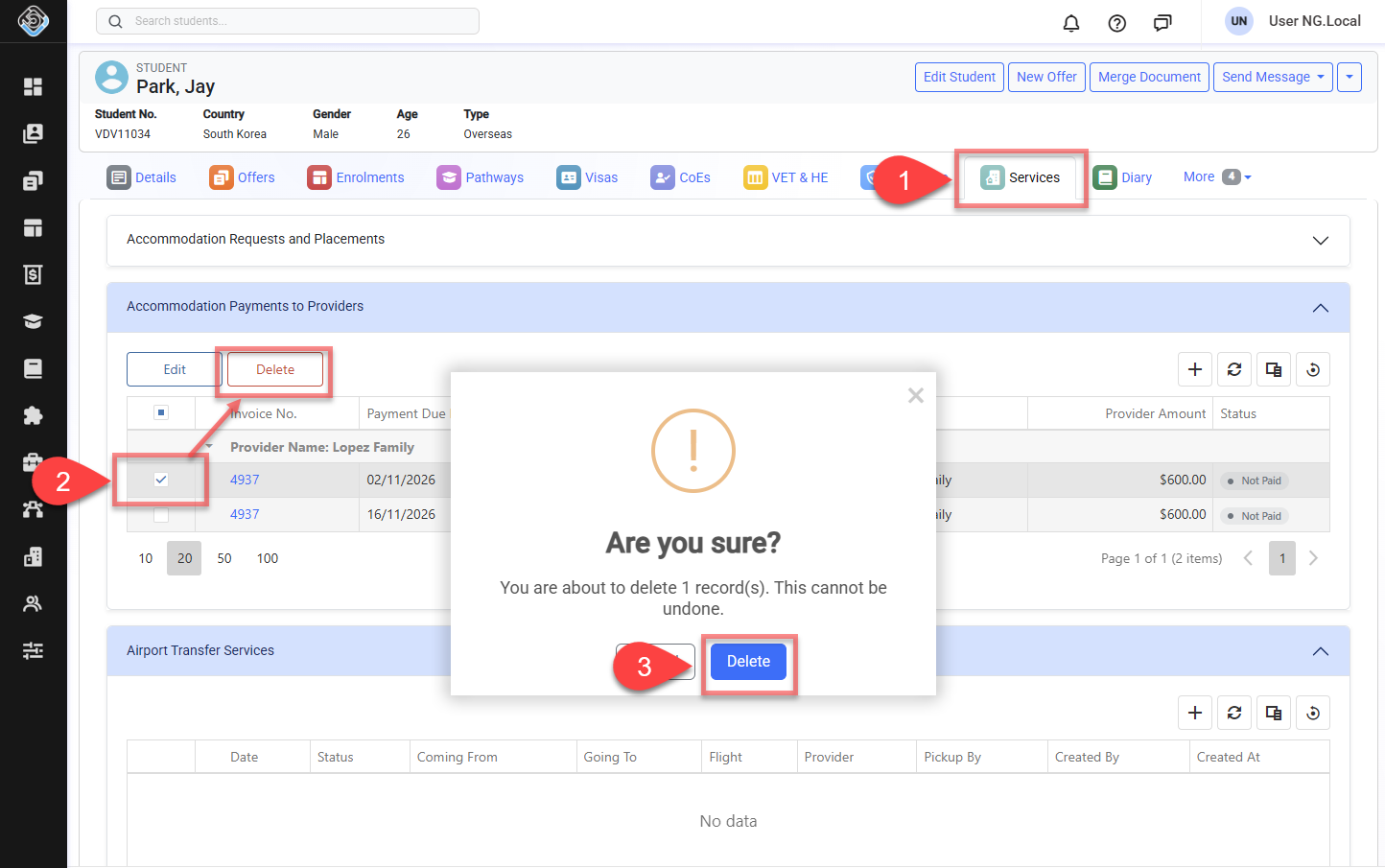
In the Accommodation Payments to Providers section, select the Accommodation Payments you want to delete and click Delete.
-
Confirm the deletion. This action cannot be undone.