
Insurance Providers Search lets you find Insurance Providers by name or code and open their records to review their details.
Insurance Providers Search View
The Insurance Providers Search View is the main place to view, explore and search Insurance Providers.
Tip
Customise the views to efficiently access the data you need. You can customise the columns, sorting and filters on the grid. Learn how to use Views.
-
From the Main menu, go to Student Services > Insurance > Insurance Providers.
-
Use the filters available to find the Insurance Providers you are looking for and click Search or press Enter. By default, the filters are set to display all active Insurance Providers in the system. The filters available are:
-
Quick Search: Search using the Provider’s name or code.
-
Include Inactive Providers: Select this option to include inactive Accommodation Providers in the search results.
-
If you need more filters, you can use the Column Filters and the Advanced Filters. See Data Grids for more details.
-
You can customise the grid by adding or removing columns as required. See Data Grids: Customise Data Grids for more details.
-
-
To view the details for an Insurance Provider, click the Provider record from the search results.
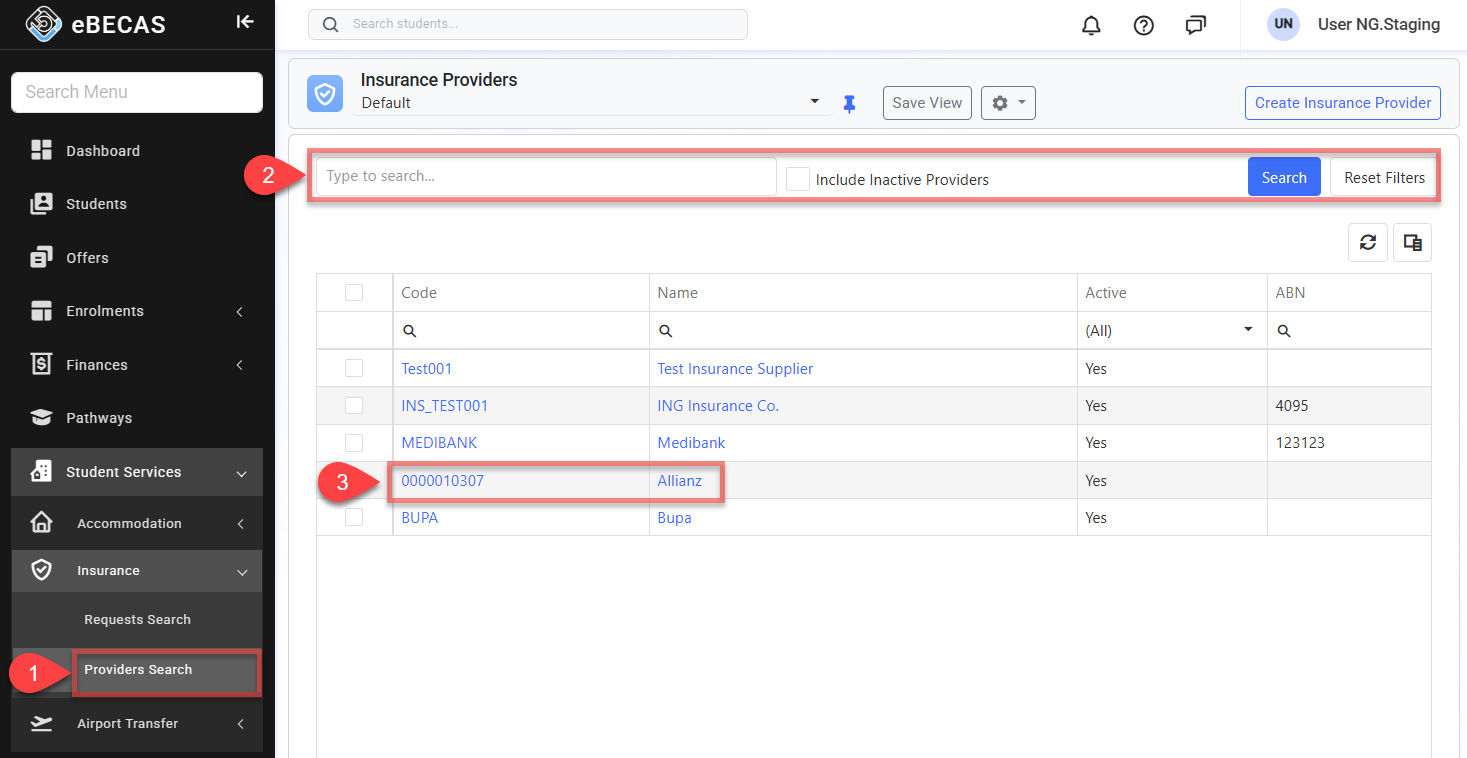
Actions on the Insurance Providers Search View
From the Insurance Providers Search View, you can use the grid actions to work with Provider records. The available actions depend on your permissions. Some of these actions include: