Insurance Search brings together student insurance, enrolment and visa information to help staff review recorded coverage and identify enrolments that may need follow-up.
To create or manage insurance records for an individual student, see this article: Student Insurance.
Use Insurance Search menu to review insurance coverage across multiple students and identify enrolments that may need follow-up.
What You Can Check in Insurance Search
Insurance Search brings together each student’s enrolment dates, linked visa details and insurance coverage dates. You can compare the three in one view to see how the periods align and identify any gaps or missing information that may need follow-up.
The search matches a student’s insurance records to their enrolments by comparing the date ranges. If two or more insurance records overlap the same enrolment period, the enrolment appears once for each matching insurance record. An enrolment can also appear with blank insurance fields when no insurance record matches.
From the search results, you can check the following.
-
Student and Enrolment Details: See which student and enrolment the row refers to, along with the enrolment start and end dates.
-
Insurance Details: See whether an insurance record is shown, who the provider is, and when the recorded coverage starts and ends.
-
Visa Details: Review the recorded visa type and dates, linked to the enrolment. Reviewing visa details alongside enrolment and insurance information helps you identify students whose insurance records may need follow-up, such as students with a recorded student visa whose insurance details are blank.
Insurance Search View
Tip
Customise the views to efficiently access the data you need. You can customise the columns, sorting and filters on the grid. Learn how to use Views
-
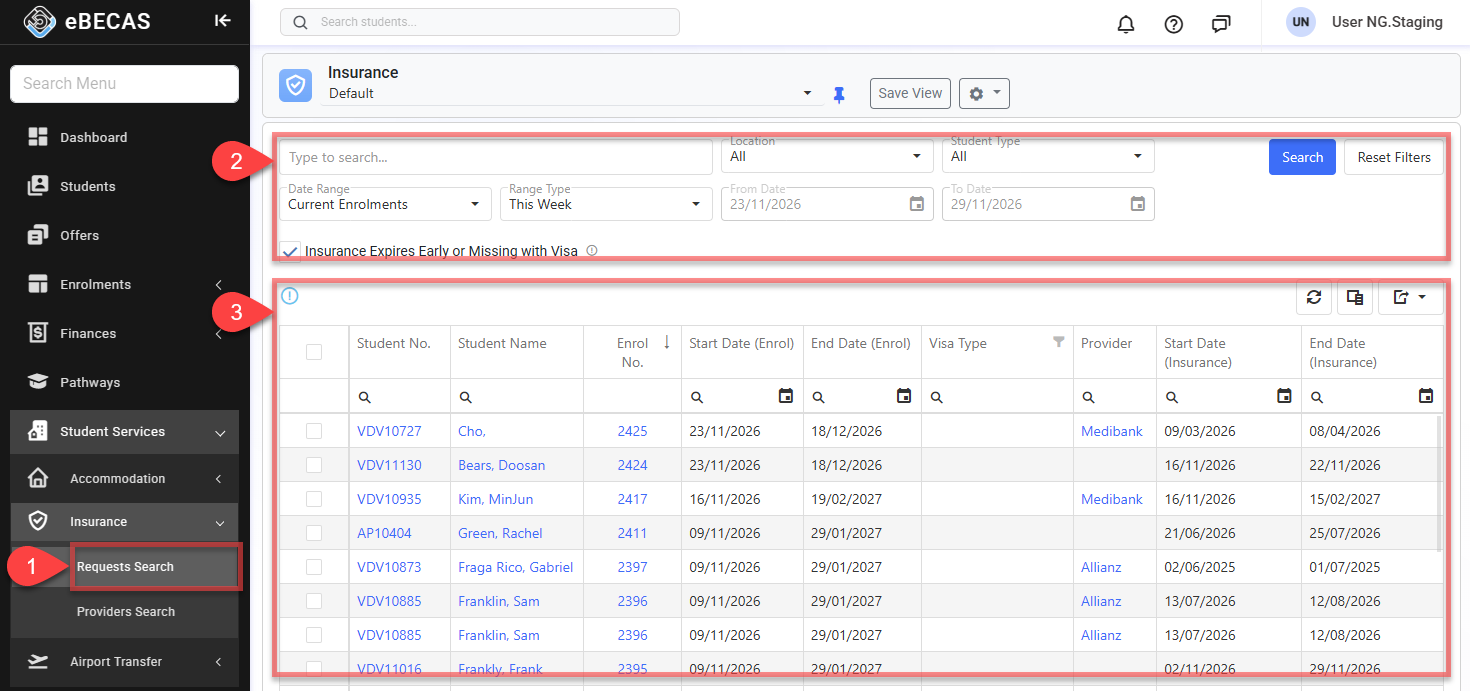
From the Main menu, go to Student Services > Insurance > Requests Search.
-
Use the filters below to find the enrolments and insurance information you want to review, then click Search or press Enter. By default, the search shows only enrolments that are active during the current week and meet either of the following conditions: the insurance ends before the enrolment ends, or a visa is linked to the enrolment and no recorded insurance overlaps the enrolment period.
The filters available are:-
Quick Search: You can use any of the following in the search box:
-
Student First Name, Middle Name, Last Name, Preferred Name
-
Student Number
-
Student Email
-
Student Mobile Number (excluding symbols like '+', '-')
-
-
Location: Filters results based on the enrolment study location of the student.
-
Student Type: Filters results by the selected student type.
-
Date Range: Determines which dates the search uses to find results within the period set by From Date and To Date.
-
Enrolment Start Date: Shows enrolments that start within the selected period.
-
Current Enrolments: Shows enrolments that are ongoing within the selected period.
-
Enrolment End Date: Shows enrolments that end within the selected period.
-
Group Enrolment Start Date: Shows all enrolments in groups that start within the selected period.
-
Current Group Enrolments: Shows all enrolments in groups that are ongoing within the selected period.
-
Group Enrolment End Date: Shows all enrolments in groups that end within the selected period.
-
Insurance Start Date: Shows results where insurance cover starts within the selected period.
-
Current Insurance: Shows results where insurance cover overlaps any part of the selected period.
-
Insurance End Date: Shows results where insurance cover ends within the selected period.
-
Visa Start Date: Shows results where the linked visa start date falls within the selected period.
-
Visa End Date: Shows results where the linked visa end date falls within the selected period.
-
-
Range Type: Allows users to set predefined date ranges, automatically populating the From/To Date filter based on the selected range.
-
Custom: Uses the manually entered From/To Date.
-
Day: Sets the From/To date to yesterday, today, or tomorrow.
-
Week: Sets the From/To date to the last, current, or next week.
-
Month: Sets the From/To date to the previous, current, or next month.
-
Quarter: Sets the From/To date to the last, current, or next quarter.
-
Calendar Year (CY): Sets the From/To date to the last, current, or next calendar year.
-
To-Date: Sets the From date as the beginning of the current month, quarter, or year and the To date as Today.
-
-
Insurance Expires Early or Missing with Visa: When selected, the search shows only enrolments that meet either of the following conditions.
-
The insurance ends before the enrolment ends.
-
A visa is linked to the enrolment, and no recorded insurance overlaps the enrolment period.
-
-
If you need more filters, you can use Column Filters and the Advanced Filter.
See this article for more details: Data Grids. -
You can customise the grid by adding/removing columns as required. See this article for more details: Data Grids: Customise Data Grids.
-
-
Review the enrolment, insurance and visa details together in the search results.
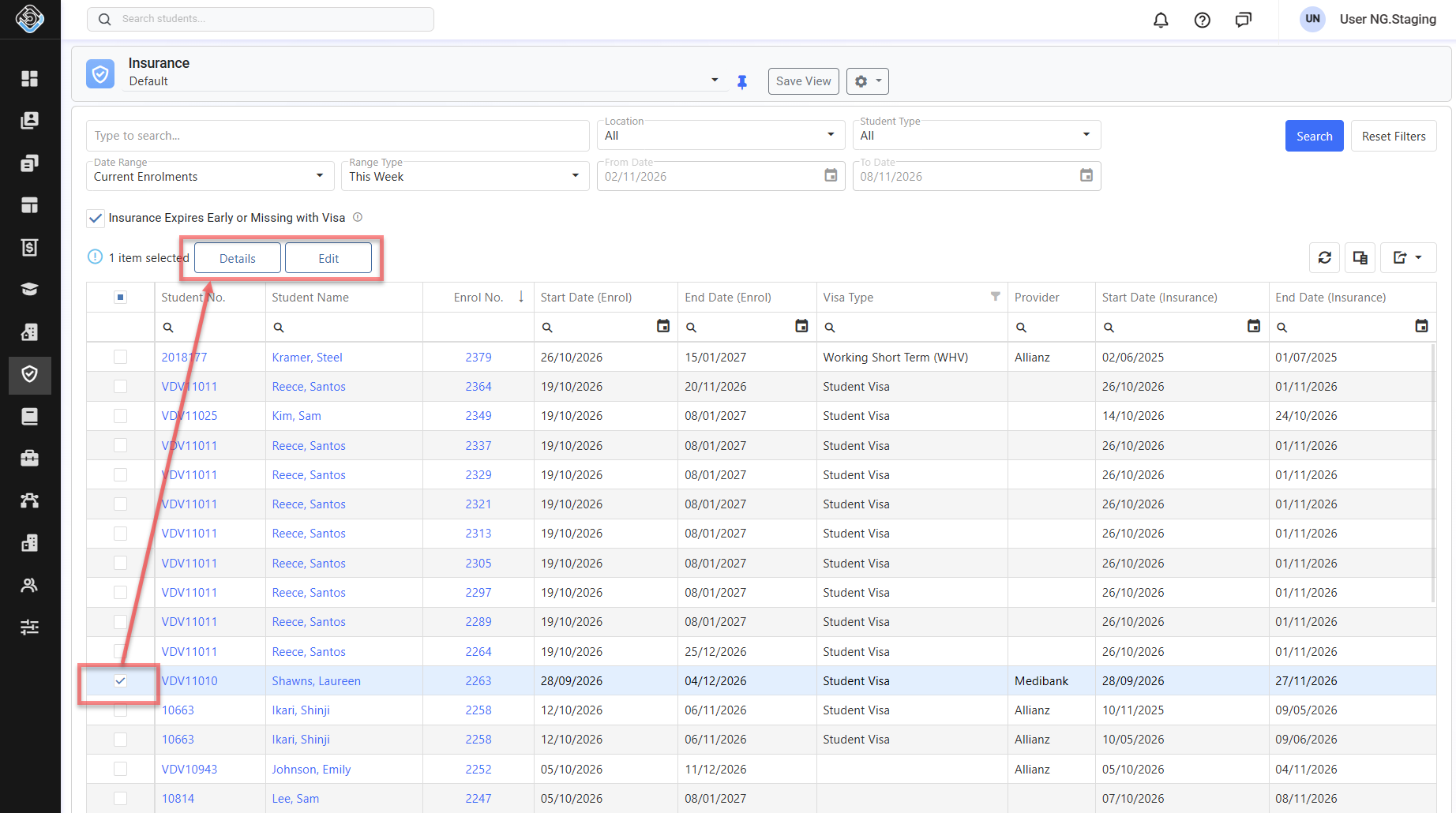
Actions on the Insurance Search View
From the Insurance Search View, you can take quick actions on one or multiple entries using the grid actions.