Learn how to reset a forgotten password or simply change your password from within the app.
Reset a Forgotten Password
Prerequisites
-
You've logged into the NextGen App at least once, or
-
Your account was created through the NextGen App.
If you don't meet these conditions: Contact your system administrator to reset your password using the desktop App.
If you’ve forgotten your password, you can reset it from the login page.
-
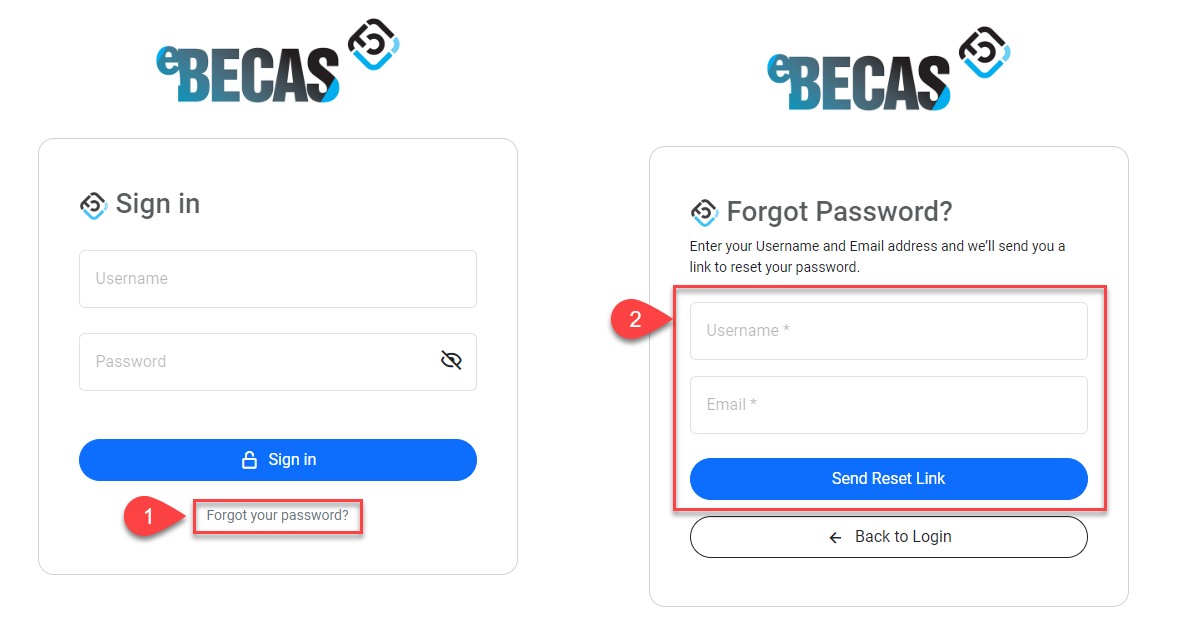
Click on Forgot your password? on the login page.
-
Enter your registered email address and username (both are required). Then click on Send Reset Link.
-
Check your Email inbox. You should receive an email with a link to reset your password. If you don't see it, check your spam or junk folder.
-
Click on the Reset Link on the email. This will redirect you to a secure Reset Password page on on the app (the link is only valid for 1 hour).
-
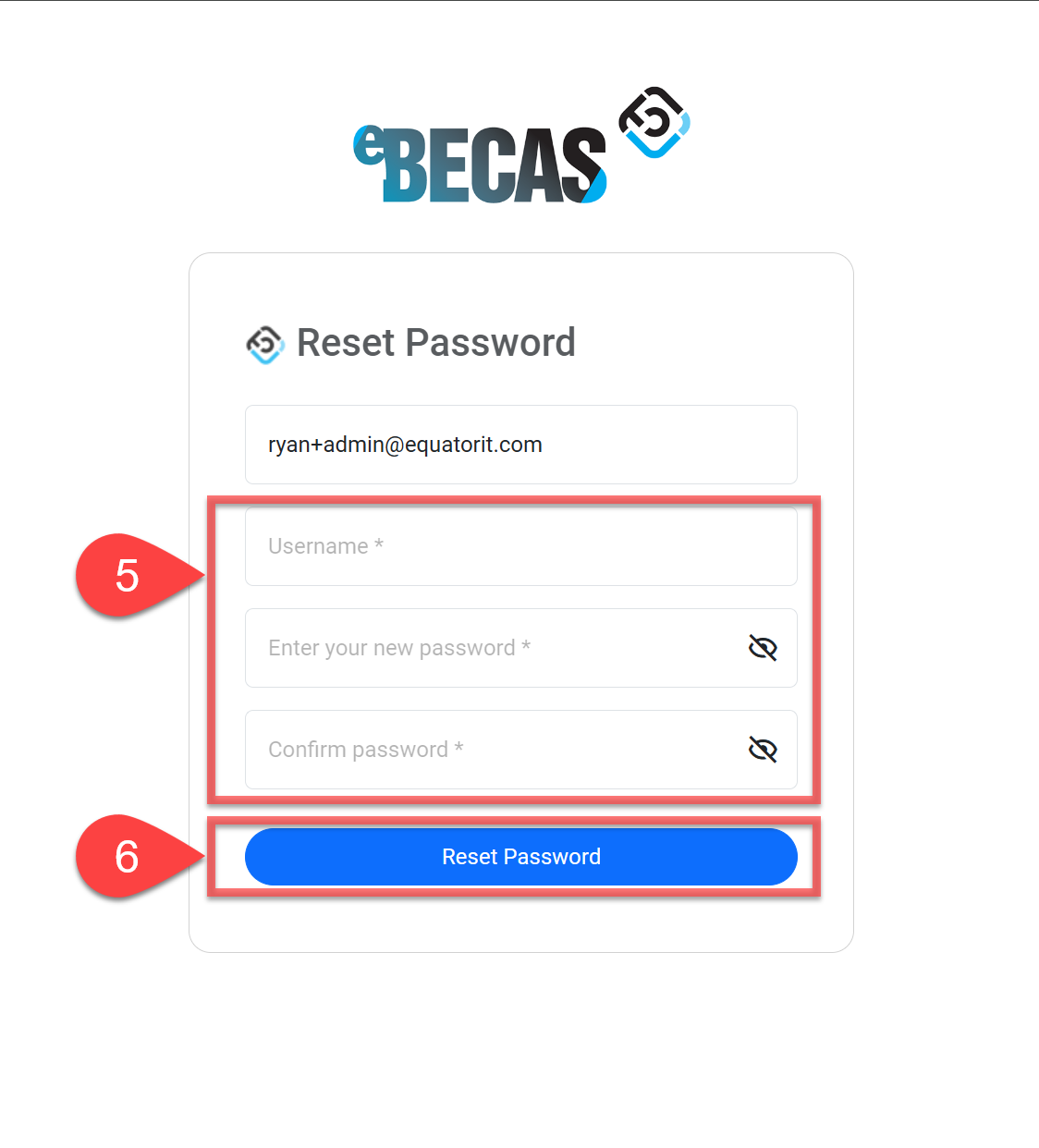
Enter your username and your new password.
-
Click Reset Password.
-
You will be redirected to the login page. Use your username and your new password to log in.
Resetting your password will not deactivate Multi-Factor Authentication (if enabled). If you've lost both your password and Multi-Factor Authentication, please contact the system administrator for assistance.
Change Your Password When Logged In
Follow these steps to change your password when you are logged into the app:
-
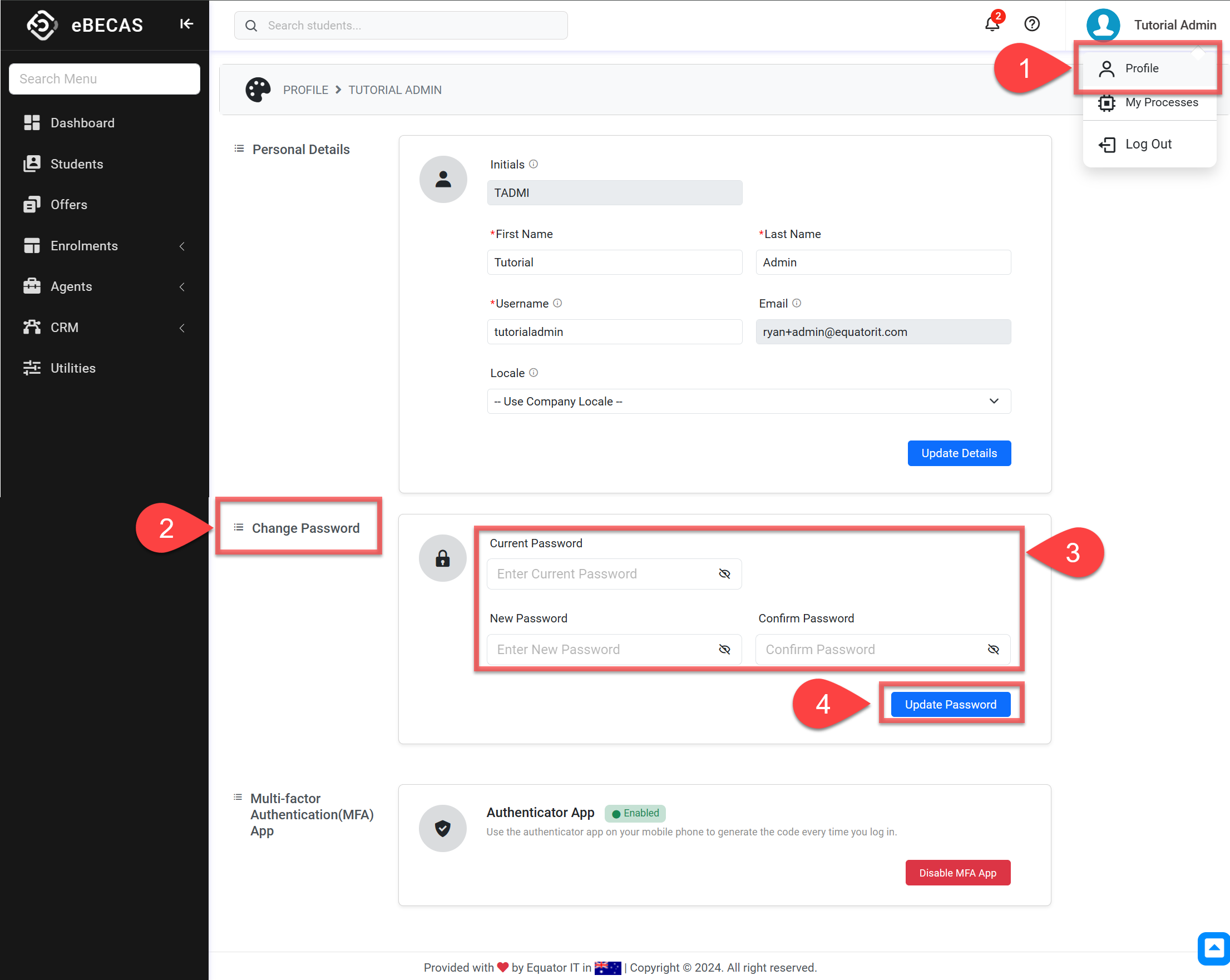
Go to your profile by clicking on your name and then on Profile.
-
Go to the Change Password section.
-
Enter your Current Password and your New Password/Confirm Password.
-
Click Update Password.