Study Tours Search View
The Study Tours Group Search View is the main place to view, explore and search study tour groups.
Tip
Customise the views to efficiently access the data you need. You can customise the columns, sorting and filters on the grid. Learn how to use Views
-
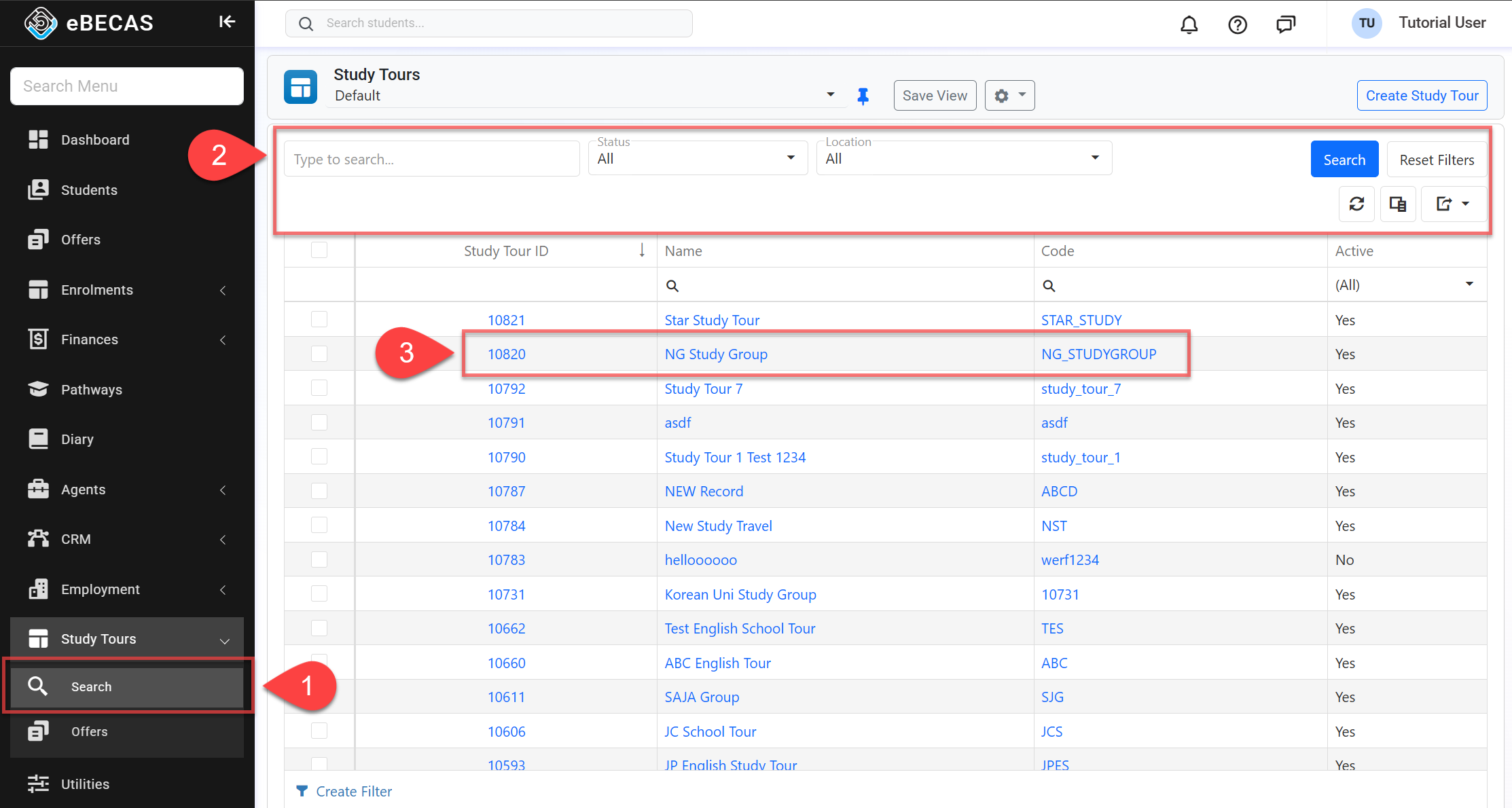
From the Main menu, go to Study Tours > Search.
-
Set the filters to find the study tour group(s) you are looking for and click on Search button or simply hit Enter key.
-
Quick Search: You can use any of the following in the search box:
-
Study Tour Group Name
-
Study Tour Group Code
-
Study Tour Group Email
-
Study Tour Group Mobile Number (excluding symbols like '+', '-')
-
-
Status: Search for study tour groups with the selected status.
-
Location: Filter study tour groups who have an enrolment under the selected location.
-
If you need more filters, you can use the Column and/or Advanced Filters on the grid.
-
You can customise the grid by adding/removing columns as required. See this article for more details: Data Grids: Customise Data Grids.
-
-
Click on the study tour group entry that you’d like to view to access the details.
Actions on the Study Tour Groups Search View
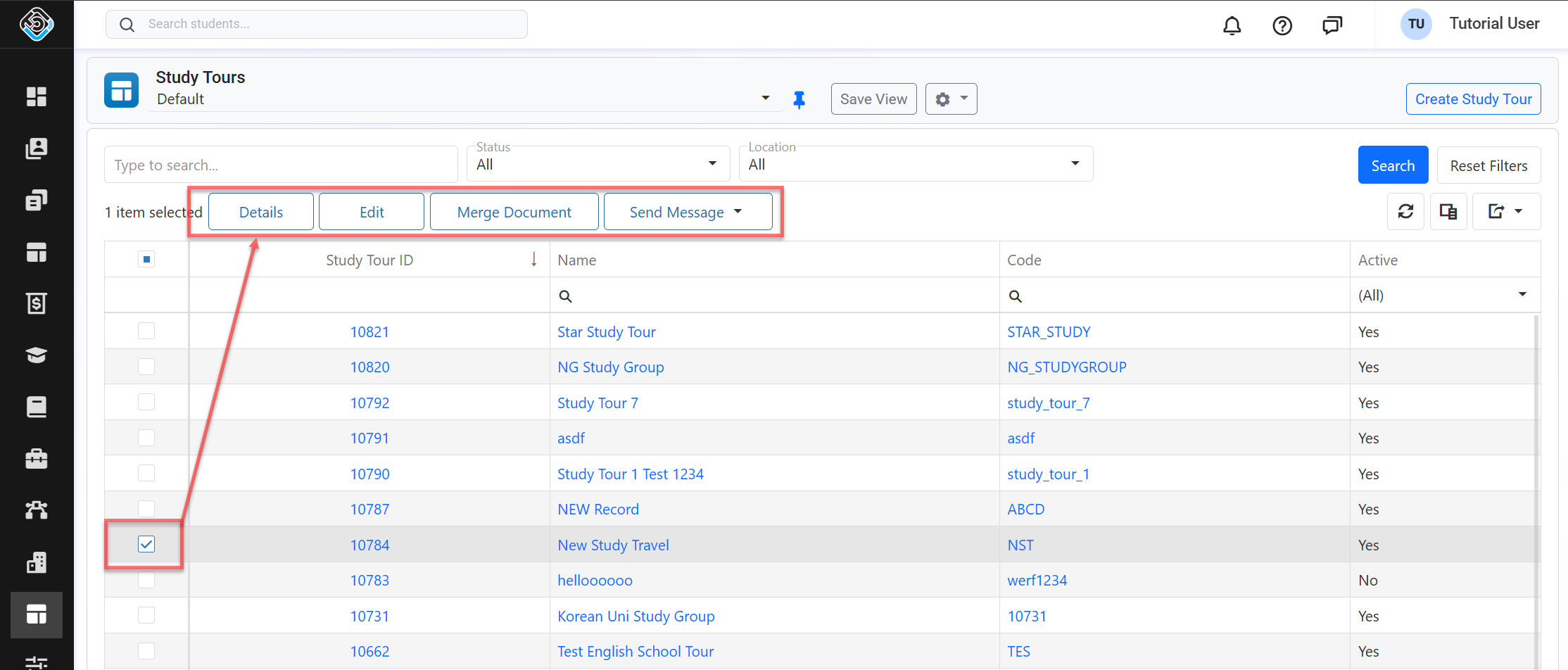
From the Study Tour Groups Search View, you can take quick actions on one or multiple study tour groups using the grid actions. The available actions may vary depending on whether you select a single entry or multiple entries and on your permissions. Some of these actions include, but are not limited to:
-
View and Edit a Study Tour Group (single)
-
Merge a document (single and bulk)
-
Send an Email (single and bulk)
-
Send an SMS (single and bulk)