Accommodation Requests record a student's accommodation requirements for a specified period.
They can be created directly from the student's profile or through an Accommodation Offer or Invoice Item, and can be updated or removed as the student's accommodation requirements change.
Create a Student Accommodation Request
There are multiple ways to create an Accommodation Request:
-
From an Accommodation Offer Item: Create an Accommodation Request as part of an Accommodation Item added to an Offer.
-
From an Accommodation Invoice Item: Create an Accommodation Request as part of an Accommodation Item added directly to a new invoice.
-
From the Student Profile: Create an Accommodation Request directly for an existing student from the Accommodation grid under the student's Services tab.
Create an Accommodation Request from an Accommodation Offer Item
An Accommodation Request can be created from an Accommodation Item added to an Offer.
When configuring the Accommodation Item, select Create Accommodation Request. While the Offer is awaiting acceptance, the Accommodation Request is displayed in the student's Accommodation grid under the Services tab with a Tentative status, or Tentative Accommodation Request.
If an Accommodation Provider and Bed are selected, they are assigned to the Tentative Accommodation Request. This assignment does not exclusively reserve the Bed; it may still be selected for another request covering the same period.
Once the Offer is accepted, an Accommodation Request is created to replace the Tentative Accommodation Request, allowing staff to continue with the accommodation placement process.
For instructions on adding an Accommodation Item on an Offer, see this article: Create Offer Items
Create an Accommodation Request from an Accommodation Invoice Item
An Accommodation Request can also be created when adding an Accommodation Item directly to a non-tuition invoice.
From the enrolment Fees page, create a New Non-Tuition Invoice and add an Accommodation Item. When configuring the item, select Create Accommodation Request.
When configuring the Accommodation Item, select Create Accommodation Request. The accommodation period and other applicable details entered for the item are used for the Accommodation Request.
Unlike an Accommodation Request created through an Offer, there is no Tentative stage. Once the invoice is created, the Accommodation Request is added directly to the student's Accommodation grid with a status of Request.
For instructions on creating a non-tuition invoice, see this article: Create Invoices
Create an Accommodation Request from the Student Profile
-
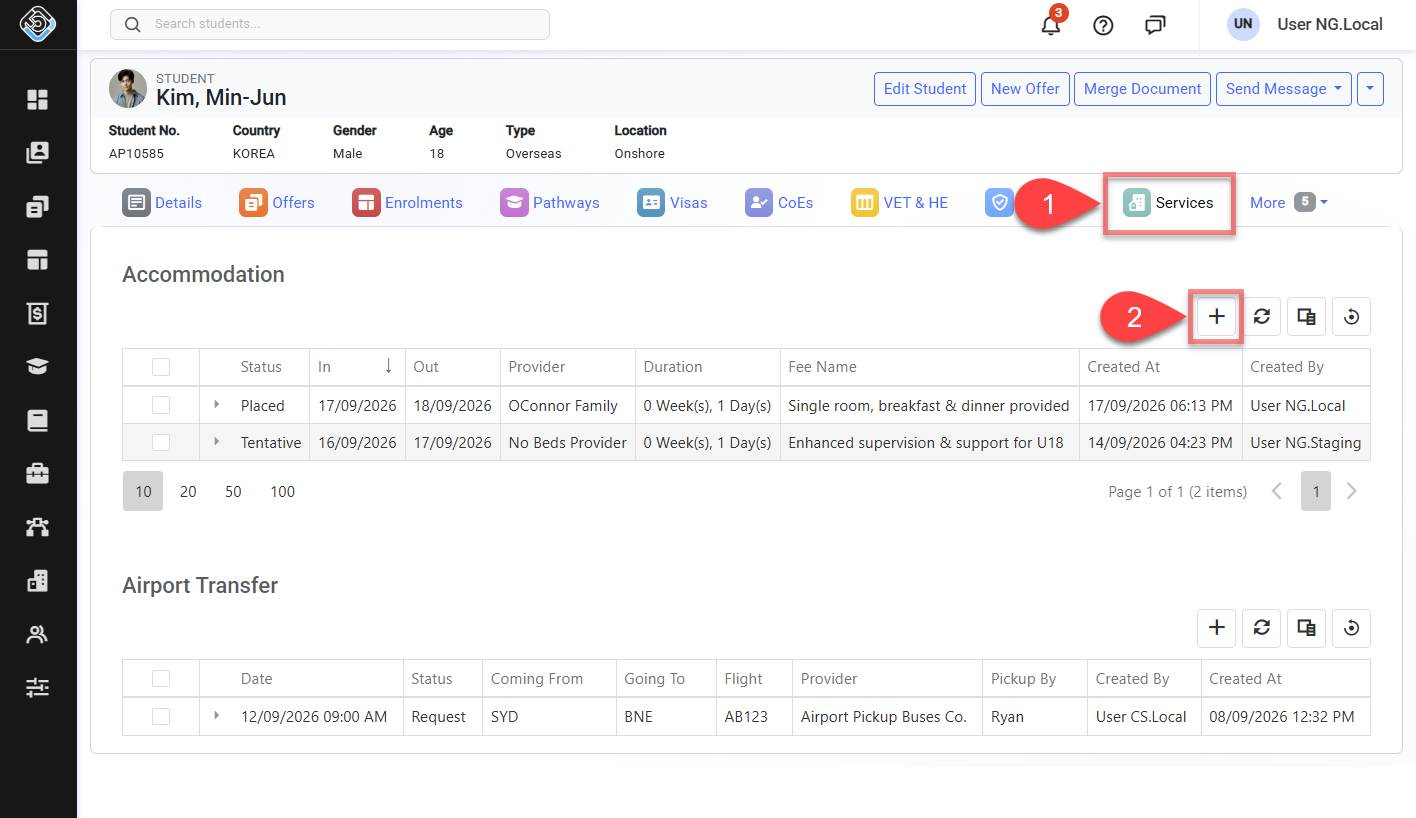
Go to the profile page of the student of interest and click on the Services tab.
-
In the Accommodation grid, click the Create button.
-
In the Create Accommodation Request window, complete the Accommodation Details:
-
In / Out: Select the accommodation period. You can also use Weeks and Days to set the duration and calculate the Out date.
-
Status: Select the status for the Accommodation Request.
-
Location: Select the Location for the Accommodation Request.
-
Notes: Add any notes relevant to the request if required.
-
-
Optional Select Gererate Invoice for This Request in the Billing Details section to create an invoice for the Accommodation Reqeust.
-
Select the applicable accommodation product in the Fee field.
-
The billing duration automatically uses the Weeks and Days from the Accommodation Details.
-
Review the calculated Amount, Tax and Item Total, and update the amount if required.
-
-
Click Create to create the Accommodation Request.
If Generate Invoice is selected, select the enrolment to associate with the invoice before completing the request.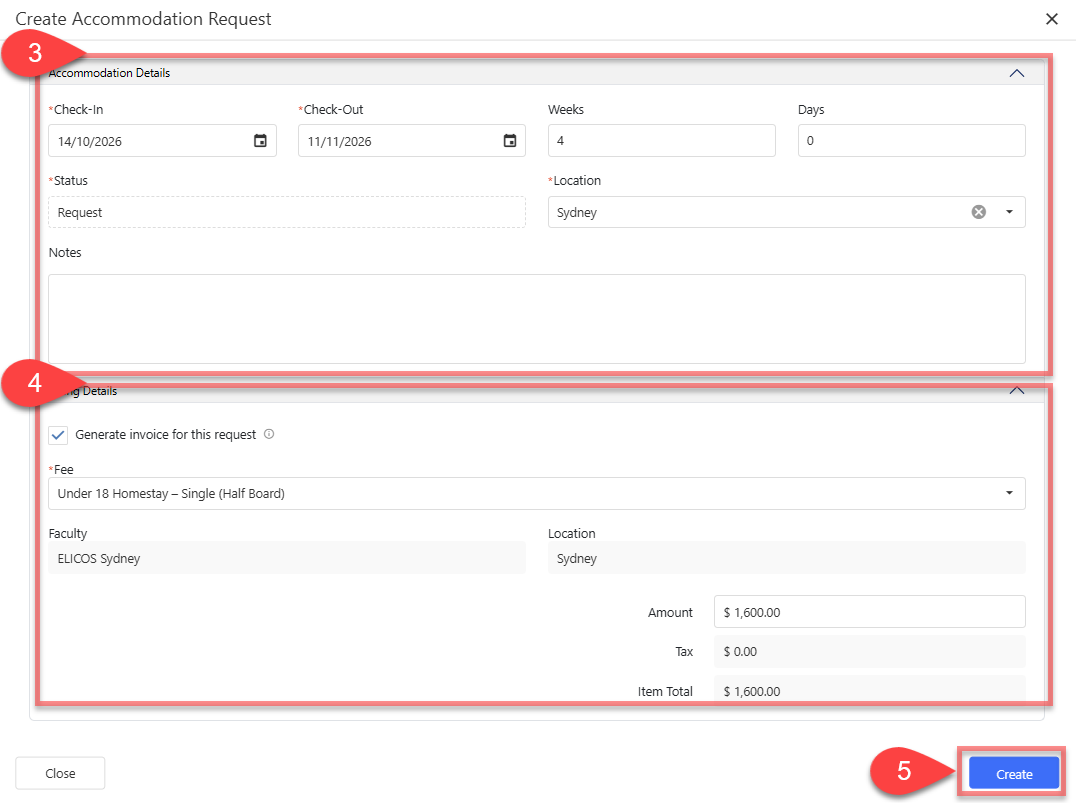
Edit a Student Accommodation Request
For a Tentative Accommodation Request, update the accommodation details through the related Offer Accommodation Item. To manage its Provider and Bed assignment, see Assign, Change and Unassign Beds for Tentative Accommodation Requests.
Accommodation Requests with a Placed status can be edited to update only the Accommodation Period and Notes. You do not need to unplace the request to update these details.
-
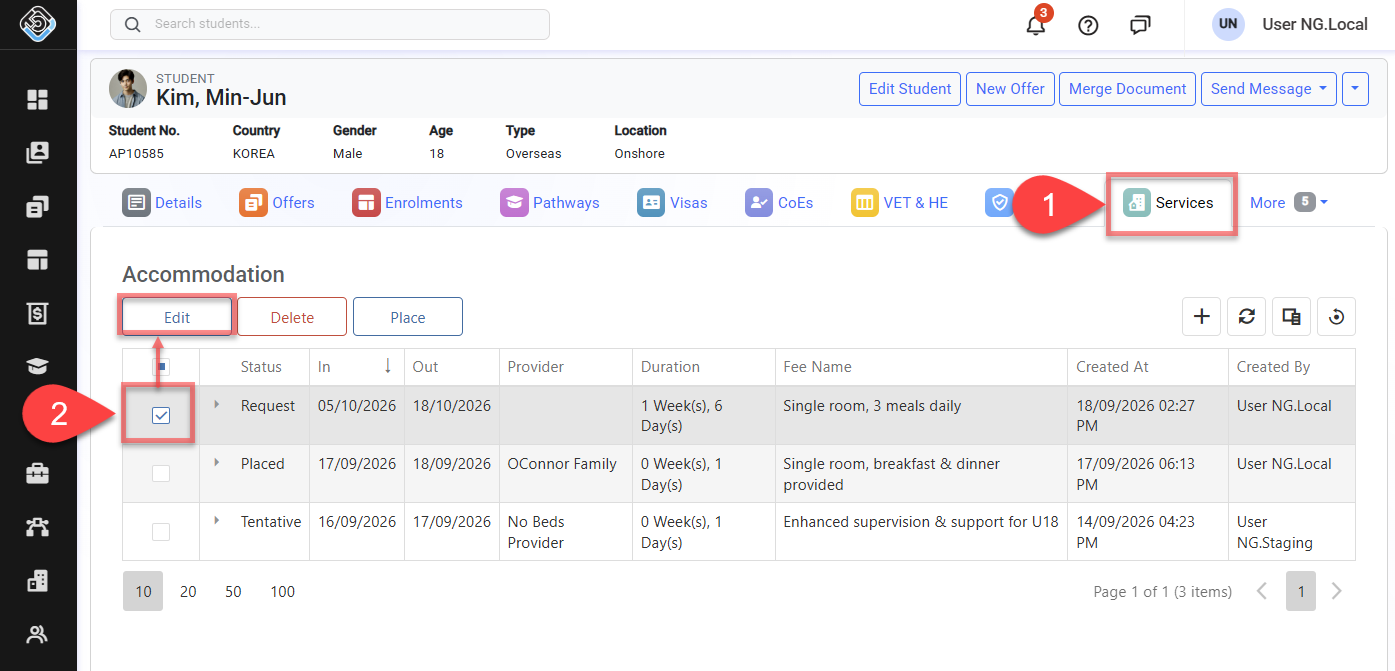
Locate and select the Accommodation Request you want to update using either of the following:
-
Student Profile: Go to the student's Services tab and select the request from the Accommodation grid.
-
Accommodation Requests/Placements Search: From the Main menu, go to Accommodation > Requests/Placements Search, then search for and select the request.
-
-
Click Edit from the action panel above the grid.
-
In the Edit Accommodation Request window, update the required Accommodation Details.
-
In the Billing Details section, review the Enrolment No. and Offer No. related to the Accommodation Request if an Invoice has been created for the request. If required, select Generate a New Invoice option for this request to create a new invoice and complete the billing details.
-
Select the applicable accommodation product in the Fee field.
-
Set the Weeks and Days for the new invoice.
-
Review the calculated Amount, Tax and Item Total, and update the amount if required.
-
-
Click Update to save the changes.
If a new invoice is generated, the Enrolment No. and Offer No. in the Billing Details section are updated to reflect the newly generated invoice, where applicable.
To change the assigned Bed within the same Accommodation Provider, use Change Bed. To replace the Provider assigned to the existing placement, unplace the request before placing it with the new Provider. See Place, Change Bed and Unplace Accommodation Requests for instructions.
Assign, Change and Unassign Bed for Tentative Accommodation Requests
For instructions on assigning, changing and unassigning Bed for a Tentative Accommodation Request, see this article: Assign, Change and Unassign Bed for Tentative Accommodation Requests
Place, Change Bed and Unplace Accommodation Requests
For instructions on placing an Accommodation Request, changing the assigned Bed, or unplacing a request, see this article: Place, Change Bed and Unplace Accommodation Requests.
Delete Student Accommodation Requests
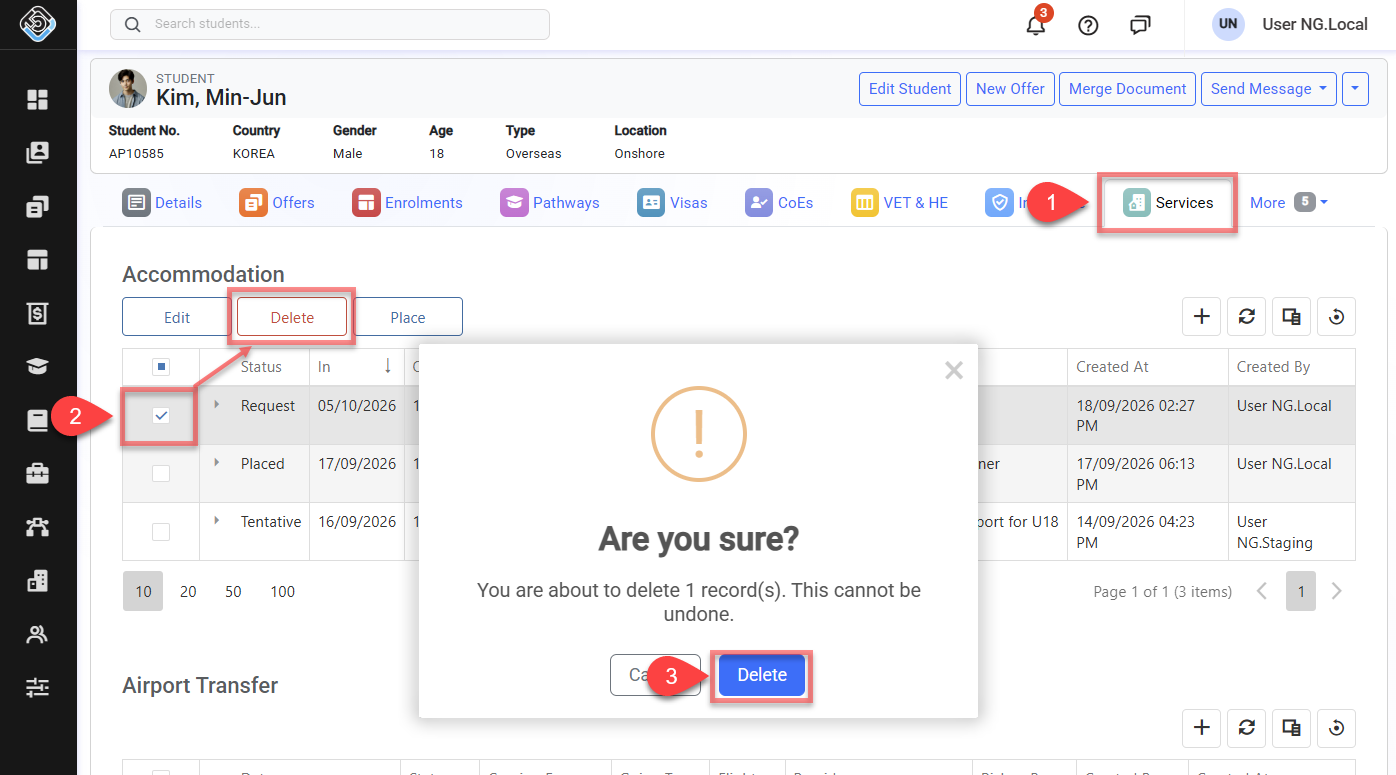
Accommodation Requests can be deleted from the Student Accommodation grid.
Accommodation Requests with a Tentative or Placed status cannot be deleted.
To remove a Tentative Accommodation Request, remove the related Accommodation Item from the Offer or clear the Create a Request option in that item.
-
Go to the profile page of the student of interest and click on the Services tab.
-
In the Accommodation grid, select one or more Accommodation Requests you want to delete. Click Delete from the action panel above the grid.
-
Review the confirmation message and click Delete to confirm.
The selected Accommodation Requests are permanently deleted and cannot be restored.