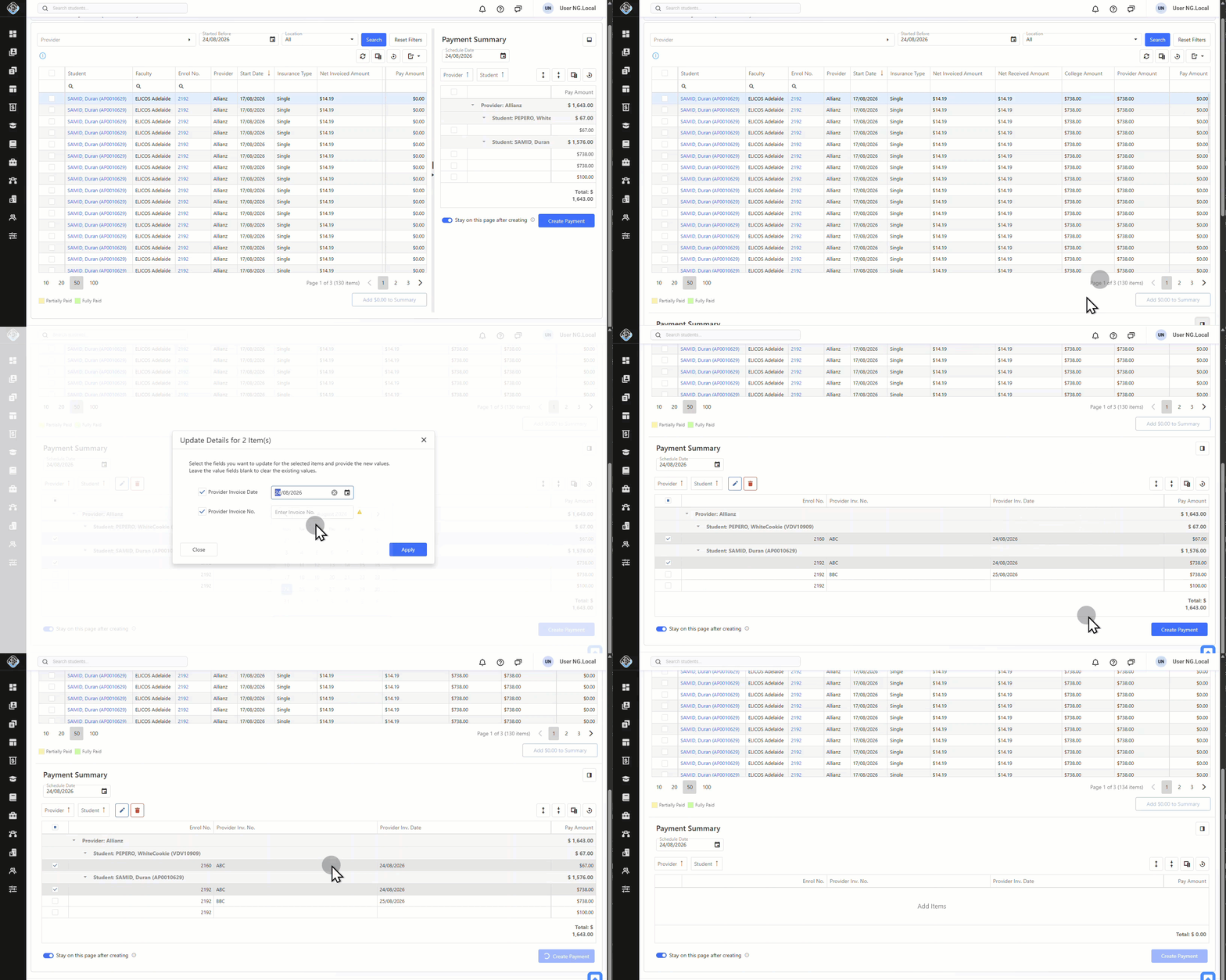
Scheduling payments for insurance providers is the method used to process provider payments for student insurance. This helps ensure payments are accurate and made on time.
Considerations for Scheduled Insurance Payments
Before creating Scheduled Insurance Payments, keep the following points in mind:
-
Scheduled Payments are created from existing Insurance invoice items within student enrolments that are not cancelled.
-
Airport Transfer invoice items can be scheduled regardless of whether the related invoice has been paid.
-
Scheduled Payments are based on the Provider Purchase Amount defined in the Insurance product fee configuration, not the amount charged to the student on the invoice. Both full and partial amounts can be scheduled.
-
Only unscheduled invoice items with a payable amount greater than $0 will appear in the search results.
Schedule Insurance Payments
Step 1: Open the New Payment Page for Insurance
Navigate to Finances > Schedule Payments > Insurance, then click on New Payment in the top-right corner.
This opens the New Payment (Insurance) page, which consists of the following components:
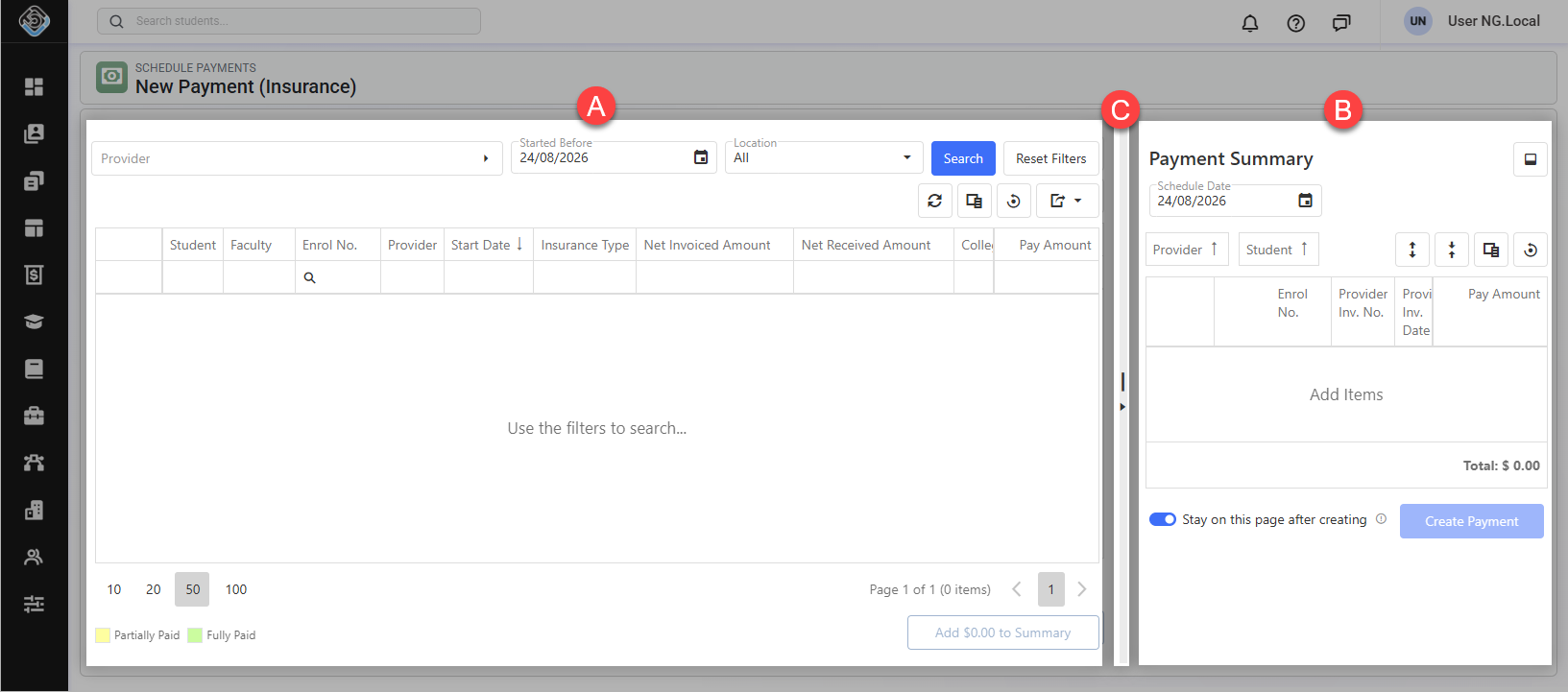
A. Payable Fees Search Panel: From this panel you can search and select the payments that are available to be scheduled.
B. Payment Summary Panel: This panel displays the payments you have chosen to include in the new Scheduled Payment. You can review the selected payment items here and optionally enter Provider Invoice No. and Provider Invoice Date before finalising the schedule.
C. Panel Divider: You can adjust the layout by resizing the panels or collapsing the summary section as needed while reviewing payments.
Tip
For easier payment review and selection, you can change the layout from a side-by-side view to a top-and-bottom view using the Move Summary Section button in the Payment Summary Panel. Select the button again to return the summary panel to the side. The last setting is remembered and will be applied when you return to the page.
Step 2: Search and Select Due Payments
Search Payments
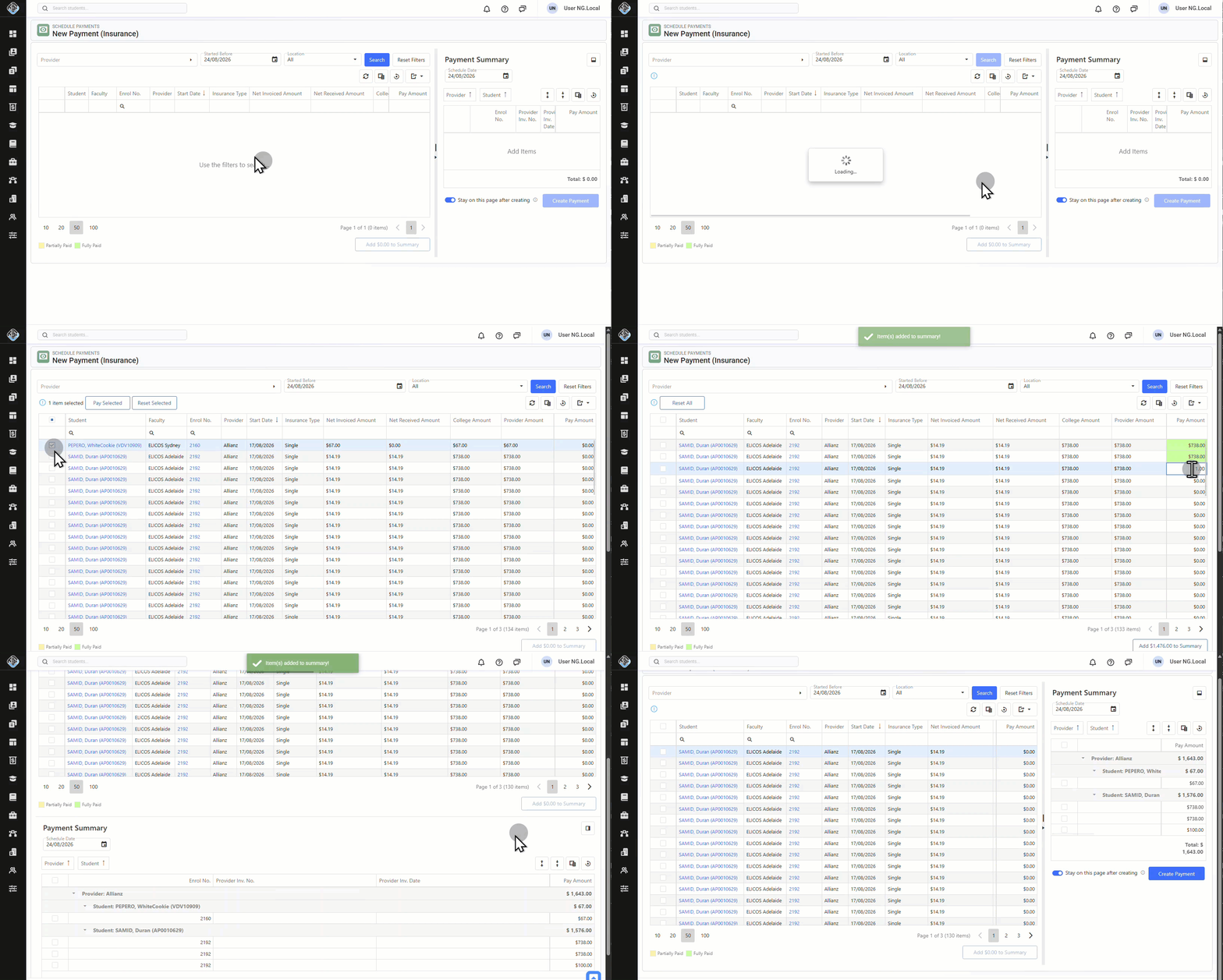
Use the filters to locate the payments that you want to make in this schedule. By default, the filters show payments linked to enrolments that are not cancelled and have a start date on or before today.
The available filters include:
-
Provider: Select the insurance provider to filter records based on the provider configured in the Student Insurance Record.
-
Started Before: Show payments available for enrolments starting on or before the selected date. This helps prevent scheduling payments for enrolments that have not yet started.
-
Location: Show payments for enrolments belonging to the selected location only.
Select Payments
Once you have located the payment(s) you want to include in this schedule, you can select them in two different ways:
-
Using the checkbox column, select the rows to include and click on the Pay Selected button from the grid’s action panel. This will pay the full amount for the records selected and add them automatically to the summary of the schedule.
-
Manually enter an amount in the Amount field and click Add to Summary at the bottom of the grid.
Once a payment has been added to the Payment Summary Panel, it will no longer appear in the Due Payments Panel.
Please note the following about the records available for selection:
-
The Payable Amount is the amount to be paid to the provider. This amount is defined in the product as the cost the college pays to the provider. It may differ from the amount charged to the student.
-
Only invoice items that have not been already scheduled with a payable amount greater than $0 will appear in the search results.
-
For additional context for each record, refer to the following columns in the grid:
-
Provider Amount: Amount defined in the product setup as the amount the college pays the provider for this product.
-
College Amount: Amount defined in the product setup as the amount the college charges the student.
-
Net Invoiced Amount: Amount the college actually charges the student.
-
Net Received Amount: Payment/credits the college has got from the student for this item.
-
Step 3: Review the payment summary
After adding all payments for this schedule, set the Schedule Date (defaults to today) and check the records and amounts in the summary panel. These are the payments and amounts that will be included in the schedule.
If required, enter the Provider Invoice Date and Number for each single record directly in the grid, or multiple records by selecting and clicking on the Edit button on the grid. You can also update these fields after the schedule is created.
Once you have confirmed the payment information, click on Create Payment to generate the Scheduled Payment.
After creation, you will be redirected to the Scheduled Payment Details page.
Tip
To schedule additional payments without leaving the page, select the Stay on this page after creating option in the Payment Summary Panel before clicking Create Payment. The last setting is remembered and will be applied when you return to the page.