
The Scheduled Payments Search enables users to efficiently locate scheduled payments using various search options.
Before You Begin
Each Schedule Payment type has its own dedicated search page in eBECAS/EDMISS. Although these pages share the same layout and filtering tools, each screen is limited to the Schedule Type it belongs to and cannot be used to search for other types.
Scheduled Payments on Specific Search Views
The Scheduled Payments Search Views are the main pages used to locate and manage scheduled payments for each payment type.
Tip
Customise the views to efficiently access the data you need. You can customise the columns, sorting and filters on the grid. Learn how to use Views
-
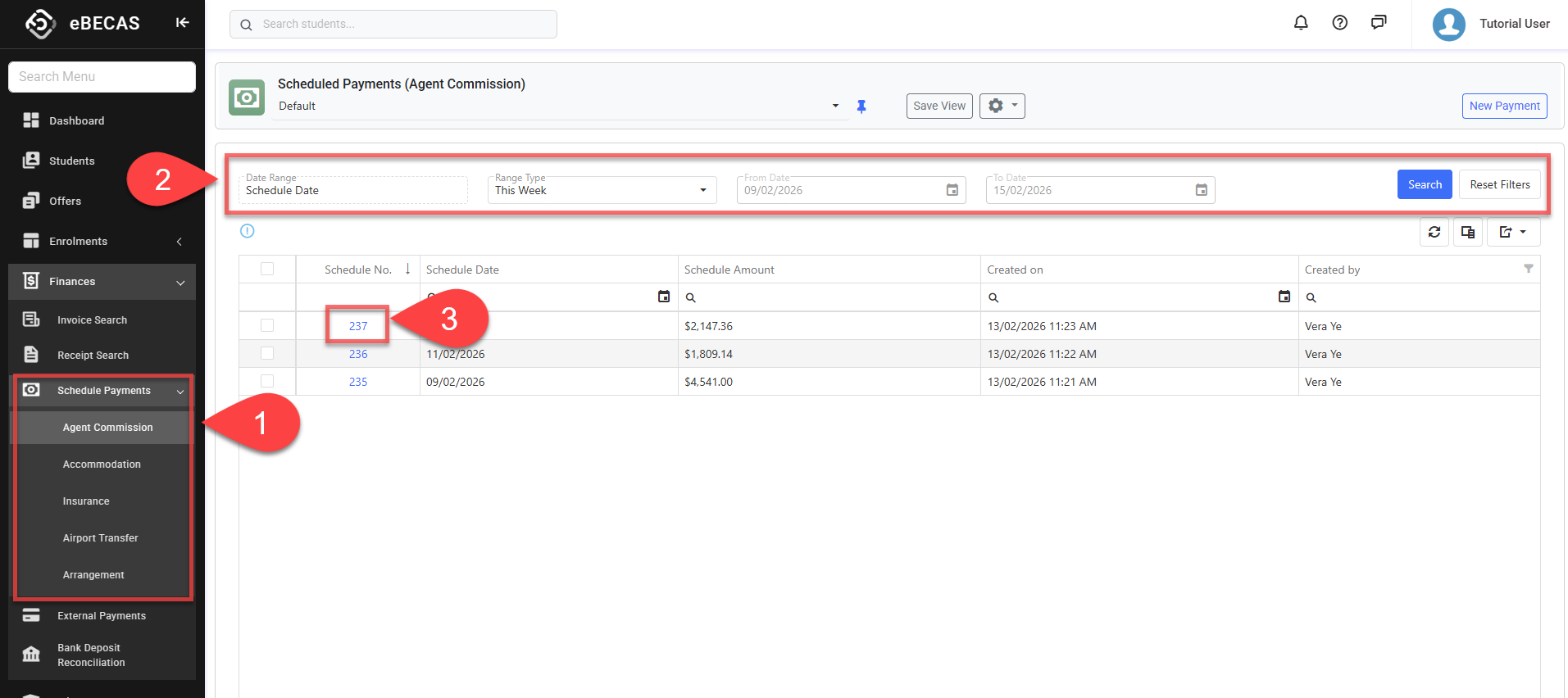
From the Main menu, go to Finances > Scheduled Payments, then click the menu option of the specific schedule type you want to search. Each schedule type has its own dedicated search page, and the results on that page are always limited to that schedule type.
-
Use the filters available to find scheduled payments of interest and click on the Search button or simply press Enter when you are ready. By default, each search page is set to display scheduled payments whose Schedule Date falls within the current week.
-
Date Range: Filter the scheduled payments based on the selected date option and range.
-
Range Type: Allows users to set predefined date ranges, automatically populating the From/To Date filter based on the selected range.
-
Custom: Uses the manually entered From/To Date.
-
Day: Sets the From/To date to yesterday, today, or tomorrow.
-
Week: Sets the From/To date to the last, current, or next week.
-
Month: Sets the From/To date to the previous, current, or next month.
-
Quarter: Sets the From/To date to the last, current, or next quarter.
-
Calendar Year (CY): Sets the From/To date to the last, current, or next calendar year.
-
To-Date: Sets the From date as the beginning of the current month, quarter, or year and the To date as Today.
-
-
If you need more filters, you can use Column Filters and the Advanced Filter.
See this article for more details: Data Grids. -
You can customise the grid by adding/removing columns as required. See this article for more details: Data Grids: Customise Data Grids.
-
-
To open the Scheduled Payment Details page, click on the Schedule No. field.
Actions on the Scheduled Payments Search Views
From the Scheduled Payments Search View, you can take the below quick action(s) on records using the grid actions.
-
View Scheduled Payment Details (single)
-
Merge a document (single and bulk)
Detailed Scheduled Payments Search
For more details, see this article: Detailed Scheduled Payment Search